E-commerce Product Photo Teams with NetDrive — One Library, Every Editor

How e-commerce photo and listing teams use NetDrive to mount shared cloud storage on Windows and macOS, lock files in edit, and publish drives to the team.
A shop with 4,000 SKUs shoots each product from six angles. The photographer tethers in on a Mac, a retoucher in another city cleans backgrounds on Windows, and a listing coordinator pulls finished JPEGs into the storefront admin. Without a shared home for those files you end up with “final_v3_REAL.psd” copies emailed around, and nobody can say which file is the one that went live.


One shared library for your photo team
NetDrive lets Google Drive, OneDrive, S3, SFTP, WebDAV and more appear as native drives on Windows and macOS — no syncing, no full downloads.
- Mount cloud storage as a drive on Windows and macOS
- Publish drives to every teammate from one admin console
- Lock files while retouching so edits never collide
Free trial. Lifetime and subscription plans available.
Pick the Storage That Matches the Workload
NetDrive mounts a cloud as a native drive, so your team’s tools (Photoshop, Capture One, a batch resizer) just see a folder. What sits behind that folder is your call. Object storage such as Amazon S3, Backblaze B2 or Wasabi suits a large archive of originals; Dropbox, Google Drive or OneDrive suits a team already living in one of them. NetDrive also supports ImageKit as a storage type if your listing images already live in an ImageKit media library.
A sensible split for a catalog team is two drives: one for originals (RAW and layered files, rarely touched after retouching) and one for finals (web-ready exports that the listing team reads). Mounting them separately also lets you set different options per drive. See Mount Backblaze B2 on Windows or Mount Amazon S3 on macOS for the connection steps.
Publish Drives with Team Drive
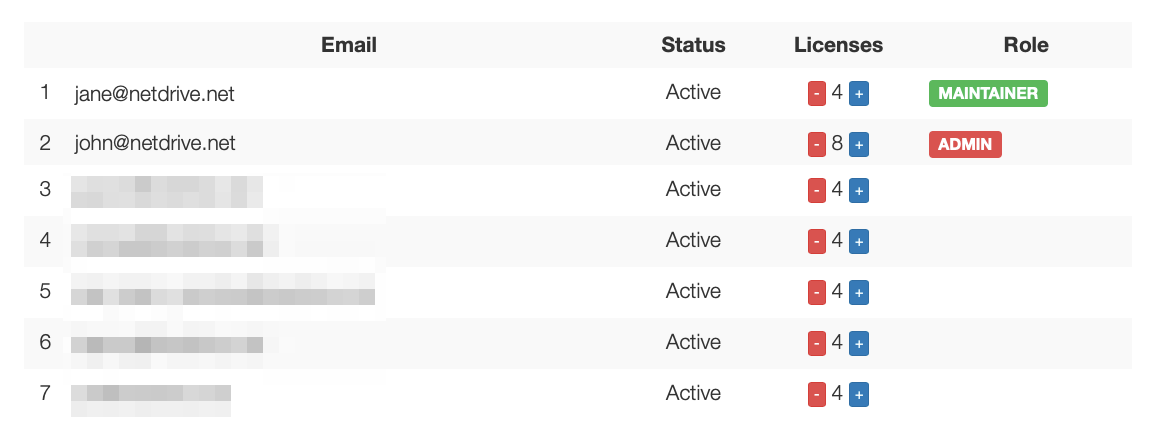
Setting up credentials on every laptop is where small teams lose an afternoon. With NetDrive’s Team Drive, an admin configures the drive once and publishes it to licensed members; it then appears in each member’s drive list without anyone pasting access keys into chat. That also makes offboarding simpler: reassign the seat instead of rotating a shared key everyone has typed in by hand.
Team Drive is a licensed team feature, so check the plans page for what applies to your seat count. Our Team Drive guide walks through the admin side.
Stop Overwrites with File Locking
The classic failure in a retouching queue: two people open the same layered file, and the later save wins. NetDrive’s file lock works for every file type (not only Office documents), so a PSD can be locked while it’s open. Teammates see it marked as locked rather than finding out when their changes vanish.
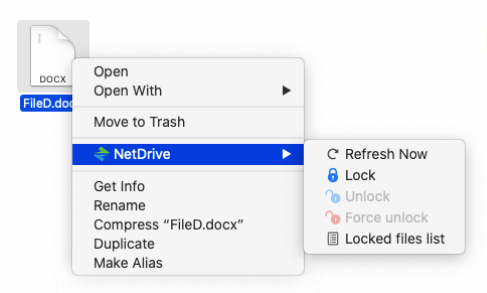
Adopt one habit: lock before you open, finish, then close. The deeper details are in File Locking in NetDrive and Team Drives and File Locking for Creative Teams.
A Daily Workflow That Holds Up
- Photographer saves the day’s shoot into the originals drive. With NetDrive’s background upload, the copy returns quickly and the upload continues in the queue, so the next shoot isn’t blocked.
- Retoucher browses the originals drive, locks the file, edits, and exports to the finals drive.
- Listing coordinator points the storefront uploader at the finals drive. Mounting the originals separately keeps the masters out of their way.
- Admin reassigns seats when contractors rotate, with no new credentials to hand out.
For the coordinator who only needs to look, you can mount the finals drive as a read-only drive. See Read-Only Drive in NetDrive.
What to Keep in Mind
NetDrive doesn’t have an offline mode, so editors need a connection to reach files on the mounted drive. It also doesn’t offer client-side encryption, so if your policy requires that, plan around it. For very large first-time uploads of years of back catalog, size your cache sensibly; the cache size guide explains the 100 GB to 1 TB range.
Wrap-up
For a small catalog team, the win is boring and valuable: one library, one set of credentials managed centrally, and a lock that keeps retouchers from stepping on each other. Start with the originals drive, add the finals drive, and publish both.
— Casey, NetDrive