NetDrive Mobile — Getting Started: Add Your First Cloud

Set up NetDrive Mobile in a few minutes: create a free Bdrive account, sign in, and add your first cloud drive to browse from your phone.
A freelancer switching between a client’s Dropbox, their own Google Drive, and a studio’s S3 bucket doesn’t want three separate apps open on their phone just to find one file before a call. NetDrive Mobile’s whole pitch is collapsing that down to one app and one login — but the first few minutes, before any cloud shows up on the home screen, still involve an account and a bit of setup. Here’s what that actually looks like.

Get every cloud into one app
NetDrive Mobile opens Google Drive, Dropbox, OneDrive, S3, WebDAV, SFTP and more in one app — browse, upload, download, and preview right from your phone.
- One free Bdrive account covers every provider you add
- Sign in with email, Apple, or Google
- Add your first cloud in a couple of taps
Free Bdrive account required.
What You Need Before You Start
NetDrive Mobile runs on iOS 15.0 and later, and is also available for Android through Google Play. The app itself is free to install, but using it requires a free Bdrive account — the same account system that covers NetDrive on Windows and macOS, so a login already in use on a desktop machine works here too.
- iPhone or iPad on iOS 15.0+, or an Android phone with Google Play access
- Login credentials for whichever cloud you want to add first (Google Drive, Dropbox, S3, a WebDAV/SFTP server, and more)
Installing the App and Creating an Account
- Download NetDrive Mobile from the App Store on iOS, or NetDrive from Google Play on Android.
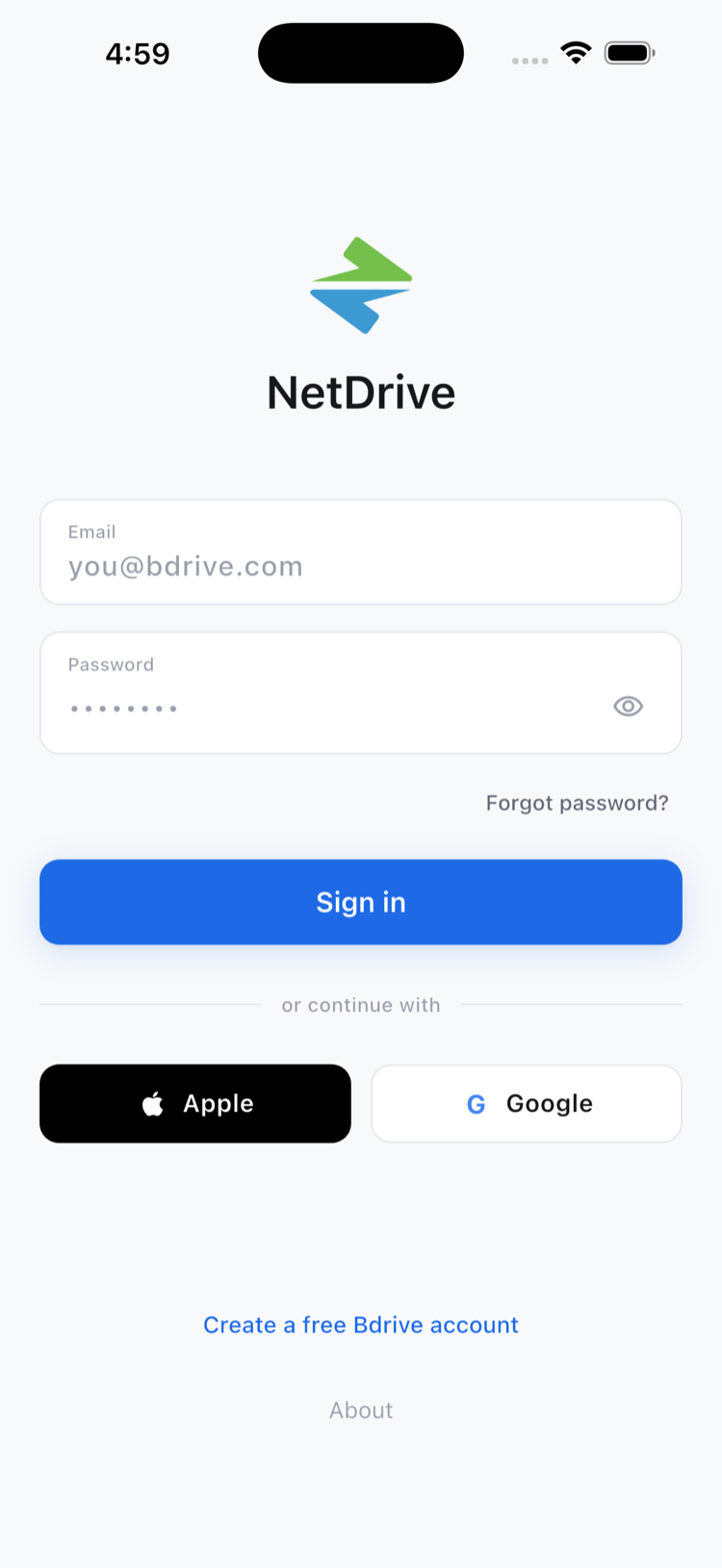
- Open the app. The login screen offers email and password, or social sign-in with Apple or Google — either creates or signs into the same Bdrive account.
- If you don’t have a Bdrive account yet, sign up from the app or at netdrive.net. It’s free, and the same account works across desktop and mobile.
- If two-factor authentication is turned on for the account, confirm the code that arrives as an in-app notification.
Adding Your First Cloud
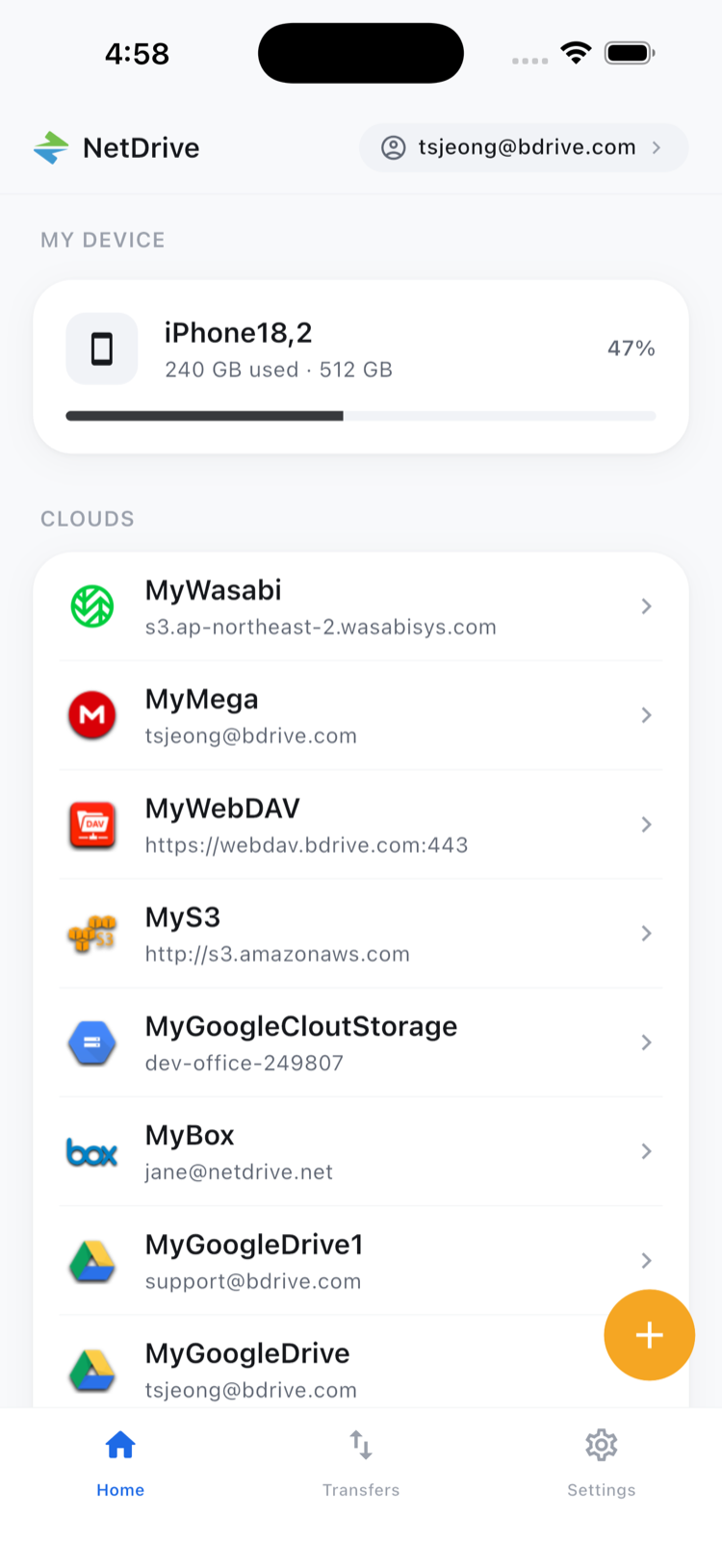
Once signed in, the home screen starts empty apart from My Device, which shows the phone’s own local storage. Everything else gets added one drive at a time:
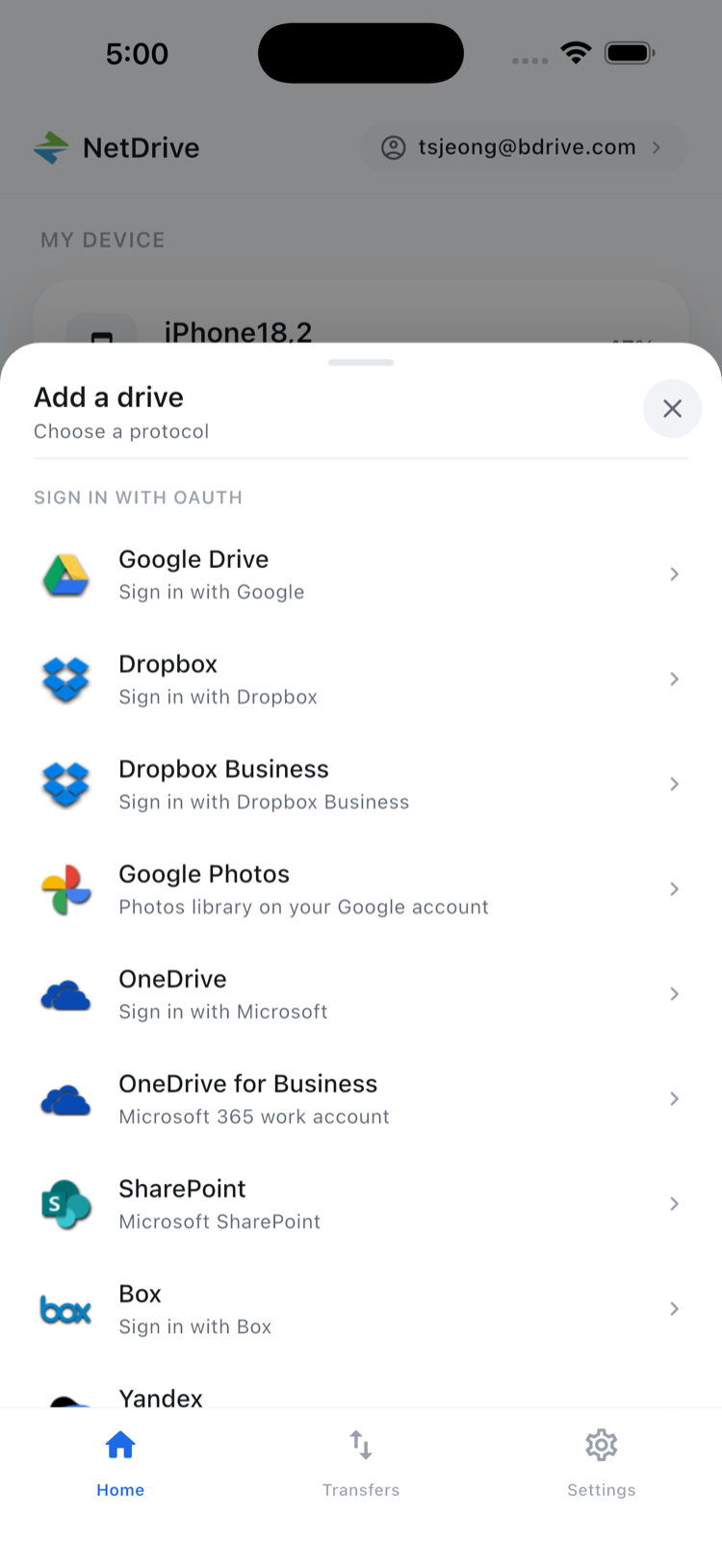
- Tap Add a drive to open the “Choose a protocol” sheet.
- Pick a provider — Google Drive, OneDrive, Dropbox, S3, WebDAV, SFTP, and the rest of NetDrive Mobile’s supported list all show up here.
- Sign in to that provider with its own credentials. NetDrive Mobile hands off to that provider’s own sign-in screen, so your password for that account isn’t typed into NetDrive itself.
- Once authenticated, the drive appears under Clouds on the home screen, ready to browse.
Repeat the same steps for every additional account — a personal Google Drive and a work OneDrive for Business can both live in the app side by side, switched between without signing out of either.
What to Do Once a Drive Is Connected
From the home screen, tapping into any connected cloud opens its file browser — the same list-sort-preview interface regardless of which provider it’s actually talking to. Files open for preview without a separate download step first, and the standard file actions (rename, move, copy, delete) work the same way across every connected drive. This isn’t NetDrive’s desktop app turning a cloud into a drive on Windows or macOS — NetDrive Mobile browses, uploads, downloads, and previews, which is the right model for a phone you’re not leaving plugged into a remote filesystem all day.
Wrap-up
The setup itself is short: install, create or sign into a Bdrive account, add a drive, and repeat for each cloud worth having on hand. From there, day-to-day use is mostly the home screen and the file browser. For what the app can do once it’s set up, see NetDrive Mobile — Every Cloud You Use, In One App, and if you’re deciding between the mobile app and NetDrive’s desktop app that turns clouds into local drives, NetDrive Desktop vs. Mobile — Which One Do You Need? lays out the difference.
— Jay, NetDrive