Browse Wasabi on iPhone and Android — NetDrive Mobile

Access your Wasabi S3-compatible buckets from any iPhone or Android with NetDrive Mobile. Preview, upload, and download files without opening a laptop.
A freelance video editor keeps raw interview footage in a Wasabi bucket to avoid AWS-style egress fees, and a client calls while she’s out grabbing coffee, asking whether a specific take made the final cut. Her laptop is back at the studio. With NetDrive Mobile, she opens the Wasabi bucket on her phone, previews the clip, and answers before the client hangs up.

Every Cloud in One App
Browse Wasabi and 20+ other clouds from your phone
- Connect Wasabi, S3, Google Drive, Dropbox, and more in one place
- Upload from your camera roll or download files for offline reference
- Preview documents, images, and video in-app without extra apps
Free Bdrive account required.
What NetDrive Mobile Does with Wasabi
NetDrive Mobile is a multi-cloud file manager for iOS 15+ and Android (download on Google Play or the App Store). It connects to your cloud accounts — including Wasabi, since Wasabi is an S3-compatible provider — and lets you browse folders, upload from your phone, download files, and preview content directly in the app. It doesn’t attach cloud storage as a drive on your device; it’s a file browser and transfer tool that runs entirely on your mobile device.
A free Bdrive account is required to use the app. Create one at netdrive.net before adding your first cloud.
To connect Wasabi, you’ll need three things from your Wasabi console: an Access Key ID, a Secret Access Key, and the regional endpoint hostname for your bucket (for example, s3.eu-central-1.wasabisys.com for a bucket in eu-central-1). Once entered, your credentials are stored in your device’s secure storage — iOS Keychain on iPhone, Android Keystore on Android — and never leave the device unencrypted.
Adding Your Wasabi Account to NetDrive Mobile
- Open NetDrive Mobile and sign in with your Bdrive account.
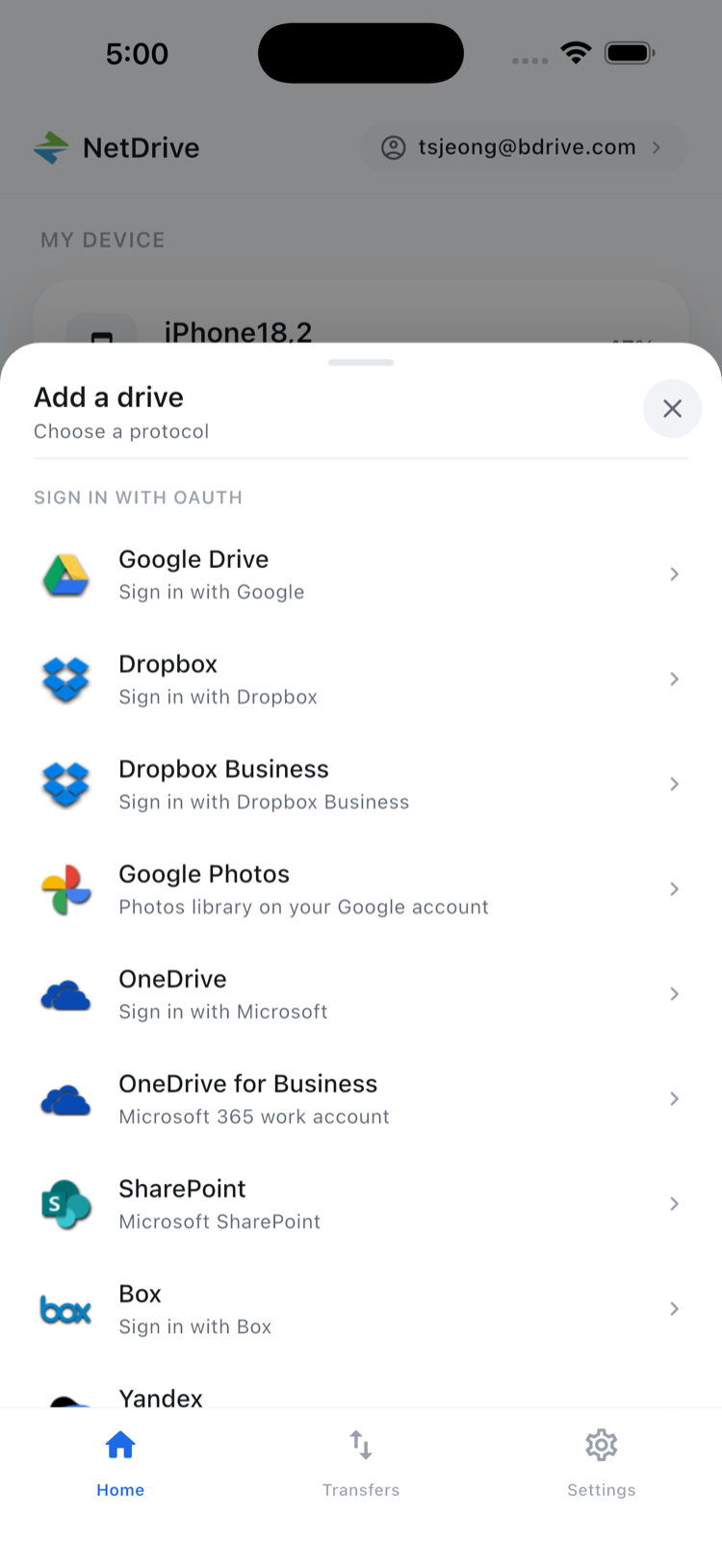
- Tap the + button on the home screen to open the Add a Drive sheet.
- Select Amazon S3 from the provider list — look in the Object Storage section. Wasabi is S3-compatible, so this is the connector to use rather than a separate Wasabi entry.
- Enter your Access Key ID and Secret Access Key, then turn on the custom endpoint option and enter your bucket’s regional hostname.
- Tap Save. NetDrive Mobile connects to your Wasabi account and lists your available buckets on the home screen.
Browsing and Previewing Footage
Tap your Wasabi drive on the home screen to enter the file browser. Buckets show up as top-level folders, and navigating into subfolders works the way it would in your phone’s own Files app — tap to open, sort by name or date, and switch between list and grid view.
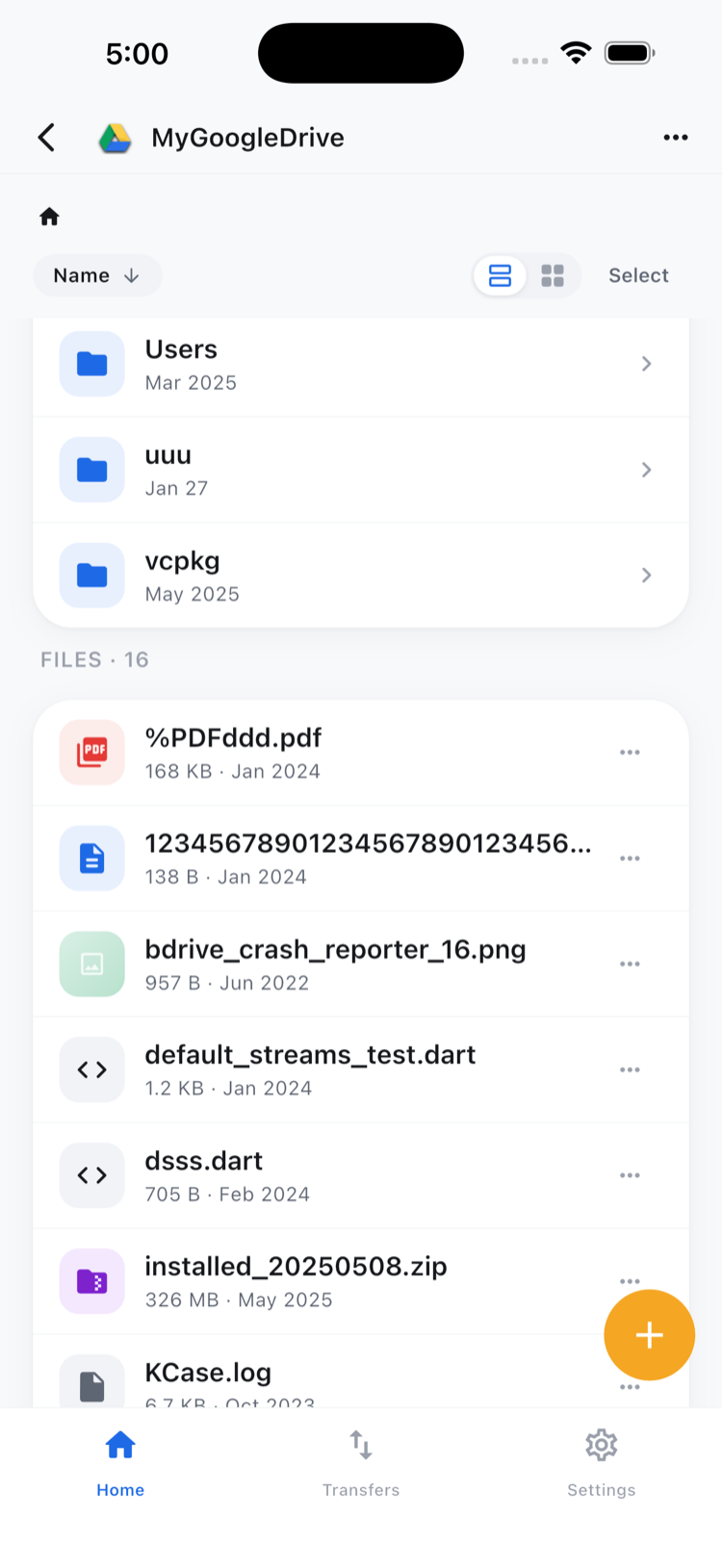
Tap any file to open the action sheet: Preview, Download, Rename, Move, Copy, Get Info, and Delete. Preview opens the file inside the app — images load immediately, and video starts playing through the built-in viewer without waiting for the whole file to download first, which is exactly what makes a hallway confirmation call possible.
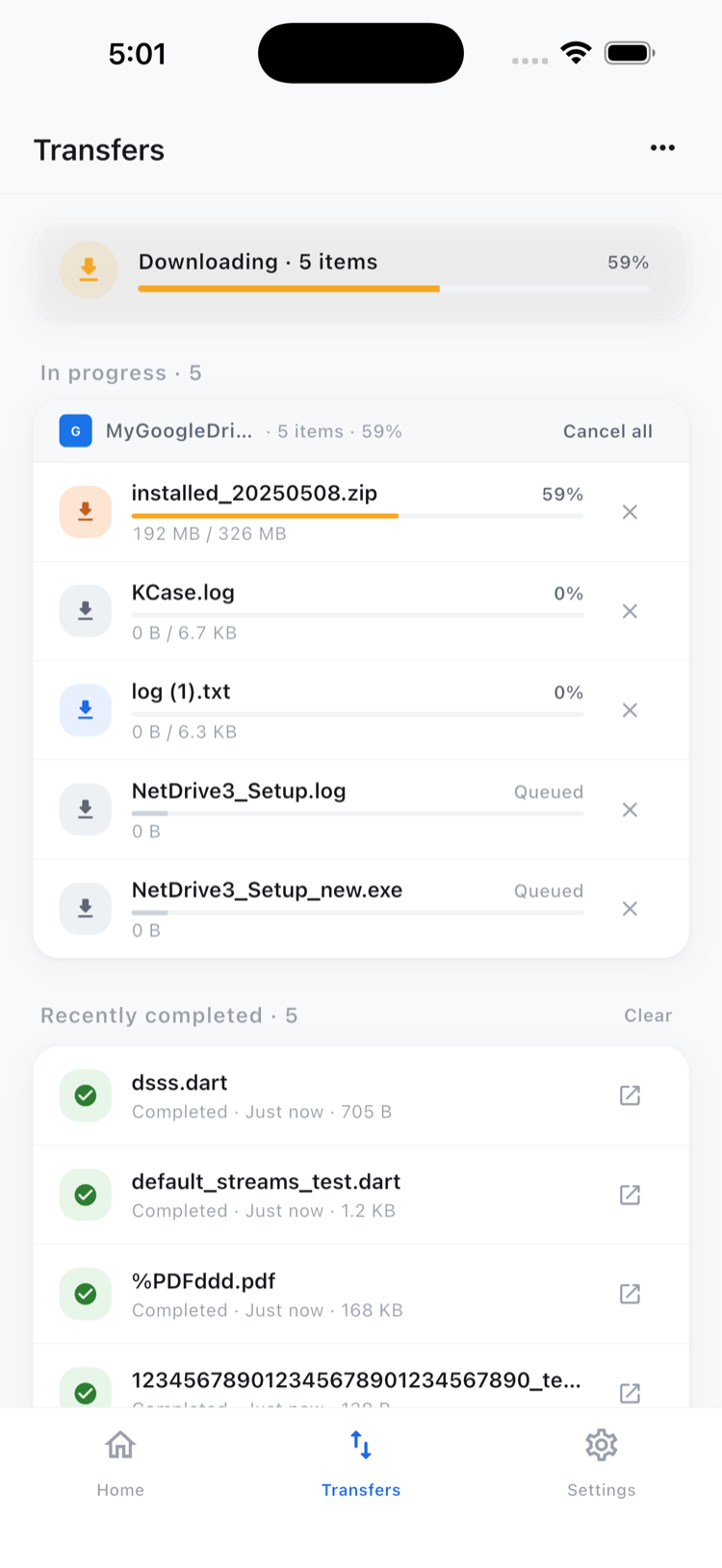
To download a file to your device: choose Download from the action sheet. The transfer shows up in the Transfers tab with a live progress bar and a cancel button.
To upload from your phone: navigate to the destination folder, tap the upload button, and pick files from your camera roll, photo library, or the system file picker.
Batch Transfers Without a Desk
Reviewing a full day’s footage often means moving more than one file at a time. Tap Select in the top-right corner of the file browser, check the clips you need, and choose Download, Copy, Move, or Delete from the bottom toolbar — transfers run concurrently instead of one at a time, so downloading five proxies takes about as long as downloading one.
Copy and Move inside NetDrive Mobile work within the same Wasabi account — moving a file between folders in the same bucket, for instance. Moving a file directly from Wasabi into a different provider, like copying it straight into Google Drive, isn’t something the app does; that kind of cross-cloud transfer is outside its scope.
Wrap-up
For editors and small teams who keep project media on Wasabi to dodge egress costs, NetDrive Mobile turns that bucket into something you can actually check from a hallway or a coffee shop. If you also need Wasabi set up as a drive on your Mac or PC back at your desk, the setup steps are in Set Up Wasabi as a Drive on Windows with NetDrive. For a broader look at the app, see NetDrive Mobile — Every Cloud in One App, and for standard AWS S3 access on mobile, Browse Amazon S3 on iPhone and Android covers the same flow.
— Morgan, NetDrive