Team Drives and File Locking for Creative Teams in NetDrive

Design studios and agencies can share cloud storage across their team in NetDrive with built-in file locking to prevent conflicts on shared creative assets.
A graphic designer on the west coast and a motion editor in Berlin both open the same master After Effects project from the agency’s shared Google Drive — and both save over each other’s work within the same hour. The next morning, someone’s compositing pass is gone. That scenario is the reason NetDrive’s Team Drive and file locking features exist.


Shared cloud drives with conflict prevention
NetDrive lets Google Drive, OneDrive, S3, SFTP, WebDAV and more appear as native drives on Windows and macOS — no syncing, no full downloads.
- Publish cloud drives to your whole team from one admin console
- Lock any file type before editing — others see it as locked instantly
- Works across Google Drive, OneDrive, S3, Box, and 20+ providers
Free trial. Lifetime and subscription plans available.
How Team Drives Work in NetDrive
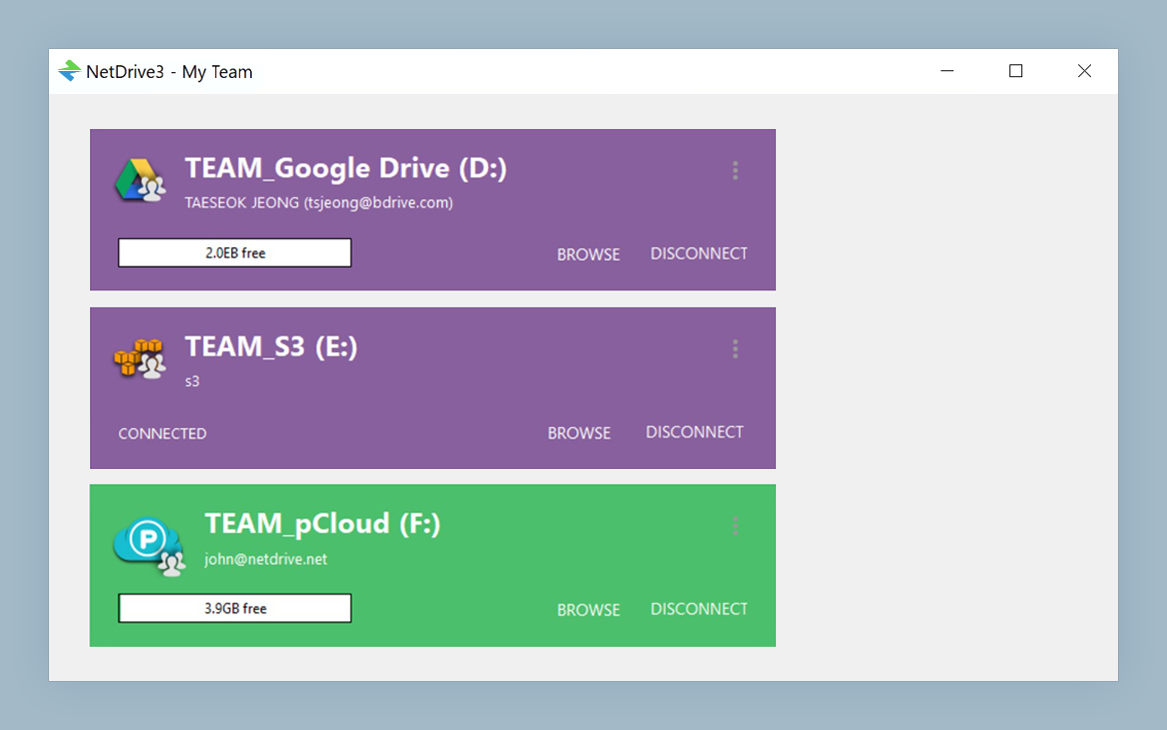
A standard NetDrive drive is personal: you configure it on your machine and it mounts only for you. A Team Drive flips that model. An admin configures the drive once in NetDrive’s team management console and publishes it to all licensed team members. Every member who logs in sees the same drive card appear in their Drive Manager and can mount it with one click — no manual OAuth, no shared credentials passed around in Slack.
The admin console also controls which members see which drives, so a production team and a finance team on the same license can each see only the storage relevant to them.
NetDrive’s team license supports multi-user operation on Windows Terminal Server and is available on Windows 8 through Windows 11 and Windows Server 2012–2022.
File Locking: Preventing the Overwrite Problem
Team Drives solve the distribution problem. File locking solves the collision problem.
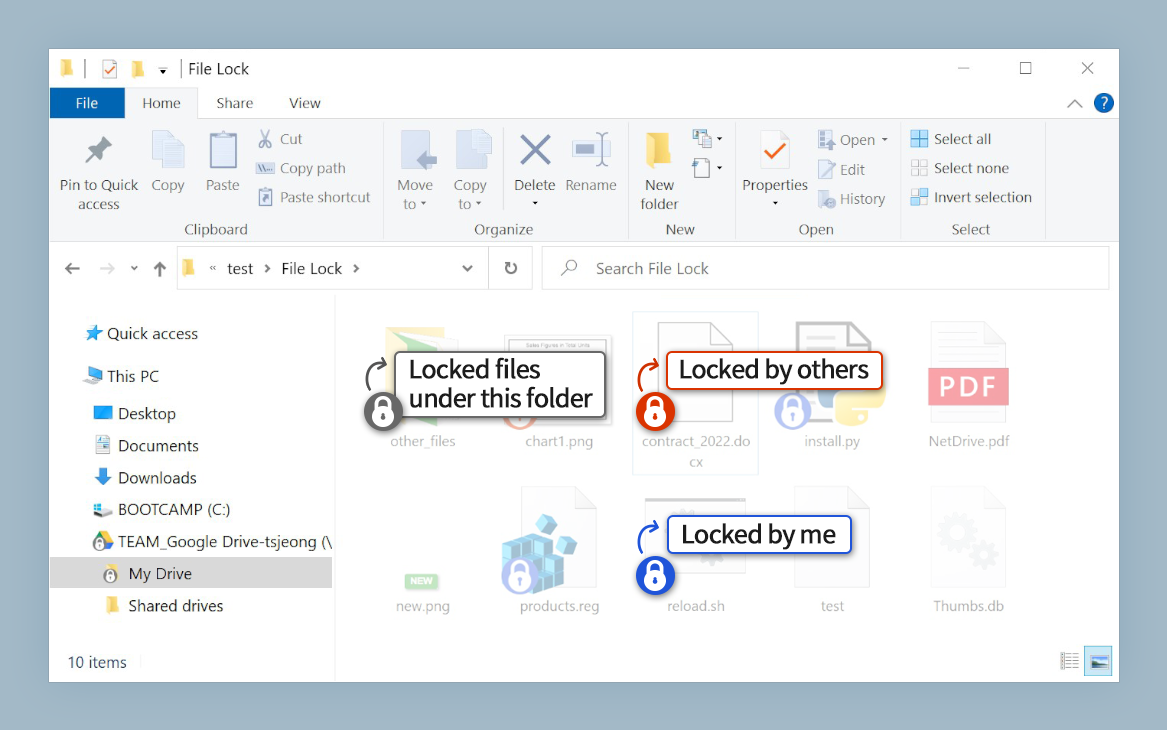
When a designer opens a shared Illustrator file and locks it, NetDrive signals to every other team member on the same drive that the file is in use. If a colleague tries to open the same file, NetDrive shows it as locked and can optionally open a read-only copy so they can review the current state without interfering. The lock releases automatically when the original user closes and saves the file.
This works for any file type — PSD, AI, MOV, MP4, project archives — not just Office documents. Microsoft Office files get an additional layer: NetDrive detects Office’s own file-lock signals (the .~lock.docx temporary files) and surfaces them in Explorer as a visual overlay, so lock status is visible without opening the file.
File locking for all file types was introduced in NetDrive 3.9.1190. Office-specific locking arrived earlier in 3.8.921.
Setting Up a Team Workflow: A Real Scenario
Consider a post-production studio with six editors sharing a 50 TB S3 bucket. Each editor is assigned a NetDrive team license. The admin publishes a single S3 drive to all six, each mapping it to S:. They’ve been doing this since their editorial workflow moved fully remote.
Their daily routine:
- Open NetDrive → the shared
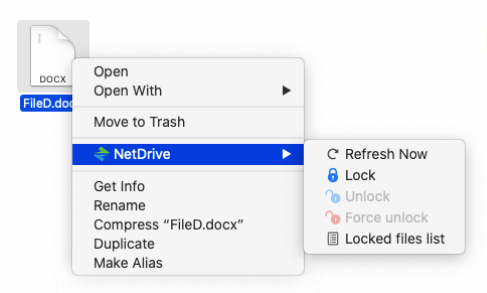
S:drive is already mounted at login (Auto Mount: Boot). - In Explorer, navigate to the project folder and right-click the project file → NetDrive → Lock File before opening it in the NLE.
- Edit, save, repeat. Colleagues see the lock overlay on their own
S:drives in real time. - When the editor is done, they close the NLE. NetDrive detects the file handle release and clears the lock automatically. No manual unlock step needed.
The studio’s main rule: always lock before you open. Enforcing that culture took a week. After that, the overwrite incidents dropped to zero.
Choosing the Right Cloud Provider for Creative Teams
NetDrive’s Team Drive and file locking work across its full provider list, so the right backend depends on your existing infrastructure:
- Google Drive / OneDrive — familiar to most teams, good for document-heavy workflows alongside creative assets. Google Drive’s Team Drive support integrates natively.
- Amazon S3 or S3-compatible (Wasabi, etc.) — strong price-to-performance for large media files. Wasabi’s no-egress pricing matters once your editors start pulling multi-gigabyte dailies.
- Box — a strong choice when clients require it for compliance reasons and the studio needs to share access externally.
- SharePoint / OneDrive for Business — the default for Microsoft 365 shops; NetDrive added async listing for SharePoint in 3.17.799 to handle large folder structures without blocking the UI.
The lock protocol is the same regardless of provider — NetDrive manages it at the client layer.
Wrap-up
For creative teams, the combination of Team Drives (one-click provisioning for every member) and file locking (collision prevention without a database or server) removes the two biggest friction points in shared cloud workflows. If your studio is on S3, see how a DevOps-adjacent S3 workflow looks in practice — many of the mount and performance patterns carry over directly. For getting started on the provider side, mounting SharePoint on Windows covers the OneDrive for Business / SharePoint setup that many Microsoft-aligned teams use as their primary asset store.
— Kai, NetDrive