Fix Wasabi Endpoint and Region Errors — NetDrive

Fix Wasabi connection errors in NetDrive caused by a wrong regional endpoint, an empty bucket list, or bad keys. Includes a symptom table and step-by-step checks.
You paste a fresh Wasabi key pair into NetDrive, click Mount, and get a failure instead of a drive letter. Or the connection succeeds, but the bucket list comes back empty even though the Wasabi console shows three buckets. In most cases the keys are fine and the problem is the regional endpoint: Wasabi runs a separate hostname for each region, and a bucket only answers at its own.


Get your Wasabi bucket mounting cleanly
NetDrive lets Google Drive, OneDrive, S3, SFTP, WebDAV and more appear as native drives on Windows and macOS — no syncing, no full downloads.
- Wasabi connects through the S3-compatible Amazon S3 connector
- File Browser tests access before you mount anything
- Windows and macOS, with one drive card per bucket
Free trial. Lifetime and subscription plans available.
Match the Symptom to the Cause
| What you see | Most likely cause |
|---|---|
| Mount fails, or the error mentions a redirect or “use the specified endpoint” | The endpoint hostname doesn’t match the bucket’s region |
| Connected, but the bucket list is empty | The endpoint is a different region than your buckets, or the key can’t list buckets |
| Access denied on every operation | Wrong key pair, or a sub-user policy that doesn’t cover the bucket |
| Worked yesterday, fails today | The key was rotated or disabled in the Wasabi console |
Wasabi is S3-compatible, so NetDrive connects to it with the Amazon S3 provider and a custom endpoint. There is no separate “Wasabi” entry in the provider list. That is why a wrong endpoint is so easy to miss: the S3 connector happily talks to the wrong region, and Wasabi answers with an error rather than your files.
Check 1: Find the Bucket’s Real Region
Open the Wasabi console, go to Buckets, and read the region shown next to the bucket. Then build the hostname from it:
us-east-1usess3.wasabisys.comeu-central-1usess3.eu-central-1.wasabisys.com
Wasabi’s service endpoint documentation lists every region hostname. Copy the one that matches. A bucket in Frankfurt will not answer at the default s3.wasabisys.com host, and the mismatch looks like a login problem even though no credential is wrong.
Check 2: Re-enter the Endpoint in NetDrive
- Open NetDrive and select the Wasabi drive in the Drive Manager. Click the gear icon to open its settings.
- Confirm the provider is Amazon S3, and that Use custom endpoint is switched on.
- Replace the hostname with the regional one from Check 1. Leave the port empty. NetDrive uses 443 for HTTPS by default.
- Click the list icon next to Bucket to enumerate buckets. If your buckets appear, the endpoint and keys are both working.
- Save, then click Mount.
If you have buckets in two regions, create one drive per region. Each drive card holds one endpoint, so a single connection can’t reach both.
Check 3: Test Access Without Mounting
Before assigning a drive letter again, use NetDrive’s File Browser. It opens remote files without mounting, so you can separate “the connection is wrong” from “Windows or macOS is having trouble with the drive.”
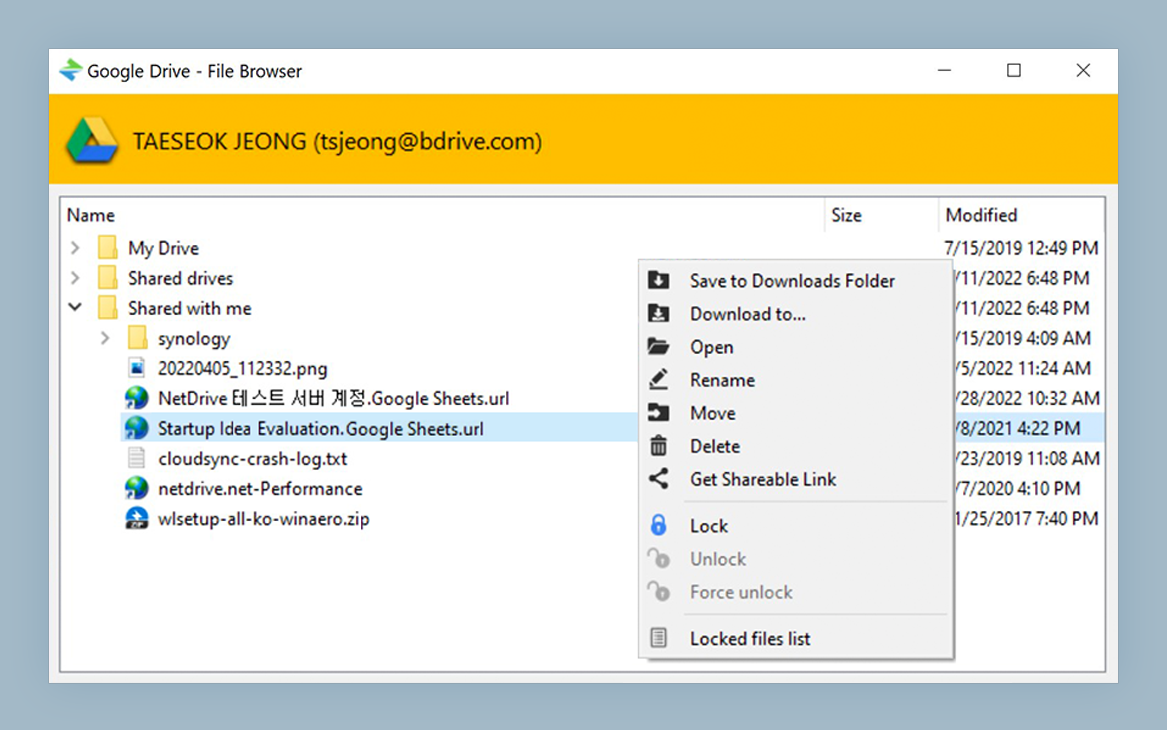
If the File Browser lists your files, the credentials and endpoint are good, and any remaining trouble is on the mount side. If it fails the same way, stay on the connection settings.
Check 4: Keys and Sub-User Permissions
Once the endpoint is right, look at the credentials.
- Regenerate the pair. Wasabi shows a secret key only when it is created. If you aren’t sure the stored one is correct, create a new key pair in the console and enter both values again. Copy-paste, and watch for a trailing space.
- Check the key is active. A key that was disabled or deleted fails exactly like a typo.
- Check the sub-user’s policy. If the keys belong to a sub-user rather than the root account, that user needs permission to list and read the bucket (and write, if you save back). A policy that omits listing buckets can leave the bucket dropdown empty. In that case type the bucket name directly instead of using the list icon.
For the same layered-permission pattern on AWS, see Fix S3 Access Denied Error with NetDrive. The IAM concepts carry over to Wasabi sub-users.
Check 5: Stale Settings After a Change
A drive saved before you changed region or key keeps its old values until you edit it. If you rotated keys in the console, open the drive’s settings, paste the new pair, and remount. Don’t just retry the old drive card.
When It Still Fails
Work through the order above: endpoint, then File Browser, then keys, then sub-user policy. If all four pass and the mount still misbehaves, the issue is no longer Wasabi-specific. For drive letters that are already taken, see Fix Drive Letter Already in Use.
Wrap-up
Most Wasabi failures in NetDrive come down to a regional hostname that doesn’t match the bucket, followed by stale or under-permissioned keys. Fix the endpoint first, prove it with the File Browser, then mount. For first-time setup, see Mount Wasabi on Windows with NetDrive or Mount Wasabi on macOS with NetDrive.
— Alex, NetDrive