Mount Dropbox Business on macOS — NetDrive Setup Guide

Mount a Dropbox Business team account as a native macOS volume with NetDrive. Covers system permission setup, OAuth sign-in, file locking, and auto-mount for teams.
A design studio running an all-Mac fleet moved its client asset libraries to Dropbox Business, and the sync client immediately became the bottleneck: every editor’s MacBook tried to download a share of the 900 GB team folder before it would even show up in Finder. NetDrive takes a different approach on macOS — it mounts the Dropbox Business account as a native volume and streams files on demand, so nobody waits on a sync queue before opening a project file.


Mount Dropbox Business as a Finder volume
NetDrive lets Google Drive, OneDrive, S3, SFTP, WebDAV and more appear as native drives on Windows and macOS — no syncing, no full downloads.
- Native macOS volume — no sync client, no local copy of the team folder
- File locking on shared folders prevents overwrite conflicts
- Works alongside a personal Dropbox account as a separate volume
Free trial. Lifetime and subscription plans available.
Dropbox Business as a Separate Provider Entry
NetDrive lists Dropbox Business as its own connection type, distinct from personal Dropbox — support was added in version 3.9.1190 (2020-04-24). Where a personal Dropbox connection authenticates against an individual account, Dropbox Business connects against the team’s Dropbox Business tenant and exposes the team folders that account has access to.
If someone on the team also has a personal Dropbox account, both can be mounted at once: each connection gets its own volume in Finder, and NetDrive keeps the credentials and cache separate.

Requirements Before You Start
- macOS 14 Sonoma or later for NetDrive 3.18 and newer. If the Mac is still on macOS 13 Ventura, NetDrive 3.17 is the last version that supports that OS — both installers are on netdrive.net/download/mac.
- A system extension approval — macOS will prompt for approval in System Settings → Privacy & Security the first time NetDrive runs; this step is required before any drive will mount.
- Apple Silicon Macs run NetDrive natively since version 3.14.309 — no Rosetta needed.
- A Dropbox Business account with access to at least one team folder, and a NetDrive license or the 7-day free trial.
Install by downloading the DMG, dragging NetDrive into Applications, and launching it. A cloud icon appears in the menu bar — that’s the entry point to Drive Manager.
Connecting Dropbox Business in Drive Manager
- Click the NetDrive menu bar icon and open Drive Manager.
- Click Add to open the provider picker.
- Select Dropbox Business from the list — it appears separately from the plain Dropbox entry, which targets personal accounts only.
- Click Sign In. Your default browser opens Dropbox’s OAuth page; log in with the team member’s Dropbox Business credentials and approve access.
- Back in NetDrive, the new connection appears in Drive Manager. Rename it if you also have a personal Dropbox connection configured, so the two are easy to tell apart.
- Under Auto Mount, choose On Login to mount when the user session starts, or On Boot to mount earlier, before login — useful for a shared edit bay Mac that several people log into during the day.
- Click Save, then Mount.
The team folder appears in the Finder sidebar under Locations within seconds, and any app — Photoshop, Final Cut Pro, a script that just needs a file path — reads and writes it like local storage.
File Locking on Shared Team Folders
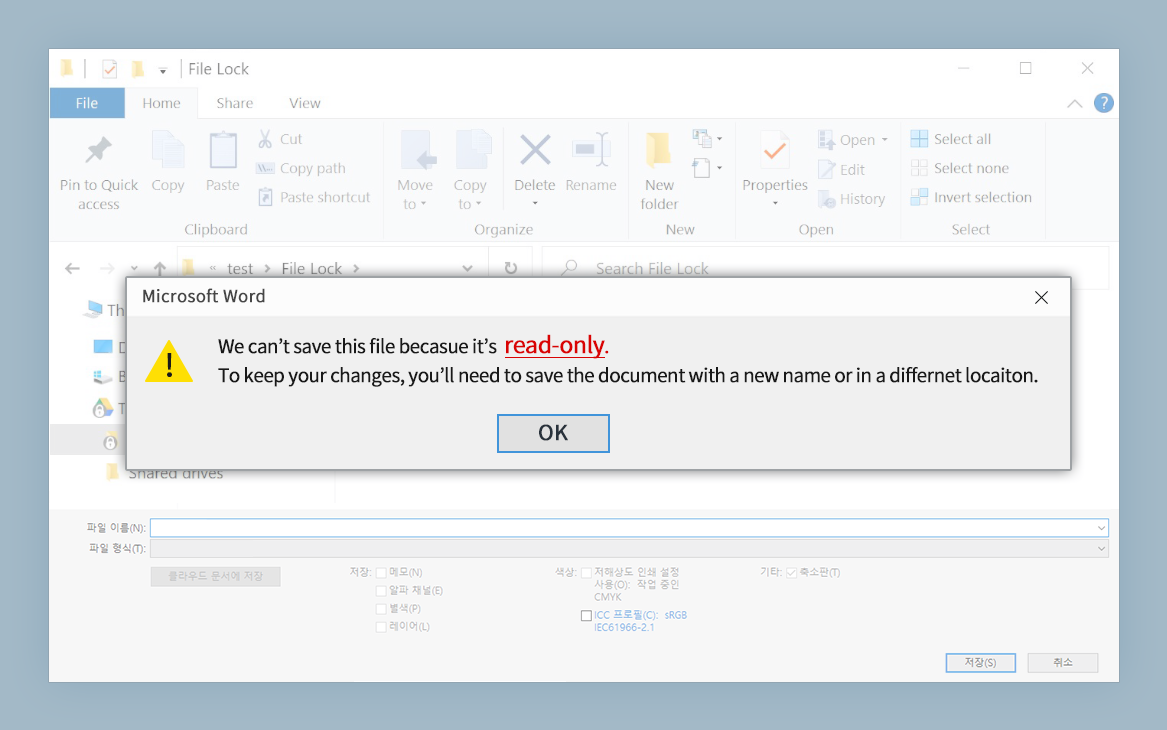
The problem with shared folders is two people editing the same file at once. NetDrive’s file lock feature, covering all file types since version 3.9.1190, addresses this directly: right-click a file on the mounted volume and choose the lock option, and teammates who open Drive Manager elsewhere see it flagged as locked. Locked Microsoft Office files specifically get read-only protection since version 3.8.921, so a colleague opening a locked spreadsheet sees a warning rather than risking a conflicting save.
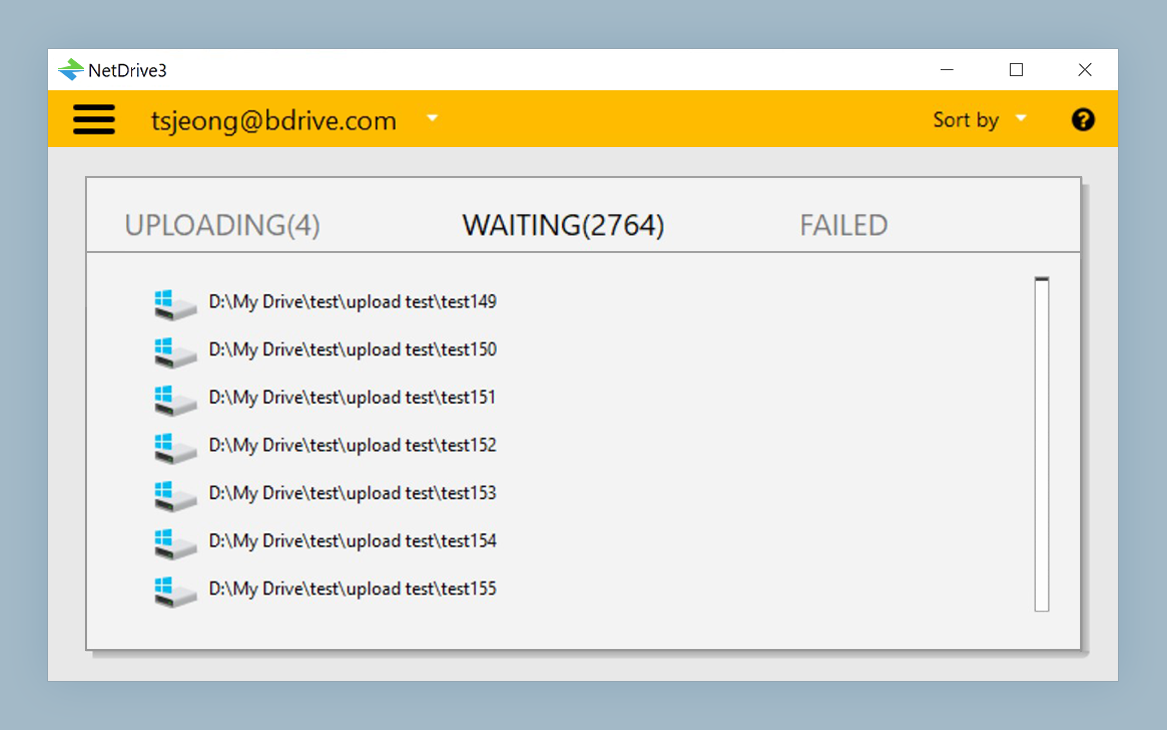
Saves to the mounted volume upload in the background — NetDrive returns control to the app immediately and finishes the transfer asynchronously, with progress visible from the menu bar icon.
Wrap-up
Mounting Dropbox Business on macOS with NetDrive replaces the sync client’s all-or-nothing download with an on-demand Finder volume, plus file locking built for shared team folders. The 7-day trial is enough to pilot the setup with one team folder before rolling it out further. For the Windows equivalent, see Mount Dropbox Business on Windows with NetDrive; for a personal Dropbox account on the same Mac, Mount Dropbox on macOS with NetDrive covers the same flow.
— Jay, NetDrive