NetDrive Mobile for Teachers — Class Files Across Every Cloud

Teachers use NetDrive Mobile to open lesson plans, worksheets, and student work from Google Drive, OneDrive, and Dropbox in one app on iPhone, iPad, and Android.
A middle-school teacher is walking to third period when the department head asks for the updated lab worksheet. The district hands out OneDrive, the science team shares on Google Drive, and last year’s materials sit in a personal Dropbox. Three apps, three logins, and a bell about to ring. NetDrive Mobile puts all three clouds in one place so the worksheet is a few taps away.

Every class folder, one app
Open Google Drive, OneDrive, Dropbox, and more side by side on iPhone, iPad, or Android.
- Switch between school and personal clouds in one app
- Preview worksheets and slides without leaving the app
- Upload board photos and scans straight from the camera
Free Bdrive account required.
School files rarely live in one place
Teachers inherit storage from several directions: a district account, a department shared drive, a personal cloud for years of materials, and sometimes a parent-teacher group folder. Each has its own app and its own sign-in. NetDrive Mobile lists them together on the home screen, so switching from the school drive to your own takes one tap instead of an app change.
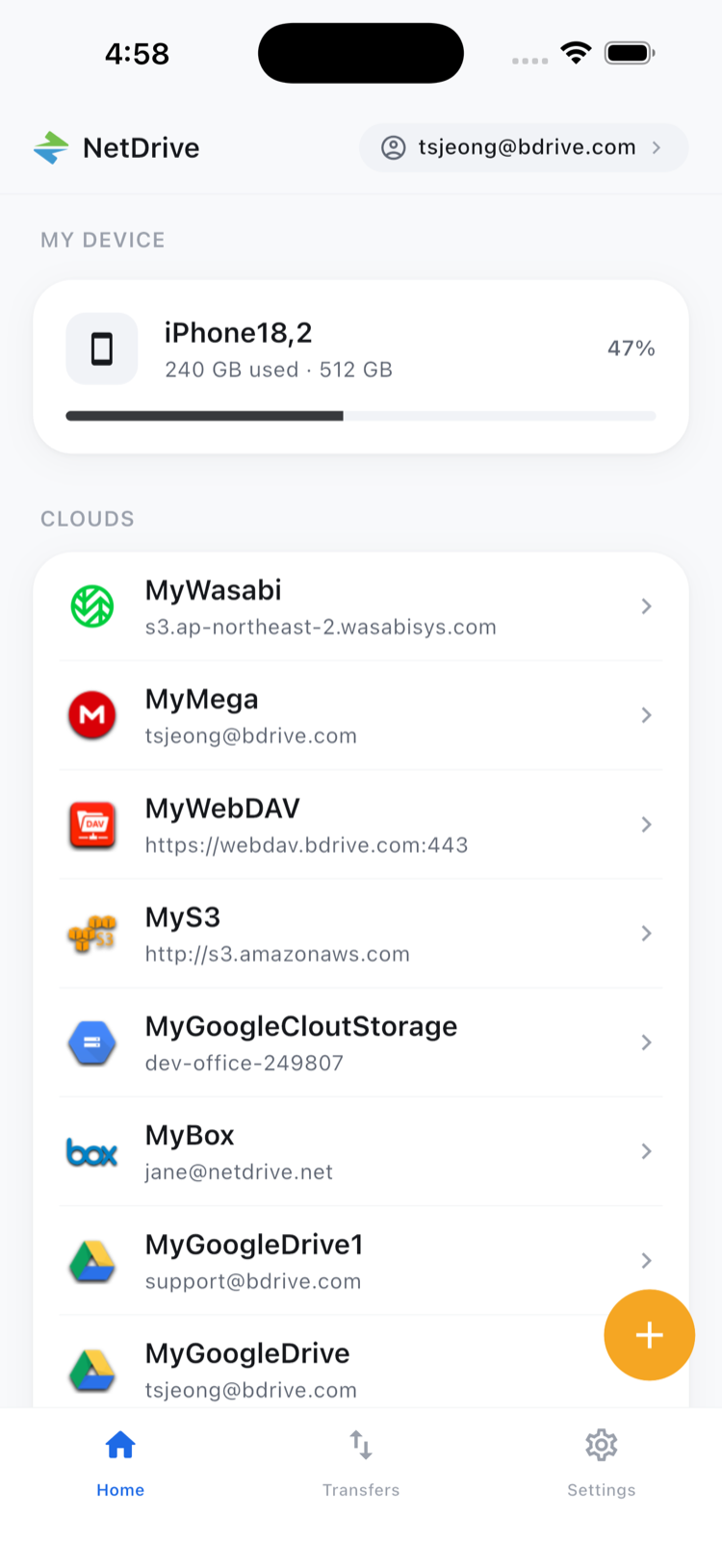
Connect the clouds once
Adding a cloud happens in the Add a drive sheet: pick the provider, sign in, and the drive appears on the home screen. Google Drive, OneDrive, OneDrive for Business, Dropbox, and SharePoint are all on the provider list, which covers most school setups. A free Bdrive account is required to use the app.
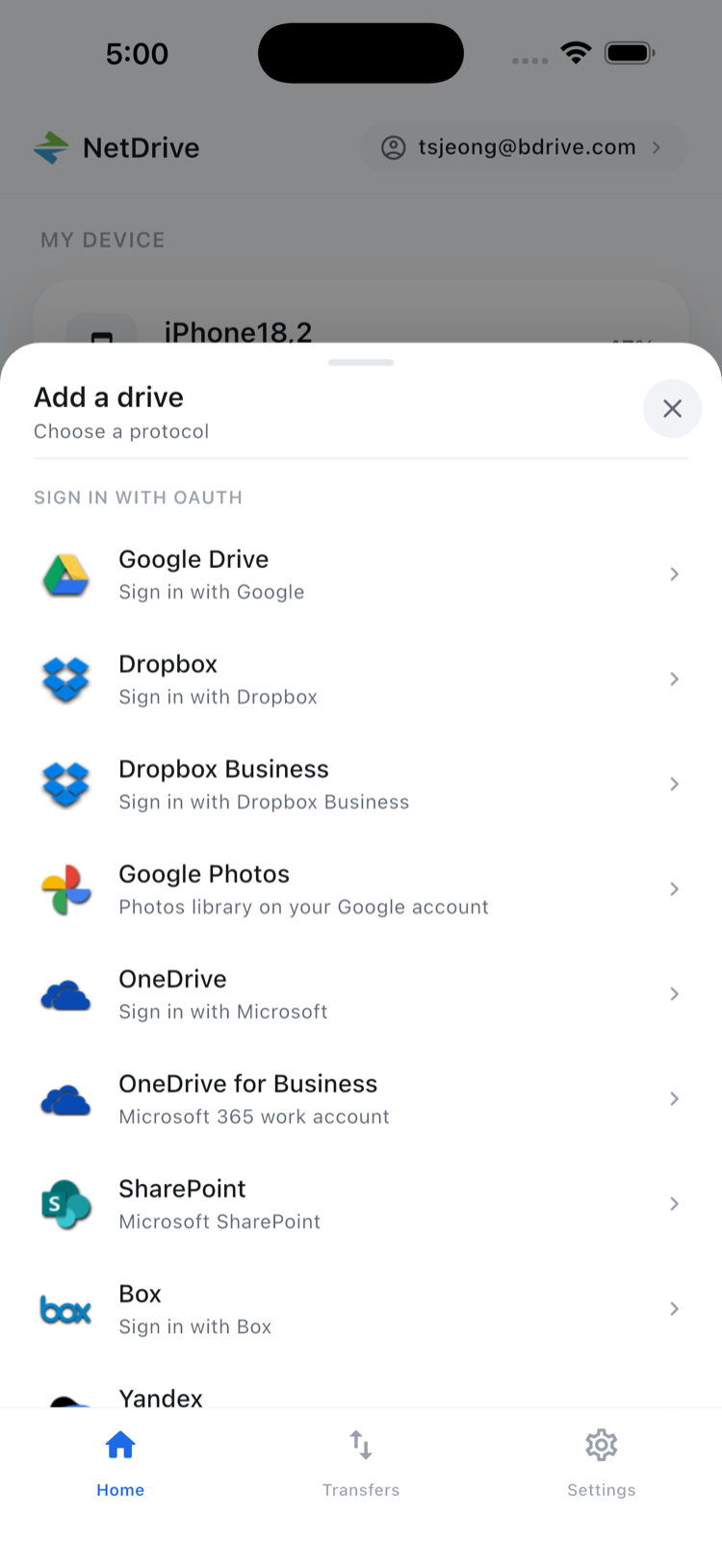
Find and preview a file quickly
Open a drive and browse folders as lists or a grid, with sorting to bring the newest file to the top. Tap a worksheet, slide deck, or image and it opens in the in-app preview, so you can check it is the right version before you share it or head into class. If you need a copy on the device, the file action sheet offers Download.
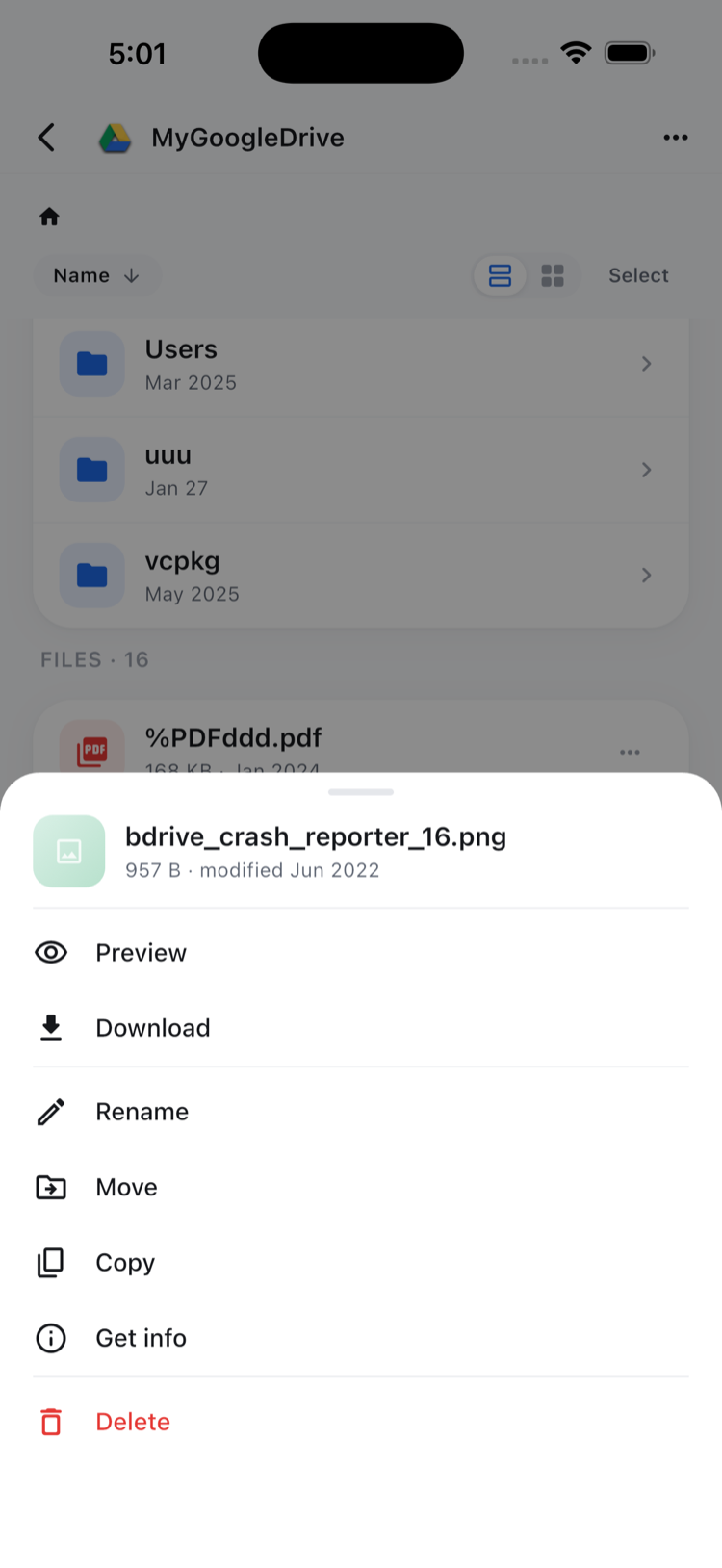
Get classroom material into the cloud
Photograph the whiteboard at the end of a lesson, scan a signed permission slip, or grab a handful of pictures from a field trip. NetDrive Mobile can upload from the camera, photos, or files into the folder you choose. Several files can go up at once, and the Transfers tab shows progress for each one, with a cancel option if you picked the wrong folder.
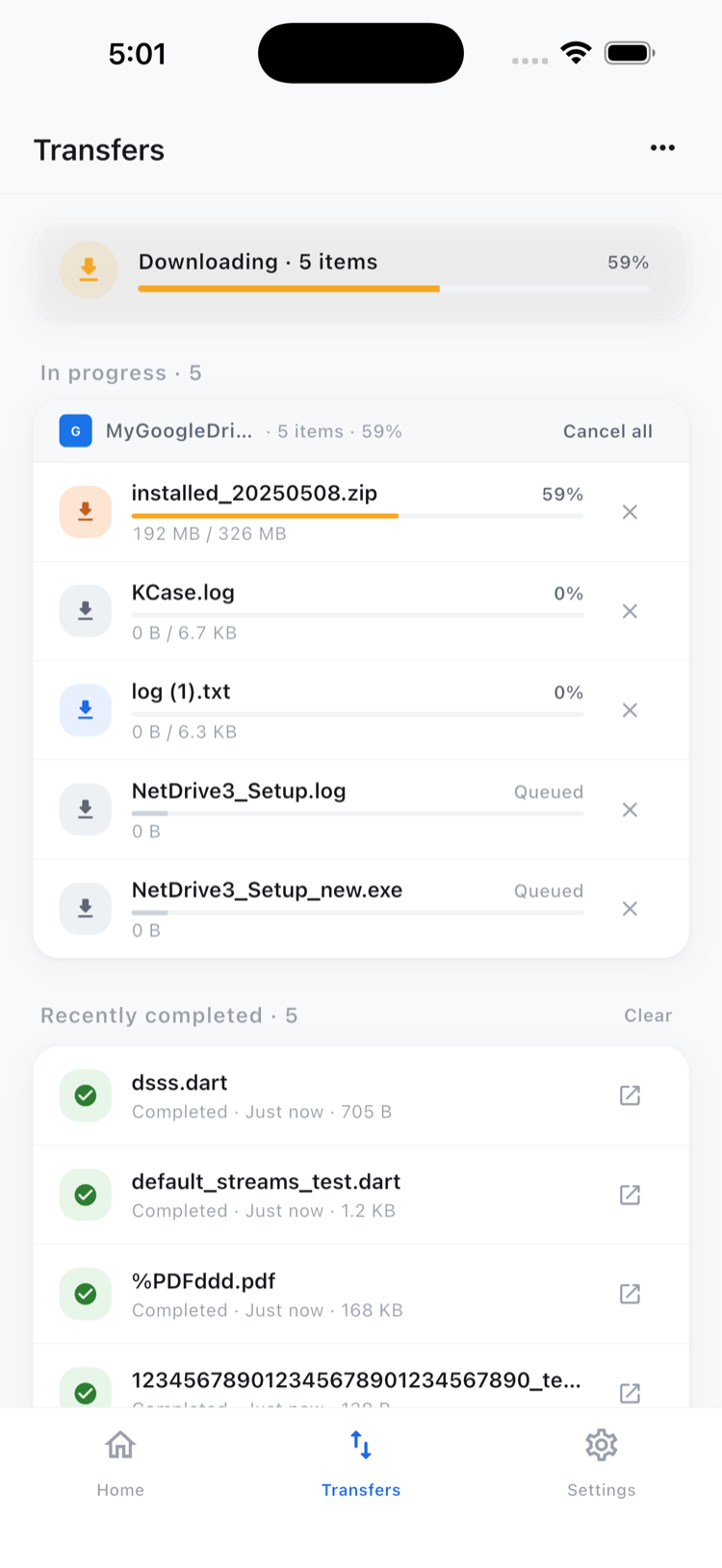
A simple routine for the school week
- Create a free Bdrive account at netdrive.net.
- Install NetDrive Mobile on your phone or tablet from the App Store or Google Play.
- Add your school and personal clouds through the Add a drive sheet.
- Upload after class so board photos land in the right folder before you forget.
- Use multi-select to tidy a folder, moving or deleting several files in one pass. Moves and copies stay within a single cloud.
Keep in mind that NetDrive Mobile browses, previews, uploads, and downloads. It does not copy files directly from one cloud to another.
Wrap-up
For a teacher, the value is not a new storage service. It is fewer apps between you and the file you need. For the first-run flow, see NetDrive Mobile — Getting Started; for bulk cleanup, see Bulk File Actions in NetDrive Mobile; and to keep several accounts straight, see NetDrive Mobile and Multiple Cloud Accounts.
— Morgan, NetDrive