Fix NetDrive Not Auto-Mounting on Windows Startup

Cloud drives disappear after a Windows reboot or update? Configure NetDrive's boot-time auto-mount so drives reconnect before login, every time.
A DevOps engineer had a scheduled task running at 6:45 AM every morning to copy overnight build artifacts from an S3-backed drive to a local archive. It ran perfectly for months — until a routine Windows update rebooted the machine and the drive letter was gone. The task failed silently for three days before anyone noticed. NetDrive’s boot-time auto-mount option prevents exactly this.


Never lose a cloud drive after reboot again
NetDrive lets Google Drive, OneDrive, S3, SFTP, WebDAV and more appear as native drives on Windows and macOS — no syncing, no full downloads.
- Mount-on-boot connects drives before any user logs in
- Works for S3, OneDrive, Dropbox, SFTP, and all supported providers
- Survives Windows updates and unplanned reboots
Free trial. Lifetime and subscription plans available.
The Three Auto-Mount Modes
NetDrive gives each drive its own auto-mount policy. In the drive’s settings panel, you’ll see three options:
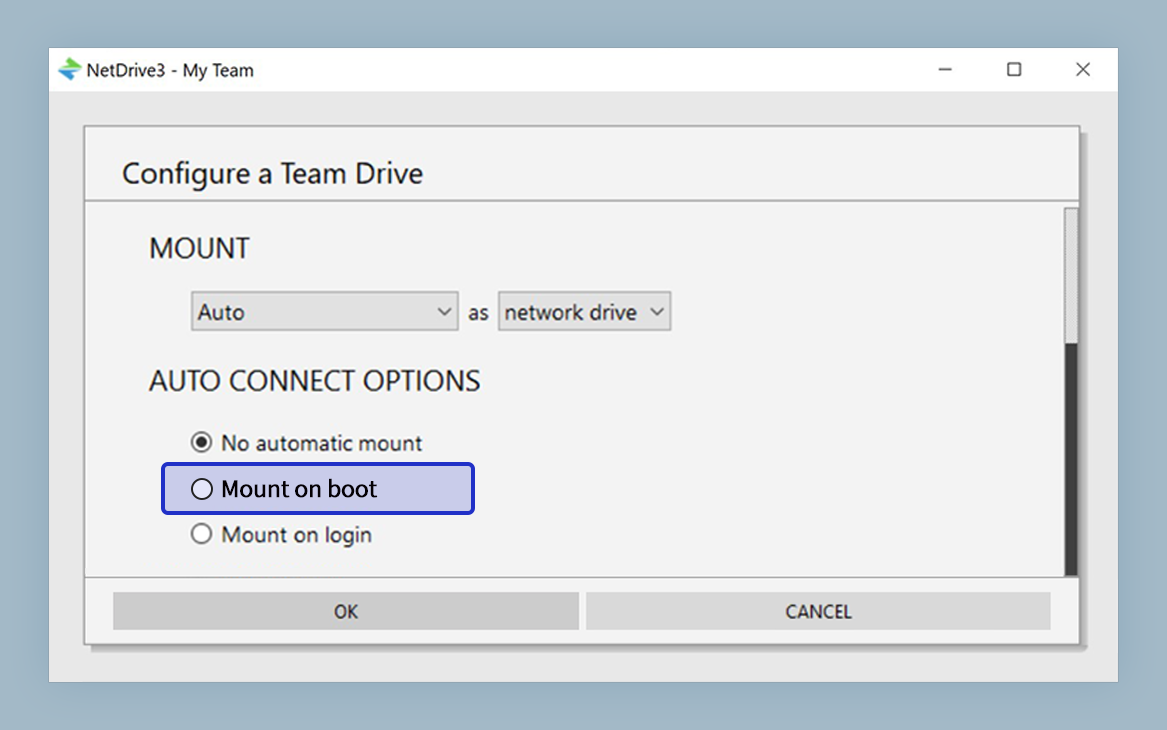
- Boot — the drive mounts at system startup, before any user logs in. This is the right choice for server-style machines, scheduled tasks, CI runners, or any workflow where the drive needs to be available before a user session opens.
- Login — the drive mounts when a user logs into Windows. Reliable for personal workstations where someone is always present, but it won’t help if the machine reboots and sits at the login screen overnight.
- Disabled — the drive only connects when you click Mount manually. Useful for drives you access occasionally and don’t want consuming bandwidth in the background.
Most users who report “NetDrive stopped reconnecting after a reboot” are on Login mode without realizing that rebooting to the login screen means the drive never came up.
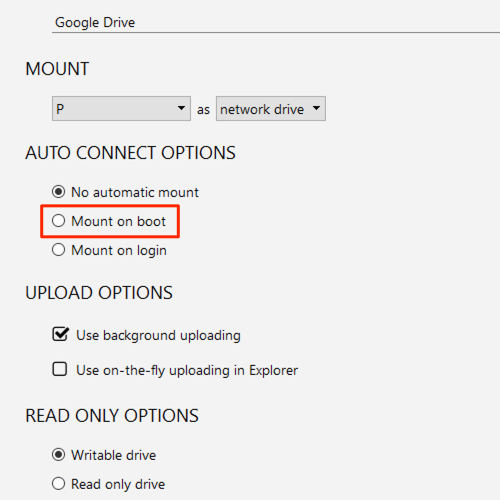
Switching a Drive to Boot Mode
To change a drive’s auto-mount setting:
- Open NetDrive from the system tray icon or the Start menu.
- In the drive list, click the drive you want to change to open its settings panel.
- Find the Auto Mount section.
- Select Boot from the options.
- Click Save. NetDrive registers the mount at the Windows service level so it fires before login on every startup.
After saving, reboot the machine and verify that the drive letter appears before you log in — any process running at system startup (Task Scheduler, services, scripts) will find it already mounted.
Why Drives Sometimes Fail to Reconnect
Even with Boot mode configured correctly, a drive may not reconnect in a few specific situations:
Credential expiry: OAuth tokens for providers like Google Drive, OneDrive, and Dropbox can expire or get revoked after a password change or security policy update. NetDrive persists credentials across reboots, but a revoked token requires re-authentication. Open NetDrive, find the disconnected drive, click Mount, and complete the OAuth flow in the browser. Boot mode takes over again on the next reboot.
Network not yet available at boot: Boot-mode mounts fire early in the Windows startup sequence. On machines using Wi-Fi, the network adapter may still be negotiating when NetDrive makes its first connect attempt. Fix: use a wired Ethernet connection for machines that need reliable boot-time mounts, or check your network adapter’s startup priority in Device Manager. Once the network is up, you can manually mount the drive from NetDrive’s drive manager to reconnect it mid-session.
Windows Update side effects: Major Windows updates occasionally reset service startup order. If a drive that was reliably auto-mounting stops after an update, open NetDrive, confirm the Auto Mount setting is still on Boot, and click Save again to re-register the hook.

Checking Mount Status Before Your Task Runs
After rebooting, confirm the drive is actually live before a scheduled task depends on it:
- Windows Explorer — the assigned letter (e.g., Z:) should appear under “This PC.”
- Command Prompt: run
net useto list active network drives. A NetDrive-mounted drive appears here with its letter and the remote name. - NetDrive’s drive manager: a green indicator next to the drive name means the connection is healthy. A red or orange indicator means the drive attempted to connect but failed — hover over it for the error reason.
If the drive shows as disconnected in NetDrive’s manager, click Mount in the drive’s action menu. Once it connects successfully, the boot-mode registration is still in place and will fire on the next reboot without further action.
Wrap-up
Boot-mode auto-mount is the single setting that separates a reliable, unattended NetDrive installation from one that needs manual intervention after every restart. Set it once per drive, save, and credentials-backed drives reconnect before login on every startup.
For macOS users seeing drives stop responding after sleep rather than reboot, see Fix Mount Disconnects After Sleep on macOS — NetDrive for the macOS-specific steps.
— Casey, NetDrive