NetDrive on Windows 11 24H2 — Cloud Mount Setup Guide

Set up NetDrive on Windows 11 24H2 to mount Google Drive, OneDrive, S3, pCloud, and 20+ providers as native drive letters. Covers installation, drive types, boot mount, and Explorer integration.
Windows 11 24H2 is the current major feature update to Windows 11, and NetDrive 3.19.7 (released April 2026) runs on it without special workarounds. The 3.19.7 release adds WinFSP integration alongside NetDrive’s existing CBFS filesystem layer, giving the stack broad compatibility across Windows editions. This guide covers installation, connecting your first cloud provider, choosing the right drive type, and setting up boot-time mount — so your cloud storage is ready before anyone logs in.


Mount any cloud as a Windows 11 drive letter
NetDrive lets Google Drive, OneDrive, S3, SFTP, WebDAV and more appear as native drives on Windows and macOS — no syncing, no full downloads.
- Supports Google Drive, OneDrive, S3, SFTP, pCloud, and 20+ providers
- Runs on Windows 8 through 11 and Server 2012 through 2022
- File status overlay icons in Explorer — see upload state at a glance
Free trial. Lifetime and subscription plans available.
Installing NetDrive on Windows 11 24H2
Download the EXE installer from netdrive.net/download/windows/. For managed deployments via Group Policy or SCCM, use the MSI installer:
msiexec /i NetDrive3-version.msi REINSTALL=ALL REINSTALLMODE=vamusThe installer bundles all required Microsoft Visual C++ Redistributables (vcredist12 and vcredist14, both 32-bit and 64-bit). During the first run, Windows will prompt you to allow a driver install — NetDrive uses CBFS (Callback Filesystem) by Callback Technologies, a user-space filesystem driver. NetDrive 3.19.7 also ships with WinFSP integration. Accept any driver prompts and restart if Windows requests it.
After installation, NetDrive appears in the system tray. A 7-day free trial starts immediately — no account creation required to start mounting drives.
Adding your first cloud provider
- Click the NetDrive icon in the system tray → Open Drive Manager.
- Click the
+Add Drive button. - Select your cloud provider — Google Drive, OneDrive for Business, Amazon S3, Backblaze B2, SFTP, pCloud, SharePoint, and over 20 others are listed.
- Click Connect and complete the OAuth or credential flow for your provider.
- Pick a drive letter (any unassigned letter from D: to Z:).
- Click Mount.
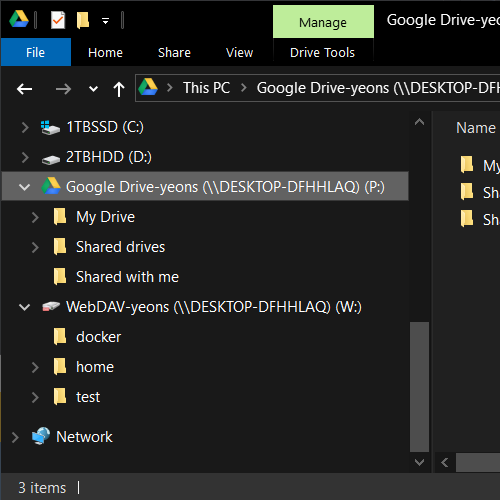
The drive appears immediately under This PC in File Explorer. There is no local sync — file contents are fetched on demand and cached. Opening a 500 MB Photoshop file from a mounted Google Drive feels the same as opening it from a network share: the first open reads from the cloud, subsequent opens hit the cache.
For command-line workflows, NetDrive ships nd3cmd — a CLI tool added in version 3.8.921 — that lets you mount, unmount, and query drive status from PowerShell or batch scripts without touching the GUI.
Drive letter and mount type strategy
Windows 11 apps vary in how they handle non-local paths. NetDrive offers four mount types to cover the full range:
| Mount type | When to use |
|---|---|
| Network drive | Default for most use cases — apps access files via standard UNC-compatible paths |
| Read-only drive | Archival content where accidental writes must be blocked at the OS level |
| Local disk | Apps that check GetDriveType() and reject network paths (some legacy creative software) |
| Removable drive | Portable-media workflows; toggleable since NetDrive 3.7.687 |
Start with Network drive. If a specific app refuses to open files from the cloud mount with a “path not found” or “network location not supported” error, switch that drive to Local disk — it presents identically to a SATA or NVMe volume from the application’s perspective.
Boot-time mount and Explorer integration
For machines that need cloud drives available before any user logs in — render nodes, kiosks, Windows Server 2022 instances running scheduled tasks — configure the drive to mount at startup:
- Select the drive in Drive Manager.
- Click Settings → Auto Mount → Mount at system startup (before login).
- Click Save.
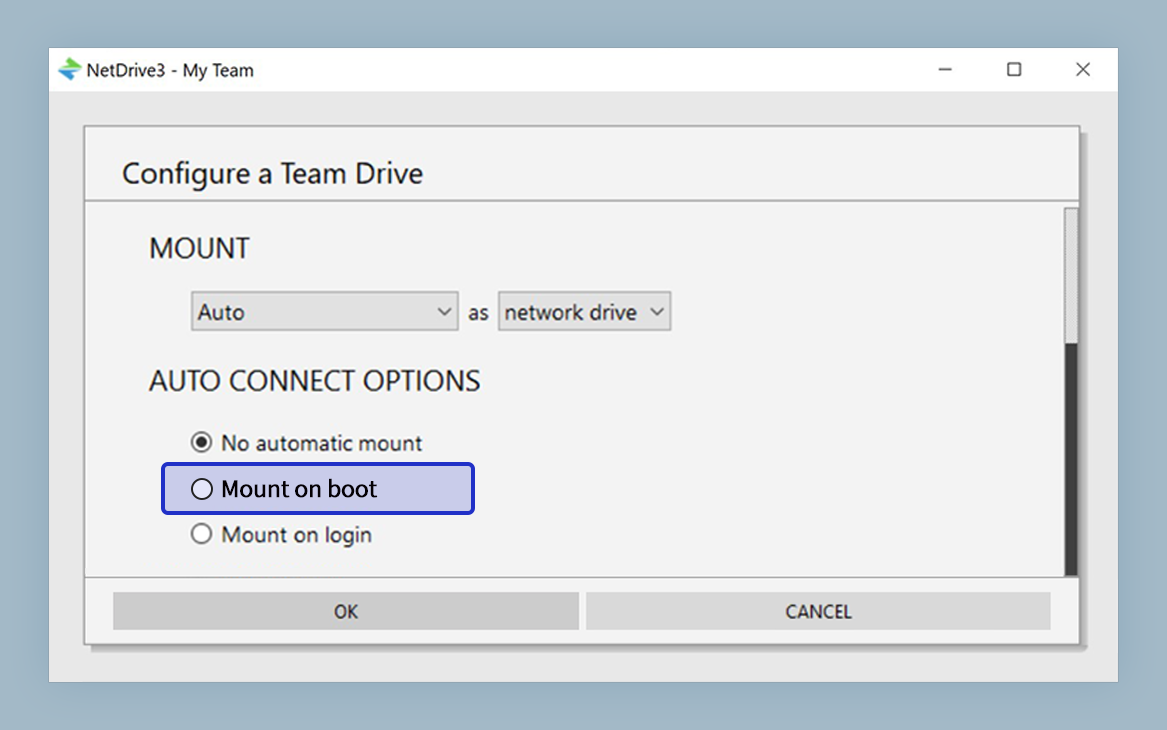
NetDrive stores credentials securely and restores the mount at every boot without a user session. Once the drive is live, Windows Explorer shows file status overlay icons on each item — a visual indicator that shows whether a file is fully cached locally, currently uploading, or queued. If a folder’s contents look stale after someone else adds files on another machine, right-click the folder → Force Folder Refresh to pull the current listing from the cloud immediately.
Wrap-up
NetDrive 3.19.7 on Windows 11 24H2 installs cleanly, mounts any of its 20+ supported providers as a native drive letter, and exposes the full Windows filesystem feature set — drive type selection, boot-time mount, Explorer overlays, and CLI control via nd3cmd. The 7-day trial covers the full feature set, so you can validate your workflow before committing.
If you also work on macOS, see NetDrive on Apple Silicon and NetDrive on macOS 26 Tahoe for the macOS-specific setup steps. For a provider-specific walkthrough on Windows, mounting Google Drive on Windows 11 covers the OAuth flow in detail.
— Robin, NetDrive