Mount pCloud on Windows with NetDrive — Drive Letter in Under a Minute

Mount pCloud as a native Windows drive letter using NetDrive. Stream your entire pCloud library on demand — no sync, no wasted SSD space.
A video editor with 2 TB of footage stored in pCloud doesn’t want to wait for a full sync every morning — they want to open a file directly from their NLE as if it’s sitting on a local disk. NetDrive assigns pCloud a Windows drive letter (Z:, Y:, or whichever you pick) and streams file data on demand. Explorer, command-line tools, and application file-open dialogs all see the drive as a normal disk. NetDrive added pCloud support in version 3.16.589 (March 2022); the current release is 3.19.7.


Mount pCloud as a Windows drive letter
NetDrive lets Google Drive, OneDrive, S3, SFTP, WebDAV and more appear as native drives on Windows and macOS — no syncing, no full downloads.
- Stream pCloud files without syncing to local disk
- Works on Windows 8 through 11 and Server editions
- Auto-mount at boot — no login required
Free trial. Lifetime and subscription plans available.
Why a drive letter beats pCloud’s sync app
pCloud’s official desktop app is a sync client: it mirrors your cloud library to a local folder. That works fine for modest libraries, but once your archive grows into the hundreds of gigabytes — RAW stills, 4K project files, long-term backups — a sync client forces you to choose between a perpetually-full SSD and constant selective-sync maintenance.
NetDrive doesn’t sync anything. It presents pCloud as a native drive and fetches file data as you access it. Reads are cached locally for speed; writes and new uploads go to pCloud in the background while you keep working. The drive shows up under This PC in Explorer with the letter you assigned, so path references in scripts and app settings never need to change.
Installing NetDrive on Windows
Download the EXE installer from netdrive.net/download/windows/. For managed or server environments, use the MSI installer instead:
msiexec /i NetDrive3-version.msi REINSTALL=ALL REINSTALLMODE=vamusThe installer bundles the Microsoft Visual C++ Redistributables (vcredist12 and vcredist14, 32-bit and 64-bit editions). During first run, Windows may prompt you to allow a user-space filesystem driver — NetDrive uses CBFS (Callback Filesystem) by Callback Technologies. Accept the driver prompt and restart if requested.
Supported Windows versions: 8 / 8.1 / 10 / 11 and Windows Server 2012 / 2016 / 2019 / 2022.
Adding your pCloud account
- Click the NetDrive icon in the system tray → Open Drive Manager.
- Click the
+Add Drive button. - Scroll to pCloud in the provider list and select it.
- Click Connect — a browser window opens to pCloud’s OAuth authorization page. Sign in with your pCloud credentials and approve the access request.
- Back in NetDrive, choose a drive letter (for example, P:) and optionally give the drive a label like “pCloud Storage”.
- Click Mount.
After mounting, open Explorer and look under This PC — your pCloud folders are there immediately. File contents are not downloaded until you open them. Large folder listings appear in seconds; individual files load as you access them.
Choosing your mount type
NetDrive offers four mount types for pCloud on Windows:
| Mount type | Best for |
|---|---|
| Network drive | General use — readable by all apps via standard paths |
| Read-only drive | Safe browsing of archive content without accidental writes |
| Local disk | Apps that refuse to open files from a network path |
| Removable drive | Portable-media workflows (toggleable since NetDrive 3.7.687) |
For most pCloud setups, Network drive is the right choice. Switch to Local disk if a specific application — some older video editors and DAWs check the drive type with GetDriveType() and reject network paths — refuses to open files from P:.
Mounting at boot without logging in
If pCloud hosts shared assets that need to be accessible on a machine before any user signs in — a render node, a shared workstation in a studio — configure NetDrive to mount at boot:
- Select your pCloud drive entry in Drive Manager.
- Click Settings → Auto Mount → Mount at system startup (before login).
- Click Save.
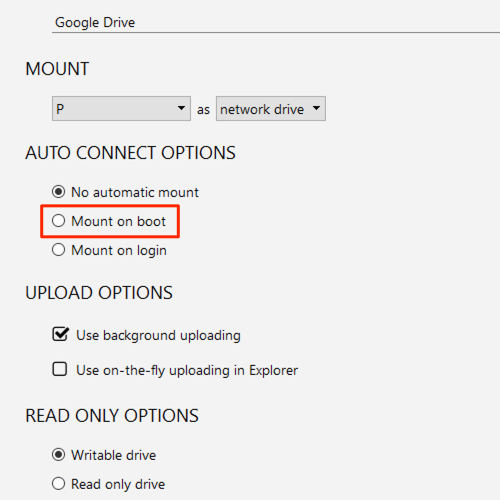
NetDrive stores the OAuth token securely and restores the mount at every boot without a user session. This is the same mechanism that Windows services use to access network paths before any interactive logon occurs.
Wrap-up
Once mounted, pCloud behaves like any other Windows drive — drag-and-drop in Explorer, file paths in batch scripts, and application save-dialogs all work without modification. NetDrive’s background upload queue means large file copies complete without blocking your workflow; you can keep editing while a 10 GB export uploads to pCloud in the background.
For multi-cloud setups, check out how NetDrive handles mounting Amazon S3 on macOS or mounting Google Drive on Windows 11 — the same Drive Manager manages every connection from a single interface.
— Casey, NetDrive