Game Development Teams with NetDrive — Streaming Large Asset Libraries

How game studios use NetDrive to mount S3-hosted texture and build asset libraries as a drive letter, avoiding local sync of hundreds of gigabytes of binaries.
A texture artist on a mid-size studio team needs to check how a 4K normal map looks against last week’s revision, but the shared asset library lives in an S3 bucket that’s grown past 3 TB across two projects. Syncing the whole thing to a workstation isn’t realistic, and downloading one file at a time through a browser console breaks the flow of actually working in the engine. NetDrive mounts that bucket as a drive letter instead, so the engine’s asset browser and the artist’s file explorer both see it as local storage that happens to stream from the cloud.


Mount Your Asset Library as a Drive Letter
NetDrive lets Google Drive, OneDrive, S3, SFTP, WebDAV and more appear as native drives on Windows and macOS — no syncing, no full downloads.
- S3-hosted textures and builds appear as a local drive — no full sync required
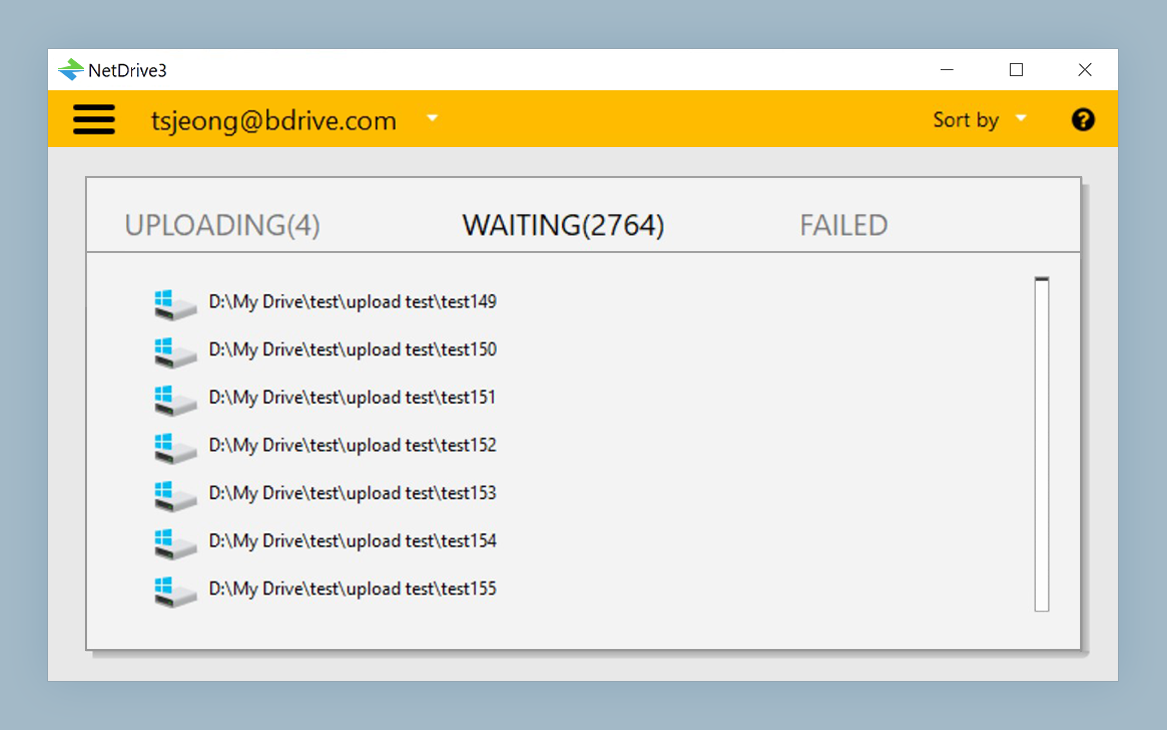
- Background upload queues large exports without blocking your workstation
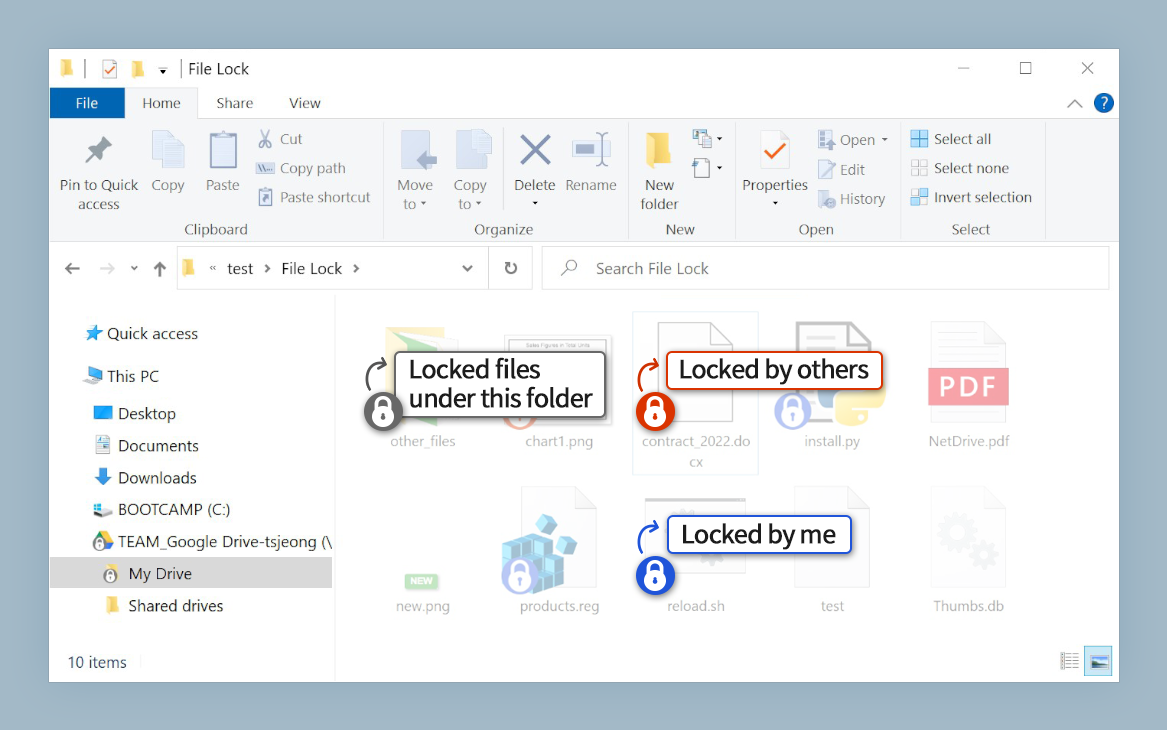
- File locking keeps two artists from overwriting the same asset at once
Free trial. Lifetime and subscription plans available.
Why Full Sync Doesn’t Work for Game Assets
Sync-based tools have to pull an entire folder tree to disk before anything in it is usable, which is a bad match for an asset library where any given session might touch a handful of files out of tens of thousands. NetDrive’s on-demand streaming avoids that problem: mounting the bucket surfaces the full directory structure immediately, but individual files only transfer when something actually opens them. A texture artist browsing a materials folder in Windows Explorer sees every thumbnail-worthy asset listed without waiting on a multi-hour initial sync.
This matters most for the files that make game asset libraries heavy in the first place — uncompressed source textures, high-poly sculpt exports, and platform-specific build outputs that can run into gigabytes each. NetDrive’s adjustable local cache (100 GB to 1 TB) keeps recently-opened assets fast to reopen without committing a workstation’s entire drive to a local copy of the bucket.
Keeping Builds and Source Assets Separate
A common pattern is mounting two buckets side by side — one for source art (PSDs, sculpt files, raw audio) and a second for compiled build output that a CI pipeline pushes after every automated build. Both show up as their own drive letters, so a QA tester grabbing the latest nightly build doesn’t wade through the same directory tree an artist uses for source files. Because each drive connects independently, a bandwidth cap can be set on the build-output drive during business hours without throttling artists actively working against the source library.
Avoiding Overwrites on Shared Assets
Two artists editing the same rig or material file at the same time is the kind of collision that’s easy to cause by accident and annoying to untangle afterward. NetDrive’s file locking — available for all file types, not just Office documents — lets one artist lock a file while working on it; anyone else who opens it sees it as read-only until the lock clears. For a team without a dedicated version-control pipeline for binary art assets, that alone prevents the most common source of lost work.
Setting Up a Shared Team Drive
- Open NetDrive’s Drive Manager and click + Add Drive.
- Select Amazon S3 (or whichever object storage the studio already uses) and enter the access key, secret, and bucket name.
- Assign a drive letter — a consistent one across the team (
T:for “textures,” for example) keeps engine asset paths portable between machines. - Enable Team Drive if multiple studio members need access under managed licenses, so credentials and drive settings can be published to the team rather than configured by hand on every workstation.
Background Uploads for Exports
When an artist finishes a batch of processed textures or a build lands from CI, pushing that content back to the bucket happens in the background rather than blocking the workstation. A large export queues and uploads while the artist keeps working in the engine, with progress visible in the system tray rather than a dialog that has to stay open.
Wrap-up
Mounting an asset library as a drive letter turns a multi-terabyte S3 bucket into something an engine, a file browser, and every other tool on a workstation can treat as ordinary local storage — no bespoke sync client, no waiting on a full download before work can start. For the collaboration features this setup depends on, see Team Drive and Shared Drives in NetDrive and Office File Locking in NetDrive.
— Jay, NetDrive