Remote Work Teams with NetDrive — One Shared Drive for Every Home Office

Remote and hybrid teams use NetDrive on Windows and macOS to mount shared cloud storage as a drive, publish team drives, lock files and cap bandwidth on home connections.
A six-person product team works from five cities. The designer keeps assets in Google Drive, finance lives in OneDrive for Business, and the engineers drop build artifacts into Amazon S3. Every week someone asks “which folder is the latest one?” NetDrive gives each person the same drives in Explorer or Finder, so the folder structure is the single answer.
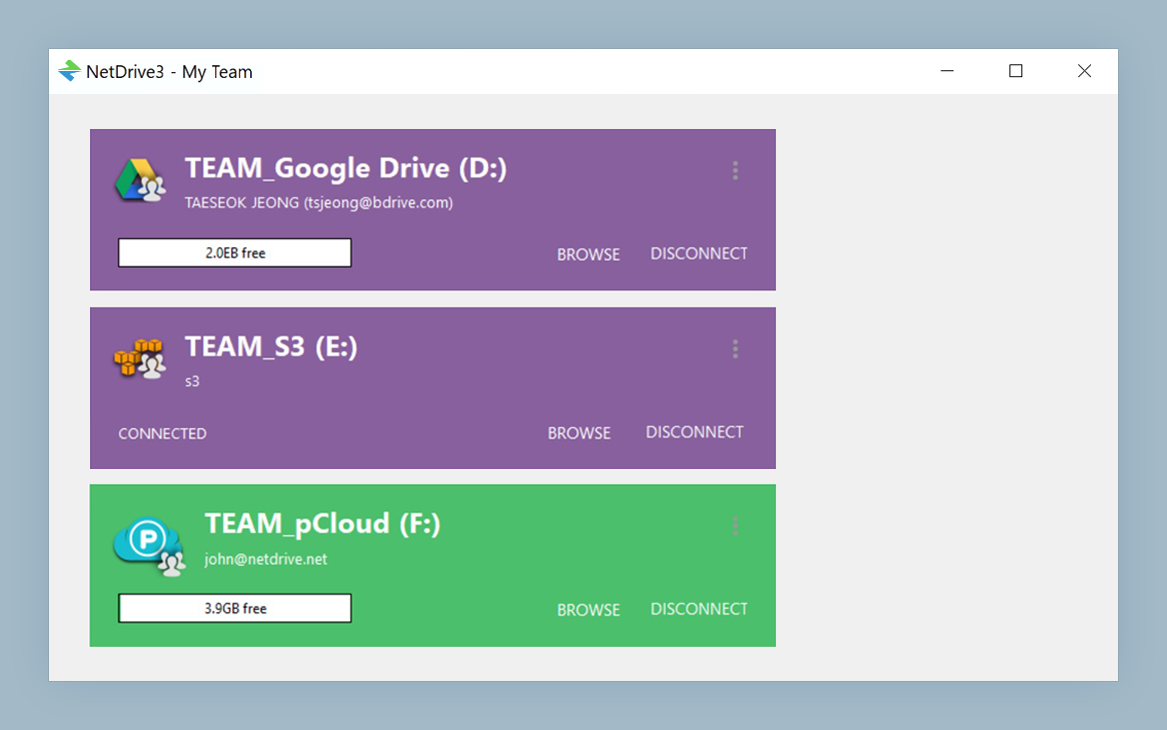
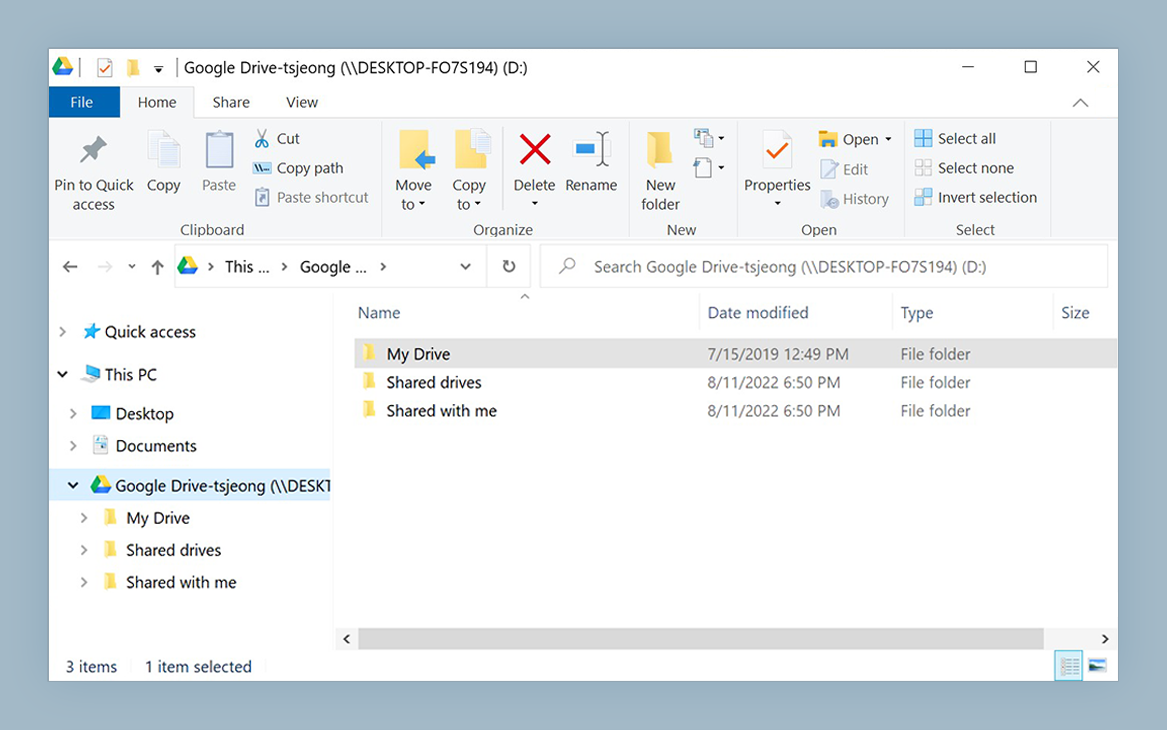
One drive list for a distributed team
NetDrive lets Google Drive, OneDrive, S3, SFTP, WebDAV and more appear as native drives on Windows and macOS — no syncing, no full downloads.
- Mount shared cloud storage as a drive on Windows and macOS
- Publish team drives to members from one console
- Lock files so two people never edit the same document
Free trial. Lifetime and subscription plans available.
Why Remote Teams Drift Into Version Chaos
In an office, “Can you open the budget file?” gets solved by walking over. Remotely, people download a copy to be safe and edit that. Two weeks later three copies exist, and none is the source of truth.
NetDrive mounts the provider your team already pays for (Google Drive, OneDrive for Business, Dropbox Business, SharePoint, Amazon S3 and others) as a normal drive. Everyone opens the same folders in their usual apps instead of keeping private copies. One limit to plan for: NetDrive does not have an offline mode, so a mounted drive needs a connection. That matters for people who work on trains or in cafés.
Publishing Team Drives Without Sharing Passwords
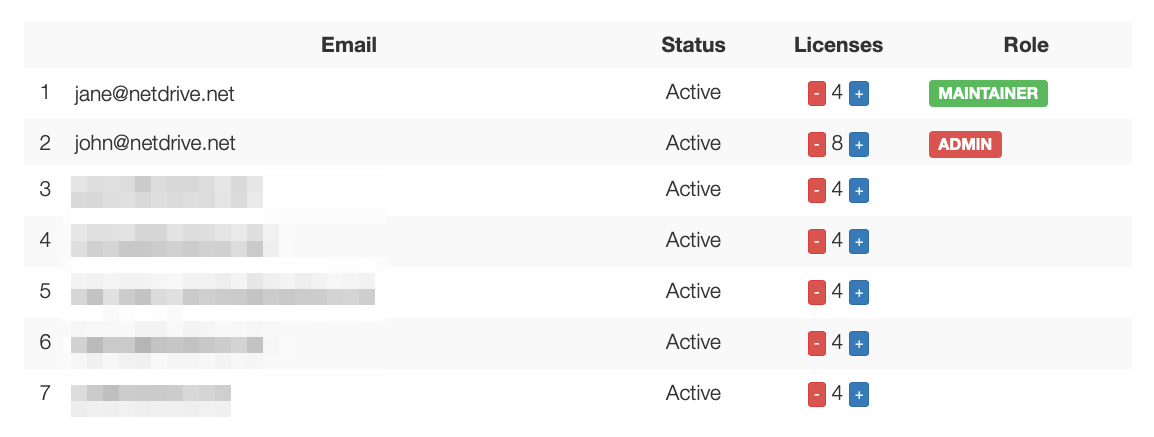
With a NetDrive team license, an administrator publishes a drive to team members from the team management console. New hires get the project drive in their drive list on day one, and when someone leaves, the administrator releases their license. Nobody has to email credentials.
A structure that holds up for distributed teams:
- Projects for active work, one folder per project, writable by the team.
- Reference for contracts, brand assets and policies, published as a read-only drive so nobody edits a source document by accident.
- Handoffs for deliverables going to clients or other departments.
See Team Drives and Shared Drives with NetDrive for the setup details, and Read-Only Drive in NetDrive for the reference case.
Stopping Edit Collisions With File Locks
Time zones make collisions more likely, not less. Someone in Seoul opens the pricing sheet just as a colleague in Berlin starts their morning. NetDrive’s file lock works on any file type in a team drive, and Microsoft Office files are covered too: if another person has the file, you get a clear read-only warning instead of a silent overwrite.
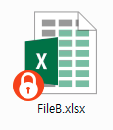
Agree on one habit: lock the file when you start a long edit, release it when you finish. The details are in Office File Locking with NetDrive.
Home Connections Are Not Office Fiber
Remote staff share their bandwidth with video calls and streaming. Two settings help. First, set a custom bandwidth limit so a big upload does not choke a meeting; see Bandwidth Limit in NetDrive. Second, use the background upload mode so saving a large file does not freeze the app that wrote it.
Getting Everyone Set Up
- Install NetDrive on each Windows or macOS machine. macOS requires version 14 (Sonoma) or later for current releases.
- Sign in with the team account provided by your administrator.
- Open the drive list and confirm the published team drives appear.
- Choose an auto-mount option (at boot, at login or disabled) so drives are ready when the workday starts. See Auto-Mount on Boot.
- Set a bandwidth limit if the person’s home connection is slow.
- Do a test save to the shared drive and confirm a colleague sees the file.
Wrap-up
Remote work does not need a new storage platform, only one agreed place for files and a few guardrails. NetDrive keeps your existing cloud accounts and presents them as drives, with team publishing and file locks on top. If your team is on S3, also read Large File Uploads to Amazon S3.
— Casey, NetDrive