Real Estate Teams with NetDrive — Listing Photos and Documents on One Drive

Real estate teams use NetDrive on Windows and macOS to mount cloud storage as a drive, share listing photos and documents through team drives, and avoid overwritten files.
A brokerage office has three agents, one photographer and a coordinator, and every listing generates 200 photos, a floor plan, disclosure PDFs and a contract draft. Files end up in email threads, personal Dropbox folders and a shared drive nobody trusts. NetDrive gives the team one place: cloud storage mounted as a normal drive on each Windows or macOS machine, with the same folder layout for everyone.


One listing folder for the whole team
NetDrive lets Google Drive, OneDrive, S3, SFTP, WebDAV and more appear as native drives on Windows and macOS — no syncing, no full downloads.
- Mount cloud storage as a drive on Windows and macOS
- Publish team drives to members from one console
- Lock files so two people never edit the same contract
Free trial. Lifetime and subscription plans available.
Why Listing Files Pile Up in the Wrong Places
Listing work is bursty. The photographer delivers a large batch on Tuesday, the coordinator needs the disclosures by Wednesday, and an agent wants the floor plan on a laptop in the car. If each person pulls files into a local folder, you end up with three versions of the same PDF.
NetDrive mounts the provider your team already uses (Google Drive, OneDrive for Business, Dropbox Business, SharePoint, Amazon S3 and others) as a drive in Explorer or Finder. Everyone opens the same folders instead of keeping copies. NetDrive does not offer an offline mode, so the mounted drive needs a connection. Plan for that if agents work in places with poor reception.
Team Drives for Agents and Staff
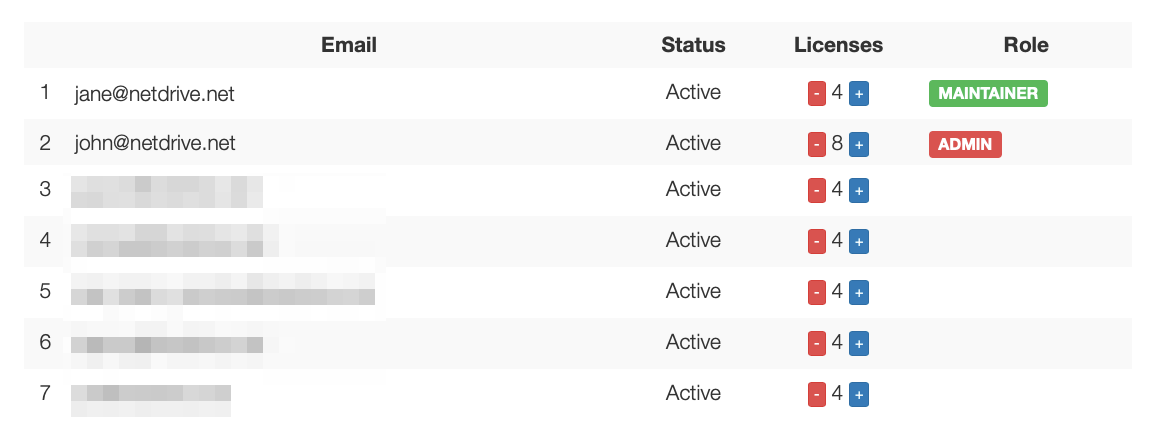
With a NetDrive team license, an administrator can publish a drive to team members from the team management console instead of sending every agent credentials. The listing archive stays in one mounted drive, and members see it in their drive list.
A layout that works for small offices:
- Active Listings with one folder per address, holding Photos, Floor Plans, Disclosures and Contracts.
- Closed for finished deals, switched to a read-only drive for agents who only need to look things up.
- Marketing for brochures, signage templates and social images.
NetDrive supports read-only drives for exactly the archive case, which keeps a closed file from being edited by accident. See Read-Only Drive in NetDrive for how it works.
Lock Contracts, Let Photos Flow
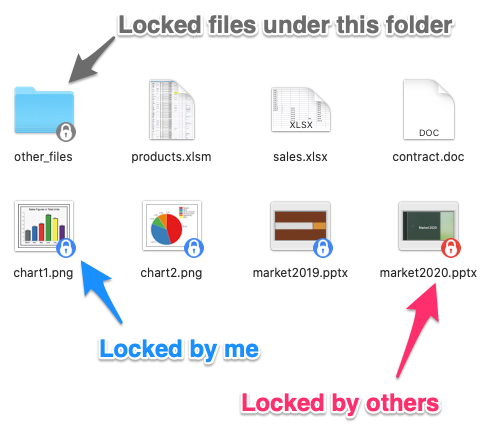
Photos are write-once: the photographer uploads them and everyone else reads them. Contracts are the opposite, with several people touching one draft. NetDrive’s file lock works for every file type, and for Microsoft Office files a second person who opens a file in use gets it read-only. That prevents the classic overwritten addendum.
Large photo batches go through background upload. NetDrive can upload asynchronously, so the photographer’s copy finishes quickly and the transfer continues in the queue. Background Upload Mode in NetDrive explains when to use synchronous mode instead.
Setting It Up for the Office
- Install NetDrive on each Windows or macOS machine. macOS needs version 14 (Sonoma) or later for current releases.
- Open NetDrive and add the storage account your brokerage uses.
- Publish it as a team drive from the team management console to the agents who need it.
- Create the folder template once (Photos, Floor Plans, Disclosures, Contracts) and copy it for each new address.
- Set the archive drive to read-only for staff who should not modify closed deals.
- Enable auto mount so the drive is there when a laptop starts.
If a folder looks stale after a colleague uploads, use the folder refresh option described in Force Folder Refresh in NetDrive.
Limits to Know
NetDrive is a mount tool, not a sync or transfer tool, so it does not copy files between clouds. It also does not provide client-side encryption, so treat sensitive documents under your provider’s own access controls and your brokerage’s policies. Agents working from phones can use NetDrive Mobile for Real Estate Teams to browse and upload from the field.
Wrap-up
A shared mounted drive, a team console and file locks cover most of what a small brokerage needs for listing files. For the broader team setup, read NetDrive Team Drive and Shared Drives Guide.
— Steve, NetDrive