Translation and Localization Teams with NetDrive — Shared Files by Language

How localization teams use NetDrive to mount client cloud storage as a drive, open source files in CAT tools, and use file locking so two translators never edit the same file.
A localization project manager gets a 40-file handoff from a client: source documents in SharePoint, a style guide in Dropbox, and a glossary on a shared Google Drive. Six translators need the files open in their desktop translation tools by morning, and nobody wants to download, rename and re-upload forty files by hand. Giving each cloud a drive letter lets every tool open the files where they already live.


Client clouds as local drives
NetDrive lets Google Drive, OneDrive, S3, SFTP, WebDAV and more appear as native drives on Windows and macOS — no syncing, no full downloads.
- Open SharePoint, Dropbox or Google Drive files from any desktop tool
- Lock files so two translators never overwrite each other
- Works on Windows and macOS
Free trial. Lifetime and subscription plans available.
Why Localization Work Suits a Mounted Drive
Translation tools, layout software and QA checkers all expect file paths. Clients, meanwhile, share through whatever cloud they already pay for. NetDrive bridges the two: it mounts the client’s storage as a drive in Windows Explorer or macOS Finder, so a desktop tool opens a source file directly and saves the translated version back to the same folder.
You can mount several clouds side by side, one per client. NetDrive supports Google Drive, Dropbox, OneDrive, SharePoint, Box and more, so a freelance linguist who works for four agencies can see all four workspaces without juggling sync clients.
Stop Two Translators Editing the Same File
The classic failure in a shared folder is two people opening the same file and the last save winning. NetDrive’s file lock works on every file type for team drives. A translator locks the file before starting; everyone else sees it as locked and can open it read-only. When the work is done, they unlock it.
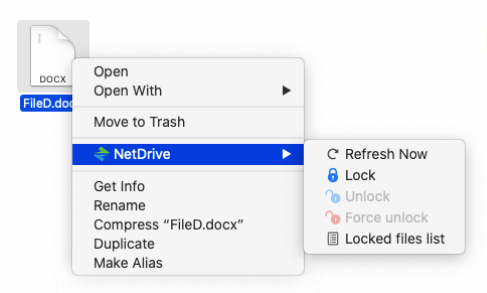
For a deeper walkthrough of how locking and team drives behave, see NetDrive Team Drive and Shared Drives Guide and Office File Locking in NetDrive.
A Folder Layout That Keeps Languages Apart
A mounted drive is only as tidy as the folders on it. A layout that works for a multi-language project:
source/for the client’s original files, mounted or opened read-onlyfr/,de/,ja/and so on, one folder per target languageglossary/andstyle/for reference files everyone reads and few edit
If a drive holds only reference material, mount it as read-only so nobody changes the glossary by accident. See Read-Only Drive in NetDrive.
Setting Up a Client Drive
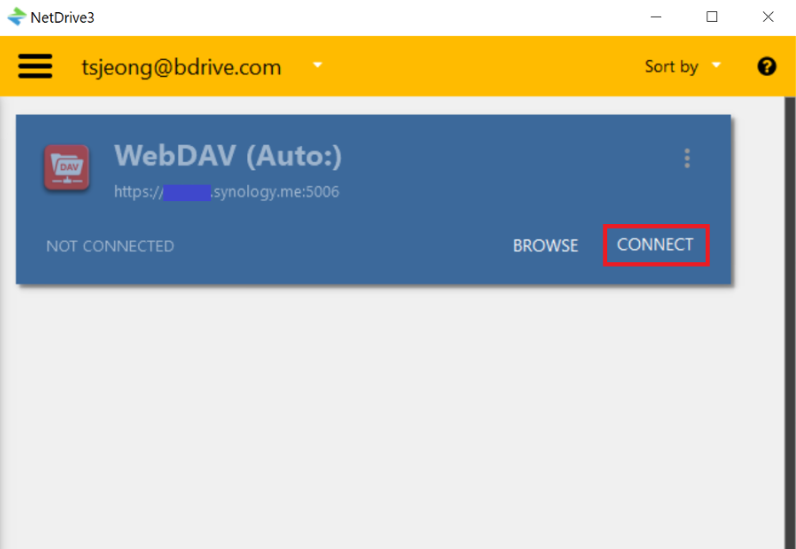
- Open NetDrive and click Add Drive.
- Choose the storage type the client uses, for example SharePoint or Dropbox.
- Sign in with the credentials the client gave you, or the team account if your agency provides one.
- Choose the mount options. Pick read-only for reference-only drives.
- Mount the drive and open it in Explorer or Finder.
Provider guides: Mount SharePoint on Windows, Mount Dropbox on macOS and Mount Google Drive on Windows 11.
Habits That Save Deadlines
Refresh when the client uploads. If a new batch lands while you have a folder open, use force folder refresh to see it: Force Folder Refresh.
Use the file browser for quick checks. When you only need to peek at a client folder, the file browser opens remote files without mounting a drive. Details in File Browser in NetDrive.
Keep working copies deliberate. NetDrive has no offline mode, so a mounted drive needs a connection. If you are about to travel, copy the files you need to local storage first.
Know the Limits
NetDrive mounts storage; it does not manage translation memory, project status or deliveries. It also has no client-side encryption feature, so confidential source material relies on the protections of the cloud provider and the client’s own access policy. Check the client’s contract before adding their storage to your machine.
Wrap-up
For localization teams, the win is simple: translators open source files and save results in the tools they already use, while the files stay in the client’s cloud. Start with one client drive, agree on the folder layout, and turn on file locking for the shared folders.
— Alex, NetDrive