Web Developers with NetDrive — Edit Staging Servers Over SFTP and FTP

How web developers use NetDrive to mount FTP and SFTP staging servers as drives, open files in their usual editor, and keep session limits and symlinks in check.
A freelance developer maintains six client sites, each on shared hosting that offers nothing but FTP or SFTP. Every fix means opening a dedicated FTP client, downloading a file, editing it, and uploading it again. NetDrive lets you skip that loop: the server shows up as a drive, so your editor opens and saves the remote file directly.


Staging servers as plain drives
NetDrive lets Google Drive, OneDrive, S3, SFTP, WebDAV and more appear as native drives on Windows and macOS — no syncing, no full downloads.
- Mount FTP and SFTP hosts with a drive letter or volume name
- Open and save remote files from any editor or IDE
- SFTP symlink support and per-connection permission options
Free trial. Lifetime and subscription plans available.
Why a Mounted Drive Beats a Transfer Client
A transfer client treats every edit as a round trip. A mounted drive treats the server as a folder. Your editor, your search tool, and your image optimizer all work on it without knowing it is remote.
That matters in small ways. You can drag a logo from Downloads straight into /assets, open a whole directory in your editor, and use your usual file-compare tool across a local checkout and the staging copy.
Setting Up a Host
NetDrive supports both FTP and SFTP. Choose SFTP whenever the host offers it.
- Open NetDrive and add a new drive, then choose SFTP (or FTP).
- Enter the host, port, and username. Use the port your host documents, not an assumption.
- Save, then mount the drive from the drive list.
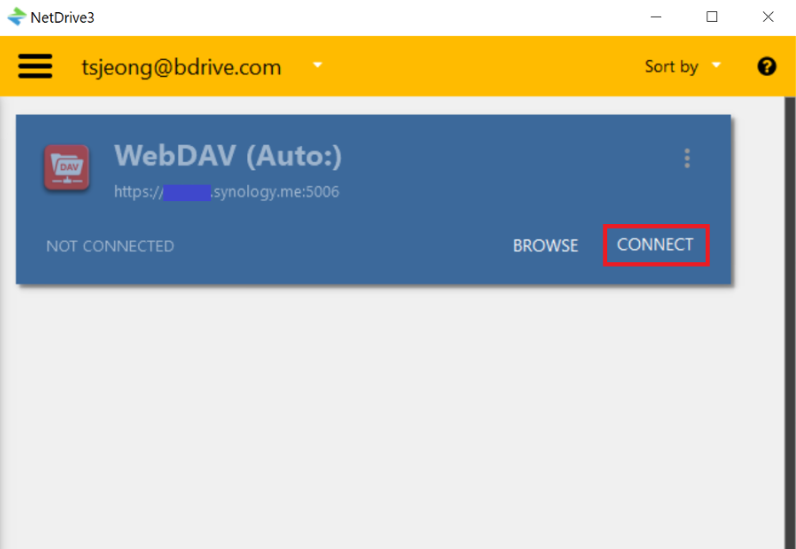
Since 3.7.687, FTP and SFTP connections can be saved without credentials, which is handy if you share a workstation and want to be prompted each time.
Details That Bite Web Developers
Session limits. Many shared hosts cap how many simultaneous FTP or SFTP sessions one account may open. NetDrive added a way to limit concurrent sessions for these protocols in 3.3.349, so you can stay under the host’s cap instead of getting random “too many connections” refusals.
Symlinks. If your deploy script links current to a timestamped release folder, SFTP symlinks matter. They have been supported since 3.17.817. If they still do not show, Fix SFTP Symlinks Not Showing in NetDrive walks through the checks.
Timeouts and time offsets. Slow hosts can stall FTP connections. See Fix FTP Connection Timeout in NetDrive. NetDrive also has a manual FTP time offset (added in 3.17.799) for servers whose clock differs from yours, which helps when timestamp comparisons look wrong.
Authentication failures. Key and password problems are covered in Fix SFTP Authentication in NetDrive.
Keep Production Safe
Staging and production often live on the same host account. Mounting production as a Read-only drive means you can browse logs and compare files without any risk of saving over a live template. Mount staging as a normal read-write drive. Having both visible at once, with different drive types, is a cheap safeguard. See Read-Only Drives in NetDrive.
What NetDrive Does Not Do
NetDrive is not a deployment tool. It does not run builds, diff releases, or push changes on a schedule. It also has no offline mode, so if the host is unreachable, the drive is too. For your own code, keep using version control; the mounted drive is for quick edits and inspection.
Keep expectations right on caching, too. File listings can lag behind changes made by someone else, and a manual refresh is available. Force Folder Refresh in NetDrive shows how.
Wrap-up
If your day involves hosts that only speak FTP or SFTP, a mounted drive turns six separate transfer sessions into six folders. The full setup for Windows is in Mount an SFTP Server on Windows with NetDrive, and the macOS version is in Mount an SFTP Server on macOS.
— Morgan, NetDrive