Universities & Research IT with NetDrive — Shared Storage Without Full Sync
How university IT departments use NetDrive to give rotating researchers and grad students drive access to shared cloud storage without syncing it to every laptop.
A university IT department manages storage for a dozen active research labs — some datasets live on an institutional Google Drive account, others sit on a departmental SFTP server that predates cloud storage entirely. Every semester brings a new batch of graduate students who need access to their lab’s shared files on day one, and every graduation or lab transfer means revoking that same access cleanly. Standard sync clients turn each of those onboarding events into a multi-gigabyte download queued on a laptop that may not have the disk space to spare.


Shared research storage without the sync queue
NetDrive lets Google Drive, OneDrive, S3, SFTP, WebDAV and more appear as native drives on Windows and macOS — no syncing, no full downloads.
- On-demand streaming — labs skip the full local copy of shared datasets
- Team licensing makes onboarding and offboarding a seat change, not a reinstall
- Works with SFTP servers and institutional Google Drive accounts alike
Free trial. Lifetime and subscription plans available.
Why Full Sync Doesn’t Fit a Shared Research Drive
A sync client’s whole job is to mirror a folder locally, which is fine for a personal Drive account with a few gigabytes in it. A shared lab folder is a different situation: it accumulates years of datasets, imaging files, and archived project data that no single grad student needs a full copy of just to pull this week’s files. Point a sync client at it and a new lab member’s laptop spends the first day of their assistantship downloading terabytes they’ll never open, on a machine that may not have room for all of it in the first place.
NetDrive mounts the same storage as a drive letter or a Finder volume instead, streaming files on demand as they’re opened rather than mirroring the whole tree up front. A student can browse the full lab folder structure immediately and only pull down the specific files their project touches. Several universities — including UC Riverside, UT Austin, and Cornell — are publicly featured NetDrive customers, alongside other academic and research institutions.
Mounting Institutional Storage as a Shared Drive
The setup looks the same whether the underlying storage is an SFTP research server that’s been running for a decade or a newer institutional Google Drive account:
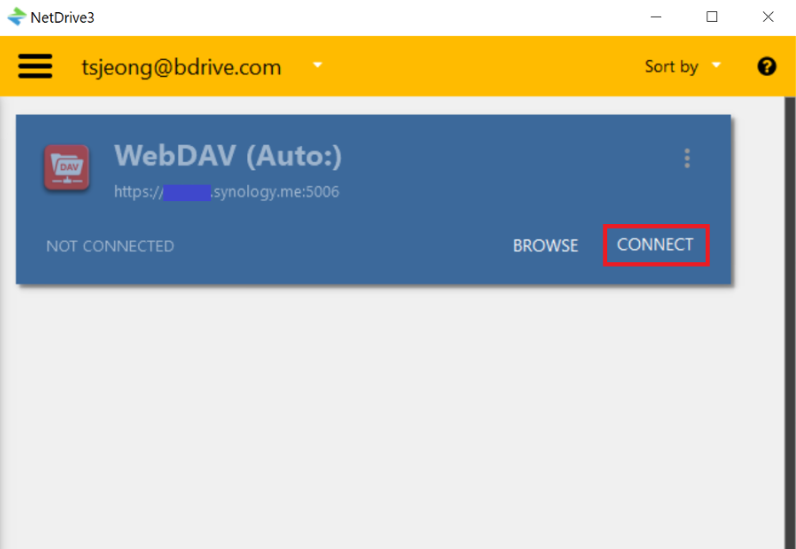
- Open NetDrive → click Add Drive and select the provider — SFTP for a departmental file server, Google Drive for an institutional account.
- Enter the server’s connection details or sign in with the institutional account credentials. NetDrive assigns the mount a drive letter (Windows) or a Finder volume (macOS).
- In Settings → Cache, size the local cache to the lab’s typical working set rather than the full dataset — a lab that mostly reviews recent imaging runs doesn’t need the 1 TB ceiling that a lab actively re-processing older archives might.
- For shared lab workstations, set Auto Mount to run on login so the drive is present as soon as any authorized user signs in, without a manual reconnect step each time.
File Locking Keeps Shared Datasets From Getting Overwritten
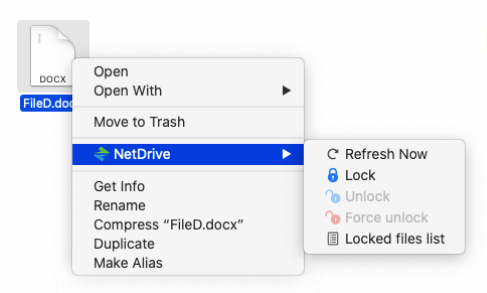
Research data has the same collision problem as any shared drive: two students open the same analysis spreadsheet or dataset index, both edit, and one save silently overwrites the other’s changes. NetDrive’s file lock applies across file types, not just Office documents, so a locked dataset file or notebook shows as locked to anyone else browsing the same mounted drive, with the lock owner visible before a second person risks a conflicting save.
Team Licensing Matches the Academic Calendar
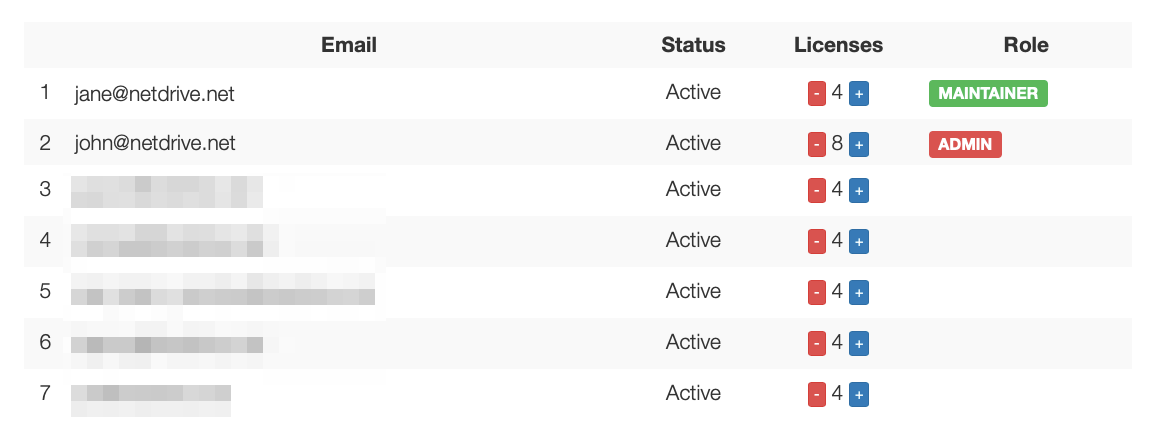
The part of this setup that actually saves IT staff time isn’t the mount itself — it’s how access changes over a semester. A team license lets an administrator assign a seat to a new grad student the day they join a lab and reclaim it the day they leave, without touching the underlying SFTP server or Google Drive account configuration. Team drives published from the admin console show up automatically in every licensed member’s NetDrive, so there’s no per-workstation setup script to run when a new student’s laptop needs access.
Wrap-up
For a department managing storage across multiple labs on different cloud providers, mounting each as a drive keeps browsing instant and disk usage proportional to what a given student actually opens, while team licensing turns the recurring onboarding and offboarding work into a seat assignment instead of a reinstall. For the SFTP side of this setup, see Mount an SFTP Server on Windows with NetDrive; for the team drive mechanics referenced above, see the Team Drive and Shared Drives guide; and for tuning cache size to a lab’s dataset, see Cache Size Options in NetDrive.
— Tayson, NetDrive