Teachers and School IT with NetDrive — Class Files as a Normal Drive

School IT staff and teachers use NetDrive to mount Google Drive, OneDrive, or SharePoint as a drive on Windows and macOS, so lesson files open from any app's Save dialog.
A technology coordinator gets the same ticket every August: “I can’t find my lesson plans on the classroom PC.” The department keeps shared units on Google Drive, the district office hands out OneDrive and SharePoint, and every teacher saves to a different place from Word or the projector software. NetDrive mounts those clouds as ordinary drives on Windows and macOS, so the Save dialog shows one familiar list instead of three browser tabs.
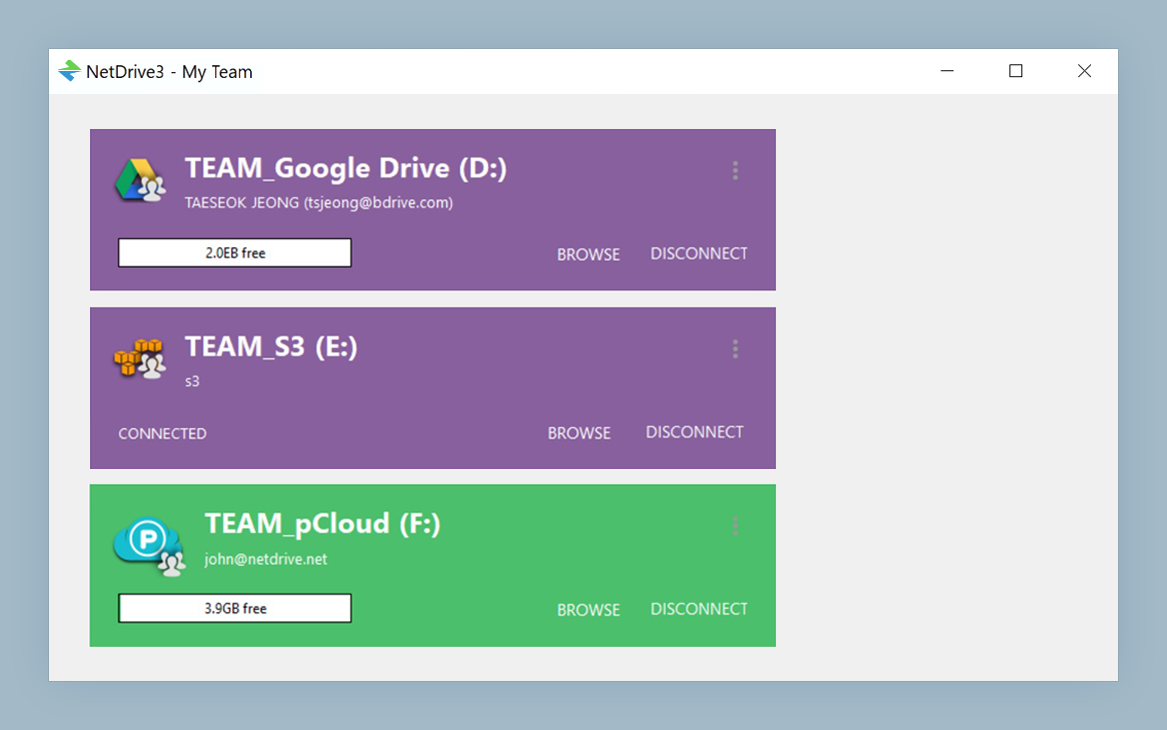
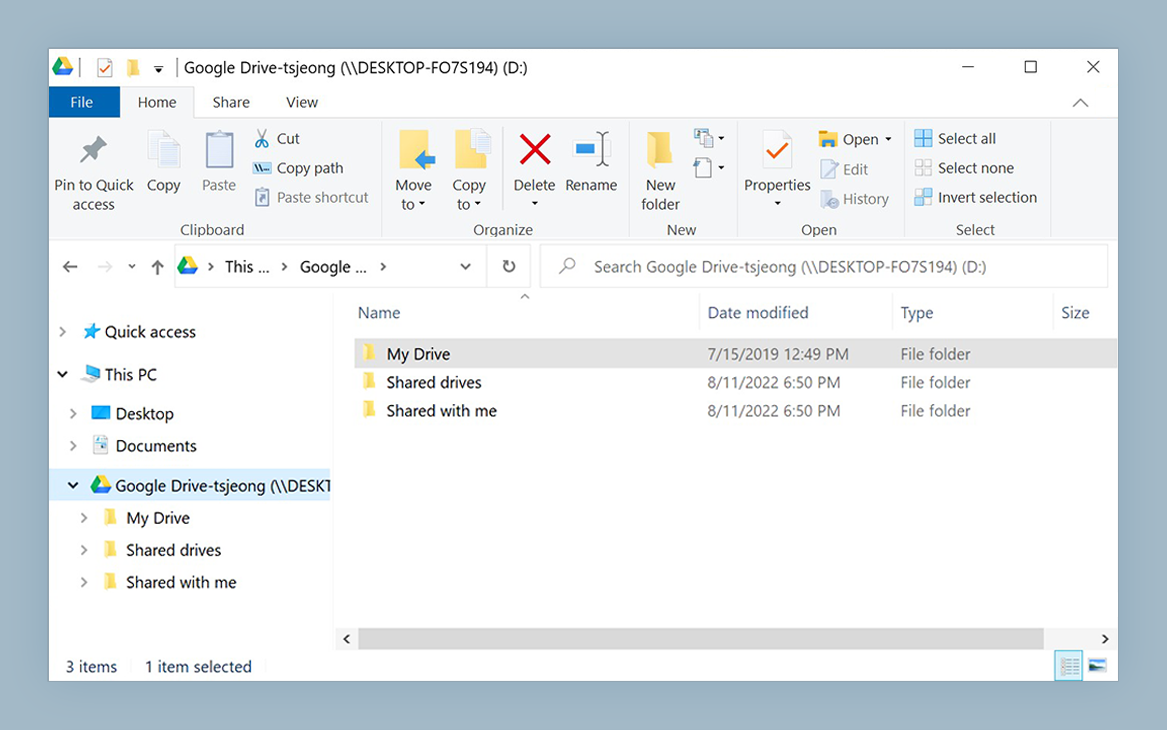
Put class files in the Save dialog
NetDrive lets Google Drive, OneDrive, S3, SFTP, WebDAV and more appear as native drives on Windows and macOS — no syncing, no full downloads.
- Mount Google Drive, OneDrive, or SharePoint as a drive
- Open and save lesson files from any desktop app
- Roll out to many classroom PCs with the MSI installer
Free trial. Lifetime and subscription plans available.
Why a mounted drive fits a classroom
Most teaching software, from slide editors to gradebook exports, opens and saves through standard file dialogs. It has no idea what a cloud account is. When NetDrive mounts a cloud as a drive, that software treats Science-Dept/Unit-4/ like any other folder, and a teacher opens last term’s worksheet without hunting through a web interface.
This is different from a sync folder, which is built around keeping local copies. A mounted drive appears in the file manager like any other drive, so teachers work with the same folders they already know.
Matching providers to school storage
Schools rarely standardise on one cloud, and NetDrive does not ask them to. Common pairings:
- Google Drive for department shared drives and student-facing handouts.
- OneDrive for Business or SharePoint for district-issued accounts and staff documents.
- Dropbox, Box, or a WebDAV or SFTP server for a teacher’s personal archive or an on-premises file server.
Several can be mounted at once. Each appears as its own drive in the drive manager, so a teacher can keep the district account and a personal archive visible side by side. Provider-specific setup is in Mount Google Drive on Windows 11 and Mount SharePoint on Windows with NetDrive.
Deploying to a room of computers
For IT, the practical question is how to avoid installing by hand on thirty machines. NetDrive provides an MSI installer for Windows aimed at system administrators and network deployment, alongside the regular EXE installer. The walkthrough is in Deploying NetDrive with MSI for Windows IT Admins.
Two details to plan around. On shared computers where several staff log in, read NetDrive on Windows Terminal Server for the multi-user licensing behaviour. And NetDrive does not offer an offline mode, so a teacher needs a network connection to reach files on a mounted drive. Anything needed during a network outage should be copied to local disk beforehand.
Setting up a teacher’s drive
- Open NetDrive → click Add a Drive in the drive manager.
- Choose the provider your school uses, for example Google Drive or OneDrive for Business, and sign in with the school account.
- Pick a drive letter on Windows, or a mount location on macOS.
- Click Mount. The drive appears in Explorer or Finder.
- In your slide or document app, choose the new drive from the Save dialog and save a test file.
If the drive stops connecting after a password reset, the fix is usually to re-enter the saved credentials; the steps are in Fix Google Drive Authentication Errors.
Protecting shared documents
Department planning documents are where two people open the same file at the same time. NetDrive can lock files on a Team Drive, so a colleague sees that a document is being edited rather than overwriting it later. See NetDrive Team Drive for how a team publishes shared drives to its members.
Wrap-up
For a school, the win is fewer places to look. Mount the clouds the staff already use, let the Save dialog do the rest, and keep a local copy of anything needed offline. Teachers who also work from a phone can pair this with NetDrive Mobile for Teachers, which browses and previews the same clouds on iPhone, iPad, or Android.
— Kai, NetDrive