Your Phone's Storage Is Just Another Drive — NetDrive Mobile

NetDrive Mobile shows My Device storage right next to every connected cloud, so browsing, previewing, uploading, and downloading stay in one app and one screen.
A consultant with three client clouds connected — one Dropbox, one SharePoint, one S3 bucket — also has a phone full of PDFs downloaded from meetings and a folder of scanned receipts waiting to go somewhere. Checking what’s already on the device versus what still needs pulling down from a cloud usually means switching out of the cloud app entirely and into Files or Photos. NetDrive Mobile skips that switch: the phone’s own storage sits on the same home screen as every connected cloud, one tap away from either.

Your device is one more drive
NetDrive Mobile puts My Device right next to Google Drive, Dropbox, S3, and every other connected cloud — browse, preview, upload, and download without leaving the app.
- My Device sits alongside every connected cloud on the home screen
- Same file browser and preview for local files as for cloud files
- Upload from device storage or download straight to it, in the same flow
Free Bdrive account required.
My Device, Right Next to Your Clouds
Open NetDrive Mobile and the home screen splits into two sections: My Device at the top, showing your phone’s own storage, and Clouds below it, listing every account you’ve connected — Google Drive, Dropbox, S3, a WebDAV share, whatever the job requires. Neither section is buried in a settings menu or a separate tab; they’re the first thing the app shows.
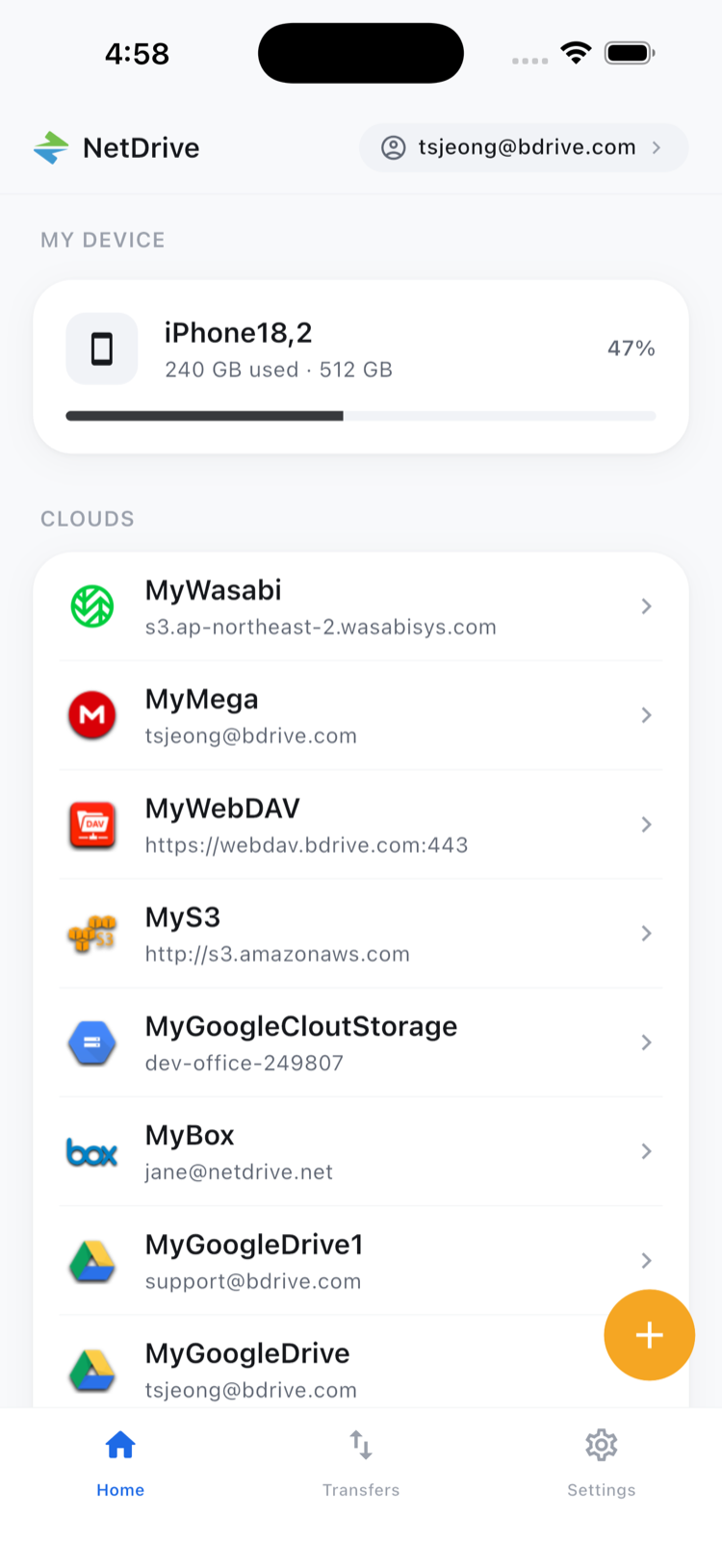
Tapping My Device opens the same file browser used for any cloud — sort by name or date, switch between list and grid, and tap Select to enter multi-select mode for a batch of files at once. There’s no separate “local files” app to learn; it’s the identical interface, just pointed at the phone instead of a remote account.
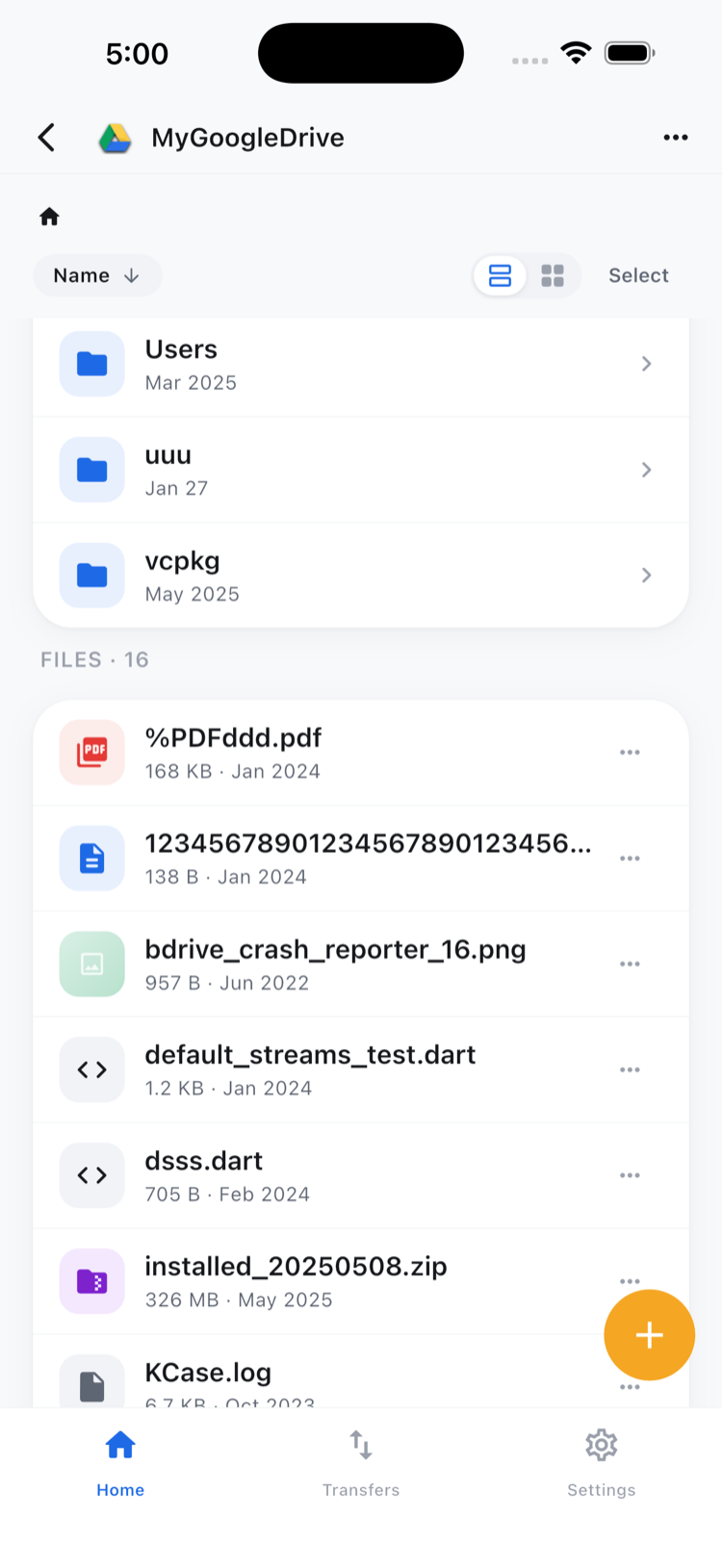
The Same Actions, Whether the File Is Local or in the Cloud
Tap and hold a file — local or cloud — and the same actions sheet slides up: Preview, Rename, Get info, Delete, plus Download and the copy/move actions when the file lives in a connected cloud. Previewing a PDF sitting in My Device works exactly like previewing one that just finished downloading from SharePoint — same viewer, same gesture to open it.
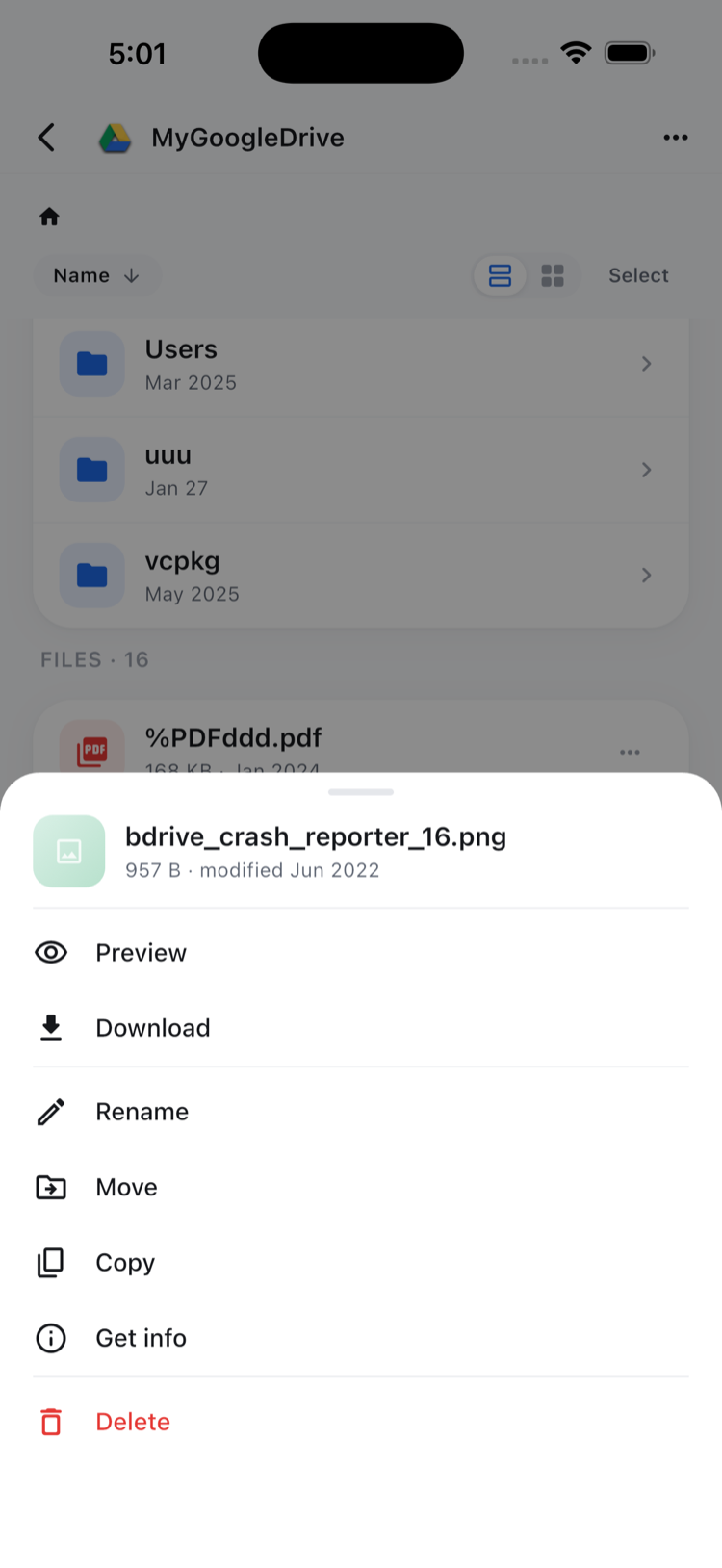
Moving a file between My Device and a cloud isn’t a single move action, and it’s worth being precise about that: getting a local file up into a cloud uses the upload picker, choosing Files as the source and picking it from My Device; bringing a cloud file down works through Download on its actions sheet, which lands it in My Device. Both are the same upload and download mechanics NetDrive Mobile already uses everywhere else — My Device just makes the result of a download, or the source for an upload, something you can browse afterward instead of losing track of it in the phone’s general storage.
A Practical Case: Getting Ready Before You Lose Signal
Before heading into a client site with unreliable WiFi, downloading that week’s SharePoint deck and a couple of reference PDFs from Google Drive onto My Device takes the same few taps as any other download. Once they’re there, they’re ordinary files on the phone — opening one for a quick reread doesn’t depend on NetDrive Mobile reaching the network again, because there’s nothing left to fetch. The reverse trip works the same way: photos or notes captured on-site upload into the client’s shared folder through the same picker already familiar from a camera-roll upload, just pointed at Files instead of Photos.
Moving Between My Device and a Cloud
- From the home screen, tap My Device to browse local files, or tap a cloud under Clouds to browse that account.
- To send a local file to a cloud, start an upload and choose Files as the source, then pick it from My Device.
- To bring a cloud file down, open its actions sheet and tap Download — it lands in My Device.
- Preview, rename, or delete files in either place with the same tap-and-hold sheet.
Wrap-up
Treating the phone’s own storage as a drive instead of a separate app is a small change with a real effect: one screen shows what’s already local and what’s still up in the cloud, and moving a file between the two never requires leaving NetDrive Mobile. For the file actions covered here in more depth, see Organize Files On the Go; for the upload side specifically, see Upload Photos from Your Phone to Any Cloud.
— Jay, NetDrive