Deploy NetDrive on Windows with MSI — IT Admin Installation Guide

How to deploy NetDrive across your Windows fleet using the MSI installer, configure auto-mount on startup, and manage team licenses for multi-user environments.
When you’re rolling NetDrive out to a dozen workstations or a Windows Terminal Server running concurrent user sessions, the consumer EXE installer falls short. The MSI package gives your deployment pipeline exactly what it needs: a standard Windows Installer artifact you can hand off to Group Policy, SCCM, Intune, or any RMM tool that speaks MSI.


Mount any cloud as a Windows drive — deploy fleet-wide
NetDrive lets Google Drive, OneDrive, S3, SFTP, WebDAV and more appear as native drives on Windows and macOS — no syncing, no full downloads.
- MSI package for silent, policy-driven installs
- Auto-mount on system boot — no user login required
- Team license with per-user seat management
Free trial. Lifetime and subscription plans available.
MSI vs EXE — What Changes for Admins
The EXE installer handles prerequisites inline and walks users through a click-through wizard. That is convenient for one machine but awkward at scale. The MSI package skips the wizard and follows the Windows Installer spec: msiexec runs silently, return codes are standardized, and you can fold the install into any deployment workflow that understands MSI packages.
NetDrive supports Windows 8, 8.1, 10, and 11, plus Windows Server 2012, 2016, 2019, and 2022. Download the MSI and the Visual C++ redistributable packages from netdrive.net/download/windows/ before you start. NetDrive requires the vcredist12 and vcredist14 packages in both 32-bit and 64-bit editions; the download page lists the direct links for all four. Pre-stage these on machines that do not already have them.
Running the Silent Install
Once you have the MSI, the install command is:
msiexec /i NetDrive3-<version>.msi REINSTALL=ALL REINSTALLMODE=vamusReplace <version> with the version string in the filename you downloaded. The REINSTALL=ALL REINSTALLMODE=vamus flags ensure that any existing installation is properly refreshed — essential when upgrading machines that had an older build or when re-imaging workstations. Add /qn for a fully headless run and /l*v netdrive-install.log if you need a verbose log for deployment troubleshooting.
If you need to deploy the Visual C++ redistributables first, chain them before the main installer. The redistributable installers from the download page all support /quiet /norestart for silent execution.
Configure Auto-Mount on System Boot
After installation, each drive can be set to mount automatically at three points: disabled, on user login, or on system boot. Open NetDrive, select a drive from the drive manager, open its settings, and locate the Auto Mount option.
The On System Boot mode is the critical one for servers. It starts the mount process before any user session exists, so applications and scheduled tasks that need cloud storage — a backup agent, a CI runner pulling test fixtures from S3, a logging pipeline writing to Azure Blob — find the drive already present when they start.
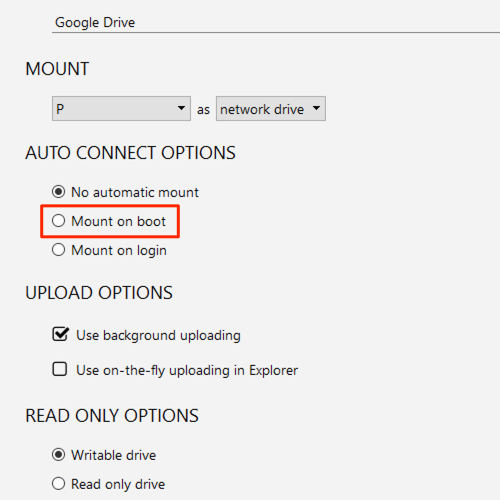
With boot-time mounting active, the drive appears in Windows Explorer as soon as the machine is up, without waiting for a user to sign in.
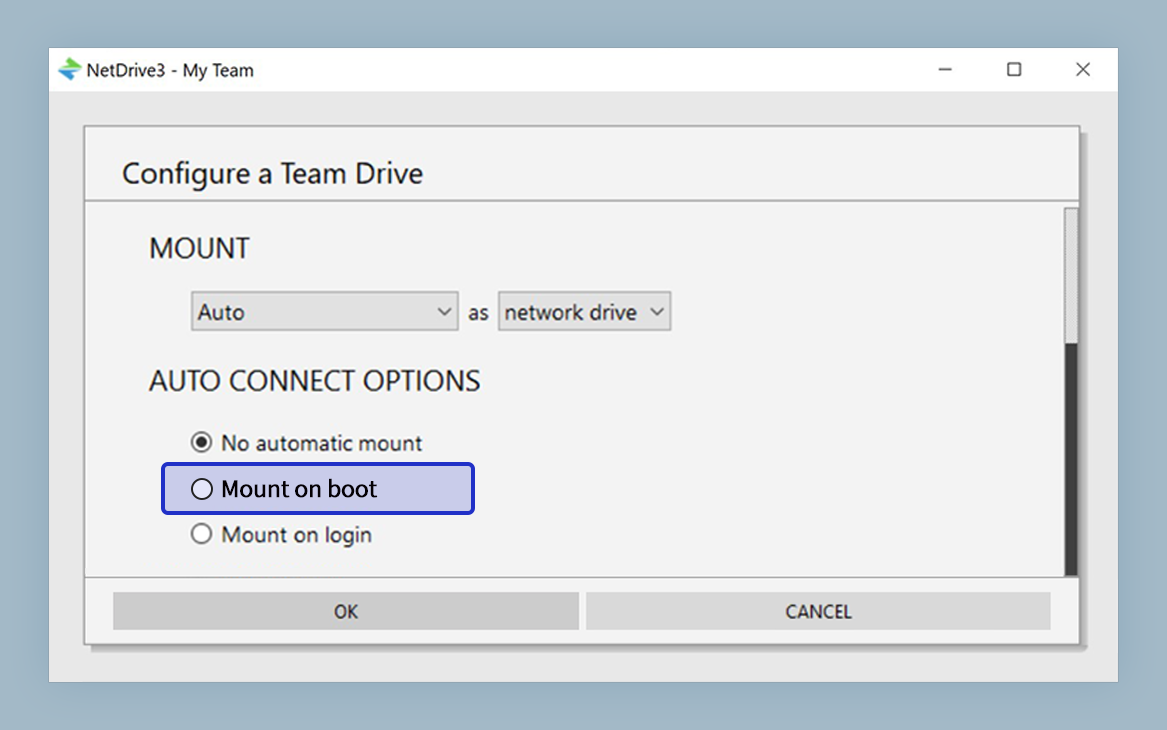
This behavior is especially reliable on Windows Server 2019 and 2022, where unattended service accounts need persistent storage access across reboots.
Team License and Multi-User Terminal Server Support
NetDrive has supported Windows Terminal Server multi-user environments since version 3.1.286. A team license assigns individual seats to named users; each Terminal Server session runs its own NetDrive instance with its own credentials and drive mappings, isolated from other sessions on the same host.
Seat management lives in the Bdrive admin console at accounts.bdrive.com. From there you assign license seats to team members and publish Team Drives — shared drive configurations that appear automatically in every licensed member’s NetDrive without any per-machine or per-user setup script.
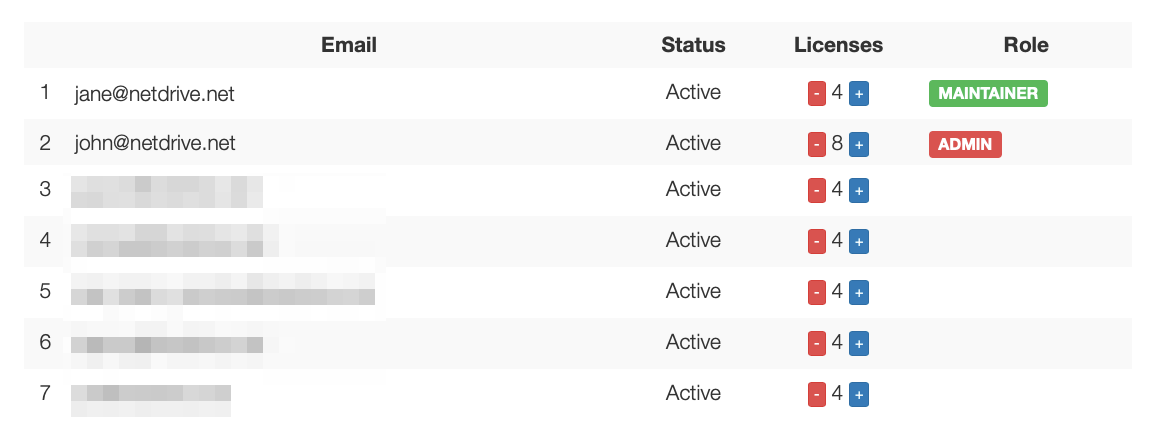
On Terminal Server, each user session picks up its own personal drives plus any team drives the admin has published to their group. No manual configuration per workstation, no login scripts distributing drive credentials.
Wrap-up
Silent MSI deployment, service-level auto-mount, and team license management cover the three gaps that separate a managed fleet deployment from a personal install. If auto-mount stops working after an upgrade or reboot, the auto-mount troubleshooting guide covers the most common causes. For teams editing shared Office documents on the mounted drives, see the Office file locking guide to prevent simultaneous-write conflicts.
— Alex, NetDrive