Two-Factor Login Codes in NetDrive Mobile — Confirm Without Switching Apps

NetDrive Mobile delivers your Bdrive account's two-factor login code as an app notification, including on the lock screen, so signing in doesn't mean hunting for a code.
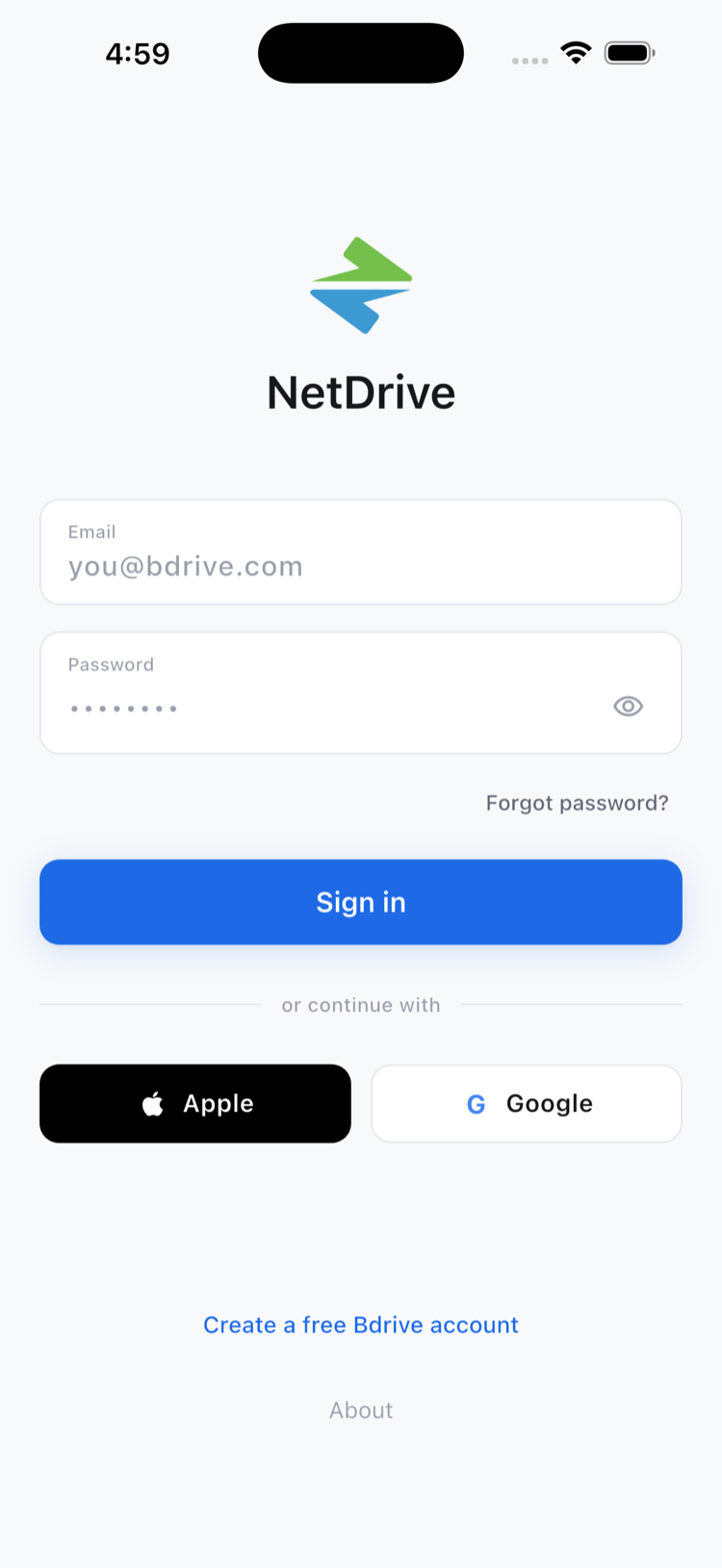
A contractor signs into NetDrive Mobile at a job site to grab a floor plan from a shared Dropbox folder, and the login screen asks for a second code on top of the password. Digging through a separate authenticator app while standing in a stairwell with one bar of signal is the kind of friction that makes people turn two-factor authentication off entirely. NetDrive Mobile avoids that detour by delivering the code as a notification inside the app itself, including on the lock screen, so confirming it doesn’t mean leaving the sign-in flow.

Sign in fast, without leaving the app
NetDrive Mobile opens Google Drive, Dropbox, OneDrive, S3, WebDAV, SFTP and more in one app — browse, upload, download, and preview right from your phone.
- Two-factor codes arrive as an in-app notification
- Confirm and copy the code from the lock screen
- One free Bdrive account covers every connected cloud
Free Bdrive account required.
What Two-Factor Login Looks Like in NetDrive Mobile
NetDrive Mobile signs in with a Bdrive account — the same account that connects every provider you’ve added, from Google Drive to a self-hosted SFTP server. If that account has two-factor authentication turned on, entering the password alone isn’t enough. Version 2.0.1 of the app adds a specific way to handle the second step: the verification code arrives as a push notification, and you confirm and copy it right there instead of switching to a separate authenticator app or checking email on another device.
Turning It On for Your Bdrive Account
Two-factor authentication is a setting on the Bdrive account itself, not something toggled from inside the mobile app’s own settings menu. It’s enabled once from accounts.bdrive.com, the same place that manages licenses and team access for NetDrive on desktop. Once it’s on, every sign-in — mobile or desktop — asks for the second code going forward, so a contractor’s phone and a studio’s Windows workstation are protected by the same account setting.
Confirming a Code Without Unlocking First
The part that matters most in the field is the lock screen. When a login is waiting on a second factor, the code shows up as a notification NetDrive Mobile can display without requiring the phone to be unlocked first — glance at the screen, read the code, and either tap to copy it into the waiting login field or type it in directly. That removes the usual two-factor tax of unlocking the phone, opening a separate app, finding the right account in a list, and copying a code that expires in thirty seconds.
Why This Matters for a Multi-Cloud App
NetDrive Mobile’s whole premise is keeping several cloud accounts — personal and work, consumer and object storage — behind one login instead of juggling separate apps and separate passwords. That convenience is only worth it if the login itself is protected, which is the reasoning behind pairing multi-cloud access with a straightforward two-factor flow rather than leaving it as an afterthought bolted onto a single-provider password. A code that’s a genuine hassle to enter is a code people work around; one that shows up where you’re already looking isn’t.
Wrap-up
Two-factor authentication only holds up if using it is easier than skipping it. NetDrive Mobile’s notification-based confirmation, lock screen included, is built around that tradeoff. For the bigger picture on what a free Bdrive account unlocks across providers, see NetDrive Mobile — Every Cloud You Use, In One App, or read NetDrive Desktop vs. Mobile — Which One Do You Need? if you’re also running NetDrive on a Windows or Mac workstation.
— Morgan, NetDrive