Architecture & CAD Teams with NetDrive — SharePoint Access Without Full Sync

How architecture and CAD teams use NetDrive to mount SharePoint project libraries as a drive, avoid sync lag on large drawing sets, and lock files during edits.
A 40-person architecture firm keeps its active project library on SharePoint: hundreds of Revit models, DWG sheet sets, and rendered walkthroughs, often 200 GB or more per project. The standard SharePoint sync client tries to mirror all of it to every laptop’s SSD, which means overnight sync queues, “file in use” conflicts when two people open the same sheet set, and drives filling up on machines that were never sized for a full project mirror.


Mount SharePoint for CAD-Sized Project Libraries
NetDrive lets Google Drive, OneDrive, S3, SFTP, WebDAV and more appear as native drives on Windows and macOS — no syncing, no full downloads.
- On-demand streaming — files pull down when opened, not all at once
- File lock across every file type, not just Office documents
- Cache size configurable from 100 GB up to 1 TB
Free trial. Lifetime and subscription plans available.
Why full sync breaks down on large project libraries
SharePoint’s native sync client is built around keeping a local mirror current, which works fine for a folder of spreadsheets but strains under a CAD library. A Revit central model with linked files, exported PDFs, and a renders folder can hit tens of gigabytes on its own — multiply that across a dozen active projects and a laptop’s disk fills before the firm’s oldest project is even finished. Sync also has no concept of “I only need this one sheet set today,” so it downloads everything a project contains whether or not anyone opens it that week.
NetDrive takes a different approach: SharePoint appears as a network drive, and files stream on demand when someone actually opens them. A drafter browsing the project folder sees the full directory structure immediately, without waiting for a background sync job to catch up, and only pulls the specific files they touch.
File locking prevents overwritten drawings
The scenario every CAD team has hit at least once: two people open the same DWG, both edit, and whoever saves last silently overwrites the other’s work. NetDrive’s file lock applies to every file type — not just Microsoft Office documents — so a locked DWG, RVT, or PDF shows as locked to teammates browsing the same SharePoint drive, with the lock owner visible before anyone risks a conflicting save.
Office files get an additional layer: if a teammate already has a Word or Excel file open elsewhere, NetDrive opens it read-only for the next person and shows a warning dialog rather than letting two editors collide. That’s useful for the project close-out documents and spec sheets that inevitably live alongside the drawings.
Setting up a shared SharePoint drive for the team
- Open NetDrive → click Add Drive in the drive manager and choose SharePoint from the provider list.
- Sign in with the firm’s SharePoint credentials and pick the document library that holds the active project files. NetDrive assigns it a drive letter (Windows) that shows up in File Explorer like any local disk.
- In Settings → Cache, size the local cache to match the team’s working set — a firm keeping several active projects “warm” locally will want closer to the 1 TB ceiling than the 100 GB minimum.
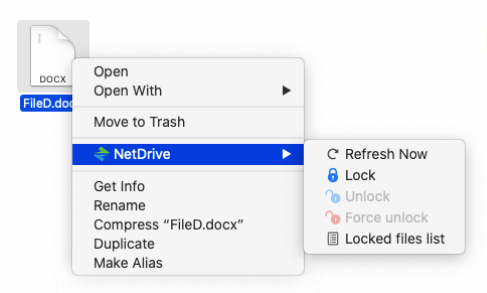
- Right-click any file that’s mid-edit and choose Lock before starting work, so teammates browsing the same drive see it’s in use.
Team licensing extends this setup across the whole studio: licenses can be assigned and reclaimed per seat as staff rotate onto and off projects, and the same locked-file visibility applies to everyone connected to that team’s SharePoint drive.
Wrap-up
Mounting SharePoint as a drive instead of syncing it locally solves the specific pain of CAD-sized libraries: browsing is instant, disk usage stays proportional to what’s actually open, and file locks catch conflicts before they turn into an overwritten drawing. For the SharePoint setup itself, see mounting SharePoint on Windows; for the locking mechanics in more depth, see Office file locking and the team drive guide.
— Alex, NetDrive