Browse Backblaze B2 on iPhone and Android — NetDrive Mobile
Access your Backblaze B2 buckets from any iPhone or Android with NetDrive Mobile. Upload, download, and preview B2 files on the go — no desktop required.
You’re on location with a client, and the production team wants to confirm a color-graded clip before you drive back to the studio. The file lives in your Backblaze B2 bucket. Your laptop is at your desk. With NetDrive Mobile on your iPhone or Android, you can open the bucket, preview the clip, and send confirmation in under a minute—no VPN required, no waiting until you’re back at the desktop.
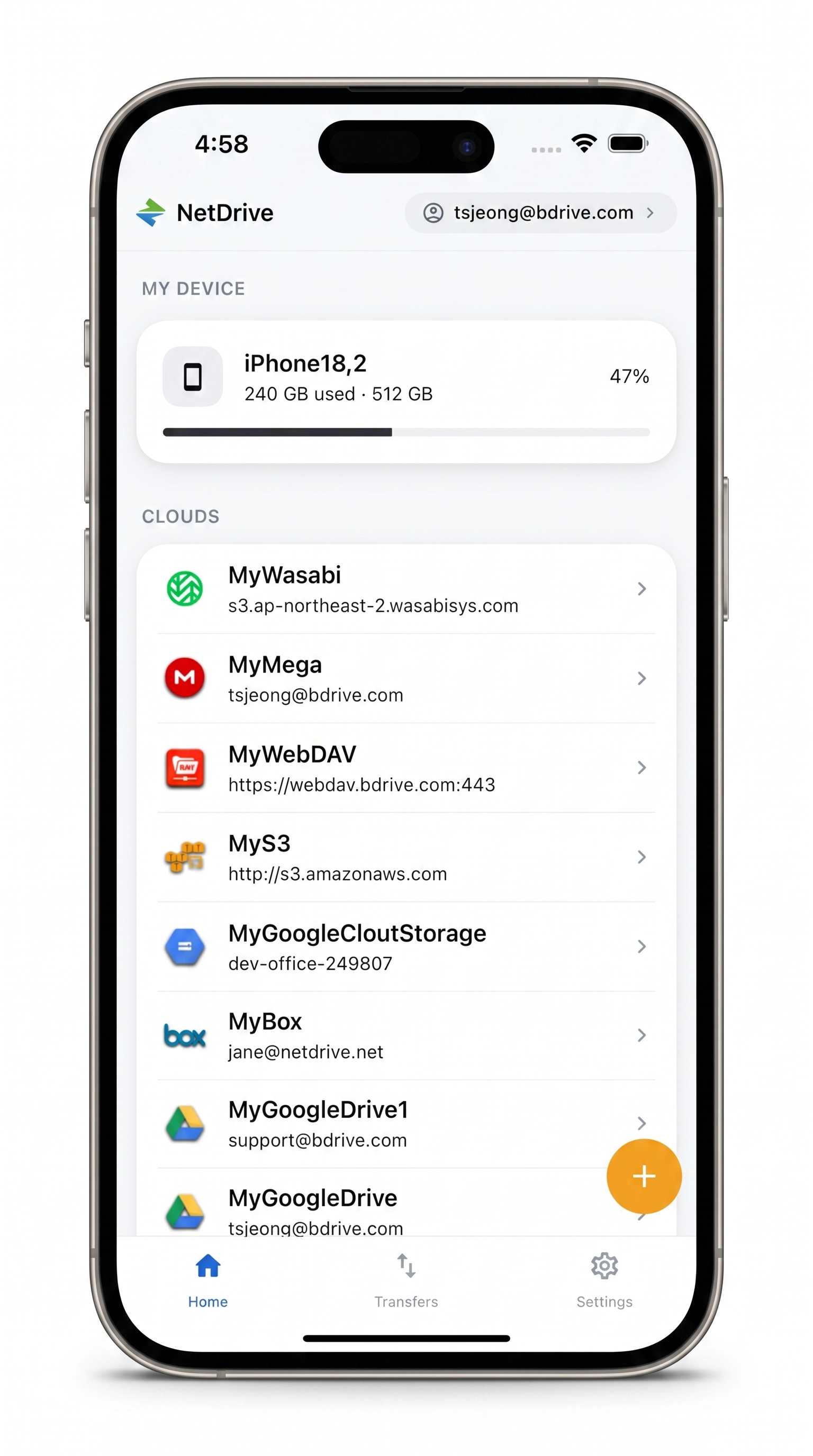
Every Cloud in One App
Browse Backblaze B2 and 20+ other clouds from your phone
- Connect B2, Google Drive, Dropbox, S3, and more in one place
- Upload from your camera roll or download files for offline reference
- Preview documents, images, and video in-app without extra apps
Free Bdrive account required.
What NetDrive Mobile Does with Backblaze B2
NetDrive Mobile is a multi-cloud file manager for iOS 15+ and Android (download on Google Play or the App Store). It connects to your cloud accounts—including Backblaze B2—and lets you browse folders, upload from your phone, download files, and preview content directly in the app. This is not a drive-mount client; it’s a file browser and transfer tool that runs entirely on your mobile device.
A free Bdrive account is required to use the app. Create one at netdrive.net before you add your first cloud.
To connect B2, you’ll need a Backblaze Application Key: a Key ID and an Application Key, both generated from your Backblaze account console under App Keys. You can scope the key to a single bucket or grant full account access—either works. Once the key is in the app, your credentials are stored in your device’s secure storage (iOS Keychain on iPhone, Android Keystore on Android) and never leave the device unencrypted.
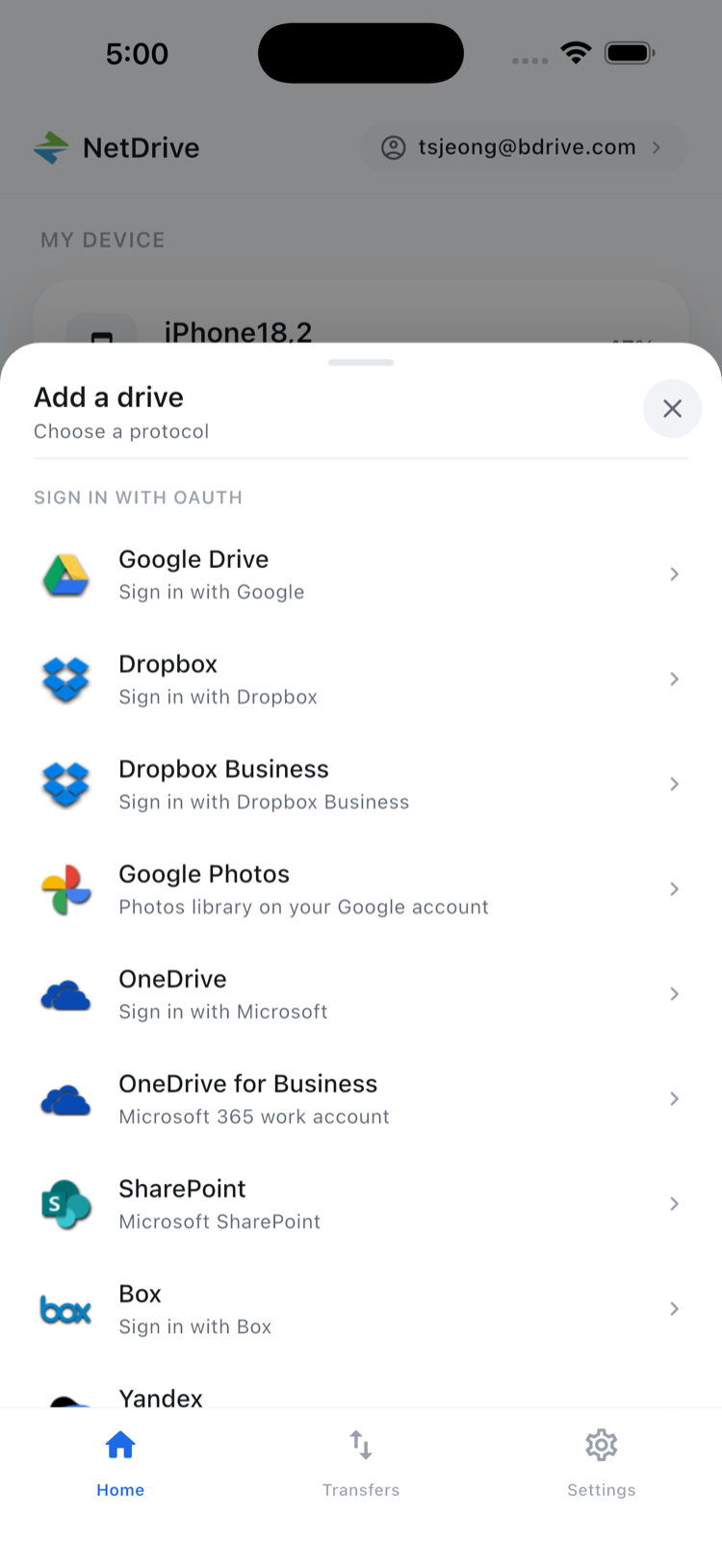
Adding Your B2 Account to NetDrive Mobile
- Open NetDrive Mobile and sign in with your Bdrive account.
- Tap the + button on the home screen to open the Add a Drive sheet.
- Select Backblaze B2 from the provider list. Providers are grouped by category—look in the Object Storage section if you don’t see it immediately.
- Enter your Key ID and Application Key. If you haven’t created a key yet, go to your Backblaze console → App Keys → Add a New Application Key, choose the bucket scope you want, and copy the credentials before closing the dialog.
- Tap Save. NetDrive Mobile connects to your B2 account and lists your available buckets on the home screen.
Browsing Files and Navigating Buckets
Tap your B2 drive on the home screen to enter the file browser. The app shows your buckets as top-level folders. From there you can navigate into subfolders just as you would in your phone’s Files app—tap a folder to open it, use the sort controls to reorder by name or date, and toggle between list and grid view.
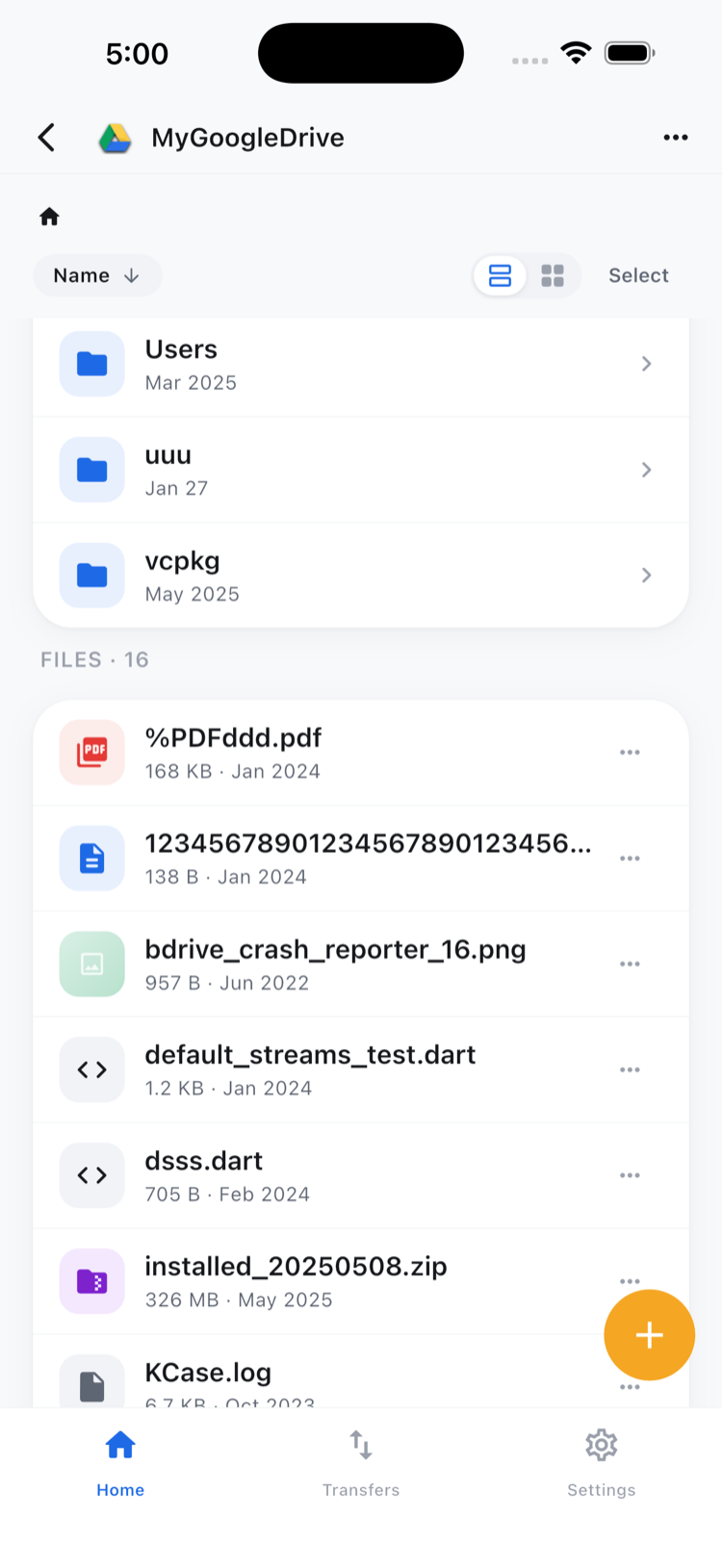
Tap any file to open the action sheet. Options include Preview, Download, Rename, Move, Copy, Get Info, and Delete. Preview opens the file inside NetDrive Mobile: images display immediately, and video files start playing through the built-in viewer without needing to download the whole file first.
To download a file to your device: Select Download from the action sheet. The transfer appears in the Transfers tab with a live progress bar and a cancel button.
To upload from your phone: Navigate into the destination folder, tap the upload button, and pick files from your camera roll, photo library, or the system Files picker. Multiple files can be queued in one upload session.
Batch Operations with Multi-Select
When you’re working with groups of files—downloading a set of RAW stills for review, uploading a batch of finished deliverables—multi-select saves the extra taps. Tap Select in the top-right corner of the file browser, check the files you need, and choose a bulk action from the bottom toolbar: Download, Copy, Move, or Delete. Transfers run concurrently rather than one at a time.
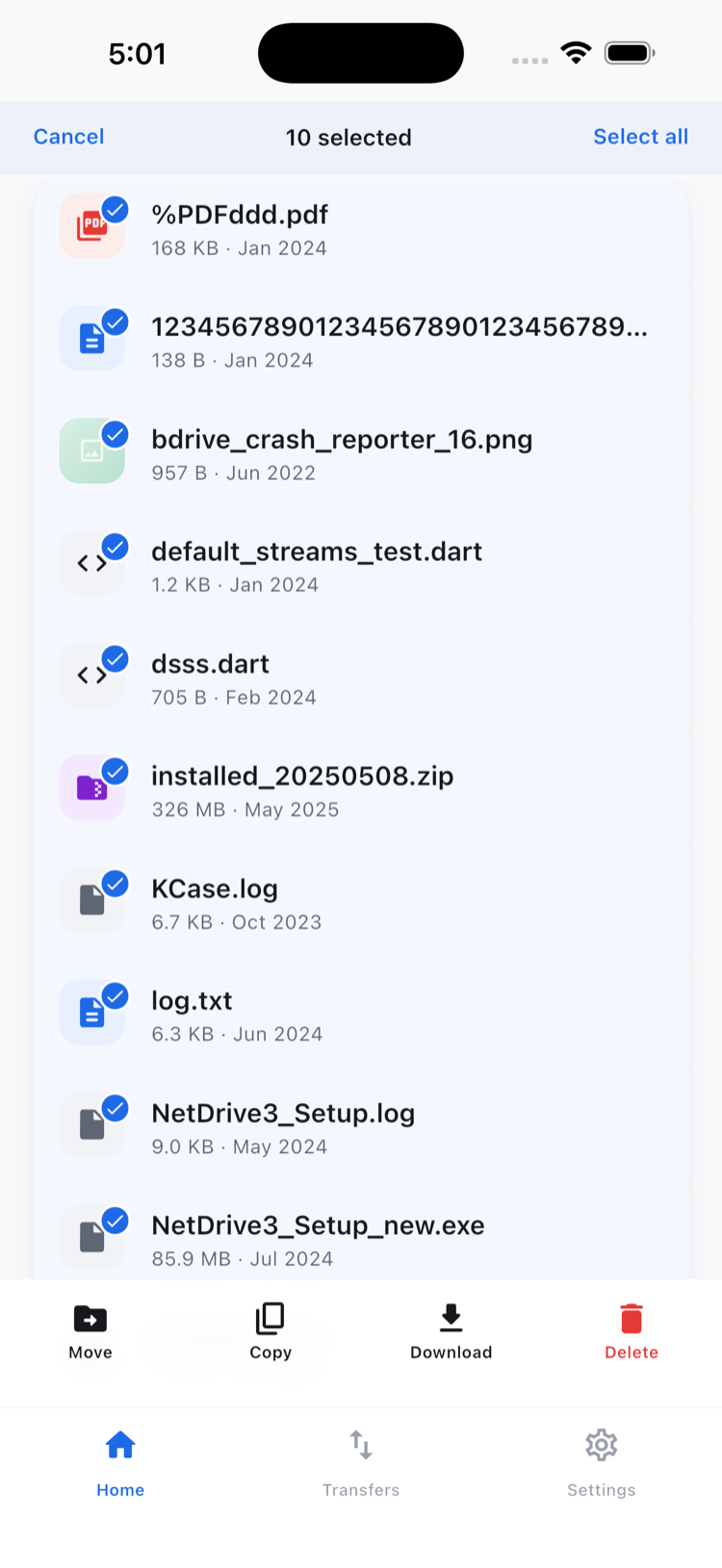
Copy and Move within B2 work inside the same bucket or across folders in the same account. Moving a file directly from B2 to a different cloud provider (for example, copying a B2 file straight into Google Drive) is outside NetDrive Mobile’s scope—that kind of cross-cloud transfer belongs to a dedicated sync tool.
Wrap-up
NetDrive Mobile turns your B2 bucket into a proper mobile-accessible file library. For creative teams and solo operators who store project assets on B2, quick on-the-go access means fewer round-trips to the office and faster client feedback cycles.
If you also need to access B2 from your Mac or Windows machine, pair NetDrive Mobile with the desktop client. The setup instructions are at Mount Backblaze B2 on macOS with NetDrive and Mount Backblaze B2 on Windows with NetDrive. For a look at what else NetDrive Mobile can do, see NetDrive Mobile — Every Cloud in One App.
— Tayson, NetDrive