Mount Tencent Cloud COS on Windows — NetDrive Setup Guide

Step-by-step guide to mounting Tencent Cloud Object Storage (COS) as a Windows drive letter with NetDrive. Access COS buckets directly from Explorer.
A media production team in Guangzhou stores 300 GB of daily H.264 proxy files on Tencent Cloud Object Storage (COS). Their Windows editors needed to open those files directly in Premiere Pro—no separate download step, no sync client eating disk space. NetDrive 3 added native Tencent Cloud support in version 3.17.799, so you can assign any COS bucket a Windows drive letter and browse it in Explorer like a local folder.


Access Tencent Cloud COS like a local Windows drive
NetDrive lets Google Drive, OneDrive, S3, SFTP, WebDAV and more appear as native drives on Windows and macOS — no syncing, no full downloads.
- Map any COS bucket to a drive letter (T:, Z:, etc.) in Explorer
- Open and edit files in-place—Premiere, Excel, whatever you use
- Background uploads keep your workflow moving without blocking saves
Free trial. Lifetime and subscription plans available.
What You Need Before Starting
Tencent COS authenticates with a key pair similar to Amazon S3. Collect these four things from the Tencent Cloud console before opening NetDrive:
- SecretId and SecretKey — from CAM → API Keys (
console.cloud.tencent.com/cam/capi) - Bucket name — displayed as
<BucketName>-<AppId>, for examplemedia-rushes-1250000001 - Region — such as
ap-guangzhou,ap-beijing, orap-singapore - Endpoint — follows the pattern
cos.<region>.myqcloud.com(e.g.cos.ap-guangzhou.myqcloud.com)
NetDrive requires Windows 8 or later. NetDrive needs administrator rights during the initial setup, but not for daily use.
Adding Tencent Cloud in NetDrive
Open the NetDrive tray icon (system tray, bottom-right) and click Drive Manager:
- Click + (Add Drive) at the top of the drive list.
- In the provider picker, scroll to Tencent Cloud and select it.
- In the Endpoint field, enter
cos.<region>.myqcloud.com— for examplecos.ap-guangzhou.myqcloud.com. To restrict the connection to a single bucket, use the full bucket endpoint<BucketName>-<AppId>.cos.<region>.myqcloud.com. - Paste your SecretId into Access Key and your SecretKey into Secret Key.
- Click Connect. NetDrive fetches the bucket list from Tencent COS and displays it.
- Select the bucket you want to mount, then pick a drive letter — T: is a natural choice for Tencent.
- Under Auto Mount, select At Login if you want the drive available every Windows session automatically.
- Click OK, then Mount.
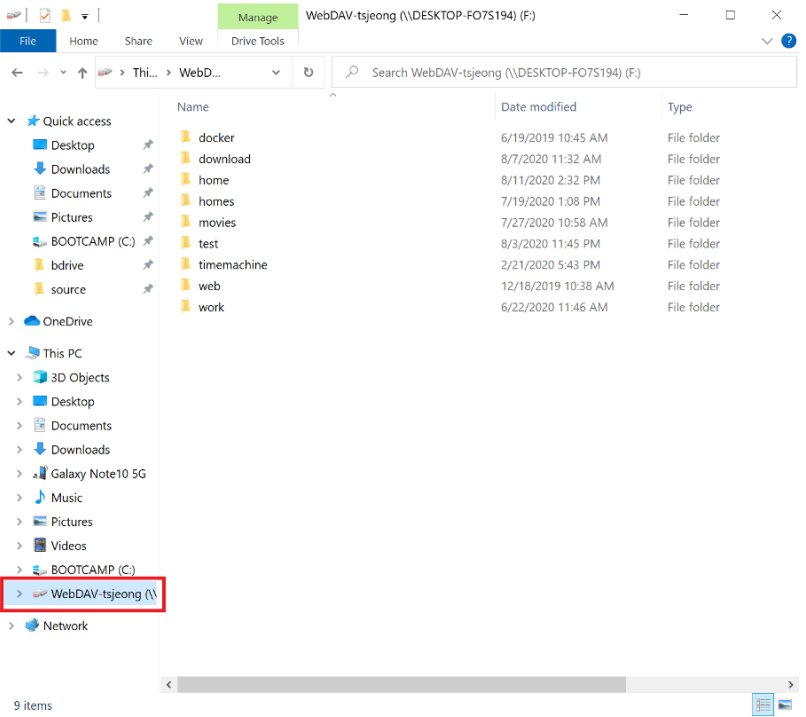
The bucket appears under This PC in Windows Explorer. Double-click any file to open it directly in its associated application; saves write back to COS transparently.
Upload Mode and Bandwidth
For teams working with large assets, two settings matter most:
Async vs. Sync upload mode. Right-click the Tencent Cloud drive in Drive Manager and choose Properties → Upload Mode. Set it to Async. This returns control to your application the moment a write is queued, while NetDrive uploads in the background. Sync mode waits for each write to finish before unblocking the app—fine for small files, but it stalls video editors writing multi-gigabyte renders.
Bandwidth cap. If the workstation shares an uplink, open NetDrive Settings → Bandwidth and set a per-drive upload limit. A 50 Mbps cap leaves headroom for video calls and other traffic while still delivering fast uploads to COS.
The background upload queue is visible in the NetDrive tray menu, where you can monitor progress or cancel individual transfers.
Common Connection Errors
“SignatureDoesNotMatch” — There are extra spaces in the SecretId or SecretKey. Copy directly from the CAM console rather than typing; a trailing space is invisible but breaks the signature.
“NoSuchBucket” — The bucket name entered is missing the AppId suffix. It must be in the form media-rushes-1250000001, not just media-rushes.
Slow directory listing — Open the drive’s Properties → Advanced and reduce the directory cache timeout from 60 seconds to 20 seconds. This matters when another process (a CI pipeline, for example) is actively writing to the bucket and the cached listing goes stale quickly.
Wrap-up
Tencent Cloud COS is the default object storage for teams already inside Tencent’s ecosystem—gaming studios, short-video platforms, and enterprise teams in mainland China who need low-latency access from East Asia. Once the drive is mounted, any Windows application that reads files locally will work against COS without a separate integration or SDK.
For teams running a mix of clouds alongside COS, the setup flow for Amazon S3 on Windows and Wasabi on Windows follows the same credential pattern and can sit alongside your Tencent Cloud drive in the same Drive Manager window.
— Jay, NetDrive