VFX & 3D Rendering Studios with NetDrive — Render Farms Without the Local Copy

How VFX and 3D rendering studios use NetDrive to mount Google Cloud Storage as a drive so render nodes read frames and textures without pre-syncing.
A mid-size VFX studio keeps its shot library on Google Cloud Storage — cached fluid simulations, EXR frame sequences, and a shared texture library that grows past 30 TB across active projects. Every render node in the farm needs read access to that library, but downloading the full working set to each machine before a job starts wastes disk space that could otherwise hold local scratch files, and it delays every render by however long the sync takes. Mounting the bucket as a drive with NetDrive lets each node read exactly the frames and textures a job touches, on demand, without a pre-render copy step.


Mount Cloud Storage Across a Render Farm
NetDrive lets Google Drive, OneDrive, S3, SFTP, WebDAV and more appear as native drives on Windows and macOS — no syncing, no full downloads.
- Read-only drives keep render nodes from touching source assets
- Cache size options up to 1 TB absorb repeated texture reads
- Auto-mount on boot keeps drives ready with no user session
Free trial. Lifetime and subscription plans available.
Why On-Demand Access Beats Pre-Syncing
Render farm nodes are usually provisioned to be identical and disposable — the working assumption is that any node can pick up any job. That works against pre-syncing an entire asset library to local disk, because the moment a job could land on any of fifty nodes, either all fifty need a full local copy (an enormous, constantly-stale duplication) or a sync step has to run before every job starts, adding minutes of dead time to a render that might only take seconds per frame.
NetDrive mounts the Google Cloud Storage bucket as a network drive or read-only drive, and the render engine sees an ordinary file path like R:\assets\textures\. Frames and textures come across only when a job actually reads them, and NetDrive’s caching keeps recently-used files available for the next job that needs the same texture without re-fetching it from the bucket every time.
Setting Up a Read-Only Asset Drive for Render Nodes
- Open NetDrive and click + Add Drive in the Drive Manager.
- Choose Google Cloud Storage from the provider list.
- Enter the service account credentials scoped to the shot library bucket — a read-only IAM role is enough for nodes that only consume assets.
- Enter the bucket name.
- In Drive Type, select Read-only drive. Render nodes have no reason to write back to the source asset bucket, and a read-only mount removes the possibility of a misconfigured job accidentally overwriting a shared texture.
- Set Mount on to Boot, since render nodes run as unattended machines rather than logged-in workstations.
- Under drive settings, raise the cache size — NetDrive supports cache sizes from 100 GB up to 1 TB (added in 3.16.589), which matters for render nodes that repeatedly touch the same texture set across many frames in a sequence.
- Click Mount.
Writing Frames Back Without Blocking the Render
Read access covers textures and simulation caches, but finished frames still need to land somewhere. A second drive, mounted read-write against an output bucket, handles that side. NetDrive’s background upload mode writes completed frames to a local cache first and uploads them to Google Cloud Storage asynchronously, so the render process moves on to the next frame instead of stalling on network I/O for every write.
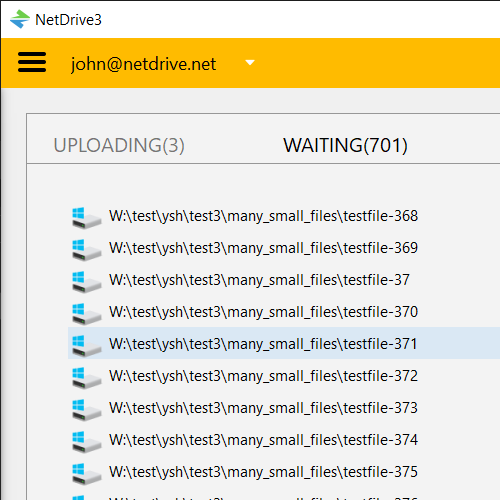
This separation — read-only for the shared asset library, read-write with background upload for output — keeps the two data paths from interfering with each other. A render node reading a 4K texture doesn’t compete with the same node’s frame output queue for the same connection semantics.
Scaling Across Many Nodes
Because each node mounts the same bucket independently, adding capacity to the farm is a matter of provisioning another machine with the same NetDrive drive configuration rather than negotiating shared storage contention. Nodes going offline mid-job don’t leave a shared filesystem in an inconsistent state, since each one only holds its own local cache — the bucket itself remains the single source of truth.
For studios running mixed environments, the same bucket mounts identically on Windows render nodes and macOS artist workstations, so an artist reviewing a shot pulls from the same path structure the farm rendered against.
Wrap-up
Mounting cloud storage as a drive lets a render farm treat a Google Cloud Storage bucket as ordinary local paths, with read-only mounts protecting source assets and background uploads keeping frame output from blocking the next render. For the underlying setup, see Mount Google Cloud Storage on Windows with NetDrive or Mount Google Cloud Storage on macOS with NetDrive. Studios running CI-style automated rendering pipelines may also find S3 Test Fixtures for CI Teams useful for the boot-time mounting pattern headless nodes depend on.
— Morgan, NetDrive