Mount WebDAV on Windows — NetDrive Connection Guide

Map any WebDAV server — Synology NAS, ownCloud, or a custom host — as a Windows drive letter using NetDrive. Works on Windows 10 and 11.
A sysadmin running a Synology NAS with WebDAV enabled and forty Windows workstations has two options for giving users file access: fight with the Windows built-in WebDAV client — which drops connections under load, throttles to single-digit MB/s, and demands re-authentication after every reboot — or use NetDrive, which maps the same WebDAV share to a persistent drive letter that survives reboots and works with every Windows app including Microsoft Office.


Map WebDAV shares as Windows drive letters
NetDrive lets Google Drive, OneDrive, S3, SFTP, WebDAV and more appear as native drives on Windows and macOS — no syncing, no full downloads.
- Persistent drive mapping — survives reboots and sleep
- Works with Office, Explorer, and any Windows application
- Supports HTTPS WebDAV with standard certificate validation
Free trial. Lifetime and subscription plans available.
WebDAV and NetDrive on Windows
WebDAV (Web Distributed Authoring and Versioning) is an HTTP extension that turns a web server into a writable file store. It’s the protocol behind Synology’s file sharing, ownCloud, and many self-hosted storage servers. NetDrive has supported WebDAV since its first 3.x release in 2017 — it is one of the foundational protocols alongside FTP and SFTP.
On Windows, NetDrive uses CBFS (Callback Filesystem by Callback Technologies) as its user-space filesystem driver, presenting a WebDAV share as a proper Windows drive letter without going through the Windows WebDAV redirector that causes the well-known slowness and instability. NetDrive 3.19.7 (2026-04-01) also added WinFSP integration as an alternative filesystem layer, giving administrators more flexibility in deployment scenarios.
NetDrive runs on Windows 8, 8.1, 10, and 11, and on Windows Server 2012, 2016, 2019, and 2022.
Add a WebDAV Drive in NetDrive
- Open NetDrive — from the system tray icon (bottom-right of the taskbar) or from Start → NetDrive 3.
- Click ”+” in the Drive Manager to add a new drive connection.
- Select WebDAV from the provider list.
- Enter the server URL. For HTTPS on the default port:
https://yourserver.example.com/dav/. For a custom port:https://yourserver.example.com:5006/. Your server administrator can confirm the exact path. - Enter your username and password for the WebDAV server.
- Choose a drive letter (e.g.
W:) and a display name for the connection. - Click Connect. The share appears in Windows Explorer under the assigned letter immediately.
Once connected, any Windows application that can open files by path will work directly against the drive — File Explorer, Word, Excel, video players, command-line tools. No per-app plugin or special client is required on the workstation side.
Enabling WebDAV on a Synology NAS
If your WebDAV source is a Synology NAS, the WebDAV server must be enabled in DSM before NetDrive can connect:
- Log into your Synology DSM admin panel.
- Open Package Center and install the WebDAV Server package if it is not already installed.
- Open the WebDAV Server app and enable HTTPS (the default port is 5006). Keeping HTTP-only disabled prevents credentials from traveling in clear text across the network.
- In Control Panel → User & Group, verify your account has the correct permissions on the shared folder you plan to mount.
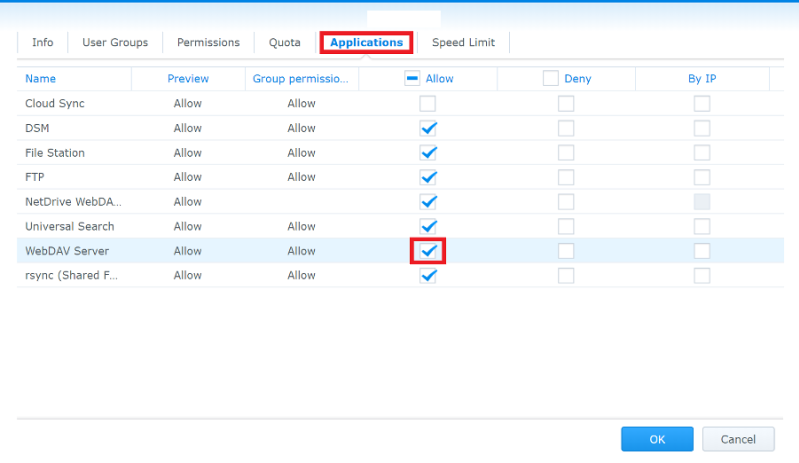
With DSM configured, the NetDrive connection URL is https://<NAS-IP-or-hostname>:5006/<shared-folder-name>/. Use the same DSM account username and password.
Auto-Mount on Windows Startup
NetDrive offers three auto-mount modes per drive, configurable from the Drive Manager:
- On boot — mounts before any user logs in. Right for shared workstations, kiosk machines, or servers that need the drive available before a user session.
- On login — mounts when you sign into Windows. The most common choice for personal laptops and desktops.
- Disabled — manual mount only, useful for drives you connect occasionally.
To set the mode, click the gear icon on the drive card and choose your preference under Mount.
Troubleshooting WebDAV Connection Issues
“Connection refused” or timeout on first connect — confirm you are using https:// and not http://. Most WebDAV servers no longer accept plain HTTP. Also verify the port number matches what the server exposes — Synology defaults to 5006 for HTTPS, not 443.
Certificate errors — if your Synology or self-hosted server uses a self-signed certificate, Windows may reject the connection. Install the server’s certificate into the Windows Trusted Root Certification Authorities store, or obtain a certificate from a public CA (Let’s Encrypt works well with Synology DSM).
Slow directory listings — the bottleneck is almost always server-side. If the share contains thousands of files in a single folder, WebDAV directory enumeration can be slow regardless of client. NetDrive’s Force Folder Refresh (right-click the drive in Explorer → Refresh) re-reads the current directory without a full unmount cycle.
Wrap-up
NetDrive’s WebDAV support replaces the unreliable Windows built-in redirector with a stable mapped drive that persists across reboots and integrates with the Windows filesystem layer the same way a local disk does. The setup process is identical whether the server is a Synology NAS, a self-hosted ownCloud instance, or any other standards-compliant WebDAV host. For key-based access to the same kind of servers, the companion guide on mounting an SFTP server on Windows covers that workflow.
— Robin, NetDrive