Mount Wasabi on Windows with NetDrive — S3-Compatible Setup Guide

Learn how to mount Wasabi hot cloud storage as a native Windows drive letter using NetDrive. Step-by-step guide for developers and content teams.
A video production company with 4 TB of Wasabi hot storage wanted their editors to drag clips directly from Windows Explorer into Premiere Pro — no sync client, no manual download step. NetDrive mounts Wasabi as a drive letter in under two minutes, and that workflow becomes straightforward on any Windows machine in the building.


Mount Wasabi as a Windows drive letter
NetDrive lets Google Drive, OneDrive, S3, SFTP, WebDAV and more appear as native drives on Windows and macOS — no syncing, no full downloads.
- Assign W: or any drive letter to your Wasabi bucket
- Open Wasabi files directly in any Windows application
- Background uploads keep your local workflow uninterrupted
Free trial. Lifetime and subscription plans available.
Why Wasabi Pairs Well with a Drive Mount
Wasabi charges no egress fees and no API request fees, which makes it attractive for workloads that read data repeatedly — CI runners pulling build artifacts, video editors reviewing takes multiple times during a session, or researchers loading the same large dataset across different tools. The Wasabi web console handles uploads and basic file management, but it doesn’t give you a native drive experience. NetDrive closes that gap: your Wasabi bucket appears as W: (or whatever letter you pick), and every Windows application that can open a local file can reach it directly.
NetDrive has supported S3-compatible endpoints since version 3.4.398. Wasabi is one of the explicitly listed S3-compatible providers. The connection uses Wasabi’s HTTPS S3 API, and for files 5 GB and larger, NetDrive switches to multipart upload automatically — useful when you’re pushing raw footage, VM images, or large database backups.

Before You Open NetDrive
Gather these three items from your Wasabi console before starting:
- Access Key ID — generated under Account → Access Keys.
- Secret Access Key — shown once at creation time. If you’ve lost it, generate a new key pair.
- Regional endpoint URL — Wasabi uses region-specific hostnames. A bucket in
us-east-1usess3.wasabisys.com;eu-central-1usess3.eu-central-1.wasabisys.com. Wasabi’s service endpoint documentation lists every region hostname.
NetDrive runs on Windows 8, 8.1, 10, and 11, plus Windows Server 2012, 2016, 2019, and 2022. Download the EXE installer from netdrive.net/download/windows if you haven’t already. An MSI installer is also available for IT administrators who deploy via Group Policy or msiexec.
Connecting Wasabi Step by Step
- Open NetDrive → click the + button in the Drive Manager to add a new drive.
- In the provider selector, choose Amazon S3. Wasabi is S3-compatible, so this is the correct connector — not a separate “Wasabi” entry.
- Access Key — paste your Wasabi Access Key ID.
- Secret Key — paste your Secret Access Key.
- Custom endpoint — enable the “Use custom endpoint” toggle and enter your bucket’s regional hostname, for example
s3.eu-central-1.wasabisys.com. Leave the port field empty; NetDrive defaults to port 443 for HTTPS. - Bucket — type the bucket name, or click the list icon to have NetDrive enumerate buckets associated with your credentials.
- Drive letter — choose an unoccupied letter.
W:is easy to remember for Wasabi, but any available letter works. - Click Save, then Mount. The new drive appears in Windows Explorer within a few seconds.
Caching and Upload Performance
NetDrive writes recently accessed data to a local disk cache — configurable from 100 GB to 1 TB in the drive settings. Opening a 10 GB file for the second time during a session skips the round-trip to Wasabi entirely. That matters for iterative workflows like color grading, where the same media gets opened and scrubbed dozens of times.
For uploads, NetDrive queues them in the background so your local save completes immediately. A progress indicator in the system tray shows how many files are in flight. For files above 5 GB, multipart upload splits the data into parallel segments, keeping throughput close to your uplink’s capacity.
Mounting on Boot for Server and Automation Use Cases
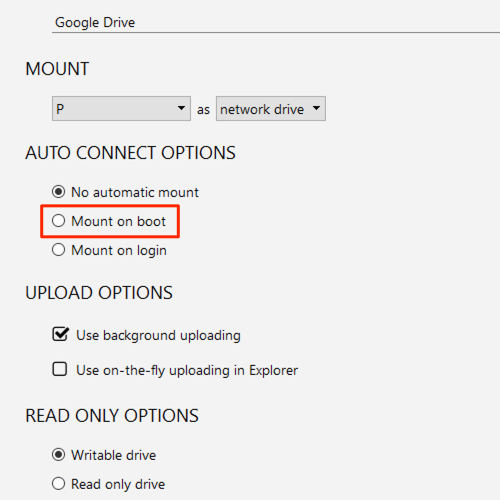
If you need the Wasabi drive available before any user logs in — on a render node, a Windows Server running scheduled jobs, or a workstation that starts batch processing at boot — enable Mount on Boot in the drive’s settings. NetDrive stores credentials in an encrypted local store and mounts the drive during the Windows startup sequence, with no interactive prompt required.
This is especially useful for build systems: a CI agent running on bare Windows can reference W:\artifacts in its configuration file and get a live Wasabi bucket every time the machine boots, without any per-session authentication step.
Wrap-up
Once mounted, your Wasabi bucket works like any local NTFS drive: drag-and-drop in Explorer, open files in any application, and save back without a separate sync step. If you run into a 403 Access Denied error during setup, the Fix S3 Access Denied Error with NetDrive post covers the most common IAM permission and bucket-policy misconfigurations. For standard AWS S3 rather than Wasabi, the mount Amazon S3 on Windows guide walks through the same connection flow with AWS-specific endpoint and region settings.
— Steve, NetDrive