Customer Support Teams with NetDrive — Shared Attachments in One Place

Customer support teams use NetDrive on Windows and macOS to mount shared cloud storage as a drive, keep attachments in one place and protect macros with read-only access.
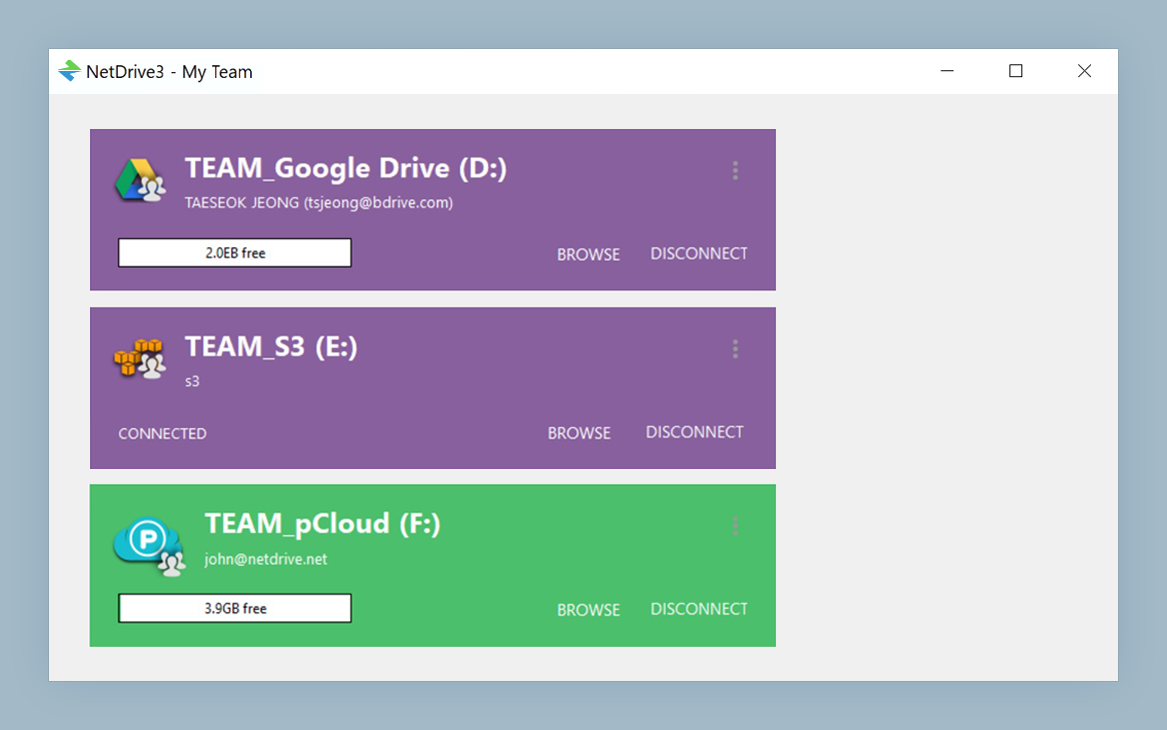
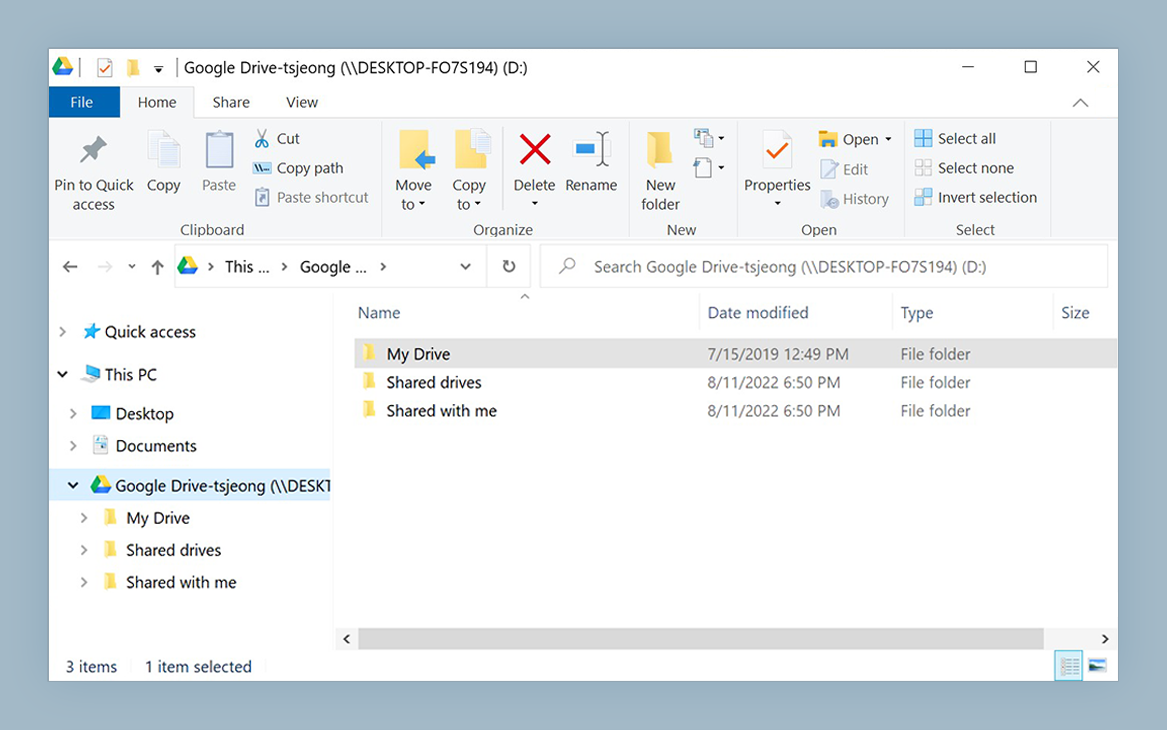
A support agent opens a ticket that says “the export looks wrong, screenshots attached.” To reproduce it she needs the customer’s sample file, last month’s log bundle from engineering, and the current troubleshooting macro. Those live in three different cloud folders, and each one means a download, a rename and a stray copy on her desktop. NetDrive turns the shared storage into one drive on Windows or macOS so the whole team opens the same files from the same place.
One drive for every ticket attachment
NetDrive lets Google Drive, OneDrive, S3, SFTP, WebDAV and more appear as native drives on Windows and macOS — no syncing, no full downloads.
- Mount your support team storage as a drive on Windows and macOS
- Browse a customer bucket in the file browser without mounting it
- Open macros and guides from a read-only drive that nobody can overwrite
Free trial. Lifetime and subscription plans available.
Where Support Files Pile Up
Support work generates files in bursts: customer screenshots, exported logs, reproduction projects, refund spreadsheets, canned-response drafts. Helpdesk tools store the attachments they receive, but the files agents create while investigating usually end up wherever is convenient. After a few quarters nobody can say which folder holds the “final” version of the onboarding checklist.
NetDrive mounts the storage your company already uses (Google Drive, OneDrive for Business, SharePoint, Dropbox Business, Box, Amazon S3 and others) as a drive in Explorer or Finder. Agents drag a file from a ticket into a folder like any local file, and a colleague on another shift opens it from the same path. NetDrive does not provide an offline mode, so the drive needs a connection; agents working from unreliable networks should plan for that.
A Folder Layout for a Ticket Queue
Keep the structure boring and predictable:
- Cases, with one folder per ticket number, holding Customer Files, Logs and Internal Notes.
- Macros and Templates, owned by two or three senior agents.
- Knowledge Base Drafts, where articles are written before they are published.
- Closed Cases, the archive for tickets older than your retention window.
Naming folders by ticket number means a search in Explorer or Finder lands on the right case in seconds, and the helpdesk ticket can simply reference the folder path.
Team Drives and Read-Only Access
With a NetDrive team license, an administrator publishes a drive to team members from the team management console and assigns or releases member licenses as people join or leave. A seasonal agent who finishes in January loses access when the license is released, instead of keeping a shared password.
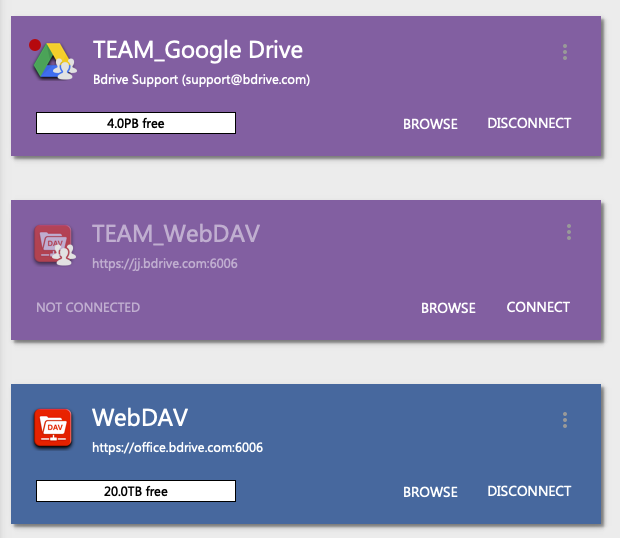
Macros are the files you least want edited by accident. Add the Macros and Templates and Closed Cases storage as read-only drives for most agents, and keep a separate writable drive for the owners. Read-only mode is covered in Read-Only Drive in NetDrive, and the full team workflow is in NetDrive Team Drive and Shared Drives Guide.
Look First, Mount Later
Not every customer file deserves a permanent drive letter. NetDrive’s file browser opens remote files in its own window without mounting anything, which suits one-off requests such as a customer who shares an S3 bucket or an SFTP folder with a sample dataset. Browse, grab the one file you need, and close the window.
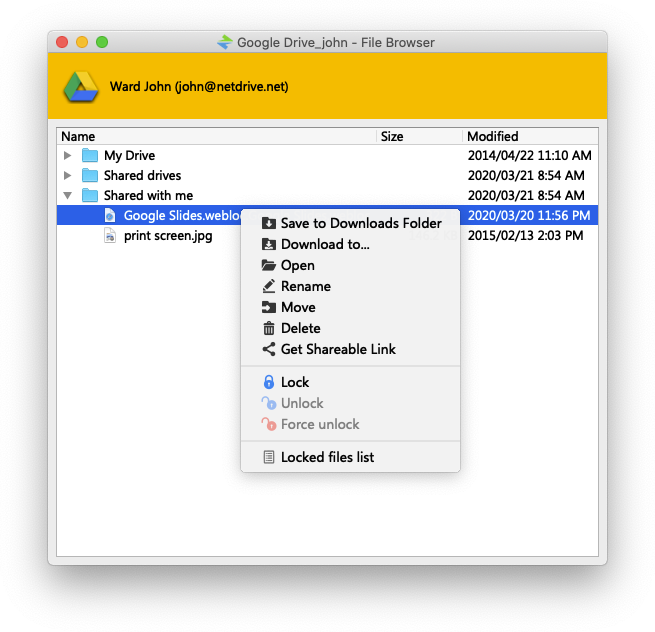
More detail is in File Browser in NetDrive. Shareable links are available only from the file browser, so if an agent needs to send a customer a link, start there.
Setting It Up for the Queue
- Install NetDrive on each agent’s Windows or macOS machine. Current macOS releases need macOS 14 (Sonoma) or later.
- Open NetDrive and add the cloud storage account that holds support files.
- Publish it as a team drive from the team management console to the agents who need it.
- Add the macros and archive storage as read-only drives.
- Turn on auto mount so drives are ready when a workstation starts; see Auto-Mount on Boot in NetDrive.
- Use the refresh option when an engineer uploads a log bundle and the folder looks stale; see Force Folder Refresh in NetDrive.
Limits to Know
NetDrive does not offer client-side encryption, so customer files that contain personal data rely on your provider’s security settings and your company’s data policy. It mounts storage; it is not a sync tool and does not copy files directly between cloud providers. Confirm retention and privacy requirements with your legal or security team before moving customer data.
Wrap-up
A single mounted drive, a read-only macro library and the file browser for one-off customer storage remove most of the “which copy is current” questions in a support queue. Start with the ticket folder layout and the read-only drives, then tighten access in your provider as the team grows.
— Alex, NetDrive