Browse Azure File Storage on iPhone and Android — NetDrive Mobile

Connect Azure File Storage shares to NetDrive Mobile and browse, upload, or download files from iOS or Android. Real folders, no Azure Storage Explorer needed.
An IT admin who lifted the office file server to Azure File Storage still gets the same request from the field: someone needs a config file or a shared spreadsheet and their laptop is in a bag somewhere. Azure Storage Explorer’s mobile web view is workable but clunky for a quick lookup. NetDrive Mobile connects directly to the file share and lets you browse, upload, download, and preview its contents on iOS or Android the same way you would on a phone’s own file manager.
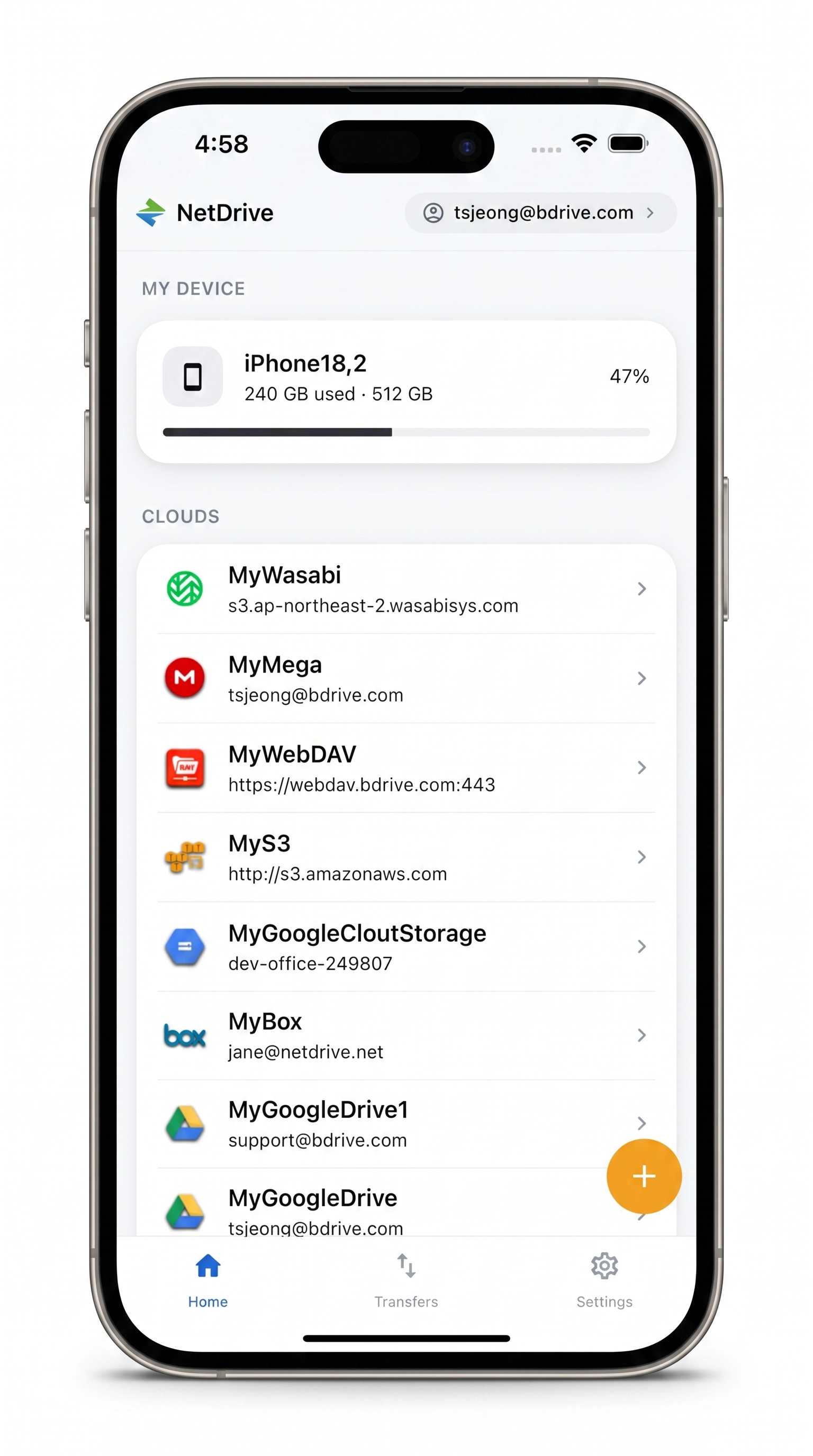
Reach your Azure file shares from your phone
NetDrive Mobile opens Google Drive, Dropbox, OneDrive, S3, WebDAV, SFTP and more in one app — browse, upload, download, and preview right from your phone.
- Browse real folders — Azure File Storage keeps actual directory structure
- Upload and download files without opening a laptop
- Preview documents and images in-app before deciding what to do with them
Free Bdrive account required.
Azure File Storage vs. Azure Blob on Mobile
NetDrive Mobile lists Azure File Storage and Azure Blob Storage as separate connections, matching the distinction on desktop. Blob Storage is object storage with virtual folder prefixes; File Storage is a managed SMB file share with real directories, the same structure your team would expect from a traditional file server. If your files live in Blob containers instead, see Browse Azure Blob Storage on iPhone and Android.
Because File Storage keeps actual folders rather than simulating them from key prefixes, navigating a large share in the app feels closer to browsing a familiar file server than paging through an object list.
What You Need Before You Start
- A free Bdrive account — sign up at netdrive.net
- An Azure Storage account with at least one file share created
- Your storage account name and access key (or a SAS token scoped to the File service)
- NetDrive Mobile on iPhone (iOS 15 or later) or Android
Add Your Azure File Share
Open NetDrive Mobile and tap + to open the “Add a drive” sheet, then select Azure File Storage from the provider list.
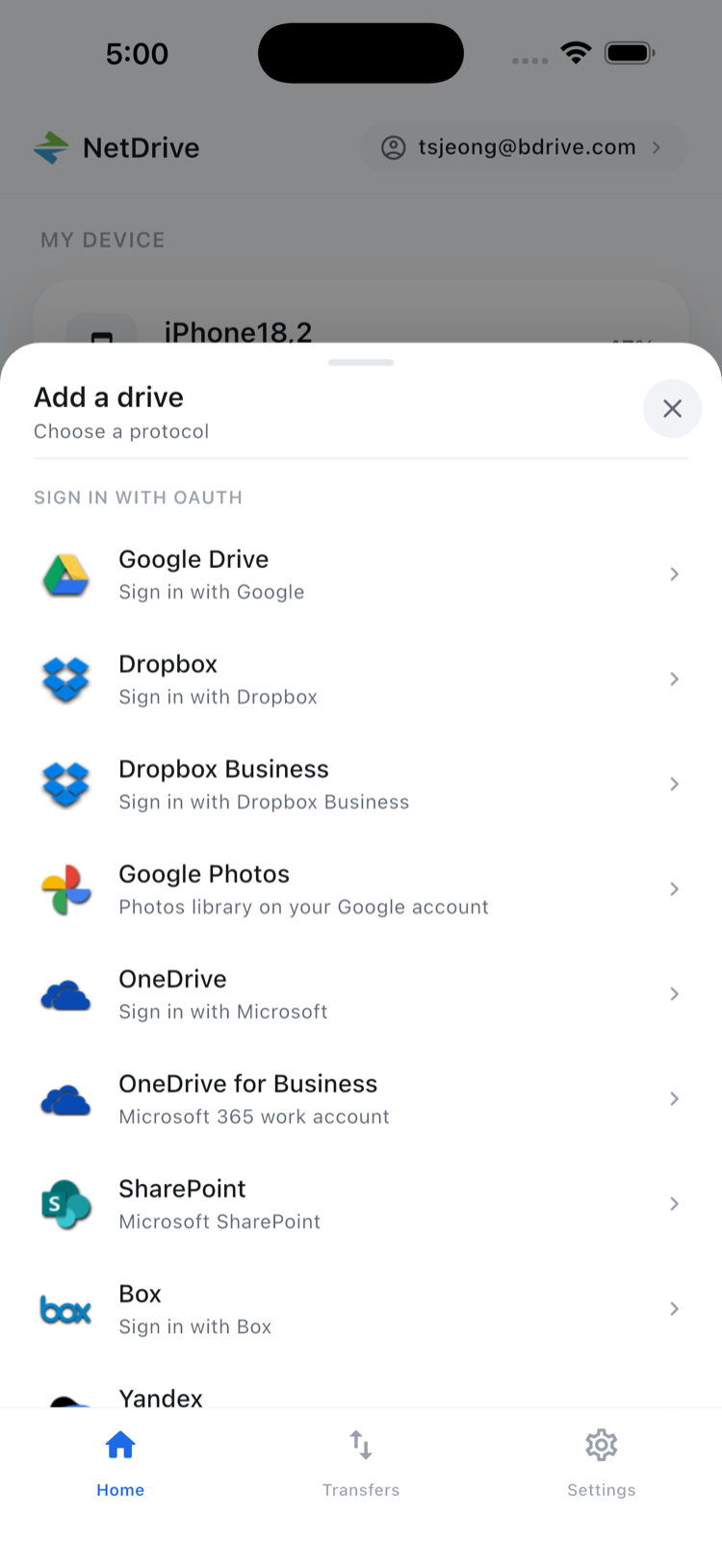
Enter the storage account name, the access key (or SAS token), and the exact name of the share to connect. Once the connection succeeds, the share’s contents appear as a top-level folder view on the home screen. You can add multiple shares — production and staging, for example — and they sit alongside your other connected clouds in one list.
Browsing the File Share
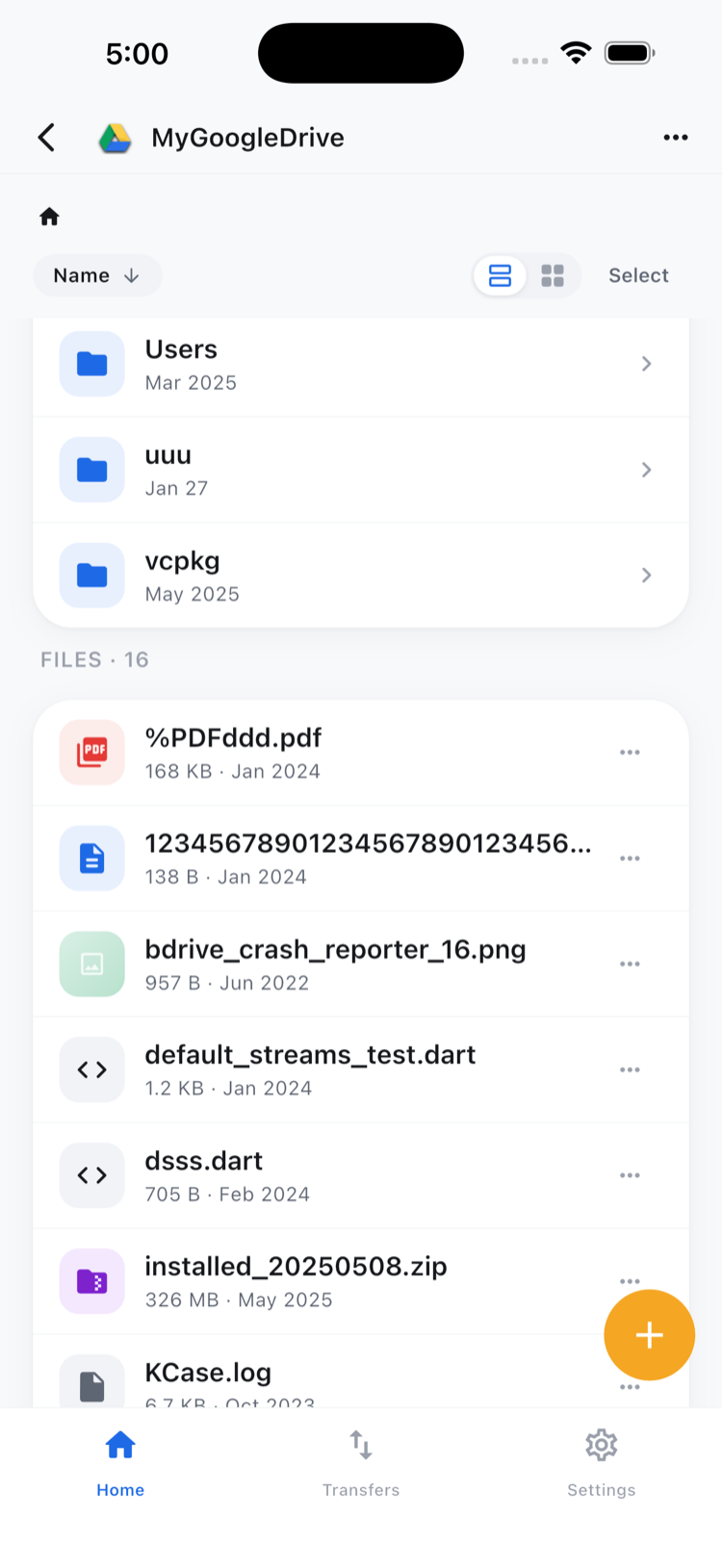
Tap into the share to see its folder structure. Because Azure File Storage stores genuine directories, subfolders behave exactly as they would on any file server: tap to drill in, tap a file to bring up its action sheet.
From the action sheet you get Preview, Download, Rename, Copy, Move, Get info, and Delete. Preview opens documents and images directly in the app, so a spreadsheet or PDF from the share can be checked without downloading it first.
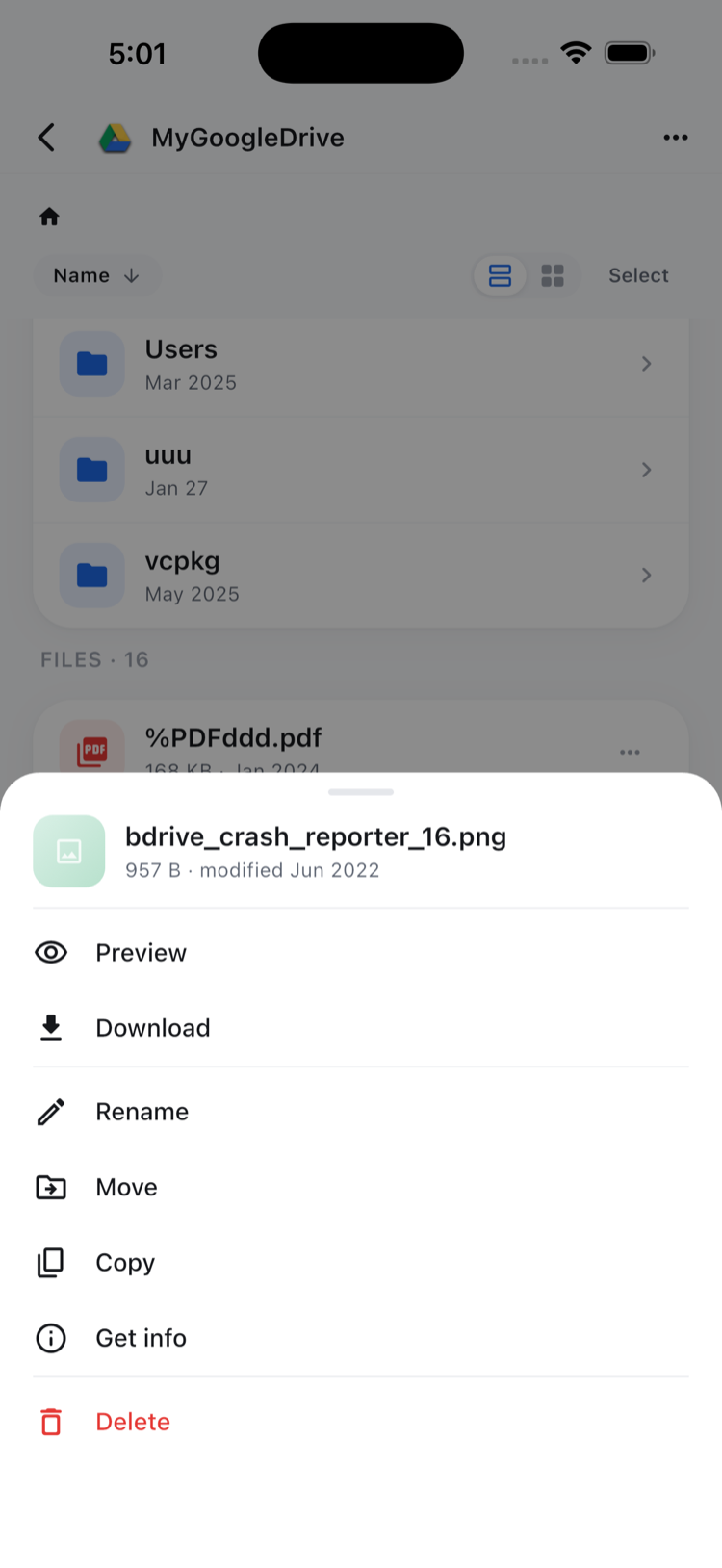
Copy and move operate within the same Azure File Storage connection. Moving a file to a different cloud provider — from the file share to Google Drive, for instance — is outside NetDrive Mobile’s scope; that kind of cross-provider transfer belongs to RcloneView, the sibling product built for cloud-to-cloud work.
Uploading From the Field
Navigate to the target folder and tap upload. Choose a file from the camera roll, take a new photo, or pick from the device’s file picker. Uploads queue in the Transfers tab with live progress, and you can cancel an individual item if you picked the wrong file.
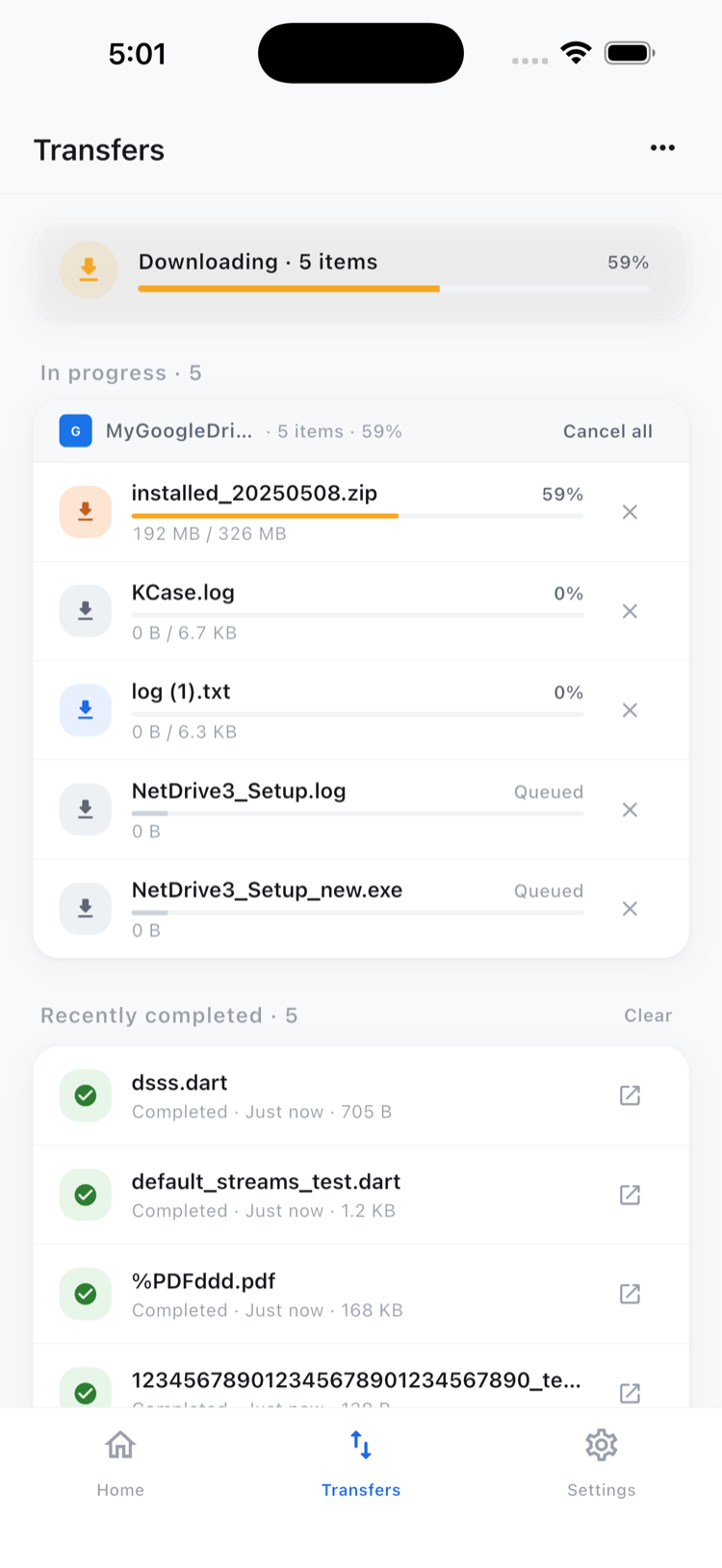
This covers the common on-call scenario directly: a sysadmin gets paged, needs to drop an updated config into the share for a server to pick up, and can do it from a phone without VPNing into a laptop first.
Wrap-up
Azure File Storage on NetDrive Mobile puts the file share your team already depends on within reach of a phone, with real folder browsing instead of a workaround. For the desktop equivalent that connects the same share as a persistent Windows drive, see Mount Azure File Storage on Windows with NetDrive. If your team also uses Blob containers, Browse Azure Blob Storage on iPhone and Android covers that connection type.
— Steve, NetDrive