Browse MEGA on iPhone and Android — NetDrive Mobile

Access your MEGA cloud storage on iOS and Android with NetDrive Mobile. Browse folders, download files, upload photos, and preview documents — all in one app.
You’ve got 80 GB of project archives, video exports, and scanned documents sitting in MEGA, and you need to grab a specific folder while you’re away from your desk. MEGA’s own mobile app works fine for MEGA-only access, but if you’re already juggling Google Drive, Dropbox, and an SFTP server on top of it, opening four separate apps to find one file gets old fast. NetDrive Mobile connects to MEGA alongside all your other clouds so you can browse, download, and upload from a single place.
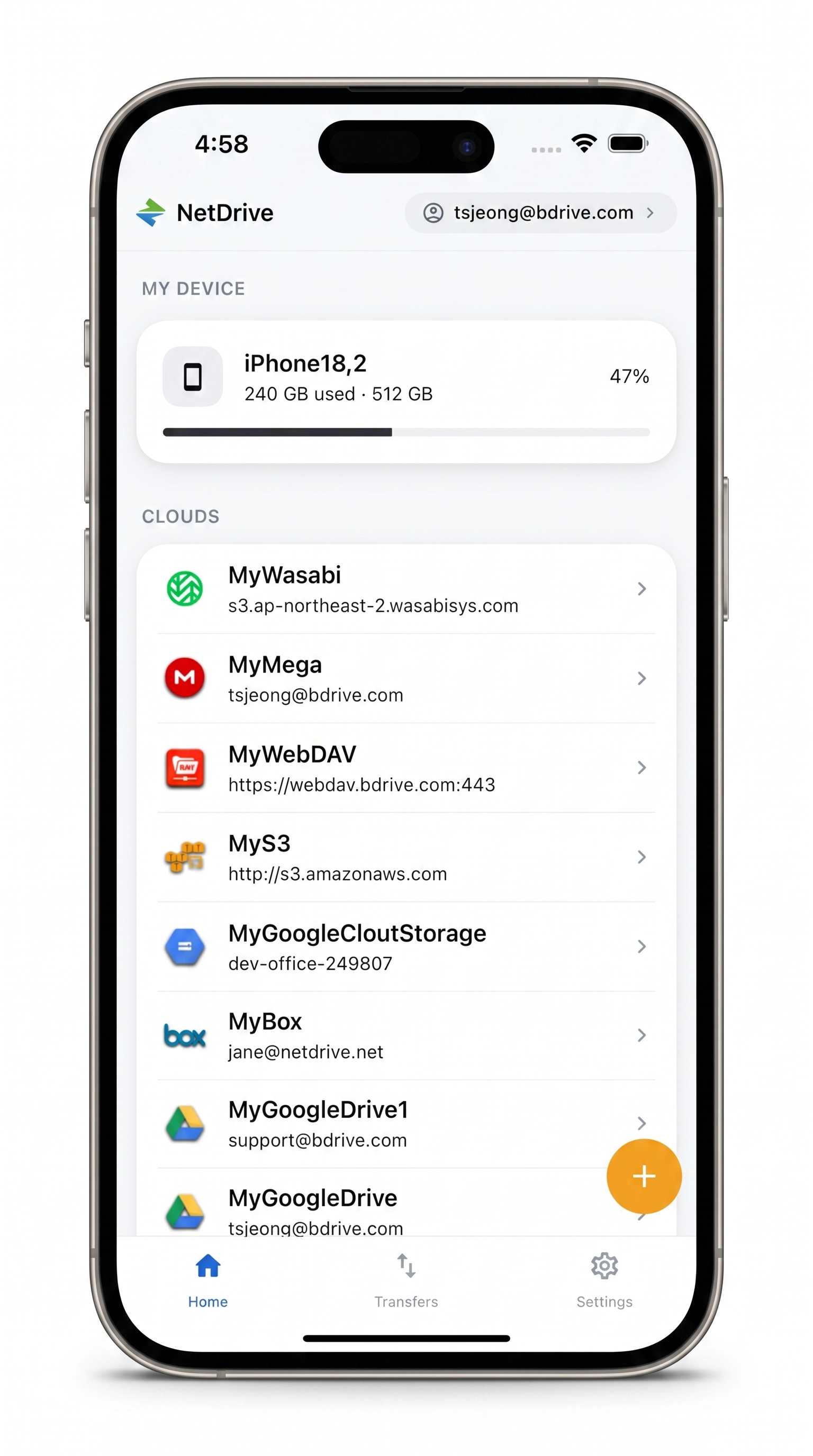
Every Cloud in One App — Including MEGA
Browse, download, and upload MEGA files from your phone.
- Connect MEGA alongside Google Drive, Dropbox, S3, and more
- In-app preview for documents, images, and video
- Multi-file transfers with real-time progress and cancel
Free Bdrive account required.
What You Need
- NetDrive Mobile on your iPhone (iOS 15 or later) or Android phone. Download from the App Store or Google Play.
- A free Bdrive account — sign up at netdrive.net if you don’t have one. This is the account you use to log in to NetDrive Mobile; it’s separate from your MEGA credentials.
- Your MEGA email and password for the account whose files you want to access.
NetDrive Mobile stores your MEGA credentials in the device’s secure storage — iOS Keychain on iPhone, Android Keystore on Android — so they never leave your phone in plain text.
If your Bdrive account has two-factor authentication enabled, you’ll receive a 2FA code as a push notification when you sign in. The notification appears on the lock screen and can be copied without fully unlocking the phone.
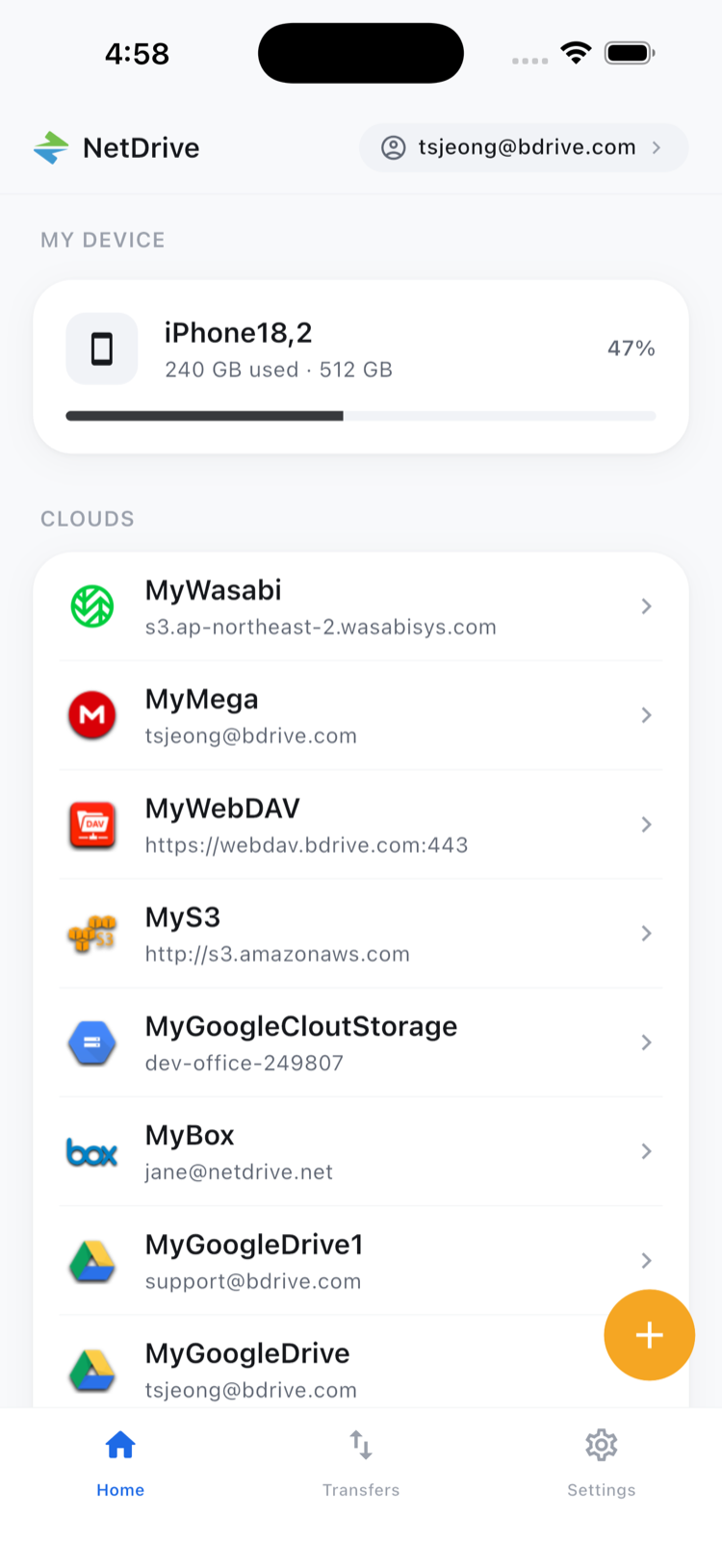
Adding Your MEGA Account
- Open NetDrive Mobile and sign in to your Bdrive account.
- On the home screen, tap the + button to open the Add a drive sheet.
- Scroll through the provider list and tap MEGA.
- Enter your MEGA email address and password, then tap Connect.
NetDrive Mobile confirms the credentials and adds your MEGA account to the home screen cloud list. The drive name defaults to your MEGA email. To rename it — useful if you have both a personal and a business MEGA account — tap the drive’s three-dot menu and choose Rename.
Repeat the same steps to add a second MEGA account. Each account appears as a separate entry, and you can switch between them with a single tap.
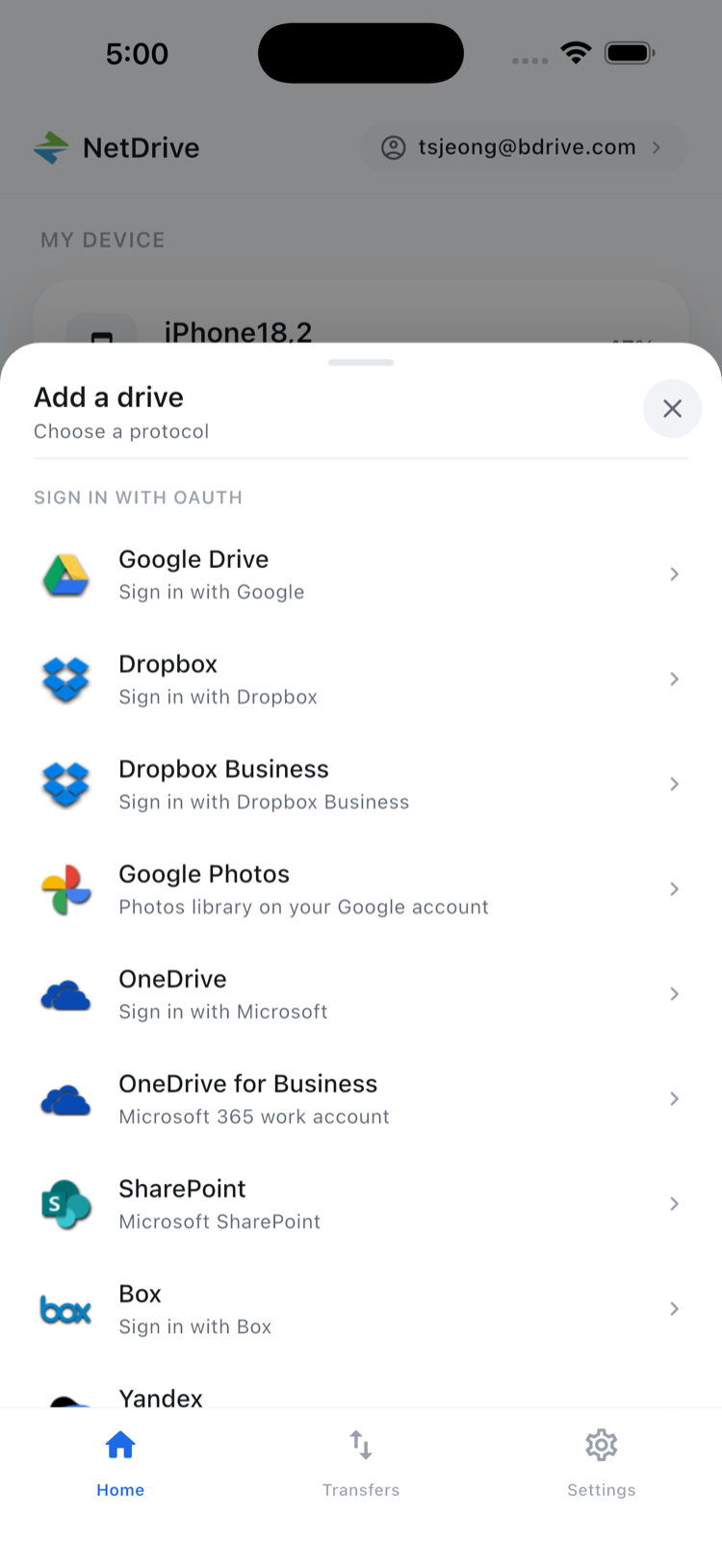
Browsing and Downloading Files from MEGA
Tap your MEGA drive on the home screen to open its root. Navigation feels like a local file manager: tap a folder to open it, use the back gesture to go up. You can sort by name, date, or size using the toolbar at the top of the file list.
Tap any file to open a preview directly in the app — images, PDFs, and many video formats open without downloading the full file to your phone’s storage first. To save a file locally, tap the three-dot menu next to the filename and choose Download. The file lands in your phone’s local storage under the path shown in the Transfers tab.
For bulk downloads, tap Select in the top-right corner to enter multi-select mode. Check each file you want (or swipe to select multiple), then tap Download in the bottom action bar. All selected files queue up immediately.
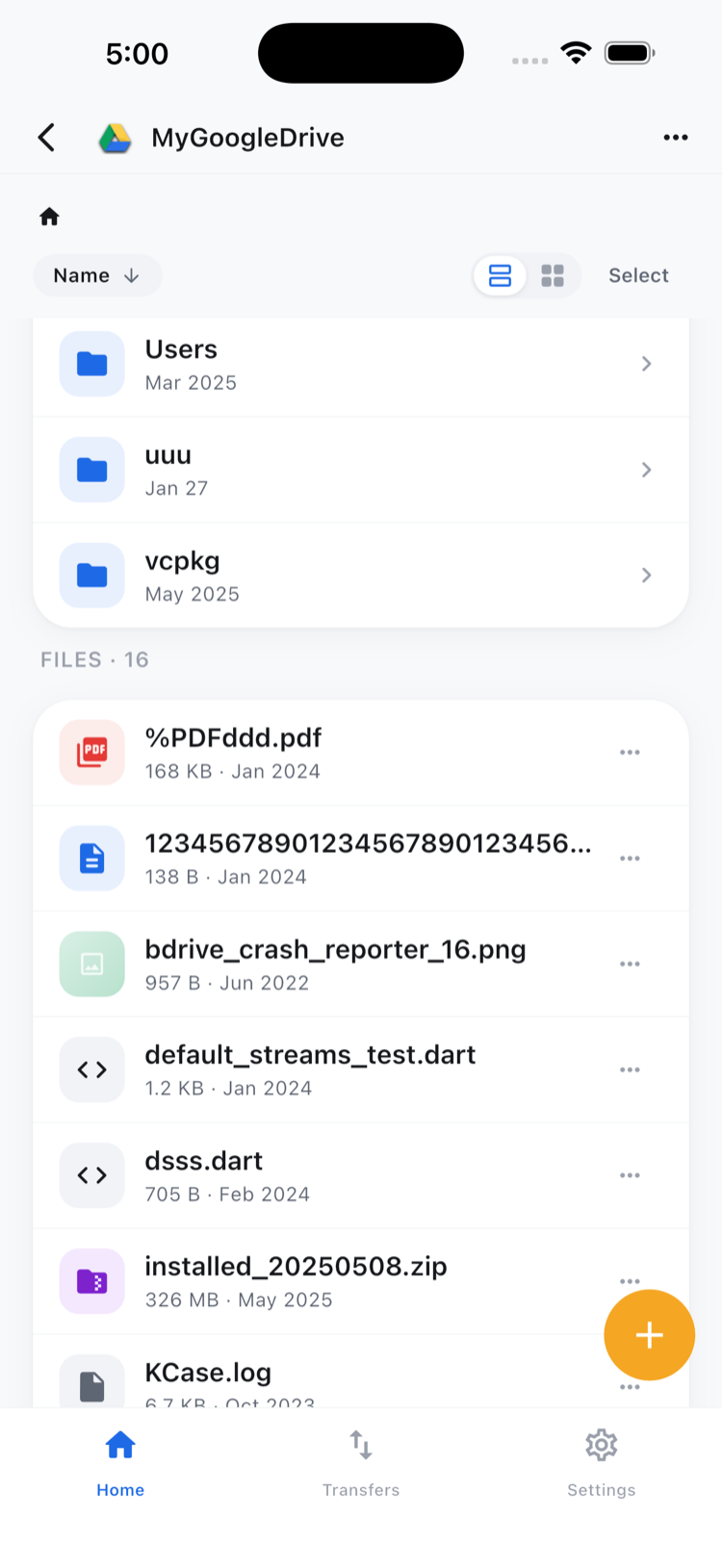
Uploading to MEGA from Your Phone
To upload files from your phone to MEGA:
- Navigate to the MEGA folder where you want to place the files.
- Tap the + button or the upload icon in the folder toolbar.
- Choose Photos to pick from your camera roll, Camera to shoot and upload directly, or Files to browse your local storage.
- Select one or more items. Uploads begin immediately.
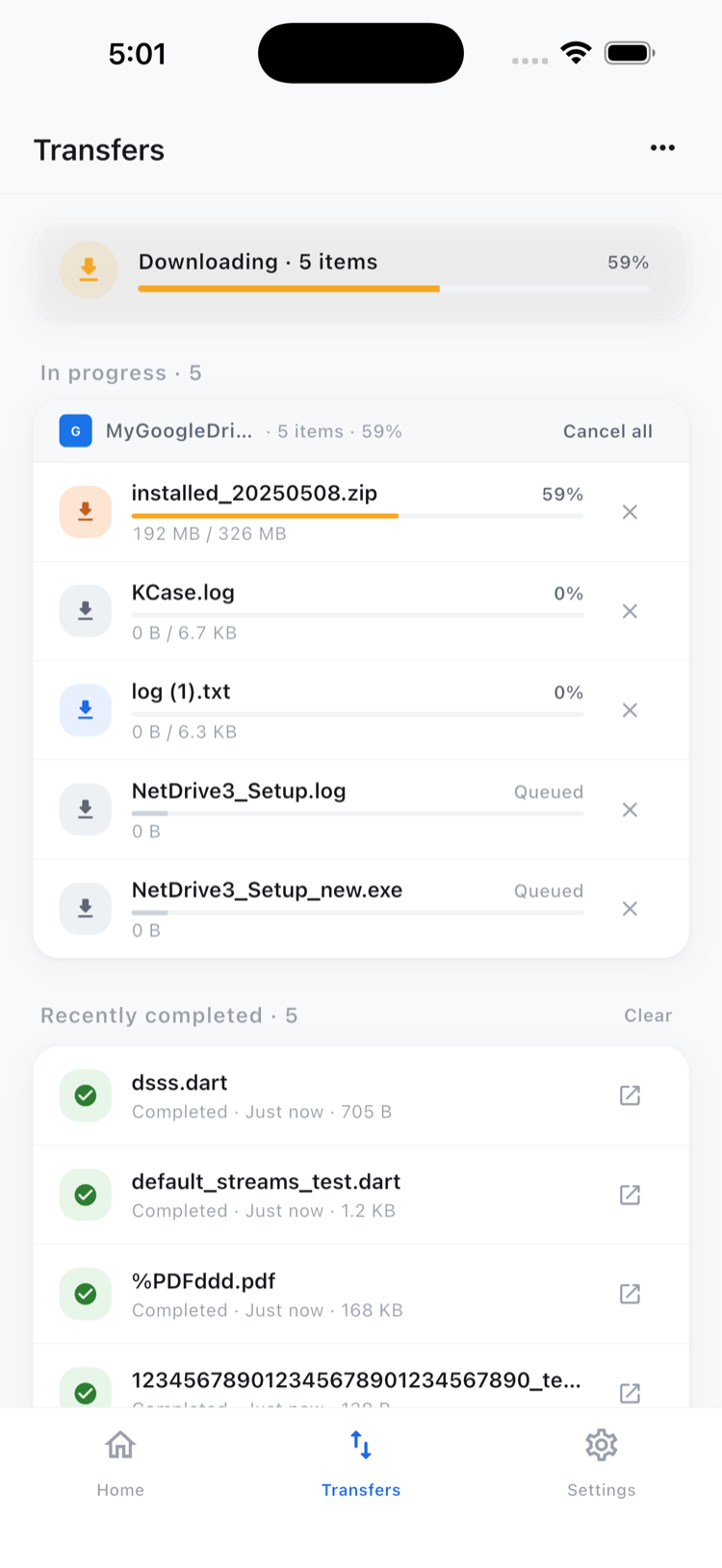
The Transfers tab (bottom navigation) shows real-time progress for all active uploads and downloads — one unified view regardless of which cloud each transfer belongs to. You can cancel individual transfers from that tab, or let them run in the background while you continue browsing other folders.
NetDrive Mobile handles multiple concurrent transfers across different clouds in the same session, so uploading to MEGA doesn’t block you from downloading from a different provider at the same time.
Wrap-up
Adding MEGA to NetDrive Mobile takes about 30 seconds once you have your credentials. After that, it sits on the home screen alongside any other clouds you’ve added — each one a tap away, all transfers tracked in the same tab. If you also need to access MEGA from a desktop machine, the companion guides for MEGA with NetDrive on Windows and MEGA with NetDrive on macOS cover the desktop workflow.
— Jay, NetDrive