Houses of Worship Media Teams with NetDrive — One Drive for Every Service

How church and ministry media teams use NetDrive to mount Google Drive, Dropbox, and S3 as drives for slides, sermon video, and audio on Windows and macOS.
Sunday at 8:40 a.m., the volunteer on the projection PC needs the final worship slides, and the person who built them saved them to their own Google Drive on Friday night. Meanwhile the video lead is exporting last week’s sermon to a laptop that will be full by month’s end. Media teams at churches and ministries run on rotating volunteers, mixed hardware, and a pile of cloud accounts nobody planned together.
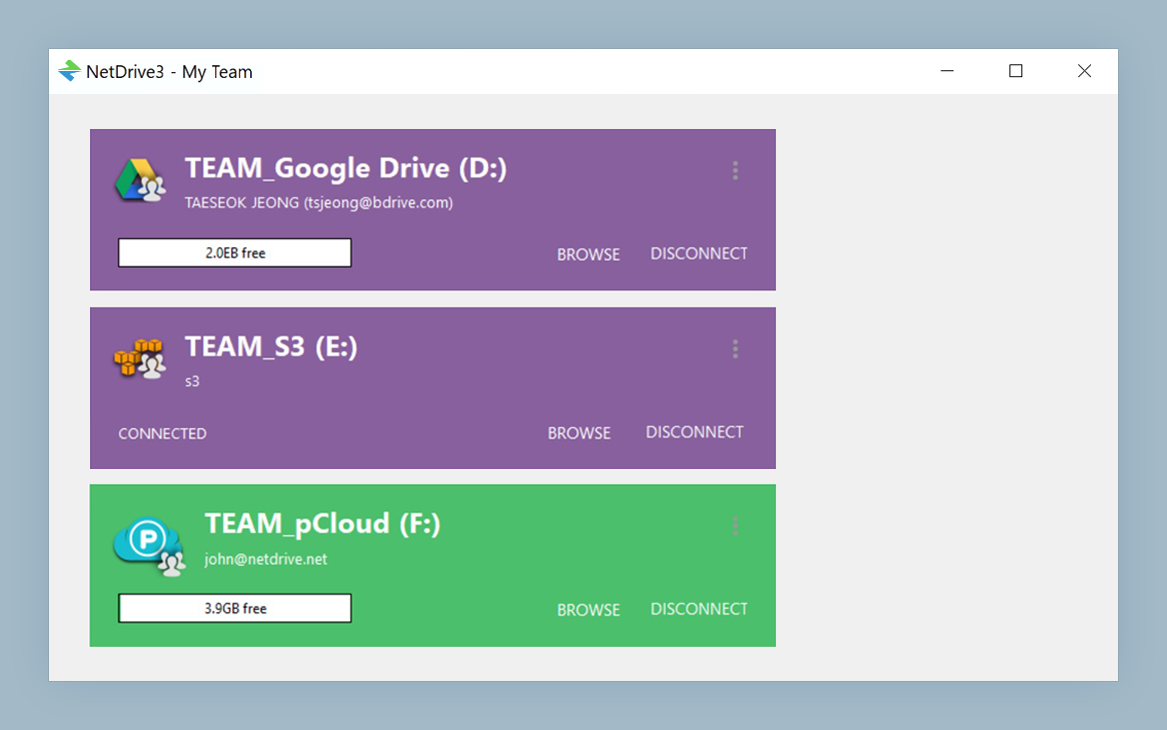
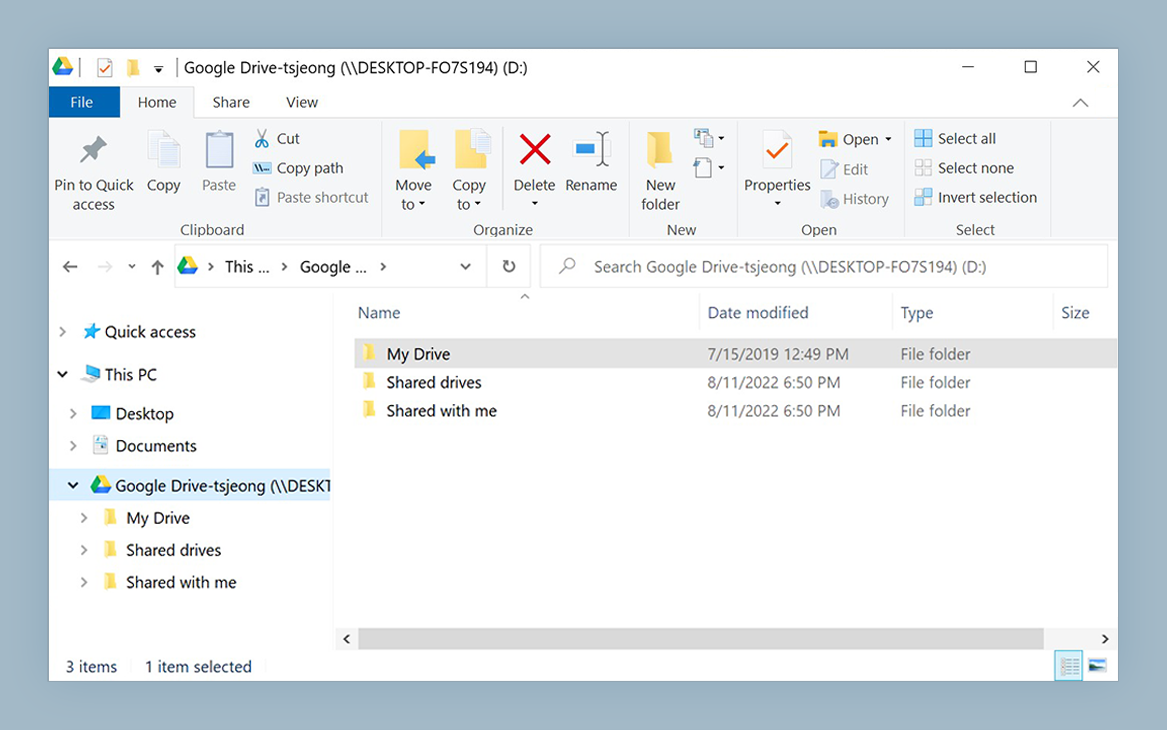
One Drive for Every Service
NetDrive lets Google Drive, OneDrive, S3, SFTP, WebDAV and more appear as native drives on Windows and macOS — no syncing, no full downloads.
- Mount Google Drive, Dropbox, or S3 as a normal drive
- Give volunteers a read-only view of finished assets
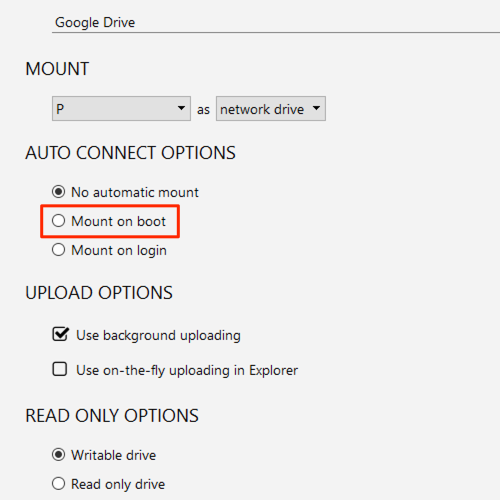
- Mount automatically when the PC starts
Free trial. Lifetime and subscription plans available.
The Problem: Assets Scattered Across Accounts
A typical team has slides in Google Drive, lyric files in Dropbox, and an old archive of recorded services in an object storage bucket. Presentation software wants a file path, not a browser tab. NetDrive mounts each of those clouds as a drive in Windows Explorer or macOS Finder, so ProPresenter-style slide software, video editors, and audio tools all open files the same way they open anything on a local disk.
NetDrive runs on Windows 8 through 11 (and Windows Server) and on macOS 14 Sonoma or later. Most church booth computers fall into one of those two groups, so one setup guide covers the whole team.
Protect Finished Assets with a Read-Only Drive
The most common accident is a volunteer dragging the wrong folder or saving over the master slide deck. NetDrive can mount a drive as read-only, so the projection PC sees finished assets but cannot change or delete them. The staff laptop mounts the same cloud as a normal read-write drive for editing. See read-only drives in NetDrive for the details.
Mount at Boot for the Booth PC
The booth computer usually has no one logged in for hours before a service. NetDrive’s auto-mount options let a drive come up at system start, so the slides folder is already there when the volunteer sits down. The walkthrough is in auto-mount on boot.
Upload Sermon Video Without Blocking the Stream
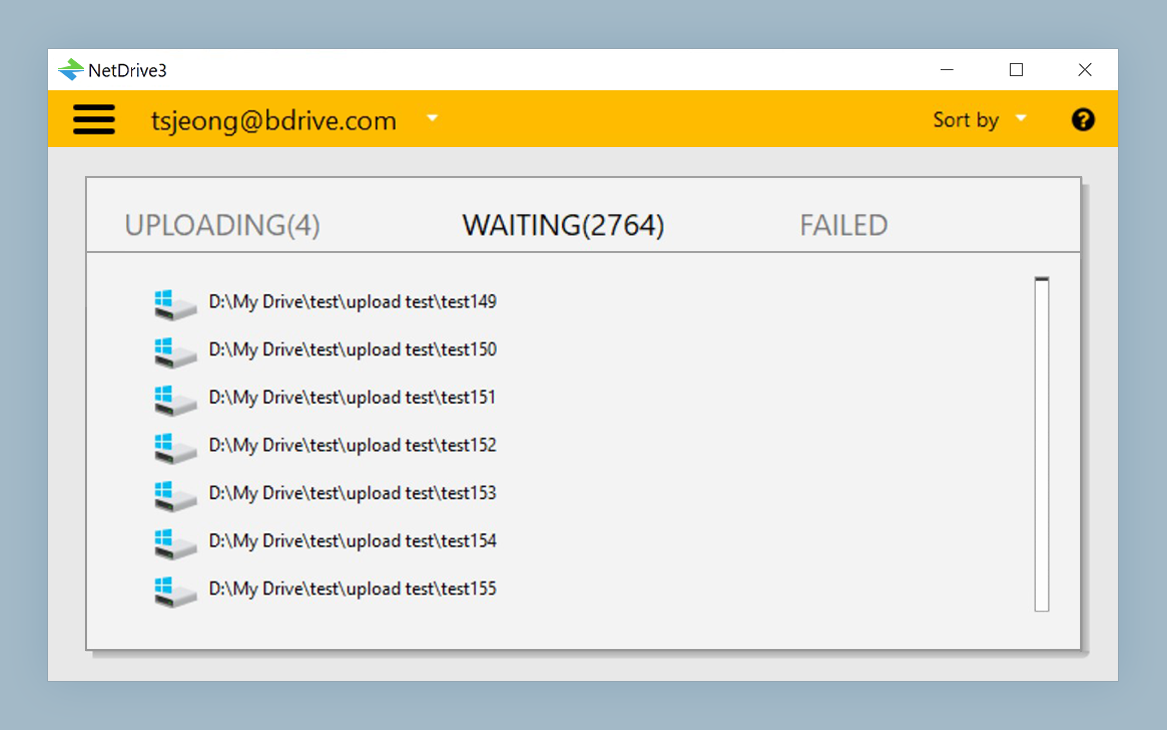
Exporting a long video to a mounted drive can take a while. NetDrive’s background upload mode lets the editor close the export dialog and carry on while the file uploads. If the church shares one internet line with a livestream, set a bandwidth limit so the upload never starves the stream. Both settings are covered in background upload mode and bandwidth limits.
Setting It Up
- Install NetDrive on the booth PC and the staff laptop from the download page.
- Add a drive in NetDrive and pick your provider, for example Google Drive or Dropbox, then sign in.
- Choose the drive type: read-only for the booth PC, normal for editors.
- Set auto-mount so the drive appears at system start.
- Repeat for each cloud account the team uses, and give each a clear drive name.
A few limits are worth knowing. NetDrive does not offer an offline mode, so the booth needs a working connection when you open files from a mounted drive. If a service depends on a file, copy it to the local disk the day before. NetDrive also has no client-side encryption feature, so keep sensitive records, such as pastoral notes, out of shared drives.
Wrap-up
A media team turns over every few months. A short checklist, one mounted drive per cloud, and a read-only view for the booth removes most of the Sunday-morning scramble. For related setups, see mounting Google Drive on Windows 11 and mounting Dropbox on macOS.
— Alex, NetDrive