Mount Backblaze B2 on macOS — NetDrive Setup Guide

Step-by-step guide to mounting Backblaze B2 cloud storage as a native drive on macOS Sonoma using NetDrive. Access your B2 buckets directly from Finder.
A video production studio with 4 TB of raw footage on Backblaze B2 needs their macOS editors to access those assets as if they were a local drive — without waiting for a full sync. NetDrive makes that possible by mounting B2 directly in Finder, letting editors browse and open files on demand without copying the entire bucket to their SSD.


Access Backblaze B2 directly from Finder
NetDrive lets Google Drive, OneDrive, S3, SFTP, WebDAV and more appear as native drives on Windows and macOS — no syncing, no full downloads.
- Mount B2 buckets as native macOS drives
- Access files without syncing the full bucket
- Supports multiple B2 accounts simultaneously
Free trial. Lifetime and subscription plans available.
What You Need Before Starting
NetDrive’s macOS version requires macOS 14 Sonoma or later starting from NetDrive 3.18. If you’re on macOS 13 Ventura or earlier, use NetDrive 3.17. NetDrive uses macFUSE — a kernel extension that provides the filesystem layer — and the installer will prompt you to download it if it isn’t already present on your system.
On the Backblaze side, you need an Application Key, not your master account password. Log into your Backblaze account, go to App Keys, and create a new key scoped to the specific bucket you want to mount (or all buckets if you prefer). Copy the Application Key ID and the Application Key immediately after creation — Backblaze shows the key only once.
Installing NetDrive on macOS
Download the latest DMG from netdrive.net/download/mac/ and run the installer. macOS will prompt you to allow the system extension in System Settings → Privacy & Security. Approve it there, and do the same for macFUSE when that prompt appears. A restart may be required after approving the extensions.
After the restart, NetDrive’s menu bar icon appears in the top-right corner. Click it to open Drive Manager.
Connecting Your Backblaze B2 Bucket
- In Drive Manager, click the + button to add a new drive.
- Select Backblaze B2 from the provider list.
- Enter a display name for the drive — for example, “Studio Raw Footage” — so it’s easy to identify in Finder.
- Paste your Application Key ID and Application Key into the corresponding fields.
- Specify the bucket name if you want to mount a single bucket, or leave it blank to browse all buckets the key can access.
- Click Save, then click the Connect button next to the new drive entry.
Within a few seconds, the B2 bucket appears as a mounted volume in Finder. You can browse, open, copy, and move files exactly as you would on a local external drive — NetDrive handles all the API calls in the background.
Uploading Files in the Background
One of the most practical aspects of NetDrive for B2 workflows is its background upload system. When you drag a file into the mounted drive, NetDrive queues it and uploads asynchronously. The Finder copy dialog completes immediately, and the actual transfer continues in the background.
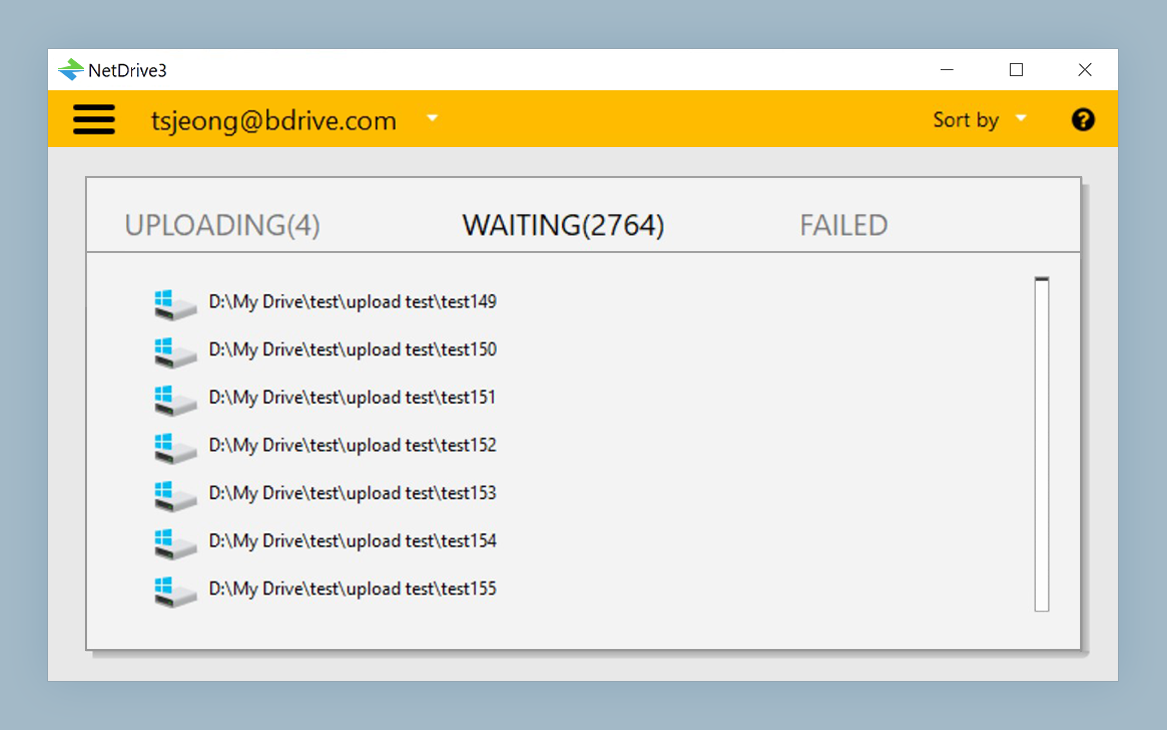
This matters for large files. You can queue a 20 GB DPX sequence, close Finder, and NetDrive ensures every frame lands in B2 reliably. Check progress at any time by opening Drive Manager and reviewing the upload queue.
Auto-Mount on Login
For machines where B2 access is always needed, enable Auto-Mount in the drive’s settings. NetDrive offers three modes: mount at boot (before login), mount at login, or manual. For most macOS Sonoma setups, mounting at login is the safest option. Once configured, the B2 drive appears automatically every time you start work.
Wrap-up
Backblaze B2’s per-GB economics pair well with NetDrive’s mount-on-demand model: you’re not paying for local storage to hold a working copy, and you’re not waiting for a full sync before you can open the first file. If your team also works across Windows machines, the same Application Key credentials work in NetDrive on Windows for Backblaze B2 — the UI flow is nearly identical. For cloud-to-cloud transfers between B2 and other providers, that’s a job for NetDrive’s sibling product RcloneView rather than a mount-based workflow.
— Morgan, NetDrive