Mount ImageKit on Windows — A Drive Letter for Your Media Library

Mount ImageKit's media library as a drive letter on Windows with NetDrive. Browse, upload, and manage image and video assets without the web dashboard.
A marketing team storing product photography and video in ImageKit usually manages it through the web dashboard — fine for one-off uploads, tedious when a designer needs to drag in three hundred resized banner assets before a launch. NetDrive now supports ImageKit as a provider, so that media library can show up as a drive letter on Windows instead of a browser tab.


Give ImageKit a drive letter on Windows
NetDrive lets Google Drive, OneDrive, S3, SFTP, WebDAV and more appear as native drives on Windows and macOS — no syncing, no full downloads.
- Browse ImageKit media assets in Windows Explorer, no dashboard needed
- Drag and drop bulk uploads straight from a local folder
- Works alongside your other cloud drives in one drive manager
Free trial. Lifetime and subscription plans available.
What Changes Once ImageKit Is a Drive Letter
Without NetDrive, getting files into ImageKit means the web dashboard’s upload widget or a script built against ImageKit’s API — both fine for occasional uploads, both extra steps when the work already involves moving files around in Explorer. Mounting ImageKit through NetDrive gives the media library a drive letter (for example I:) that behaves like any other Windows drive: File Explorer lists it, Save As dialogs see it, and any application that can save to a folder can save directly into the library.
That matters most for teams handling volume — a batch of product shots exported from Lightroom, a folder of video thumbnails a designer needs to drop in before a deadline. Instead of opening a browser, finding the upload button, and watching a progress bar for each batch, the transfer is a drag-and-drop into a mapped drive, the same as copying files to any local folder.
Adding an ImageKit Drive in NetDrive
- Open NetDrive → click Add a Drive in the drive manager.
- Select ImageKit from the provider list.
- Sign in with the ImageKit account credentials when prompted.
- Pick a drive letter (NetDrive suggests the next free one, such as
I:) and confirm. - Click Mount. The ImageKit media library appears in File Explorer within a few seconds.
No separate installer or command-line tooling is required — the connection lives inside NetDrive alongside any other cloud drives already configured.
Working With the Media Library Day to Day
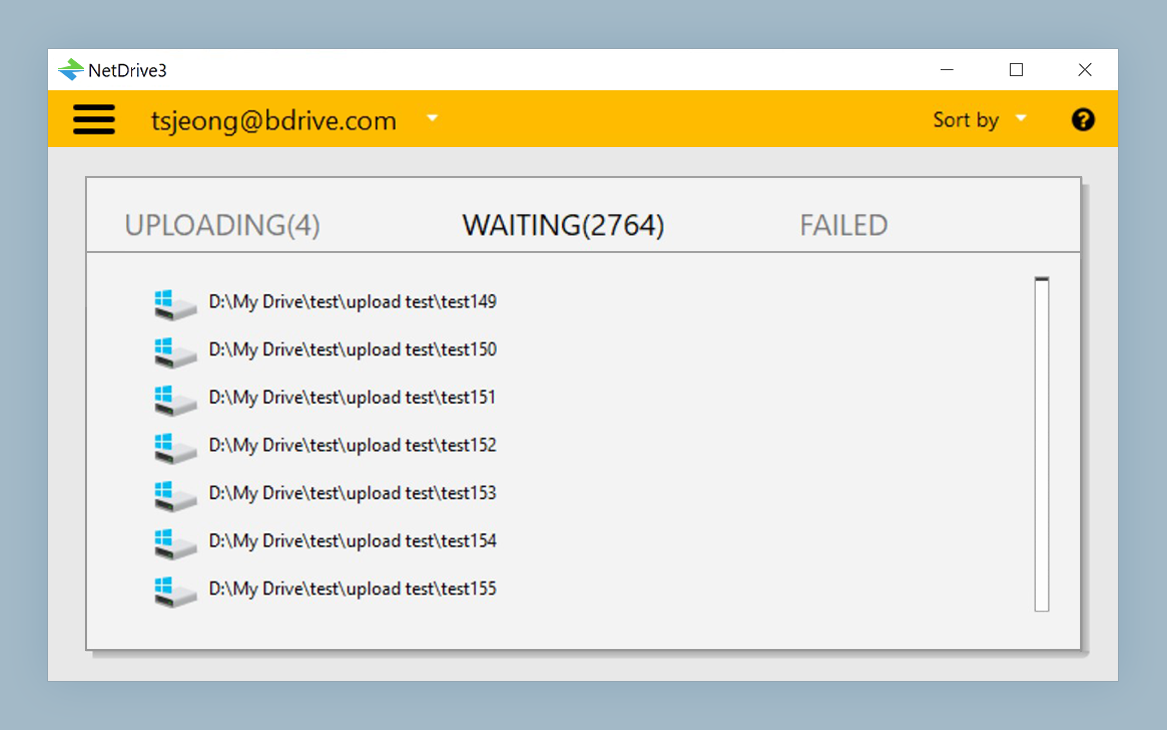
Once mounted, the ImageKit drive behaves like local storage for everyday file operations. Dragging a folder of exported assets into it queues a background upload — visible in NetDrive’s upload tray — so a large batch doesn’t lock up the app doing the copying while it transfers. Renames, folder moves, and deletes happen through the drive letter the same way they would on a local disk, and NetDrive reflects them back to the ImageKit account.
For teams that keep media in more than one place — ImageKit for the web-facing library, an S3 bucket for source RAW files, Google Drive for shared drafts — the drive manager lists every mounted provider together with its mount status, so switching between them doesn’t mean juggling separate logins and browser tabs.
Locking Files During Active Edits
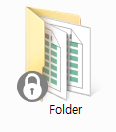
When more than one person works out of the same media folder, it’s easy for two people to open and re-save the same asset within minutes of each other. NetDrive’s file lock applies to any file type on a mounted drive — not just documents — so a designer can lock a banner PSD or a video master while editing it, preventing a teammate from opening a stale copy and overwriting the changes later. The lock status shows up as an icon overlay directly in Explorer, so there’s no need to check a separate status page to see who’s holding a file.
A Growing List of Providers to Choose From
ImageKit is one of several providers NetDrive added support for this release cycle, alongside Koofr, Filen, Files.com, and OpenDrive — each aimed at a different kind of storage need, from consumer cloud storage to media-focused object storage. Anyone weighing ImageKit against a general-purpose object store like S3 or Backblaze B2 can mount both at once and compare how each handles a real folder of assets rather than relying on marketing claims alone.
Wrap-up
Mounting ImageKit as a Windows drive letter turns a dashboard-driven media library into a folder any application can save into directly. For related setups, see mounting Amazon S3 on Windows, mounting Backblaze B2 on Windows for a source-file archive alongside the media library, or NetDrive on Windows 11 24H2 for platform-specific notes.
— Steve, NetDrive