Mount FTP Server on Windows — NetDrive
Map any FTP server to a Windows drive letter with NetDrive. Access your NAS, hosting server, or legacy FTP share directly from Windows Explorer and any Windows app.
Your NAS is running an FTP server, or your hosting provider only speaks FTP — and you’re tired of opening a dedicated FTP client every time you need to save a file. NetDrive maps any FTP server to a Windows drive letter (G:, H:, whatever you choose), so Windows Explorer and every application on your machine see that storage as a plain local folder. No separate client window, no dragging and dropping between panes.


Turn Any FTP Server Into a Windows Drive Letter
NetDrive lets Google Drive, OneDrive, S3, SFTP, WebDAV and more appear as native drives on Windows and macOS — no syncing, no full downloads.
- Open and save FTP files directly from any Windows app
- Browse your NAS or hosting storage in Windows Explorer
- Anonymous or credential-based FTP — both work
Free trial. Lifetime and subscription plans available.
Why FTP-as-a-Drive Changes the Workflow
When FTP lives in a standalone client, every save is a two-step process: save locally, then upload. With NetDrive, the drive letter is the FTP connection. Open a Photoshop file from F:, edit it, hit Ctrl+S — NetDrive’s background upload queue handles the transfer while you keep working. The upload is asynchronous by default, so your application returns immediately even for large files.
This pattern is useful across a surprisingly wide range of setups:
- NAS devices (Synology, QNAP, Western Digital) running an FTP service on your LAN or reachable over VPN
- cPanel or Plesk hosting accounts that expose FTP storage alongside the web root, useful for teams maintaining assets directly on a web server
- Legacy infrastructure where FTP is the only available transfer protocol and replacing it isn’t on the roadmap
NetDrive has supported FTP from its initial release. Version 3.7.687 extended that to credential-optional FTP, which covers anonymous-access servers such as software mirrors or internal distribution servers that don’t require a password.
What You Need Before You Start
- Windows 8, 8.1, 10, or 11 (32-bit or 64-bit), or Windows Server 2012, 2016, 2019, or 2022
- Your FTP server details: hostname or IP address, port (default is 21), username, and password — or nothing if the server is anonymous
- NetDrive 3 installed — the 7-day free trial is at https://www.netdrive.net/download/windows/

Step-by-Step: Add Your FTP Server
- Open NetDrive — look for the icon in the Windows system tray, or launch it from the Start menu.
- Click Add a drive (the + button in the drive manager).
- In the protocol list, select FTP.
- Enter your server address, port (default: 21), username, and password. For an anonymous server, leave the credential fields blank.
- Under Drive Settings, pick a drive letter — any unassigned letter works (F:, G:, Z:, etc.).
- Set Auto-mount to On login or On boot (without login) if you want the drive available automatically every session. The boot-without-login option is available for drives that don’t require interactive re-authentication — useful for servers with saved credentials.
- Click Save, then click Connect next to the drive entry.
Windows Explorer will show the new drive letter within a few seconds. From this point, opening, copying, moving, and saving files on the FTP server works exactly like any local folder.
Background Uploads and Working with Large Files
One practical consideration when working with FTP through a mounted drive is upload behavior. NetDrive uses asynchronous background uploads: when you save a file to the mounted drive, the application gets its “save complete” response immediately while NetDrive transfers the data to the FTP server in the background. For a 200 MB video file, this means Premiere doesn’t lock up while the upload finishes.
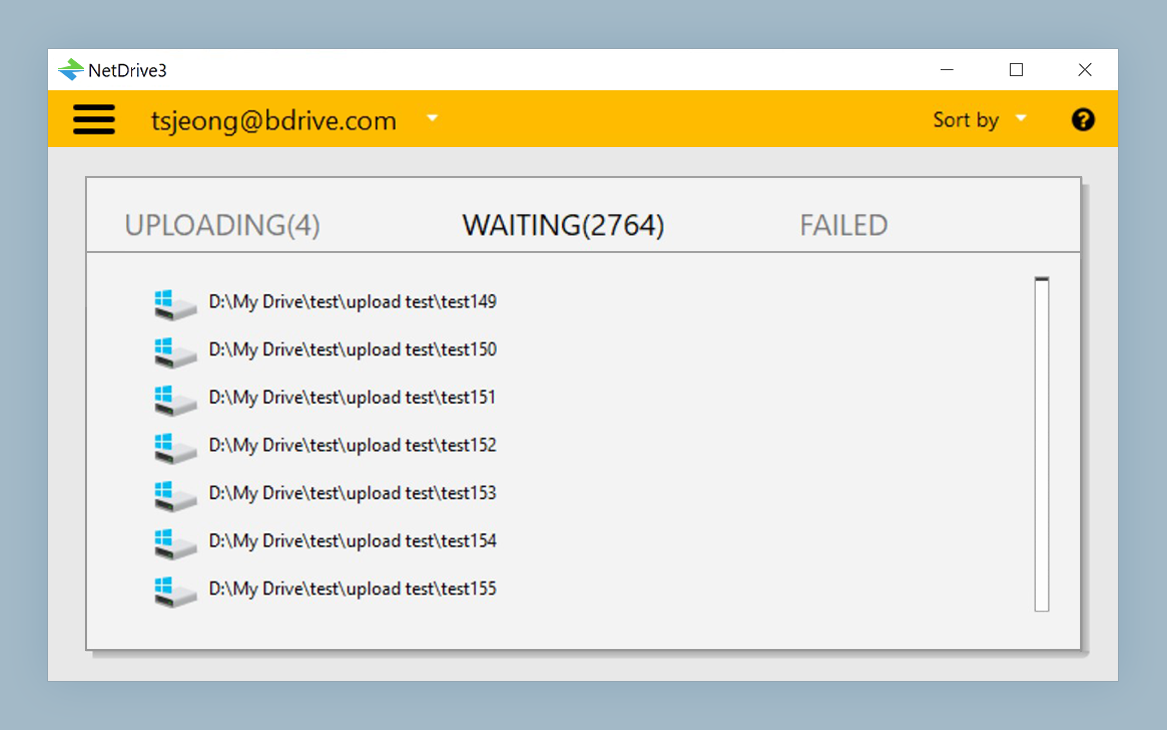
You can monitor active transfers in NetDrive’s upload status view. If you close a file and the background upload is still in progress, NetDrive continues the transfer — the file isn’t lost because you moved on to the next task.
Common Connection Issues
A few things to check if the drive connects but behaves unexpectedly:
- Directory listing hangs: Many FTP servers behind a home router or corporate NAT require passive mode (PASV) for data connections. In active mode, the server tries to initiate a connection back to your machine — which firewalls typically block. Consult your server’s documentation to enable passive mode and open the appropriate passive port range on the firewall.
- Port 21 blocked by ISP: Some ISPs block outbound port 21. Check whether your hosting provider offers an alternate FTP port (2121 is common) and update the port field in NetDrive accordingly.
- Slow large-directory listings: Folders with thousands of files can be slow to list over FTP. Verify your server supports the MLSD command (modern FTP directory listing) — it is significantly faster than the older LIST format for large directories.
Wrap-up
Once mapped, your FTP server behaves like a local drive for every application: drag files in Explorer, use File → Open in Excel, reference the path F:\project\ in build scripts. The connection persists across reboots if you configured auto-mount.
If your server also supports SFTP (encrypted transfer over SSH), that’s the recommended upgrade path for any storage over the public internet — see Mount SFTP Server on Windows with NetDrive. For NAS devices that expose WebDAV (common on Synology and QNAP), Mount WebDAV on Windows with NetDrive walks through that setup.
— Tayson, NetDrive