Photographers with NetDrive — Open Cloud Archives Like Local Folders
How wedding and commercial photographers use NetDrive to open cloud-stored shoots in Lightroom-style workflows, with background uploads and read-only archives.
A wedding photographer comes home with 3,000 RAW files, needs a client gallery culled by Friday, and has a laptop SSD that is already half full of last season’s shoots. The finished jobs belong in cheap cloud storage, but a browser uploader is a poor fit for catalogs and folder trees. NetDrive mounts that storage as a drive, so the archive shows up next to the local disk in your file manager.


Your archive, one drive letter away
NetDrive lets Google Drive, OneDrive, S3, SFTP, WebDAV and more appear as native drives on Windows and macOS — no syncing, no full downloads.
- Open cloud-stored shoots from any app, no manual downloads
- Uploads run in the background while you keep editing
- Mount an archive read-only so nothing gets deleted by accident
Free trial. Lifetime and subscription plans available.
The Problem With Keeping Shoots Only on a Laptop
Photo libraries grow in one direction. A busy year of weddings, portraits, and commercial jobs adds up to terabytes, and most of it is untouched after delivery. Keeping everything on internal storage forces a choice between buying bigger drives and deleting work you may be asked to re-export two years later.
Cloud object storage such as Amazon S3, Backblaze B2, or Wasabi suits this kind of cold archive, and consumer services such as Google Drive, Dropbox, and OneDrive suit smaller working sets. The friction is access. Web consoles are built for administrators, not for someone browsing a folder tree of dated shoots.
Mounting Storage as a Drive
NetDrive makes a supported cloud appear as a drive on Windows or macOS, with a drive letter on Windows and a volume on macOS. That means any application’s Open and Save dialogs can reach it, which matters for photo software that expects to read from a normal path. The archive is browsed, previewed, and copied with the same file manager you already use for local folders.
NetDrive supports a wide range of providers, including S3 and S3-compatible storage, Backblaze B2, Google Drive, Dropbox, OneDrive, and SFTP or WebDAV servers. You can mount several at once, for example a fast working drive for the current month and a separate archive for finished years. The Drive Manager lists them in one window.
A Workflow That Keeps the Laptop Light
A practical routine looks like this:
- Ingest locally. Copy cards to the internal SSD and cull there, where speed matters most.
- Deliver, then archive. When the job is delivered, copy the full shoot folder onto the mounted archive drive.
- Keep working. NetDrive uploads in the background, so the copy finishes quickly in the file manager while the transfer continues behind it. Progress is visible in NetDrive’s upload view.
- Reclaim space. Once the upload has completed, remove the local copy.
- Retrieve on demand. When a client asks for a reprint, open the folder from the archive drive and copy out only the files needed.
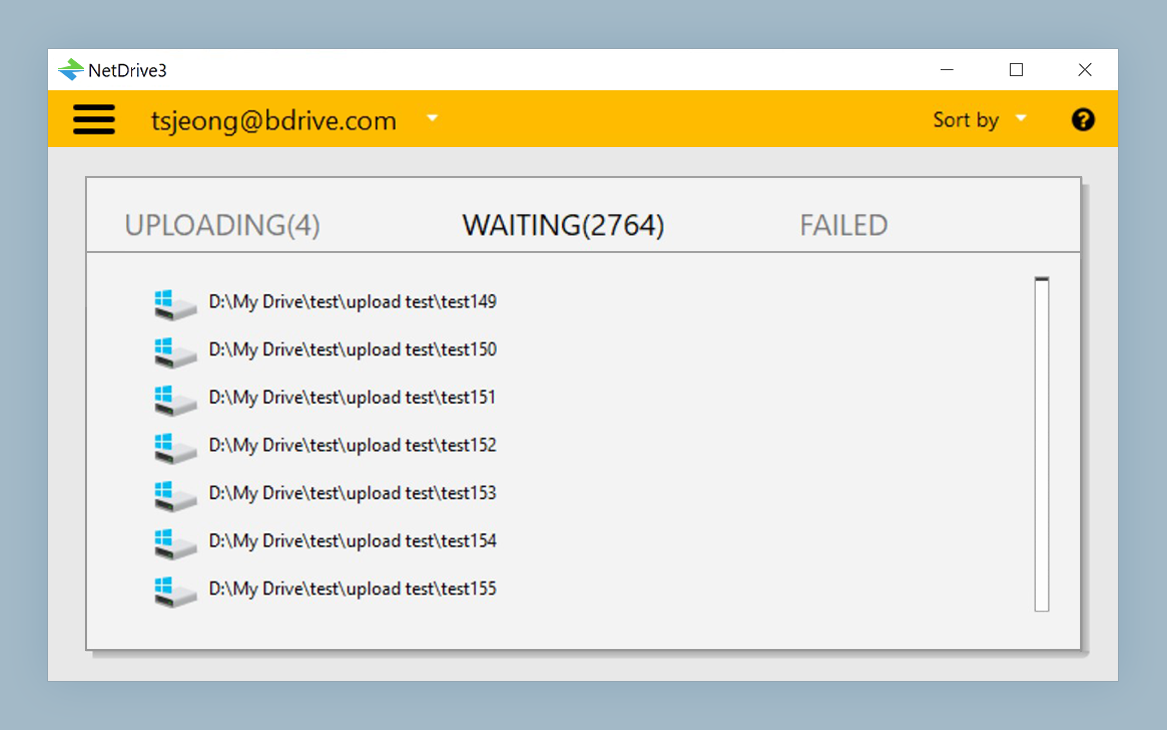
Large RAW batches are the case background upload is built for. If a connection drops or a laptop goes to sleep mid-transfer, check the upload view before deleting anything locally. Treat the local copy as the original until you have confirmed the files are on the drive.
Cache and Read-Only Settings Worth Knowing
NetDrive keeps a local cache of recently used files, and the cache size can be set between 100 GB and 1 TB. A bigger cache helps when you revisit the same shoot repeatedly during an edit, since files already viewed need not be fetched again. Pick a size that leaves enough room on a laptop SSD.
For finished years, consider mounting the archive as a read-only drive. The folders stay browsable, but saving, renaming, and deleting inside them are rejected, which protects delivered work from a mis-click or an overly eager cleanup script.
Limits to Plan Around
NetDrive does not provide an offline mode, so a mounted archive needs a network connection to open files that are not already cached. It also does not offer client-side encryption. If your contracts require that, apply it with a separate tool before upload. Plan travel shoots accordingly, and keep the active job on local storage rather than the cloud drive.
Wrap-up
For photographers, the value of NetDrive is access: an archive that lives in inexpensive cloud storage but behaves like a folder when a client calls. For provider-specific setup, see Photography RAW Archive on Backblaze B2 with NetDrive, tune your cache with Cache Size Options in NetDrive, or read how Background Upload Mode works.
— Tayson, NetDrive