Freelancers with NetDrive Mobile — Every Client's Cloud in One App

Freelancers use NetDrive Mobile to open client files from Google Drive, Dropbox, OneDrive and SharePoint on iPhone and Android, preview deliverables, and upload from the field.
One client shares a Google Drive folder, another insists on Dropbox, a third gave you a login to their company SharePoint. You are standing in a train station when someone asks, “Can you send me the final logo files?” NetDrive Mobile puts all of those clouds in one app, so you can find the file, check it, and get it moving from your phone.

Every client's cloud, one app
Open Google Drive, Dropbox, OneDrive and SharePoint on iPhone and Android. Preview, download and upload without switching apps.
- One drive per client account, all on one home screen
- Preview deliverables before you send them
- Upload photos and files with progress and cancel
Free Bdrive account required.
One Home Screen for Many Clients
Freelance work scatters files across whatever each client prefers. NetDrive Mobile treats every account as its own drive and lists them together on the home screen, so switching clients is a tap rather than an app swap. You can connect more than one account from the same provider, which keeps two clients’ Google Drives apart.
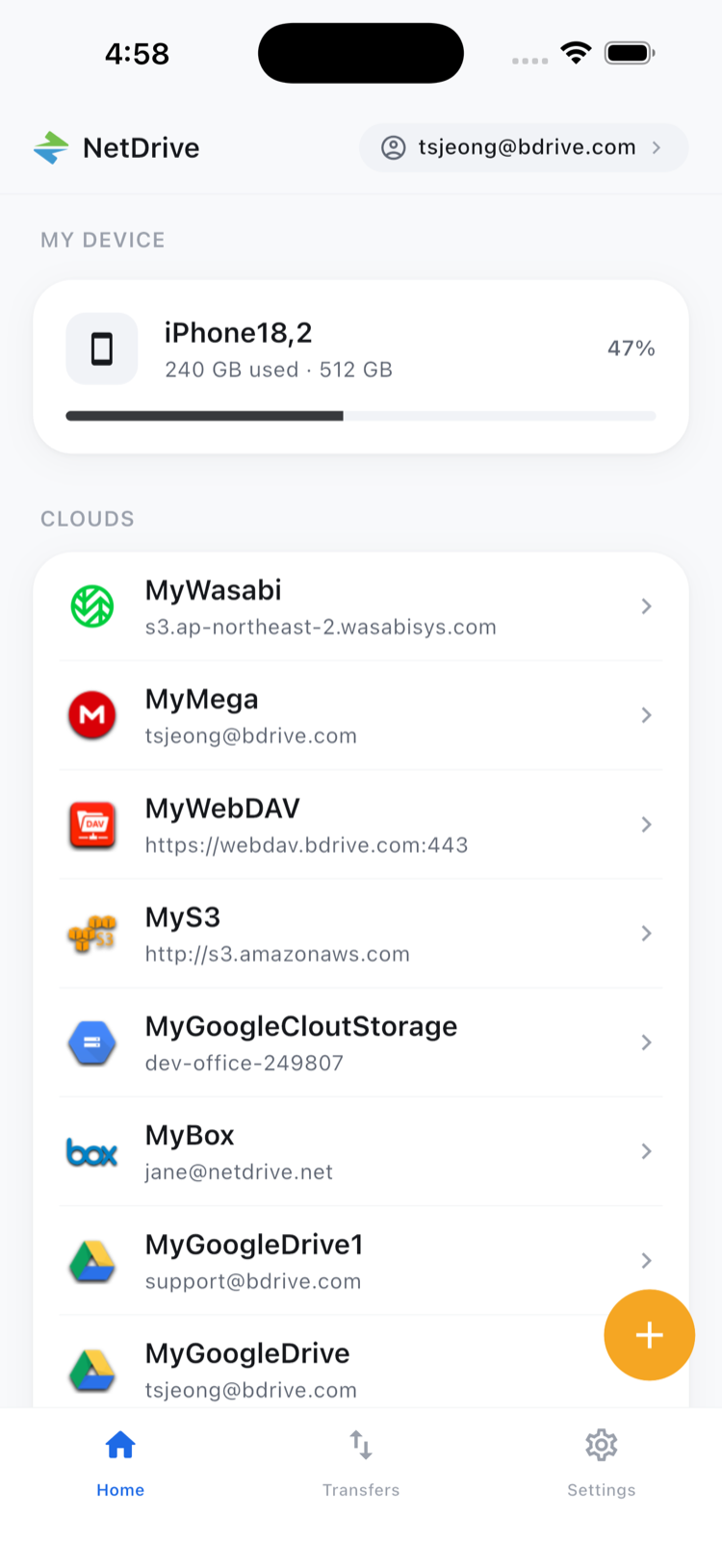
To add a client, open the Add a drive sheet and pick the provider. NetDrive Mobile supports Google Drive, Dropbox, Dropbox Business, OneDrive, OneDrive for Business, SharePoint and Box, plus object storage such as Amazon S3, and WebDAV, FTP and SFTP servers. The app needs a free Bdrive account, and sign-in works with Sign in with Apple or Google.
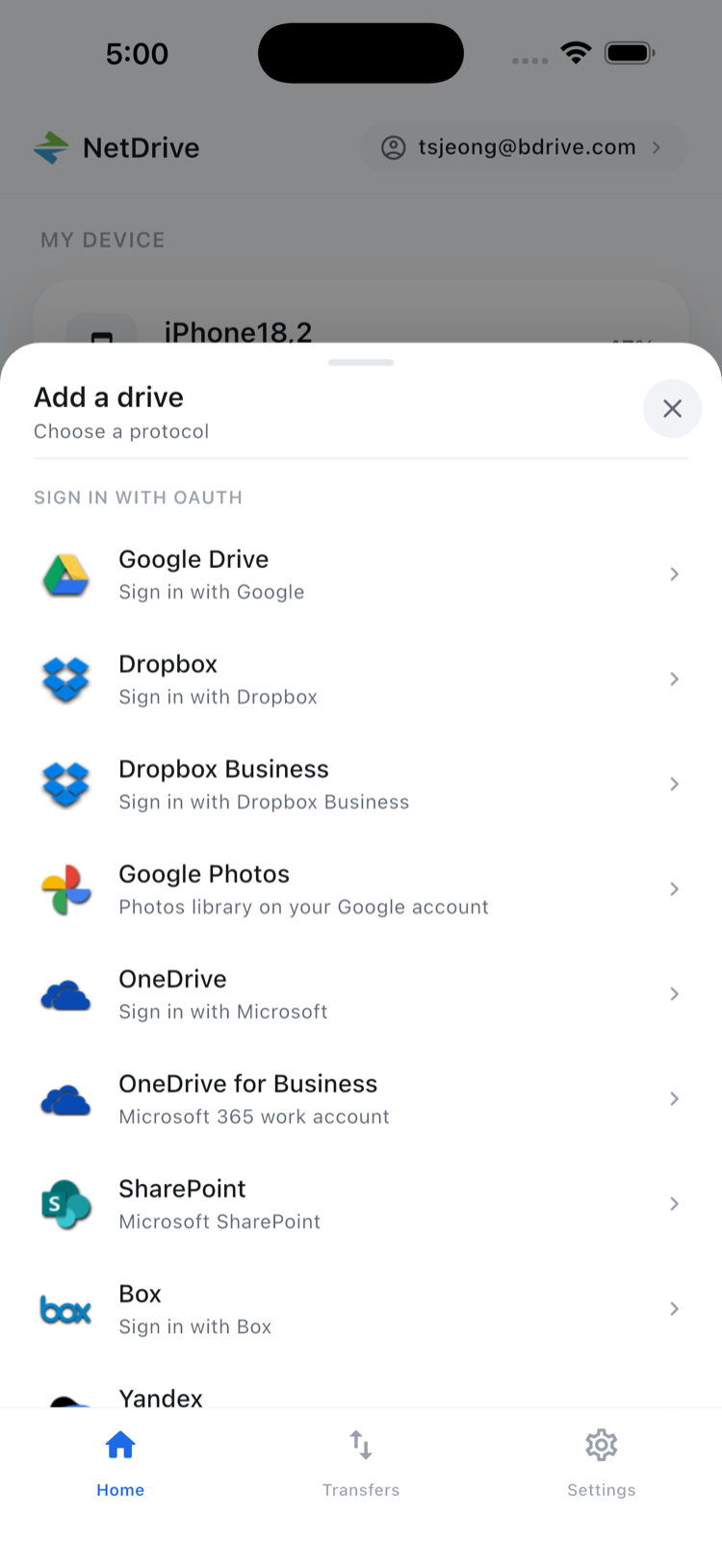
Find the Right Version Fast
Open a client’s drive and move into the project folder. Sort by date to surface the newest export, or switch between list and grid to scan for a thumbnail. When two files have nearly the same name, preview settles it.
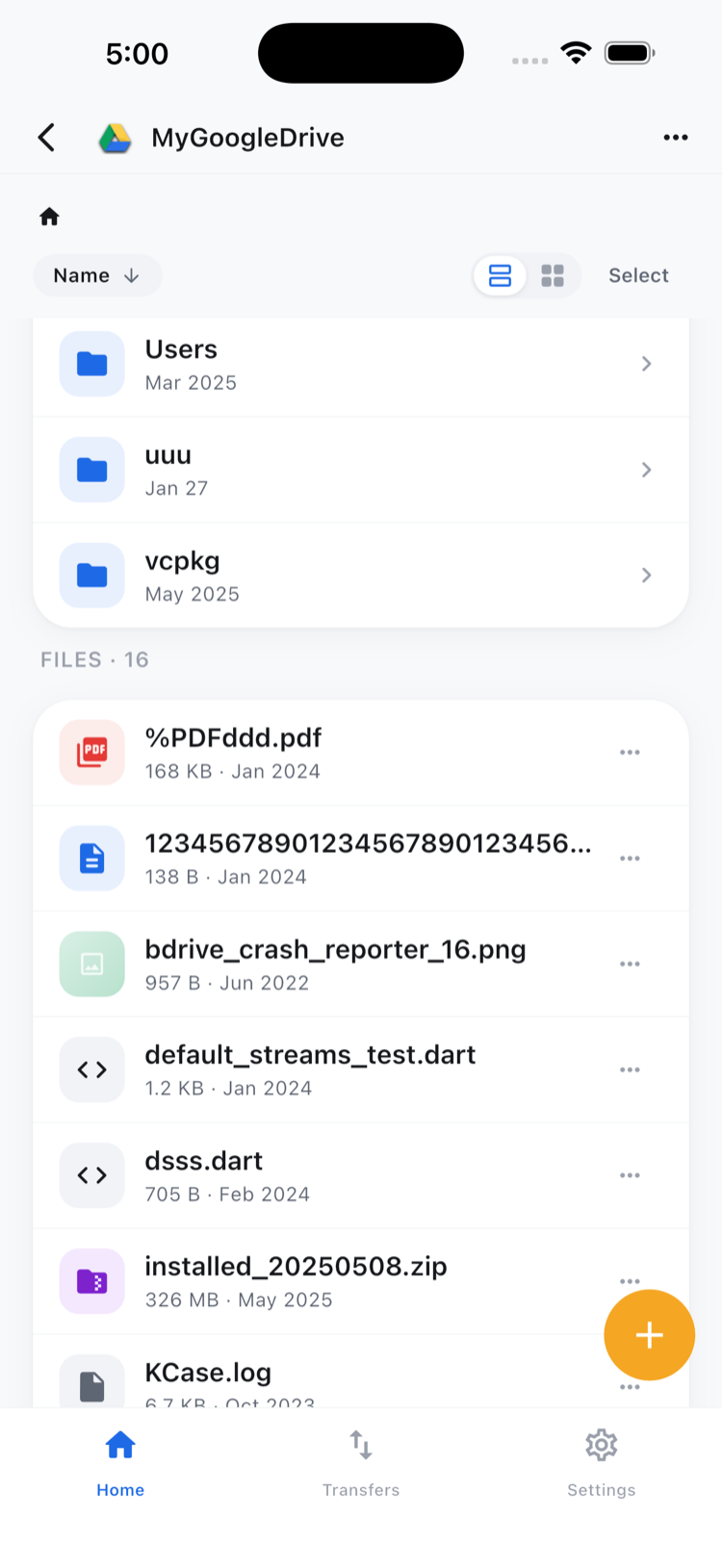
Tap a document, image or video to open the in-app preview and confirm it is the one you mean. That beats forwarding the wrong “final_v3” to a client. The file action sheet also gives you Download, Rename, Move, Copy, Get info and Delete. Move and Copy work inside the same cloud, so a file stays in the client’s own drive.
Upload From the Field
A site photo, a signed scan, a quick screen recording: add it to the client’s folder while the context is fresh. Open the right drive, choose the upload source (camera, photos or files), and watch the transfer.
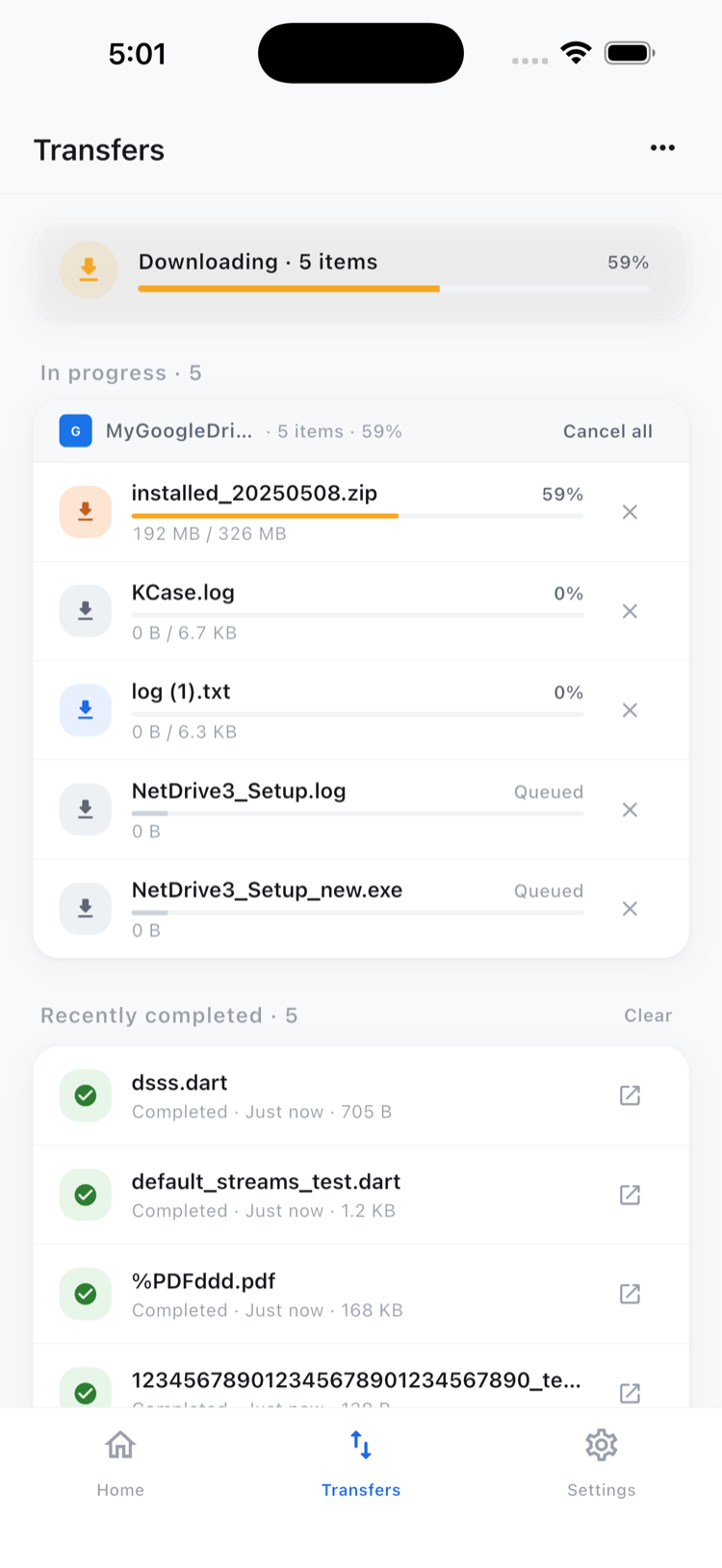
You can queue several uploads or downloads at once, follow the progress, and cancel any of them. For tidying a whole folder at once, multi-select is covered in Bulk File Actions in NetDrive Mobile.
A Setup That Keeps Clients Separate
- Install NetDrive Mobile from the App Store or Google Play and sign in with your free Bdrive account.
- Add one drive per client and use the sign-in each client issued to you.
- Use the same folder names in every project, such as Briefs, Drafts and Final.
- Check the drive name at the top of the file browser before you upload, so a file lands with the right client.
Account security also matters when you hold access to several organizations. NetDrive Mobile stores credentials in the device’s secure storage, and Two-Factor Login in NetDrive Mobile covers verification codes for your Bdrive account.
What It Won’t Do
NetDrive Mobile browses, previews, uploads and downloads files in the clouds you connect. It does not copy or move a file directly from one cloud to another, so a deliverable stays in the drive where it lives. If a client needs it somewhere else, download it to your phone and upload it there. Clients may also restrict which accounts can sign in on personal devices, so confirm their policy before you connect. Access needs a connection, so download anything you need in a dead zone ahead of time.
Wrap-up
For freelancers, the file app that matters is the one already open when a client asks for something. For first-run setup, see NetDrive Mobile — Getting Started. To keep separate logins organized, read Multiple Cloud Accounts in NetDrive Mobile. On a desktop, Freelance Designers with NetDrive covers the other half of the workflow.
— Jay, NetDrive