Data Science Teams with NetDrive — Cloud Datasets as a Local Drive

How analysts and ML engineers use NetDrive to mount S3, Google Cloud Storage, Azure Blob or MinIO as a drive and open datasets from notebooks and desktop tools.
An analyst needs to open a 6 GB CSV that lives in a team bucket. The desktop BI tool she prefers has no connector for it, the notebook expects a file path, and the data engineer who owns the bucket would rather not hand out one-off export links every week. The shortest path is giving her a drive letter that points at the bucket.


Datasets in object storage, as a drive
NetDrive lets Google Drive, OneDrive, S3, SFTP, WebDAV and more appear as native drives on Windows and macOS — no syncing, no full downloads.
- Mount S3, Google Cloud Storage, Azure Blob or MinIO
- Use a read-only drive so analysts cannot alter source data
- Works on Windows and macOS with any app that opens files
Free trial. Lifetime and subscription plans available.
Why a Mounted Drive Fits Data Work
Plenty of everyday tools only understand file paths: spreadsheet apps, desktop visualization software, image viewers, a script written for a local data/ folder. NetDrive mounts object storage so those tools read it like any other drive. The data stays in the bucket; people open what they need.
NetDrive supports Amazon S3 and S3-compatible storage (Wasabi, MinIO), Google Cloud Storage, Azure Blob Storage and Azure File Storage. If your datasets are in more than one cloud, you can mount each as its own drive side by side.
Protect Source Data with a Read-Only Drive
The scariest thing about handing broad access to a raw-data bucket is an accidental save into the wrong folder. NetDrive can mount a drive as read-only, so analysts can open, copy out and analyze files but cannot overwrite or delete the originals. Keep write access for the pipeline or the data engineer, and give everyone else the read-only mount. More in Read-Only Drive in NetDrive.
If you want a bucket for results too, mount it separately as a normal drive so outputs land somewhere writable but distinct from the source.
Setting It Up
- Open NetDrive and click Add Drive.
- Choose the storage type, for example Amazon S3, Google Cloud Storage or Azure Blob Storage.
- Enter the credentials for an account scoped to the bucket. Use a key that has only the permissions people need.
- Pick the mount options, including read-only for source-data drives.
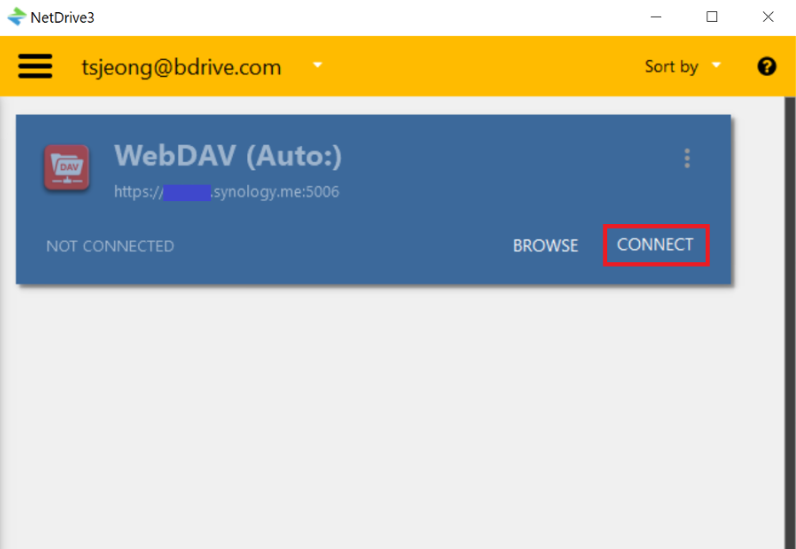
- Mount the drive and open it in Explorer or Finder.
Provider-specific walkthroughs: Mount Google Cloud Storage on Windows, Mount Azure Blob on macOS and Mount MinIO on Windows.
Practical Habits
Use a least-privilege key. A mounted drive is only as safe as the credentials behind it. Create a dedicated, narrowly scoped key for the mount instead of reusing an admin key.
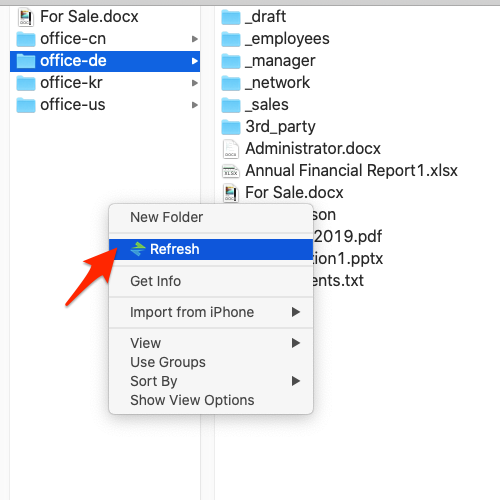
Refresh when data lands. If a pipeline writes new files while someone has a folder open, use NetDrive’s force folder refresh to see them; see Force Folder Refresh.
Expect big listings to take time. Very large buckets with many objects can be slow to list. Fix Slow S3 Directory Listing covers what helps.
Mind the cache. NetDrive caches files you touch locally. If analysts open many large files in one sitting, the cache size options (100 GB to 1 TB) are worth a look.
Know the Limits
NetDrive is a mount tool, not a data-processing engine or a bulk transfer tool: it makes cloud files reachable by desktop apps. It has no offline mode, so work requires a connection to the storage. It also has no client-side encryption feature, so rely on your provider’s controls for protecting data at rest. For automated pipelines running on servers, use your platform’s native storage tooling and keep NetDrive for the people who work in desktop apps.
Wrap-up
For analysts and ML engineers who live in desktop tools, a read-only mount of the team bucket removes the export-link ritual and keeps source data safe. Start with one bucket, a scoped key and a read-only drive, then add more as the team needs them.
— Robin, NetDrive