Mount Koofr on Windows — A Drive Letter for Your Koofr Storage

Mount your Koofr cloud storage as a drive letter on Windows with NetDrive. Step-by-step setup, no separate sync client required.
A freelance photo retoucher based in Ljubljana keeps her client archive on Koofr because it keeps data on European servers. The catch: every export from Lightroom means opening a browser tab, dragging files into Koofr’s web uploader, and waiting for the page to confirm. NetDrive now supports Koofr as a provider, so that folder can show up as a regular drive letter instead.


Give Koofr a drive letter on Windows
NetDrive lets Google Drive, OneDrive, S3, SFTP, WebDAV and more appear as native drives on Windows and macOS — no syncing, no full downloads.
- Browse Koofr files in Windows Explorer, no browser tab needed
- Save directly from Photoshop, Premiere, or any app's Save dialog
- Works alongside your other cloud drives in one drive manager
Free trial. Lifetime and subscription plans available.
What Changes Once Koofr Is a Drive Letter
Without NetDrive, working with Koofr on Windows means the web interface or a separate sync app that mirrors files to local disk — useful for offline access, but it duplicates storage and needs time to catch up after every change. Mounting Koofr through NetDrive instead gives it a drive letter (for example K:) that behaves like any other Windows drive: File Explorer lists it, Save As dialogs see it, and command-line tools can read from it directly.
There’s no second copy of the archive taking up space on the laptop, and no separate sync client that needs to catch up before a change shows up elsewhere — saving a file to the drive letter pushes the change back to Koofr as a background upload, the same way it would for any other mounted provider.
Adding a Koofr Drive in NetDrive
- Open NetDrive → click Add a Drive in the drive manager.
- Select Koofr from the provider list.
- Sign in with the Koofr account credentials when prompted.
- Pick a drive letter (NetDrive suggests the next free one, such as
K:) and confirm. - Click Mount. The Koofr root folder appears in File Explorer within a few seconds.
No separate installer or sync agent is required — the connection lives inside NetDrive alongside any other cloud drives already configured.
Working With Koofr Day to Day
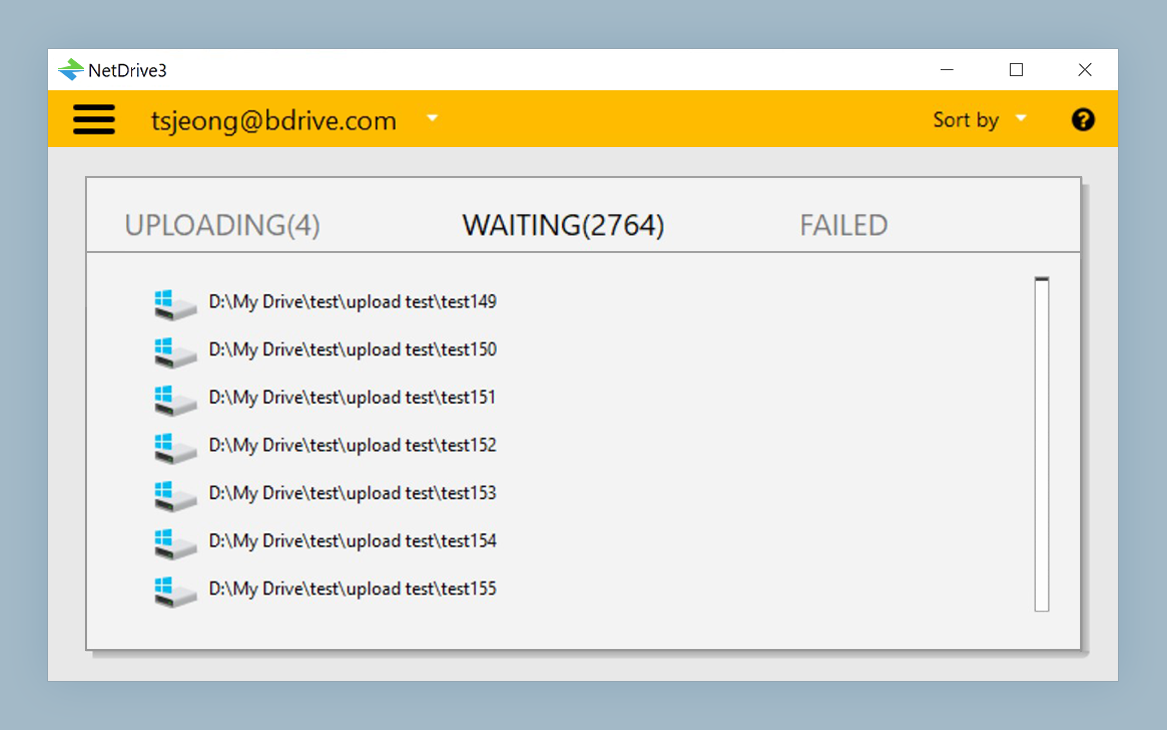
Once mounted, treat the Koofr drive like local storage. Copying a folder into it queues a background upload — visible in NetDrive’s upload tray — so large exports don’t block the app doing the copying. Renames, deletes, and moves happen through the drive letter the same way they would on a local disk, and NetDrive reflects them back to the Koofr account.
For anyone who mounts several providers side by side (Koofr for client archives, Google Drive for shared docs, an S3 bucket for backups), the drive manager keeps them all listed with mount status, so switching between them doesn’t mean juggling separate apps.
Read-Only Access for Finished Archives
Not every mounted drive needs write access. A completed client project that’s been delivered and paid for often just needs to stay reachable for reference, without the risk of an accidental overwrite months later. NetDrive lets any mounted drive — including a Koofr connection — be set to read-only at mount time, so the folder shows up in Explorer but any attempt to save, rename, or delete a file inside it is rejected, instead of relying on everyone remembering not to touch it. That’s a separate toggle from Koofr’s own account settings, controlled entirely from NetDrive’s side.
Locking Files During Active Reviews
When a project folder gets shared with a client or a collaborator, more than one person can end up opening the same file during a review round. NetDrive’s file lock applies to any file type on a mounted drive, not just Office documents, so marking a PSD or a video master as locked while editing prevents someone else from opening a stale copy and overwriting changes later. The lock status shows up as an icon overlay directly in Explorer, so there’s no need to check a separate status page to see who’s holding a file.
A Growing List of Providers to Choose From
Koofr is one of several providers NetDrive added support for this release cycle, alongside Filen, Files.com, ImageKit, and OpenDrive — each aimed at a different kind of storage need, from encrypted personal clouds to media-focused object storage. Anyone comparing options across providers can mount more than one at a time and compare how each performs for their own files rather than relying on marketing claims alone.
Wrap-up
Mounting Koofr as a Windows drive letter removes the extra step of syncing or browser-uploading files that already belong in a normal workflow. Anyone comparing cloud providers side by side should also see how Amazon S3 mounts on Windows, check NetDrive on Windows 11 24H2 for platform-specific notes, or read more about the read-only drive option.
— Kai, NetDrive