Mount WebDAV on Linux — NetDrive's Experimental Ubuntu Build

Mount a WebDAV server — a Synology NAS, ownCloud, or any standards-compliant host — as an Ubuntu mount point using NetDrive's experimental Linux build.
A build team running CI on a fleet of headless Ubuntu runners keeps its shared toolchain and cached fixtures on an internal WebDAV server, and every runner needs read access without a sync agent burning disk on a full local copy that goes stale the moment someone updates a file. NetDrive’s Linux build mounts that WebDAV share at a regular mount point, so a job reading /mnt/webdav/fixtures/build.tar.gz gets the current file from the server directly, instead of a copy the previous run downloaded.


Mount a WebDAV server on Ubuntu
NetDrive lets Google Drive, OneDrive, S3, SFTP, WebDAV and more appear as native drives on Windows and macOS — no syncing, no full downloads.
- Runs on Ubuntu 16.04 and later
- Works with any standards-compliant WebDAV host, including Synology NAS
- Mounts the share directly — no separate local sync copy to maintain
Free trial. Lifetime and subscription plans available.
WebDAV and NetDrive on Linux
WebDAV (Web Distributed Authoring and Versioning) turns a web server into a writable file store over HTTP, and it’s the protocol behind Synology’s file sharing, ownCloud, and a long list of self-hosted storage servers. NetDrive has supported WebDAV since its first 3.x release in September 2017 — one of three foundational protocols, alongside FTP and SFTP, that predate any cloud provider integration.
On Linux, NetDrive is distributed from github.com/NetDrive/installer rather than a distro package repository. Linux support carries NetDrive’s own experimental label — the same one covering every provider on this platform, not something specific to WebDAV — with Windows and macOS treated as the hardened, production targets.

Installing NetDrive on Ubuntu
- Go to github.com/NetDrive/installer and download the release matching your Ubuntu version. Ubuntu 16.04 is the minimum supported version.
- Follow the release notes for that build — a driver component installs before NetDrive can mount anything.
- Install the NetDrive package.
- Launch NetDrive. The first run loads the driver component and may prompt for
sudo, depending on how your system is configured.
Updates ship as GitHub releases rather than through apt upgrade, and the Linux driver is maintained on its own schedule — a fix that lands on Windows or macOS doesn’t necessarily arrive on Linux the same week. Worth a line in whatever runbook covers the box.
Step-by-Step: Connect a WebDAV Server
- Open NetDrive’s Drive Manager and click + Add Drive.
- Select WebDAV from the list of connection types.
- Enter the server URL. For HTTPS on the default port:
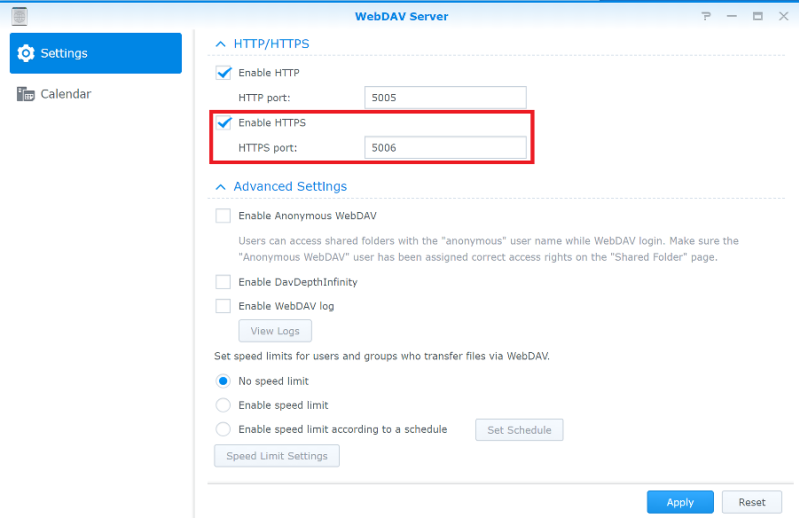
https://yourserver.example.com/dav/. For a custom port — Synology’s WebDAV package defaults to 5006 — usehttps://yourserver.example.com:5006/.
- Enter your username and password for the WebDAV account.
- Set a mount point — a path like
/mnt/webdav, or any empty directory you have write access to. - Click Connect. NetDrive authenticates and mounts the share at that path.
If the source is a Synology NAS, the WebDAV Server package needs to be installed and HTTPS enabled in DSM before NetDrive has anything to connect to — the same prerequisite that applies on Windows and macOS.
Verifying the Mount and Common Connection Issues
Check the mount from a terminal rather than trusting the GUI alone, especially on an experimental build:
# Confirm the mount is listed
mount | grep webdav

# Or just try listing it
ls /mnt/webdav
Connection refused or timeout — confirm the URL uses https://, not http://. Most WebDAV servers reject plain HTTP outright, and a mismatched port (5006 vs. 443, for a Synology default) is the next most common cause.
Certificate errors on a self-signed server — a self-hosted WebDAV host with a self-signed certificate needs that certificate added to your system’s CA trust store before NetDrive’s connection will succeed; a certificate from a public CA like Let’s Encrypt avoids the step entirely.
Nothing shows up after Connect — re-check that the mount point path exists and is writable by the user running NetDrive before assuming the server side is at fault.
Wrap-up
Mounting a WebDAV server on Ubuntu gives a headless box the same drive-style access NetDrive provides on Windows and macOS, through an installer that lives on GitHub instead of apt. For the broader Linux picture, see NetDrive on Ubuntu Linux; for the same protocol on a more heavily tested platform, see Mount WebDAV on Windows; and for another connection type on the Linux build, see Mount an SFTP Server on Linux.
— Steve, NetDrive