Browse an FTP Server on iPhone and Android — NetDrive Mobile

Connect to an FTP or FTPS server from your phone with NetDrive Mobile. Browse, preview, upload, and download files without a laptop nearby.
A photographer delivers finished galleries to a print lab that still runs an old-school FTP server — no web portal, just a hostname, a username, and a password. She used to wait until she was back at her laptop to check whether the lab had picked up the latest batch. With NetDrive Mobile, she opens the FTP connection from her phone at the shoot location and confirms the files landed before she’s even packed up her gear.
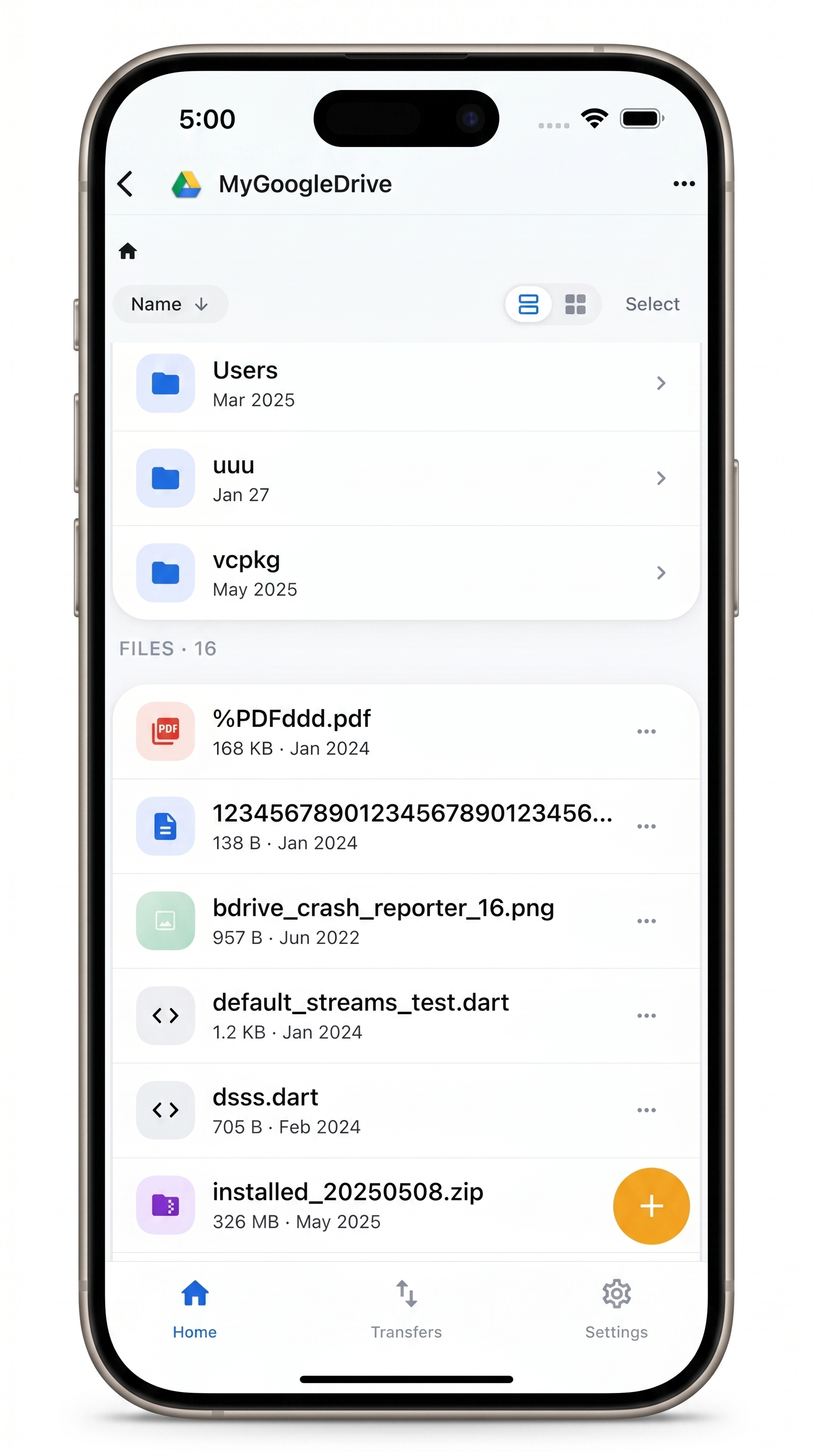
Every Cloud (and Server) in One App
Connect FTP, FTPS, SFTP, and major cloud providers from your phone
- Connect any standards-compliant FTP or FTPS server
- Preview images, documents, and video in-app before downloading
- Upload from your camera roll or download files for offline reference
Free Bdrive account required.
FTP on NetDrive Mobile
NetDrive Mobile is a multi-cloud file manager for iOS 15+ and Android, and FTP and FTPS sit alongside SFTP and WebDAV as the standard protocols it connects to — the same connection types NetDrive’s desktop app has supported since its earliest release. That makes NetDrive Mobile useful for more than consumer cloud accounts: any print lab, web host, or self-managed server that still exposes an FTP endpoint is reachable from the app, no separate FTP client required.
A free Bdrive account is required to use NetDrive Mobile. Create one at netdrive.net before adding your first connection. Once you enter your FTP credentials, they’re stored in your device’s secure storage — iOS Keychain on iPhone, Android Keystore on Android — and never leave the device unencrypted.
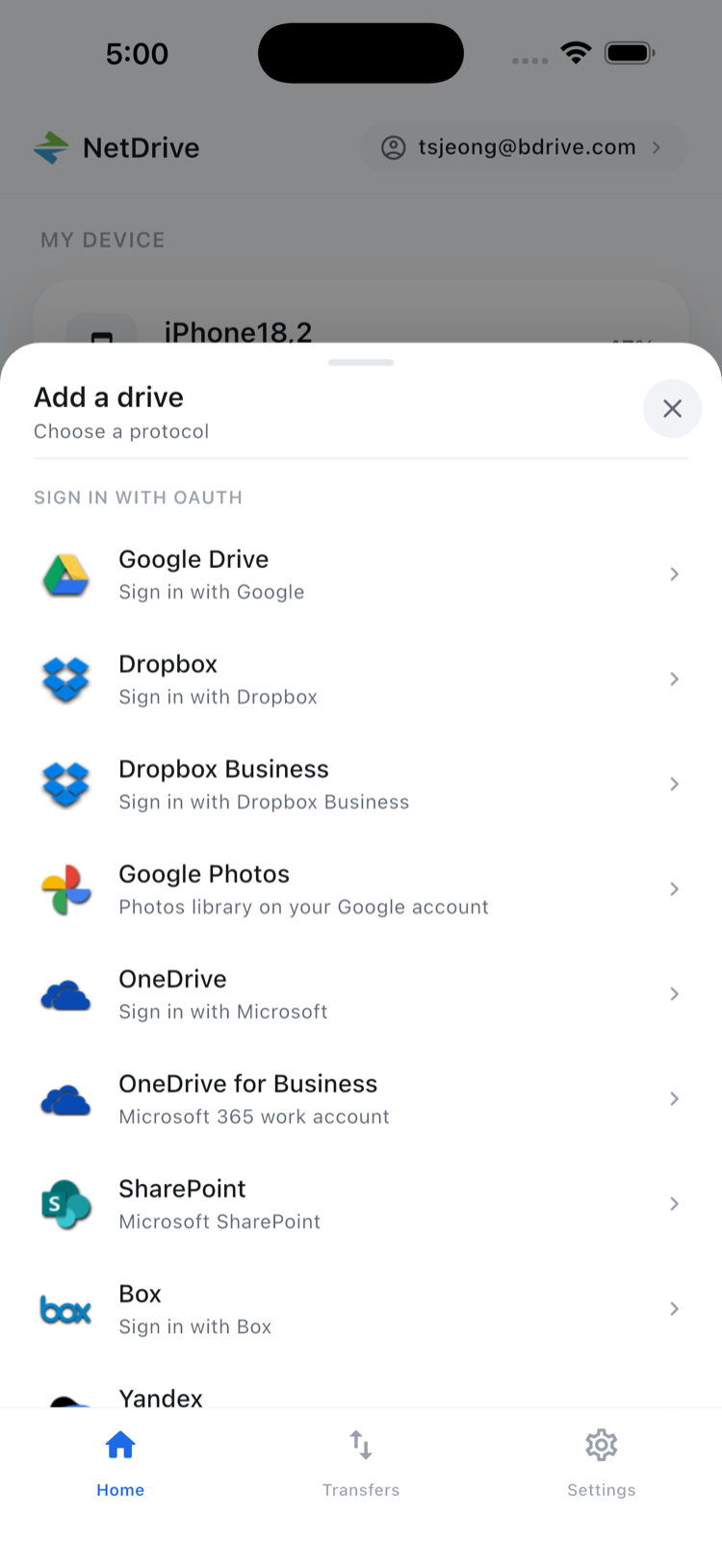
Connecting an FTP Server
- Open NetDrive Mobile and sign in with your Bdrive account.
- Tap the + button on the home screen to open the Add a Drive sheet.
- Select FTP from the list of standard protocols (choose FTPS instead if your server requires an encrypted connection).
- Enter the server hostname, the port (21 is the FTP default, though your server may use a different one), and your username and password.
- Tap Save. NetDrive Mobile connects and lists the server’s root directory on the home screen.
If the connection fails immediately, double-check the port and confirm whether the server expects passive or active mode — that setting lives with whoever administers the FTP server, not in NetDrive Mobile itself.
Browsing, Previewing, and Transferring Files
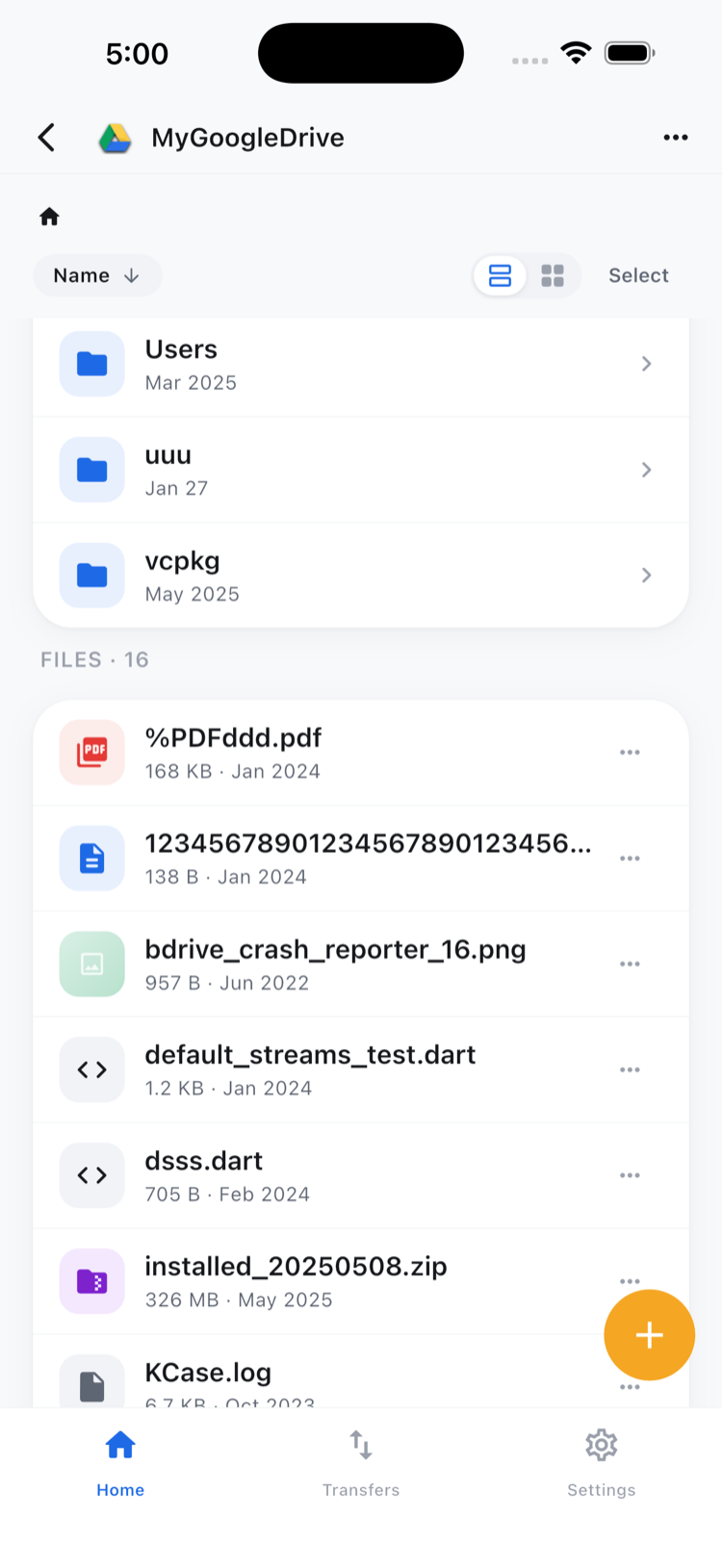
Tap the FTP connection on the home screen to enter the file browser. Folders and files list the way they would on the server itself, with sorting and a list/grid toggle available from the top bar.
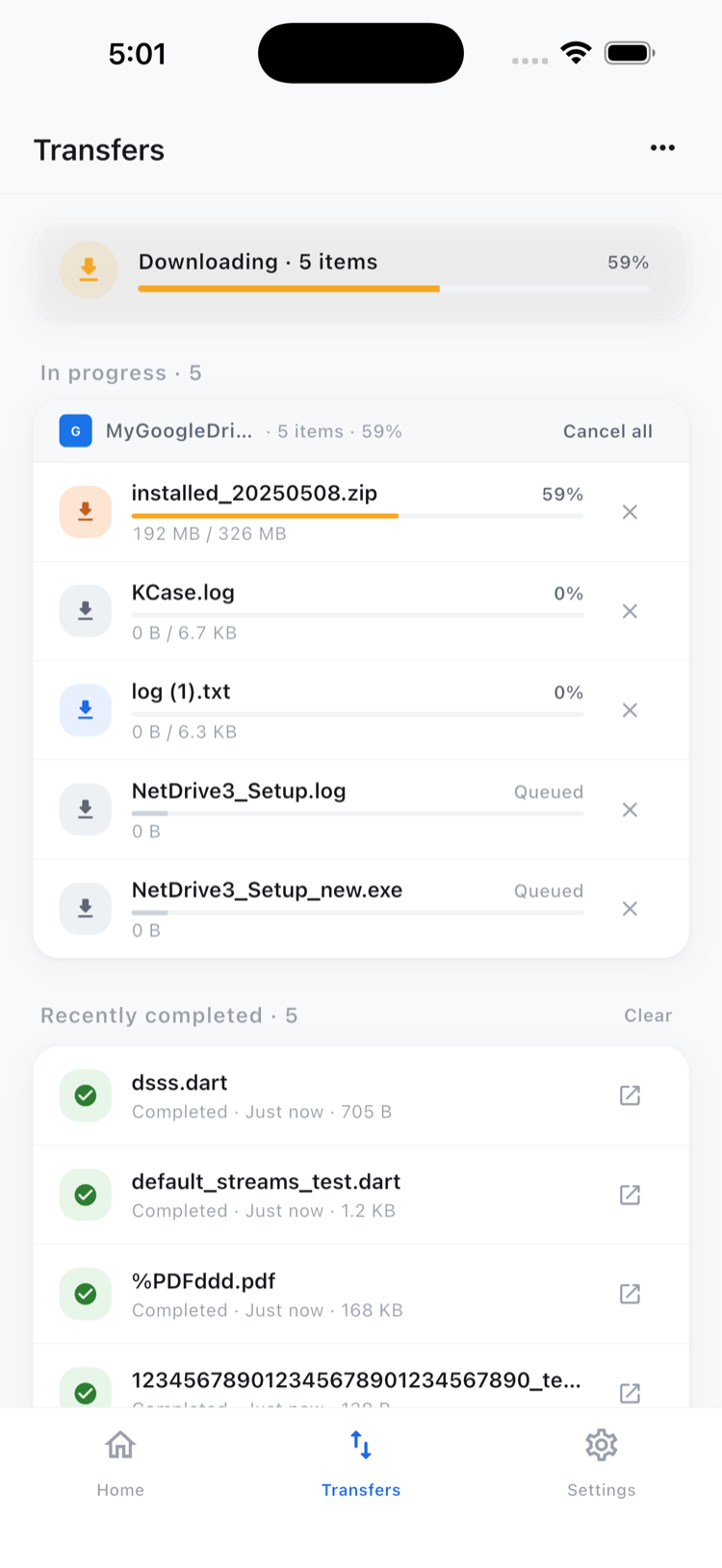
Tap any file to open the action sheet — Preview, Download, Rename, Move, Copy, Get Info, and Delete. Preview opens images and documents directly in the app, which is what makes a quick delivery check possible without downloading the full file first. Choosing Download sends the file to the Transfers tab, where a live progress bar and a cancel button track the job.
To upload from your phone: navigate to the destination folder on the FTP server, tap the upload button, and choose files from your camera roll, photo library, or the system file picker. Multiple files upload together with individual progress tracking, so sending a full folder of proofs doesn’t mean tapping upload once per file.
Copy and Move inside NetDrive Mobile stay within that same FTP connection — moving a file between folders on the same server, for example. Moving a file directly from an FTP server into a different cloud provider isn’t something the app does; that kind of cross-provider transfer sits outside its scope.
Wrap-up
For anyone still handing files to a lab, a legacy host, or an internal server over plain FTP, NetDrive Mobile turns a check that used to wait for a laptop into something done from the field. If your team also needs that same FTP server set up as a drive on a Windows or Mac workstation, see Connect an FTP Server on Windows. For NAS access over WebDAV or SFTP instead, Access NAS Files on Mobile covers the same flow, and NetDrive Mobile — Every Cloud in One App has the broader overview of the app.
— Morgan, NetDrive