NetDrive Mobile — One App Instead of Four Cloud Apps
NetDrive Mobile opens Google Drive, Dropbox, OneDrive, S3, and more from a single app, instead of juggling a separate native app for every cloud you use.
A consultant’s phone has the OneDrive app for a client’s SharePoint site, the Google Drive app for their own files, the Dropbox app for a second client who insists on it, and an S3 browser app for a dev team’s test fixtures. Four apps, four separate logins, four different ways to preview a PDF. Pulling one file from Dropbox while checking a spec in OneDrive means backgrounding one app and opening another, every single time. NetDrive Mobile replaces all four native apps with one.

Every cloud you use, one app
NetDrive Mobile opens Google Drive, Dropbox, OneDrive, S3, WebDAV, SFTP and more in one app — browse, upload, download, and preview right from your phone.
- Google Drive, Dropbox, OneDrive, S3, WebDAV, and more in a single app
- Each cloud keeps its own secure, separate login
- Switch between drives without switching apps
Free Bdrive account required.
What Running Four Native Apps Actually Costs
Every cloud provider’s own app is built to be the only one on the phone. That’s fine with one cloud; it gets expensive with four. Comparing a file across two providers means switching apps and losing your place in both. Each app has its own login screen, its own gestures for rename and delete, and its own idea of what a “recent files” list looks like. None of them show your phone’s own downloaded files next to the cloud ones, so a screenshot or a downloaded PDF ends up in yet a different place to search. The overhead isn’t any single app being bad — it’s the number of apps.
What Changes With One App
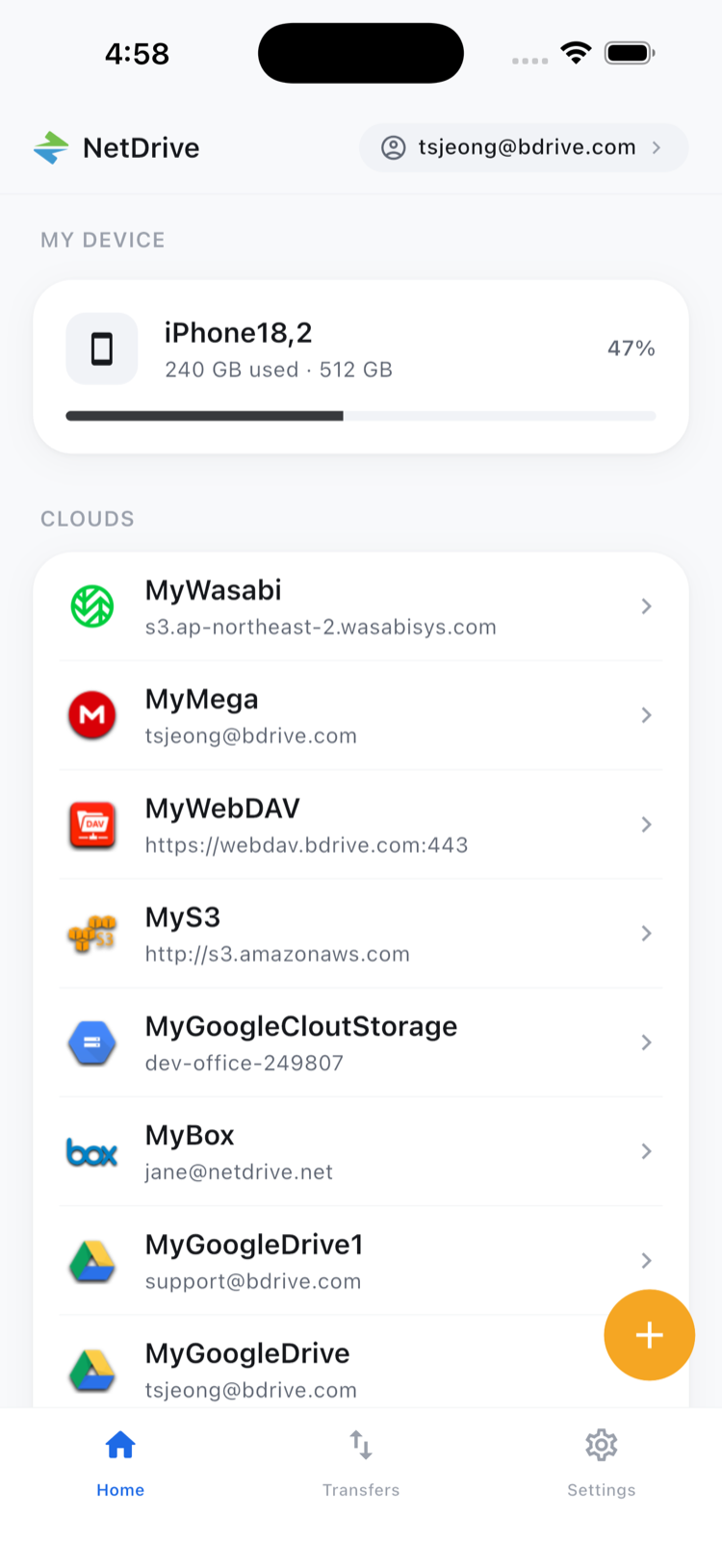
NetDrive Mobile doesn’t merge your clouds into one storage pool — a file in Dropbox is still a file in Dropbox, and moving or copying a file stays within that same connected drive rather than crossing over to a different provider. What changes is where you go to reach any of them: one home screen lists every connected cloud plus “My Device” storage, one “Add a drive” flow connects a new provider without installing a separate app for it, and one in-app preview handles documents, images, and video regardless of which cloud they came from. Each connected cloud still keeps its own credentials in the phone’s secure storage — iOS Keychain or Android Keystore — so consolidating the apps doesn’t mean consolidating the logins into one shared bucket.
Setting Up Your Clouds in One App
- Open NetDrive Mobile and sign in with a free Bdrive account — email or Sign in with Apple/Google both work.
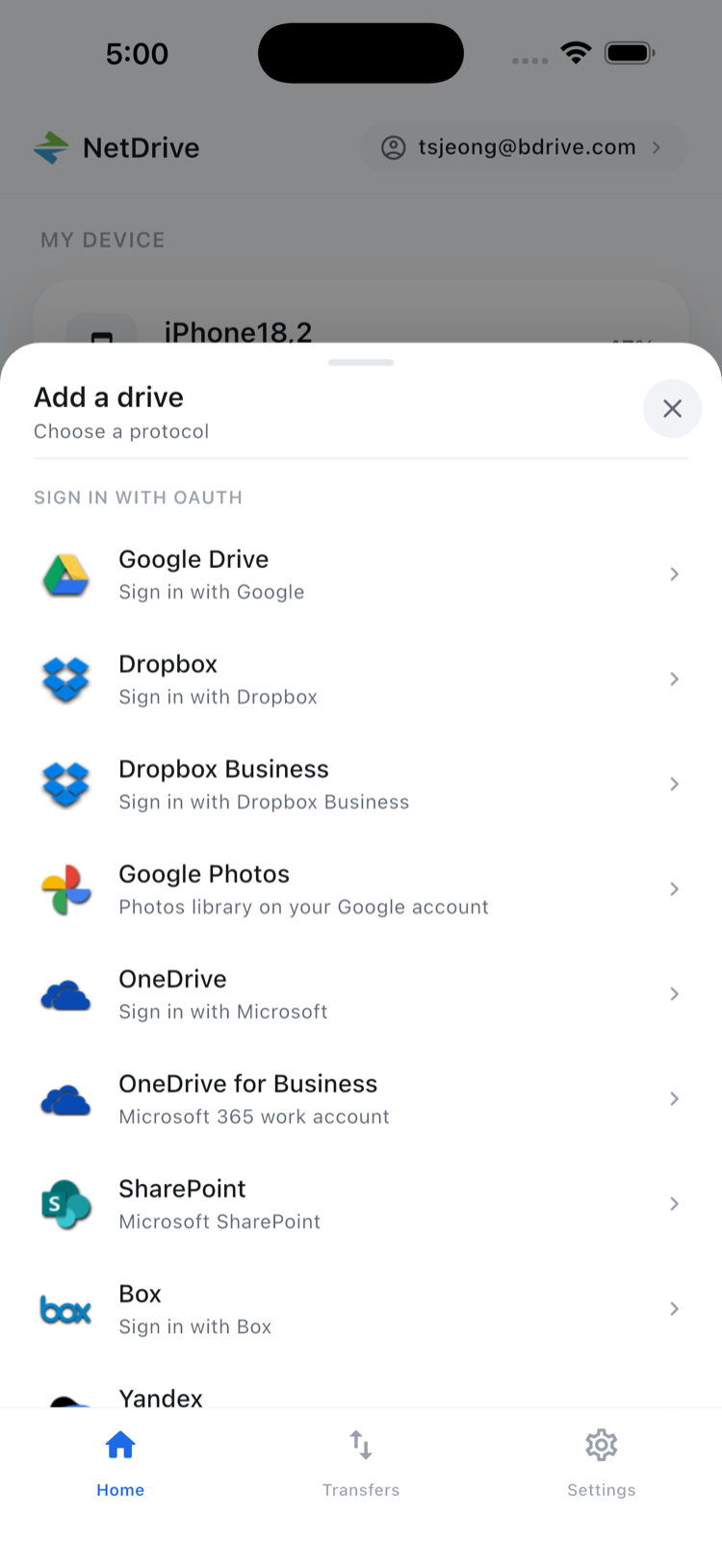
- Tap Add a drive and connect the first cloud, such as a work OneDrive or SharePoint site, authorizing it through that provider’s own login screen.
- Tap Add a drive again for each additional cloud — Google Drive, Dropbox, an S3 bucket, a NAS over WebDAV or SFTP — authorizing each one independently.
- Switch between connected clouds from the home screen instead of switching between separate apps.
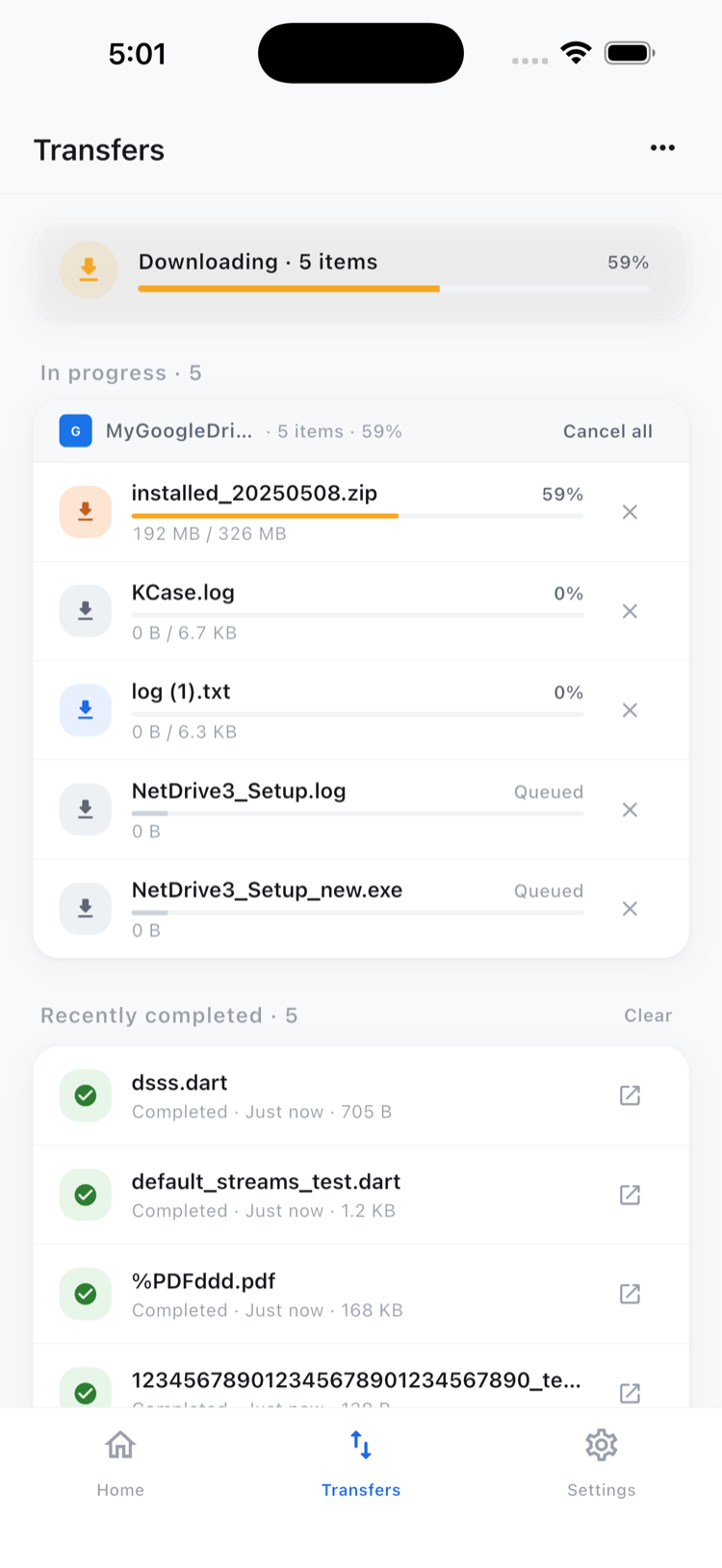
- Check the Transfers tab for a single combined queue of uploads and downloads across every connected cloud, with progress and cancel for each.
Wrap-up
The native app for any one cloud is still a fine choice if that’s the only cloud you use. NetDrive Mobile earns its place once a phone has three or four. For the first-run setup in more detail, see NetDrive Mobile Getting Started, and Working With Multiple Cloud Accounts in NetDrive Mobile covers managing several accounts on the same provider. If you’re also deciding between the mobile app and the desktop version, NetDrive Desktop vs. Mobile lays out the difference.
— Tayson, NetDrive