Mount Amazon S3 on Windows — NetDrive Setup Guide

Mount Amazon S3 as a local drive on Windows 10 or 11 using NetDrive. Configure IAM credentials, assign a drive letter, and stream files on demand without a full sync.
A compositing artist at a mid-sized VFX studio recently described their pain: “We keep 4 TB of source footage in S3, and every morning the team wastes 30 minutes waiting for selective sync before they can open anything.” NetDrive solves that differently — mount the S3 bucket as a Windows drive letter and stream files on demand, without pulling the whole bucket down first.


Your S3 bucket as a Windows drive letter
NetDrive lets Google Drive, OneDrive, S3, SFTP, WebDAV and more appear as native drives on Windows and macOS — no syncing, no full downloads.
- On-demand streaming — open files without syncing the full bucket
- Background uploads so your workflow never stops
- Supports standard S3 and S3-compatible storage (Wasabi, MinIO, and more)
Free trial. Lifetime and subscription plans available.
What You’ll Need Before Connecting
NetDrive authenticates with Amazon S3 using an IAM access key — the same credentials any S3 client uses. Before adding the drive in NetDrive:
- IAM credentials: an Access Key ID and Secret Access Key for an IAM user or role that has at minimum
s3:GetObject,s3:PutObject,s3:ListBucket, ands3:DeleteObjecton the target bucket. Read-only mounts need onlys3:GetObjectands3:ListBucket. - Bucket name and region: S3 region auto-detection was added in NetDrive 3.19.7, so on current versions you can leave the region field blank and NetDrive will detect it. On older builds, supply the region code explicitly (e.g.,
us-east-1). - NetDrive installed: download the EXE installer from netdrive.net/download/windows and run it. If you see a missing DLL error on a minimal system, the download page also links the Visual C++ Redistributable packages (vcredist12 and vcredist14, 32-bit and 64-bit).
Adding the S3 Bucket in NetDrive
Open NetDrive from the system tray or Start menu. In the drive manager:
- Click + Add Drive (the ”+” button at the top of the drive list).
- From the provider picker, select Amazon S3.
- Enter your Access Key ID and Secret Access Key.
- Type the Bucket name. Leave Region blank to auto-detect (NetDrive 3.19.7+), or enter a region code like
us-west-2for older versions. - Assign a Drive Letter (e.g., Z:). Under Drive Type, choose Network drive for standard read-write access. NetDrive also supports Read-only drive, Local disk, and Removable drive mount types if your use case calls for it.
- Under Auto Mount, set when this drive reconnects — Boot mode is recommended for machines where the drive needs to be available before a user logs in.
- Click Save and Mount.
Within a few seconds, Windows Explorer shows the bucket at the assigned drive letter. You can open files directly — NetDrive streams on demand rather than syncing the whole bucket first.
Upload Modes and Large-File Handling
NetDrive offers two upload modes you can set per drive:
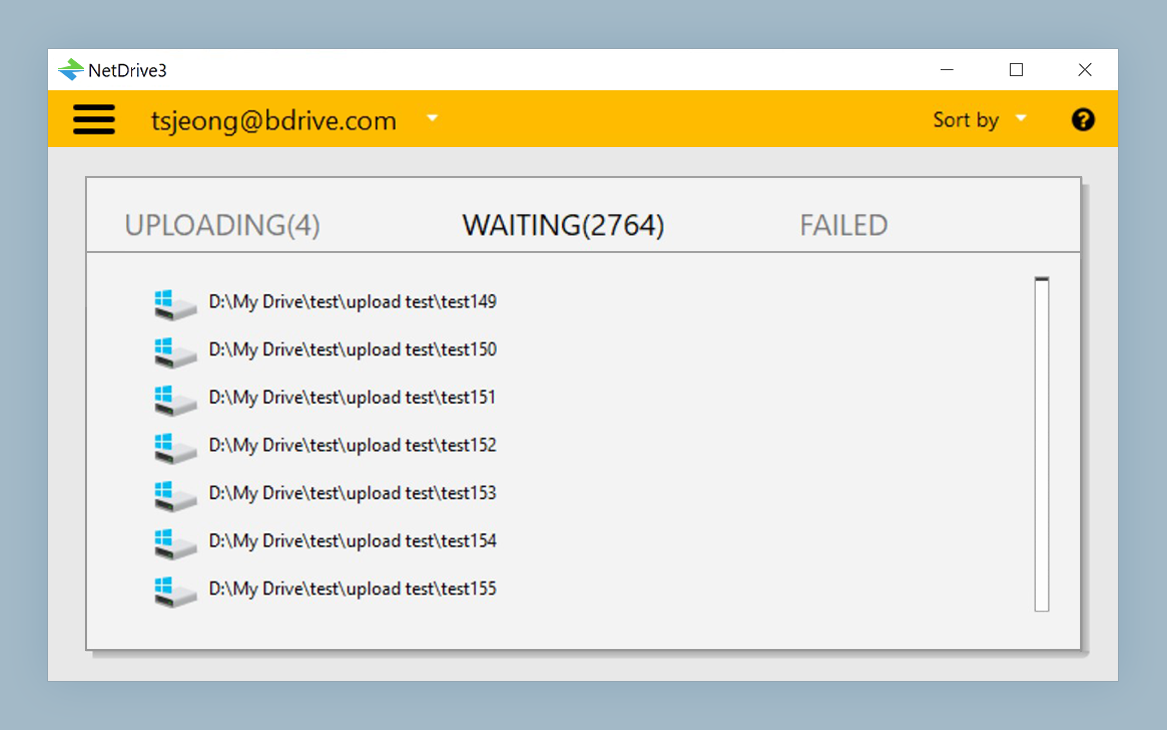
- Asynchronous (background) upload — writes land in a local cache first, then NetDrive uploads to S3 in the background. Applications see fast write performance; the actual upload happens while you keep working. This is the default and the right choice for most workflows.
- Synchronous upload — the save call blocks until the upload to S3 completes. Use this in pipelines where a downstream process reads the file from S3 on a different machine and can’t start until the object exists.
For objects 5 GB or larger, NetDrive automatically uses S3 multipart upload (available since version 3.5.434). Multipart is more resilient on unstable connections and is required by the S3 API for objects above the single-PUT size limit.
Using S3-Compatible Storage
NetDrive’s Amazon S3 provider also works with S3-compatible endpoints — Wasabi, MinIO, and similar services — by supplying a custom endpoint URL in the connection settings. Authentication and bucket operations are identical to standard S3. This is handy if you want to evaluate a lower-cost storage tier without changing anything else in your workflow: swap the endpoint URL, keep all other settings the same.
Wrap-up
Mounting S3 as a Windows drive letter replaces the sync-and-wait cycle with direct streaming access. The drive appears in Explorer like any local folder, so existing scripts, render pipelines, and applications that reference drive paths work without modification.
For macOS users doing the same thing, see Mount Amazon S3 on macOS with NetDrive. If you hit credential errors after adding the drive, the Fix S3 Access Denied Error in NetDrive guide covers the most common IAM policy gaps.
— Robin, NetDrive