Online Course Creators with NetDrive — Lecture Video Without the Disk Space

How online course creators use NetDrive to keep lecture footage on Wasabi or Backblaze B2 and edit it from a drive letter, without filling a laptop SSD.
An instructor building a 14-module course records each lesson in 4K, keeps the raw takes, and re-edits older modules every time the software in the lesson changes. Within a few months the laptop’s SSD is full of footage that is rarely opened but too valuable to delete. Moving it to object storage fixes the capacity problem; NetDrive fixes the workflow problem by making that storage look like an ordinary drive.


Edit course footage from a drive letter
NetDrive lets Google Drive, OneDrive, S3, SFTP, WebDAV and more appear as native drives on Windows and macOS — no syncing, no full downloads.
- Mount Wasabi or Backblaze B2 as a drive in Explorer or Finder
- Uploads run in the background while you keep recording
- Mark finished modules read-only so nobody overwrites them
Free trial. Lifetime and subscription plans available.
A Layout That Matches How Courses Get Made
Course footage has two lives. During production it is hot: you ingest, cut, and export within days. Afterward it is archive: you reopen a lesson only when a screen recording goes out of date or a student asks for a downloadable version. A cheap storage bucket suits the second life, and NetDrive makes the first life workable too.
A simple structure is one bucket for the whole course library with a folder per course and a subfolder per module: raw/, project/, exports/. Because the bucket shows up as a drive, your editing software opens project files from it the same way it opens them from a local disk. NetDrive supports Wasabi and other S3-compatible storage, Backblaze B2, and Amazon S3 as providers. See the Wasabi mount guide or the Backblaze B2 guide for the connection steps.
Uploading Long Recordings Without Babysitting
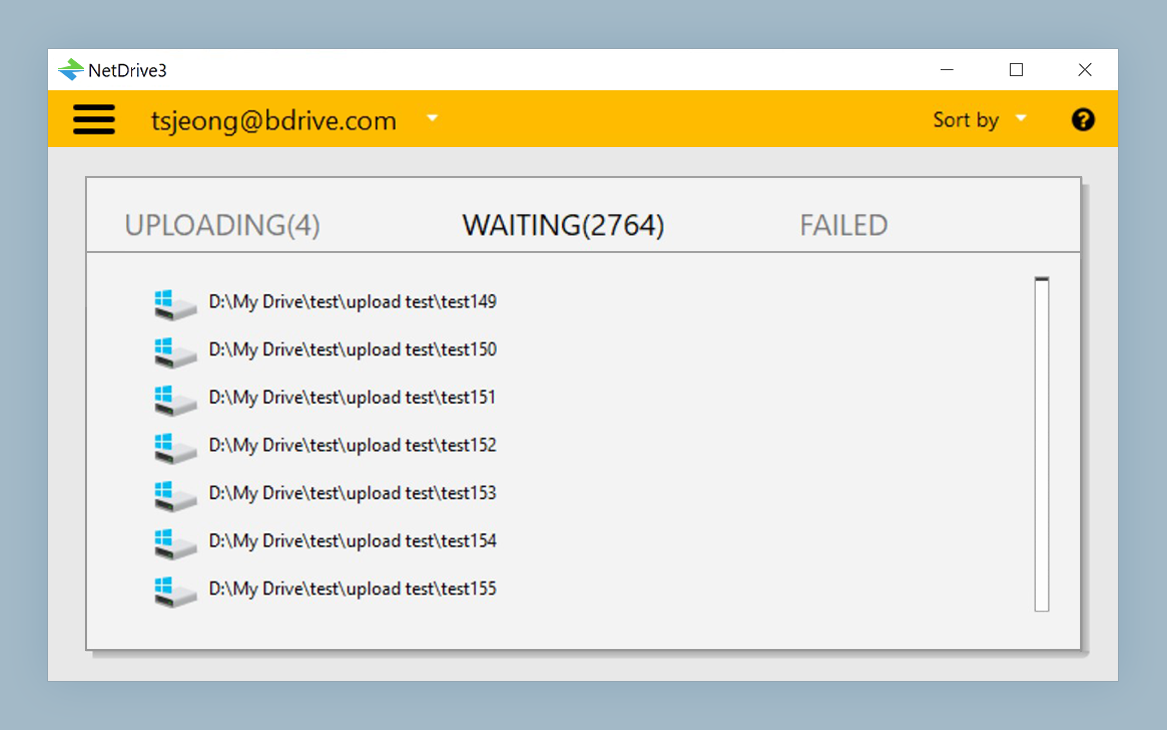
A two-hour screen capture is a large file, and nobody wants to watch a progress bar. NetDrive’s background upload mode queues the transfer and lets you carry on, so you can start the next recording while the last one uploads. The upload queue shows which files are still in flight. Details are in the background upload guide.
On Windows, the Explorer status icons also mark files that are still uploading, so you know when a take is safely in the bucket before wiping the memory card. See Explorer status icons.
Protect Finished Modules
Once a module is published, its project files and exports shouldn’t change by accident. NetDrive lets you set a drive to Read-only so saves, renames, and deletes are refused. A practical pattern is two connections to the same bucket: a normal drive for the module in production, and a read-only drive for the archive of published work. The read-only drive guide walks through the setting.
Working With a Small Team
Many creators work with one editor and one assistant. If you are on a team plan, a team drive lets you publish a shared drive to members from the admin console, and file locking stops two people from opening the same project file at once. See the team drive guide.
Know the Limits
NetDrive does not have an offline mode, so you need a connection to open files that are not already cached. Raise the cache size (100 GB to 1 TB) if you keep returning to the same footage; the cache options post explains the setting. NetDrive also does not encrypt files on your machine before upload, so if a course contains unreleased material, rely on your storage provider’s access controls.
Wrap-up
For a creator, storage should be cheap and invisible. Mount the bucket, let uploads run in the background, and lock the finished work. For more video-heavy workflows see video editing with cloud storage.
— Robin, NetDrive