Mount Google Drive on macOS — NetDrive Setup in 5 Minutes

Learn how to mount Google Drive as a native macOS drive using NetDrive 3.19. Works on macOS 14 Sonoma and above, Apple Silicon included.
A video editor with 400 GB of raw footage living in Google Drive knows the friction: the official Google Drive app syncs everything locally before you can open a single file, and it has no concept of drive letters or Finder integration that behaves like an SSD. NetDrive sidesteps that entirely — it mounts Google Drive directly as a macOS volume so you open files on demand over the network, with no full local copy required.
This guide walks through mounting Google Drive on macOS using NetDrive 3.19, the current release. Minimum requirement: macOS 14 Sonoma (NetDrive 3.18 and later). If you’re on macOS 13 Ventura or earlier, use NetDrive 3.17.


Mount Google Drive like a local drive on macOS
NetDrive lets Google Drive, OneDrive, S3, SFTP, WebDAV and more appear as native drives on Windows and macOS — no syncing, no full downloads.
- Access your entire Drive without syncing locally
- Native Finder integration — drag, drop, open like any folder
- Also mounts OneDrive, S3, SFTP, and 20+ more providers
Free trial. Lifetime and subscription plans available.
Prerequisites: macFUSE
NetDrive on macOS uses macFUSE (a modified osxfuse kernel extension) to present remote storage as a real filesystem volume. macFUSE must be installed before NetDrive can mount anything.
During NetDrive’s first run, the installer prompts you to install macFUSE if it isn’t already present. macOS requires you to approve kernel extensions in System Settings → Privacy & Security — the prompt appears immediately after the macFUSE installer runs, and you must click Allow before rebooting. This is a one-time step per machine.
Apple Silicon Macs (M1, M2, M3, M4) have been natively supported since NetDrive 3.14.309 (December 2020). The binary is notarized and runs without Rosetta.
Add Google Drive as a New Drive
Once NetDrive is running (look for its icon in the macOS menu bar):
- Open NetDrive from the menu bar icon → Drive Manager.
- Click + Add to open the provider picker.
- Select Google Drive from the list.
- Click Sign in with Google — a browser window opens. Authenticate with your Google account and grant NetDrive the requested permissions.
- Set a Drive Name (how it appears in Finder) and a Mount Path (e.g.,
/Volumes/GoogleDrive). - Under Drive Type, pick the mount behavior:
- Network drive — default; remote share semantics
- Read-only drive — useful for viewing shared assets without risk of accidental edits
- Removable drive — shows as a removable device in Finder (added in 3.7.687)
- Click Mount.
After a few seconds the drive appears in your Finder sidebar and at the mount path.
Google Shared Drives (Team Drive)
NetDrive has surfaced Shared Drives (formerly Team Drive) by default since version 3.1.218. After connecting your Google account, the drive configuration lists both your personal My Drive and any Shared Drives you’re a member of. Each can be mounted as a separate volume with its own mount path.
This matters for teams: a design studio with a 2 TB Shared Drive containing Figma exports and brand assets can give every team member direct Finder access without anyone syncing the full archive locally. Assign /Volumes/TeamDrive to the shared drive and leave personal Drive at /Volumes/MyDrive.
Auto-Mount on Boot
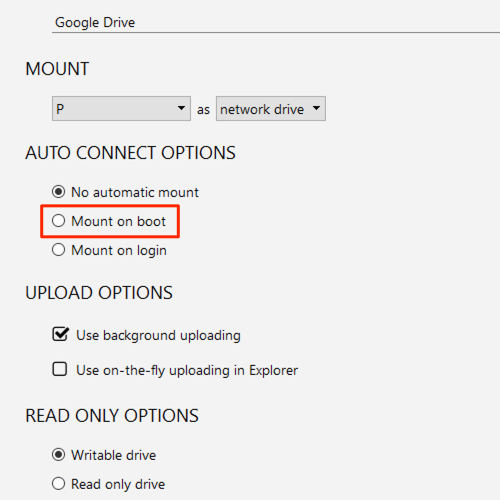
For workflows where the drive must be available before any user logs in — Plex media servers, CI build agents, automation scripts — NetDrive can mount at system startup:
- In Drive Manager, select the drive.
- Set Auto Mount to Mount on system boot (without login).
NetDrive installs a launch daemon that brings the drive up before the login screen appears.
Google Photos as a Separate Mount
NetDrive can also mount Google Photos as an independent volume — but with an important limitation that applies to every third-party app, not just NetDrive. As of March 31, 2025, Google’s Photos API only allows an app to list and download photos that were uploaded through that app itself. Photos added from your phone or the Google Photos website will not appear in the mount, regardless of how you sign in. If you need your full photo library on disk, Google’s official Takeout is currently the only way to export it.

File Browser — No Mount Needed
If you only need to grab an occasional file, NetDrive’s built-in File Browser (available since 3.9.1190) opens a remote file manager window without mounting a drive at all. Open it from the menu bar icon, navigate your Drive, and open or download the file directly. No mount point, no macFUSE interaction, no Finder entry until you actually need it.
Wrap-up
Mounting Google Drive with NetDrive turns remote storage into a first-class macOS volume: visible in Finder, addressable by path, accessible to any app without syncing locally. It also scales — add OneDrive for Business, an S3 bucket, and an SFTP server alongside it, all managed from one Drive Manager.
For mounting OneDrive on macOS, see Mount OneDrive on macOS — NetDrive. For S3 on macOS, see Mount Amazon S3 on macOS — NetDrive.
— Kai, NetDrive