Fix Google Shared Drives Not Showing in NetDrive

Google Workspace Shared Drives missing from your NetDrive-mounted volume? Walk through four targeted fixes to get Team Drives visible in Explorer or Finder.
You mount Google Drive with NetDrive, open the volume in Explorer or Finder, and your Shared Drives are nowhere to be seen. Personal My Drive files are all there, but the Shared Drives your Workspace team granted access to are completely absent. This is a common setup issue with a handful of root causes — most of them are fixable in under five minutes.


Mount Google Workspace Shared Drives without the guesswork
NetDrive lets Google Drive, OneDrive, S3, SFTP, WebDAV and more appear as native drives on Windows and macOS — no syncing, no full downloads.
- Shared Drives visible alongside Personal Drive in one mount
- Supports Google Workspace and personal accounts
- Team Drive listing has been supported since NetDrive 3.1
Free trial. Lifetime and subscription plans available.
Start With the Google Drive Web Interface
Before adjusting any NetDrive settings, verify the Shared Drive actually appears when you log into drive.google.com and click Shared drives in the left sidebar. If the drive isn’t listed there, the issue is a Google permissions problem, not NetDrive. Contact the Shared Drive owner or your Workspace admin to confirm you’ve been added as a member.
If the Shared Drive does appear in the web interface but not in your NetDrive-mounted volume, continue to the steps below.
Check the Shared Drive Setting on Your NetDrive Account
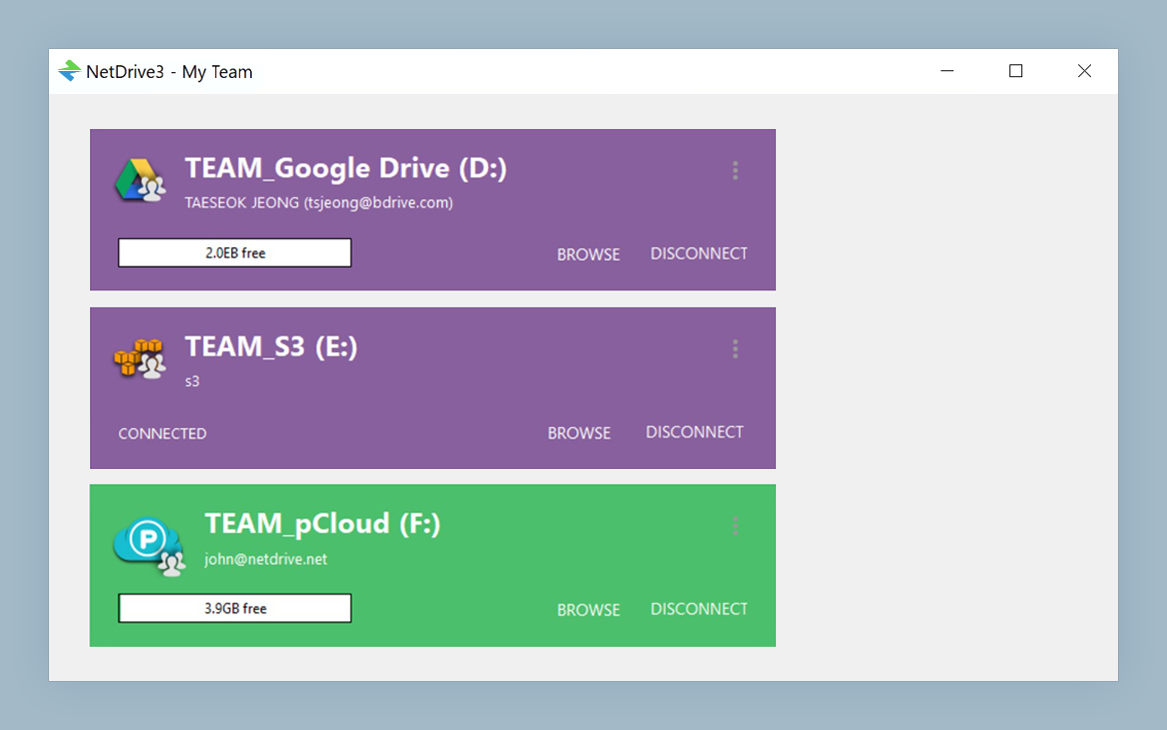
NetDrive has supported Google Team Drives (now Shared Drives in Workspace) since version 3.1.218, enabled by default. However, Google Drive accounts that were configured in older versions of NetDrive and then migrated across upgrades can end up with this option disabled.
Open Drive Manager, select your Google Drive account, and click the Edit (pencil) icon. In the account settings panel, look for a Shared Drives or Team Drives option and make sure it is turned on. Save the change, then disconnect the drive and reconnect it.
After reconnecting, the Shared Drives should appear as folders inside the mounted volume. On Windows they’ll be visible inside the drive letter; on macOS inside the mounted volume in Finder.
Force a Folder Refresh to Clear the Cache
If you recently gained access to a Shared Drive and it still doesn’t appear, the mounted volume may be showing a cached directory listing from before you had access. NetDrive’s Force Folder Refresh feature clears the local cache for a folder and fetches a fresh listing from the API.
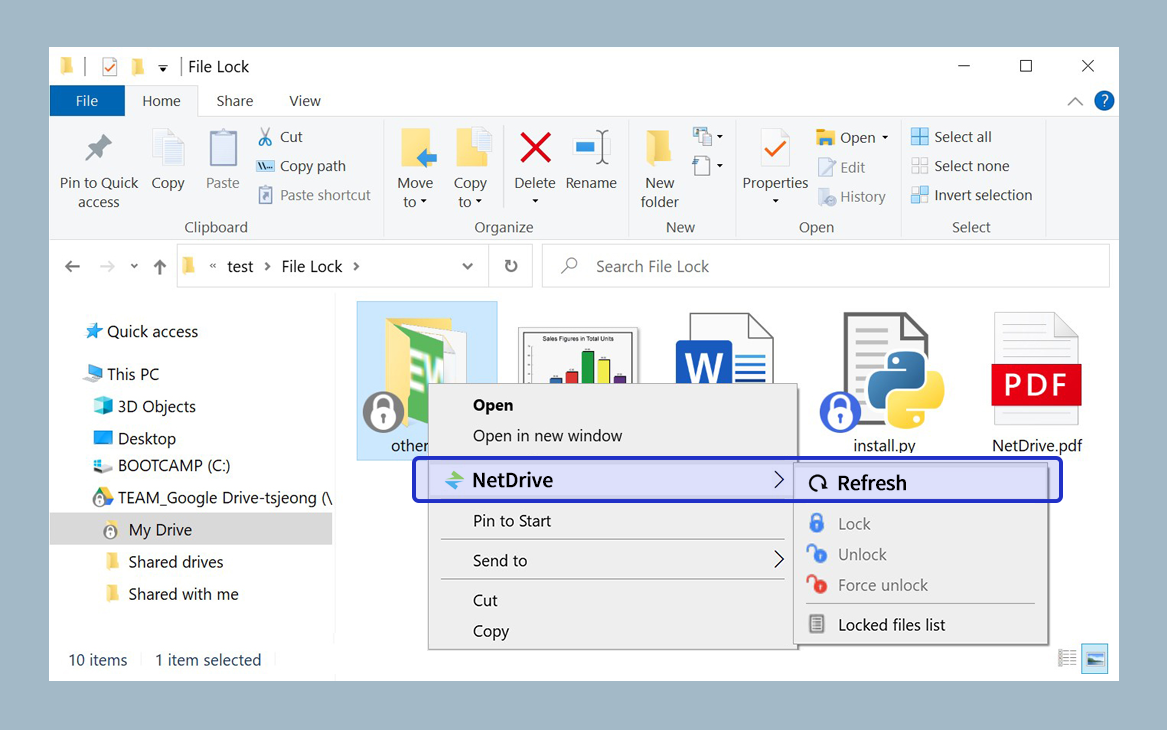
Right-click the root of the mounted drive in Explorer (Windows) or Finder (macOS) and look for the NetDrive context menu entry, then select Refresh folder. Wait a few seconds, then check whether the Shared Drive appears.
This also helps after a Workspace admin adds you to a drive mid-session without you having remounted.
Re-authorize the Google Account
OAuth tokens can expire or lose scope — particularly if your Workspace admin changed the third-party application authorization policy for your domain, or if a long period has passed since the initial login. When this happens, NetDrive may silently fall back to a narrower API scope that excludes Shared Drive listing.
In Drive Manager, select the Google Drive account, click Edit, and look for a Re-authorize or Sign in again option. Completing the OAuth flow re-grants all required scopes, including Shared Drive access. Disconnect and reconnect the drive after re-authorizing.
What to Check If Shared Drives Still Don’t Appear
If you’ve worked through all of the above and Shared Drives still aren’t visible, narrow it down further:
- Confirm the NetDrive version: Open the NetDrive About dialog and verify you are running version 3.1.218 or later. Any build from the past several years will satisfy this, but a very old installation might not.
- Check the Workspace plan: Some Google Workspace plans don’t include Shared Drives at all (the free legacy G Suite plan had this limitation). If your org is on a plan without Shared Drives, neither NetDrive nor any other tool will be able to show them.
- Check Workspace admin policy: Enterprise Workspace admins can restrict third-party app access to Shared Drives via the Google Admin Console. If individual Shared Drive access is blocked at the admin level, your Workspace admin will need to adjust the policy or whitelist NetDrive’s OAuth client.
Wrap-up
Google Shared Drive visibility issues in NetDrive almost always come down to one of three root causes: a missing Google-side permission, an outdated account configuration in NetDrive with the Team Drives option disabled, or a stale directory cache. Work through the checks in the order above — start with the web interface, then adjust NetDrive settings, then force a refresh, and finally re-authorize — and you’ll isolate the problem quickly. If your team also uses SharePoint or OneDrive for Business, the same “verify access in the browser first” approach applies — see mounting SharePoint on Windows with NetDrive for that setup.
— Kai, NetDrive