Browse Google Cloud Storage on iPhone and Android — NetDrive Mobile

NetDrive Mobile connects to Google Cloud Storage buckets on iOS and Android. Browse objects, upload from your camera roll, and preview files without opening a laptop.
A developer running a media platform keeps several Google Cloud Storage buckets for CDN assets, user-uploaded content, and build artifacts. During an incident at 11 PM on a Saturday, she needed to check whether a misconfigured upload had created duplicate objects in a specific bucket path — but she only had her phone. NetDrive Mobile let her open the bucket, scroll through the object list, and confirm the issue without touching a laptop. If she’d needed to upload a corrected file from her phone’s downloads folder, she could have done that too.
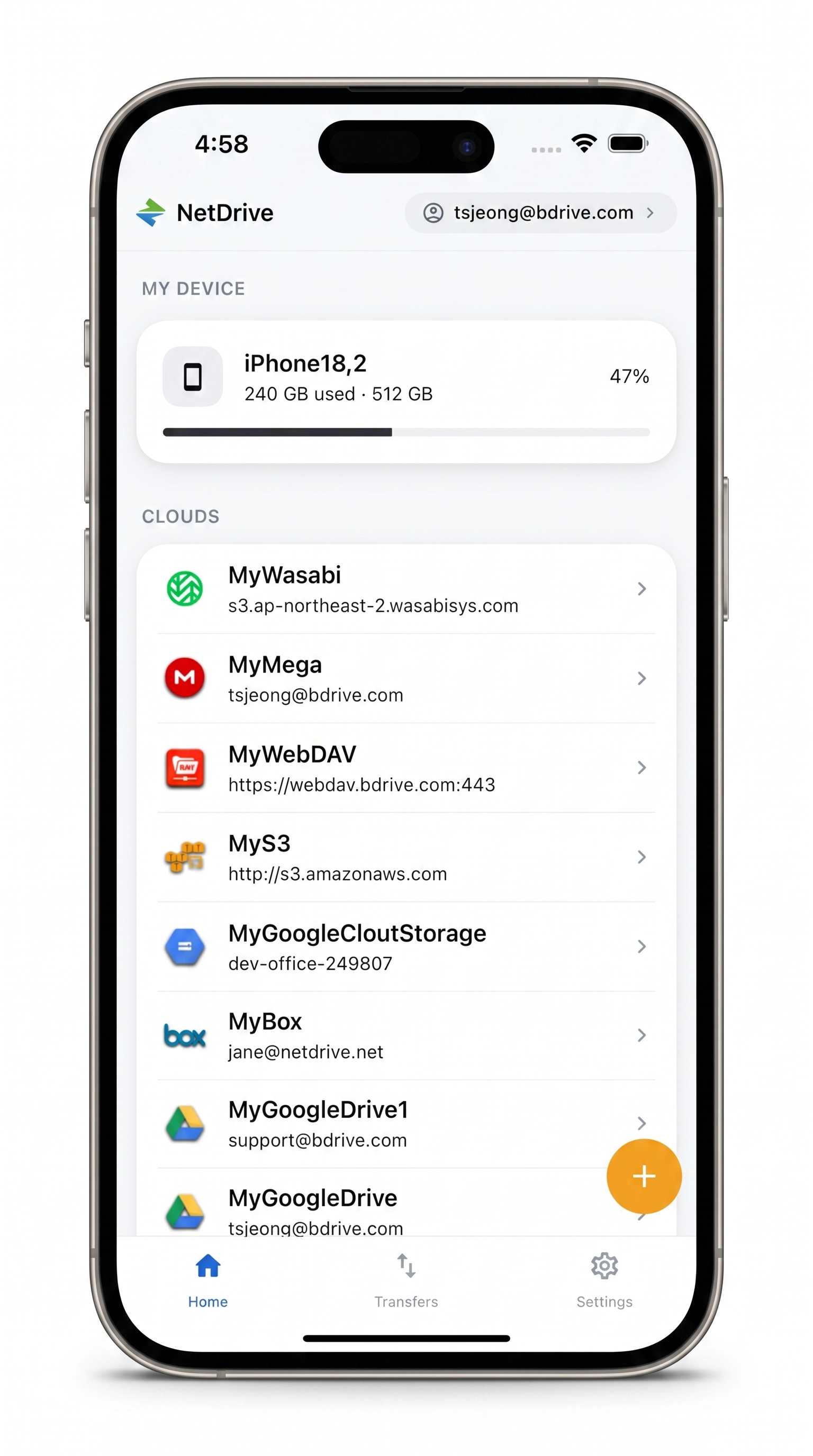
Access GCS and 30+ clouds on your phone
NetDrive Mobile puts Google Cloud Storage alongside every other cloud you use — one app, one file browser.
- Browse GCS buckets and prefixes like a local folder
- Upload from your camera roll or the Files app
- In-app preview for images and documents
Free Bdrive account required.
What NetDrive Mobile Does with Google Cloud Storage
NetDrive Mobile treats GCS buckets like folders. Prefixes — the slash-delimited “directory” paths inside a GCS bucket — show up as nested folders exactly as you’d expect from a file browser. You can scroll through large object lists, tap a file to preview supported types (images, PDFs, common document formats) inside the app, download individual objects or batches to your phone, and upload directly from the camera, photo library, or the iOS Files / Android file picker.
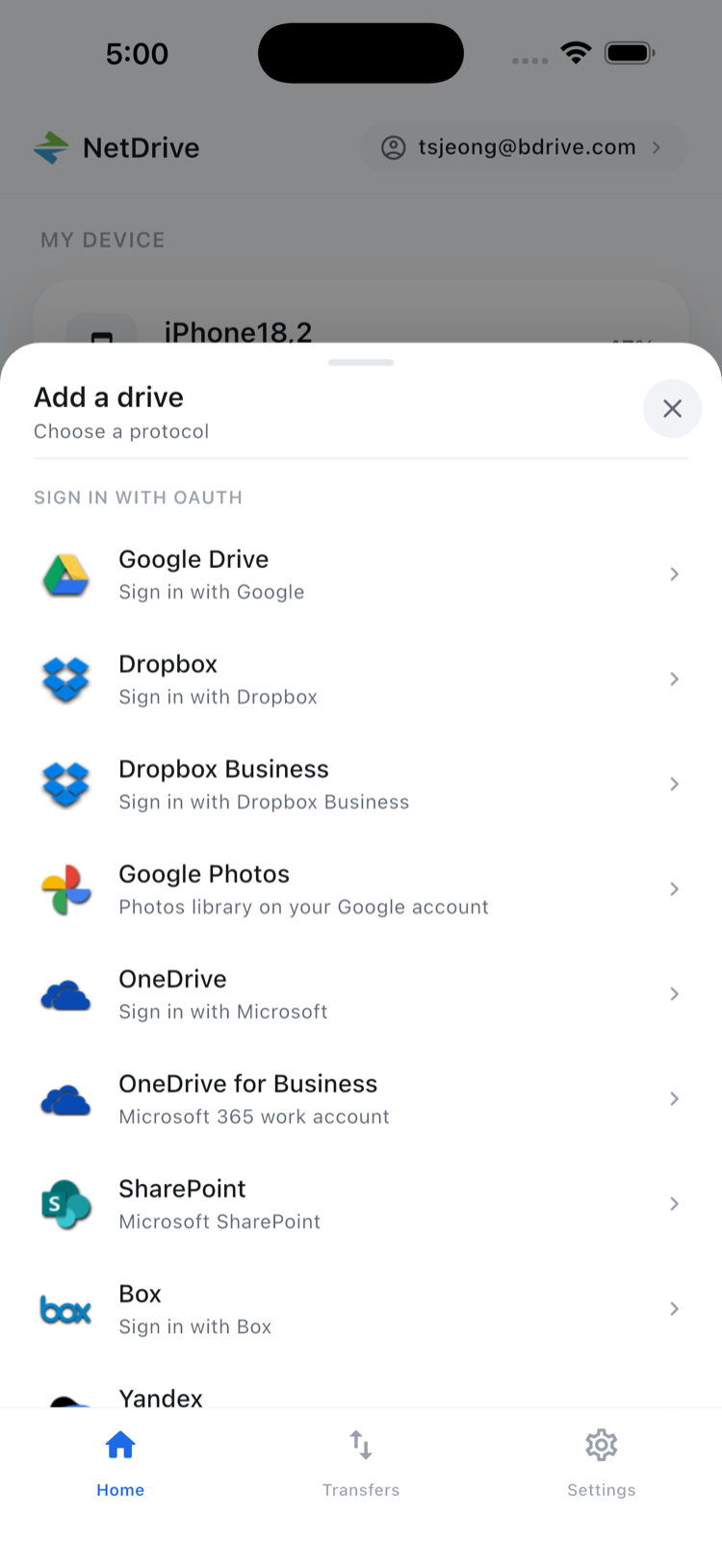
GCS is one of the providers available in NetDrive Mobile’s Add a drive sheet alongside Google Drive, Dropbox, OneDrive, SharePoint, Amazon S3, Azure Blob Storage, Backblaze B2, WebDAV, FTP, SFTP, and more. One sign-in to the app, one unified file browser for everything.
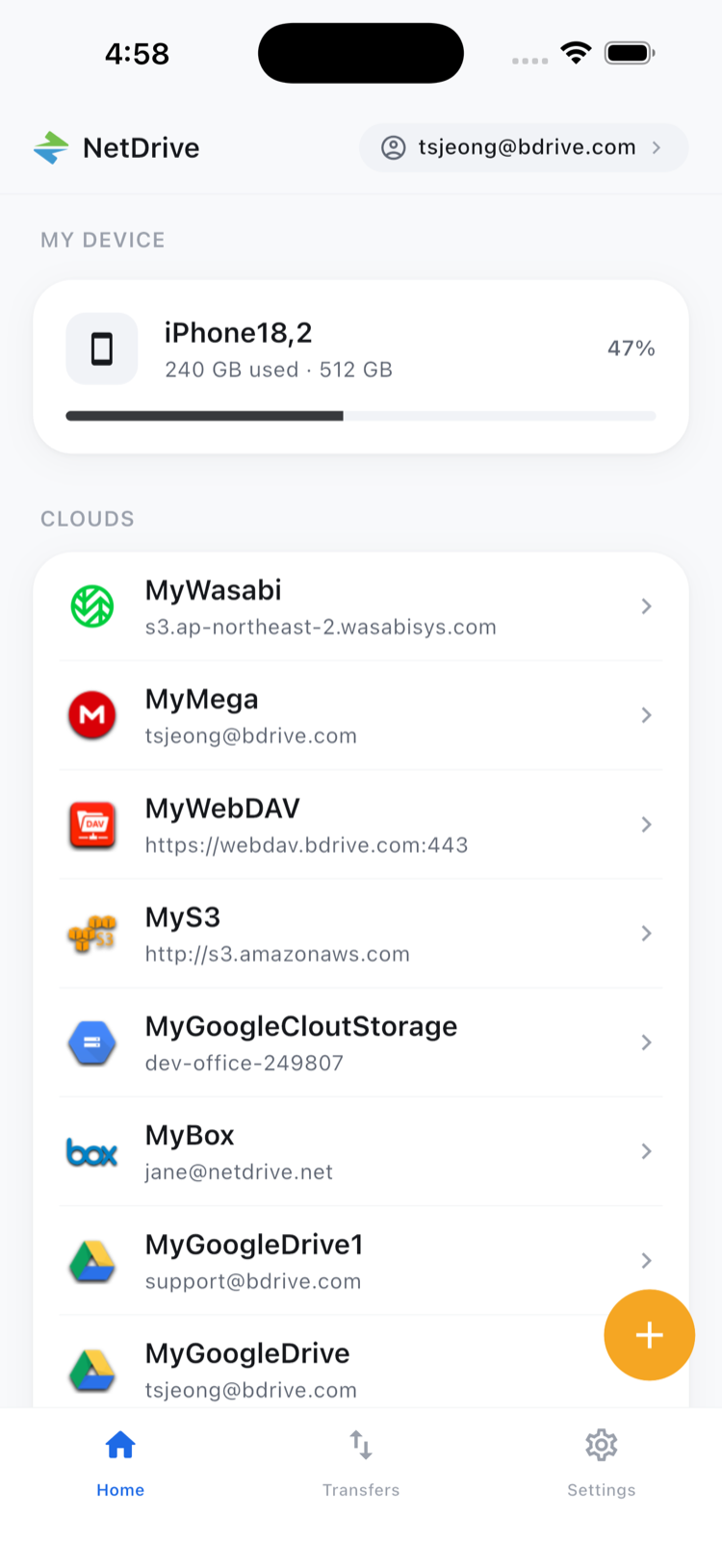
The app runs on iPhone and iPad (iOS 15 or later) and Android. You need a free Bdrive account to sign in — create one at netdrive.net.
Adding a Google Cloud Storage Connection
- Open NetDrive Mobile and tap + or pull up the Add a drive sheet from the home screen.
- Select Google Cloud Storage from the provider list.
- Enter your credentials and save the connection.
- Your bucket list appears immediately. Tap any bucket to start browsing.
Once connected, the GCS account appears on the home screen alongside any other clouds you’ve added. Switching between a GCS bucket and a Dropbox folder is one tap — no separate apps, no copy-pasting between windows.
Browsing, Uploading, and Downloading Objects
Inside a bucket the view is a standard file browser: object names, sizes, and modification dates in a scrollable list, with a grid toggle if you’re working with images. Tap any file to open an action sheet — Preview, Download, Rename, Move, Copy, or Delete.
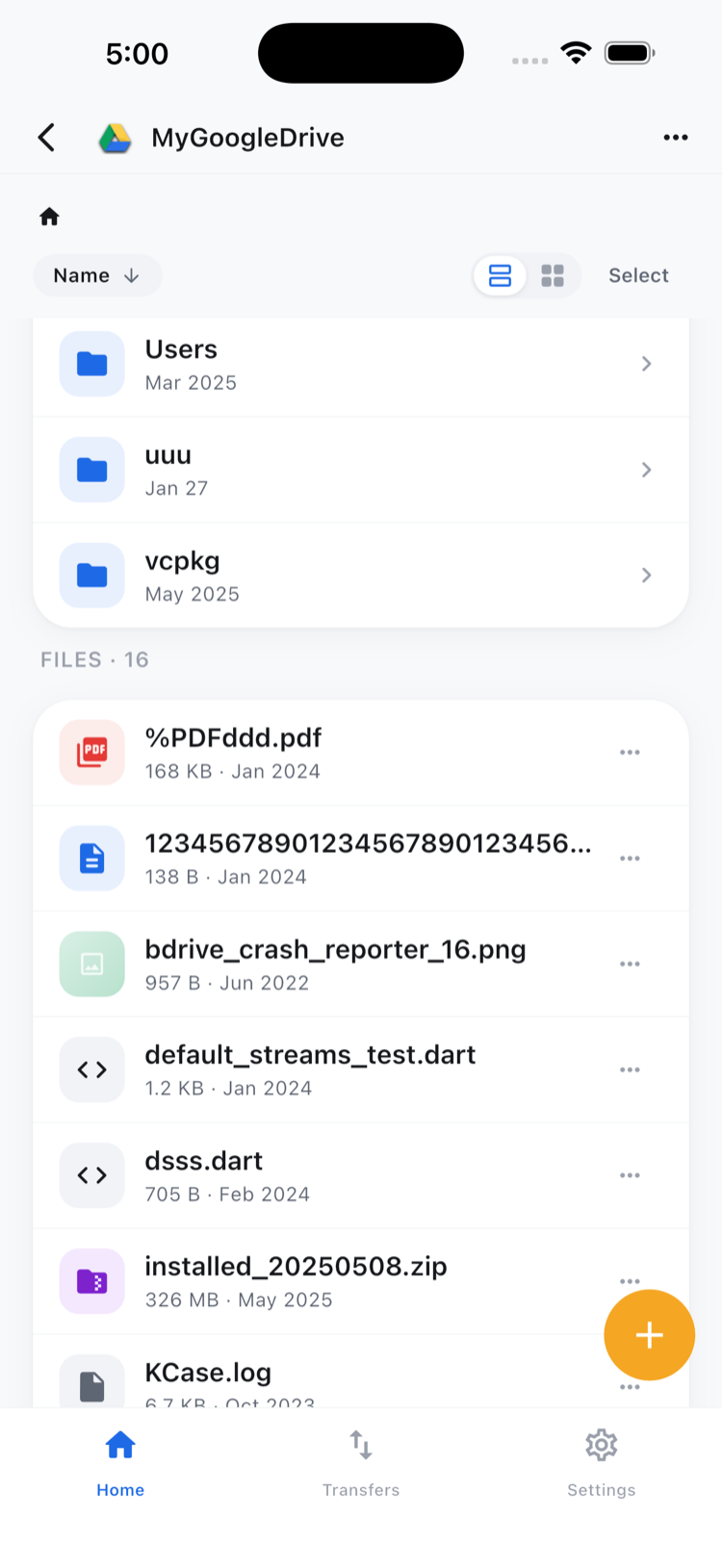
For uploading, tap the upload button while browsing a bucket path and choose your source: camera, photo library, or the Files picker. You can select multiple files in one upload session.
The Transfers tab shows live progress for everything in flight: file name, bytes transferred, and a per-transfer cancel button. If you’re on a metered connection and grab the wrong file, cancel immediately without waiting for the whole download.
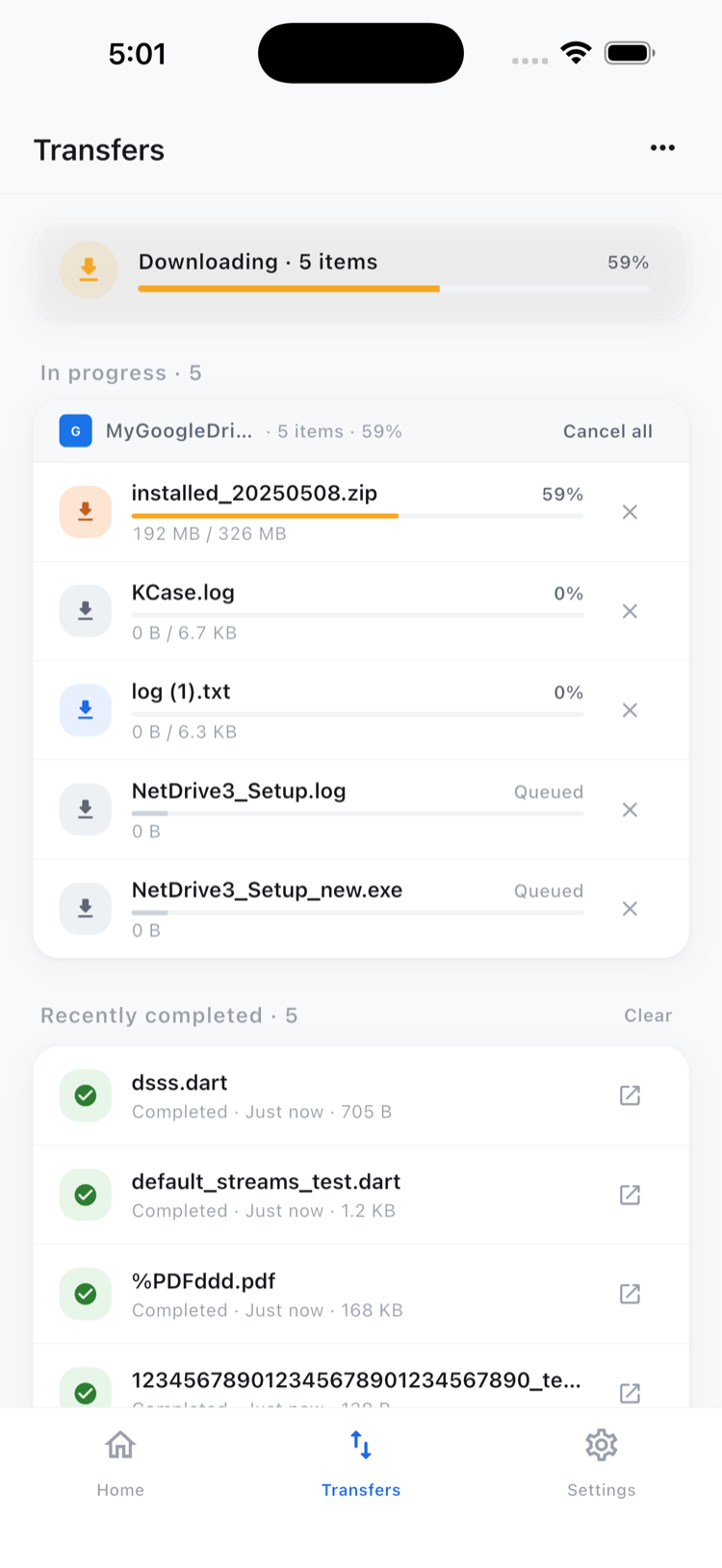
Multi-select lets you mark several objects at once and act on them together — download, delete, copy, or move in a single operation. Copy and move work within the same GCS drive: useful for reorganizing prefix structures or duplicating a folder of template assets to a new location.
Security and Credentials
NetDrive Mobile stores your GCS credentials in the operating system’s secure credential store — iOS Keychain on iPhone and iPad, Android Keystore on Android. Your credentials are encrypted by the OS and never leave the device in plain text.
The app also supports two-factor authentication for your Bdrive account. When you log in, a verification code arrives as a push notification that can be read and copied directly from the lock screen without unlocking your phone — a small detail that matters at 11 PM when you’re scrambling to diagnose an incident.
Wrap-up
If you work with Google Cloud Storage as part of a media pipeline, a development workflow, or general file storage, NetDrive Mobile gives you a full-featured bucket browser for it on iOS and Android. Browse objects, upload from your phone, preview files without downloading them first, and track multi-file transfers — all without a laptop.
For GCS from the desktop, Mount Google Cloud Storage on macOS and Mount Google Cloud Storage on Windows cover the full setup for those platforms. If you also work with Amazon S3 on mobile, Browse Amazon S3 on iPhone and Android shows the same workflow for AWS.
— Kai, NetDrive