Mount Google Photos on macOS — NetDrive Setup Guide

Mount your Google Photos library as a native macOS drive using NetDrive. Access photos and albums directly in Finder, Lightroom, or any app without downloading first.
You have twelve years of photos in Google Photos — weddings, travel shoots, three kids growing up — and your Lightroom catalog keeps pointing to “missing files” because the originals live in the cloud. Downloading everything eats local SSD space you don’t have. NetDrive solves this by mounting your Google Photos library as a drive in Finder, so Lightroom (or Capture One, or any other app) can read photos directly from Google’s servers without a local copy sitting on disk.


Access Google Photos in Finder without downloading
NetDrive lets Google Drive, OneDrive, S3, SFTP, WebDAV and more appear as native drives on Windows and macOS — no syncing, no full downloads.
- Browse albums and photos as local folders in macOS Finder
- Open files directly in Lightroom, Preview, or any other app
- Works on Apple Silicon and Intel Macs running macOS 14 Sonoma or later
Free trial. Lifetime and subscription plans available.
What Mounting Google Photos Actually Means
When NetDrive mounts Google Photos, macOS sees a drive (it appears in your Finder sidebar alongside your SSD and any other mounted volumes). Inside that drive you’ll find your albums listed as folders, and each folder contains the photos that belong to that album. You can open a .jpg directly in Preview, drag it into a video editor’s timeline, or reference its path in a script — the file appears local even though it streams from Google’s servers on demand.

NetDrive added Google Photos support in version 3.16.589 (March 2022) and added quota visibility — so you can see how much of your Google account storage is used — in 3.16.667 (June 2022). The current version, 3.19.7, includes compatibility improvements for Google Photos album browsing.
One thing to understand upfront: Google Photos organizes content by album, not by date or folder hierarchy. If you have photos that aren’t in any album (uploaded via backup but never organized), they appear in a catch-all folder. This is a Google Photos API constraint, not a NetDrive limitation.
Before You Start
- macOS 14 Sonoma or later — NetDrive 3.18 and newer require macOS 14 minimum. If you’re on macOS 13 Ventura or earlier, you can use NetDrive 3.17 (the last version that supports it), but you won’t have the latest bug fixes.
- macFUSE — NetDrive on macOS uses macFUSE (the open-source filesystem extension). The NetDrive installer will prompt you to install it if it isn’t already present. Allow the kernel extension in System Settings → Privacy & Security when macOS asks.
- A Google account with photos in Google Photos.
- NetDrive 3 downloaded from netdrive.net/download/mac/ — the DMG installer.
Step-by-Step: Mount Google Photos in Finder
-
Install NetDrive — open the downloaded
.dmg, drag NetDrive to your Applications folder, and launch it. The NetDrive icon appears in the macOS menu bar. -
Open the Drive Manager — click the NetDrive menu bar icon, then click Drive Manager (or the grid icon).
-
Click the
+button to add a new drive. -
Select Google Photos from the list of storage types. Scroll down if you don’t see it immediately — it’s listed under the Google section alongside Google Drive and Google Cloud Storage.
-
Click “Sign in with Google” — a browser window opens. Sign in to your Google account and grant NetDrive access to your Photos library. NetDrive requests read-only access by default.
-
Name the connection — give it a recognizable label like “Google Photos – Personal”. This appears in Finder.
-
Set mount behavior — choose On login to have the drive appear automatically every time you open your Mac, or Manual if you prefer to connect only when needed.
-
Click Connect — the drive mounts and appears in Finder’s sidebar within a few seconds. Open it to browse your albums.
Browsing Without Mounting — The File Browser
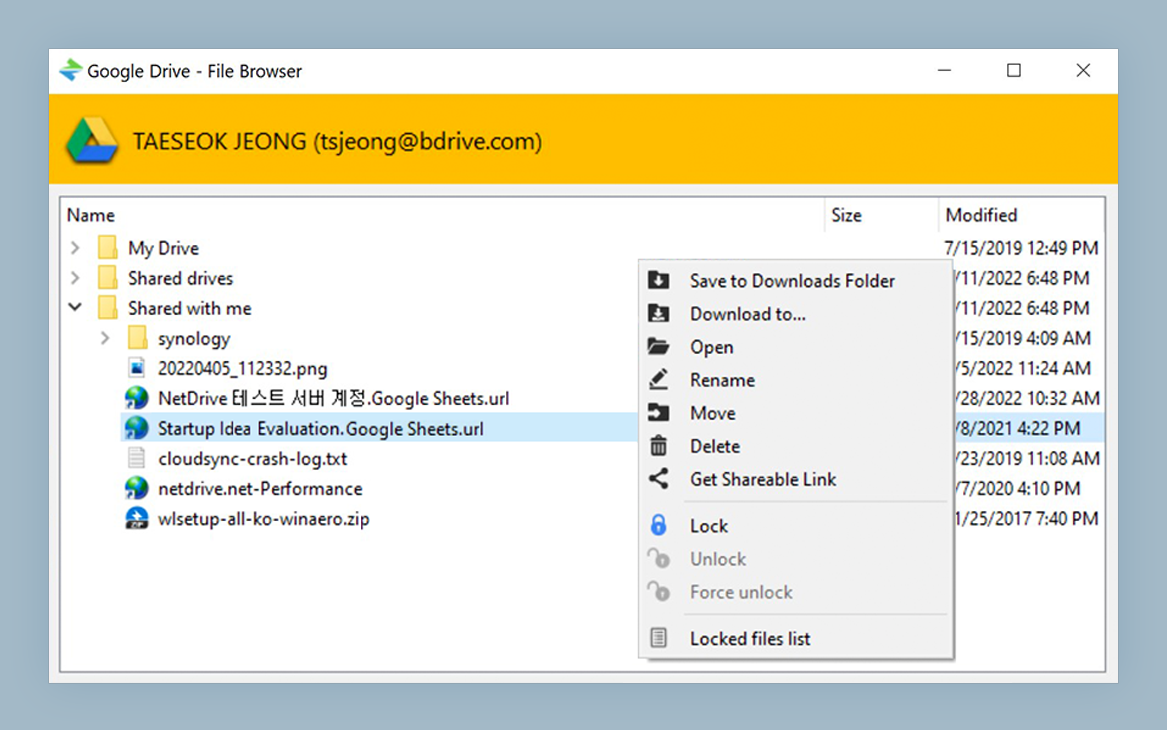
If you only need to grab a specific photo occasionally, you don’t have to mount the full library. NetDrive’s File Browser lets you navigate your Google Photos albums without mounting a drive at all.
Click the NetDrive menu bar icon → Browse Files, then select your Google Photos connection. You get a tree view of all albums and can copy individual files to your Mac from there. It’s faster when you know exactly what you’re looking for and don’t want a persistent drive letter consuming Finder sidebar space.
Performance Notes
Google Photos streams files over HTTPS as you open them. Opening a 20 MB RAW file from Lightroom will take a moment longer than reading it from a local SSD — roughly proportional to your internet connection speed. For casual browsing and single-file edits this is fine. For batch processing hundreds of RAW files, downloading the originals locally first is faster.
NetDrive caches recently accessed files, so if you open the same photo twice the second access is nearly instant. Cache size can be adjusted in NetDrive’s preferences (up to 1 TB on disk).
Wrap-up
Once mounted, your Google Photos library sits in Finder exactly like any other folder. You can Spotlight-search into it, set it as a Lightroom import source, or reference it in Automator workflows. The 7-day free trial gives you full access to test this with your own library before committing.
For other macOS provider guides, see Mount Google Drive on macOS with NetDrive or Mount Dropbox on macOS with NetDrive.
— Alex, NetDrive