Browse Google Photos on iPhone and Android — NetDrive Mobile

Access your full Google Photos library on iOS and Android with NetDrive Mobile. View, download, and manage photos alongside all your other clouds in one app.
You’ve automatically backed up three years of travel photos to Google Photos, and now a client wants you to pull the best forty shots from a specific album — right now, while you’re away from your desk. The native Google Photos app handles that, but NetDrive Mobile handles it and keeps your Google Drive, Dropbox, OneDrive, and S3 bucket all reachable from the same screen, without switching apps between each one.
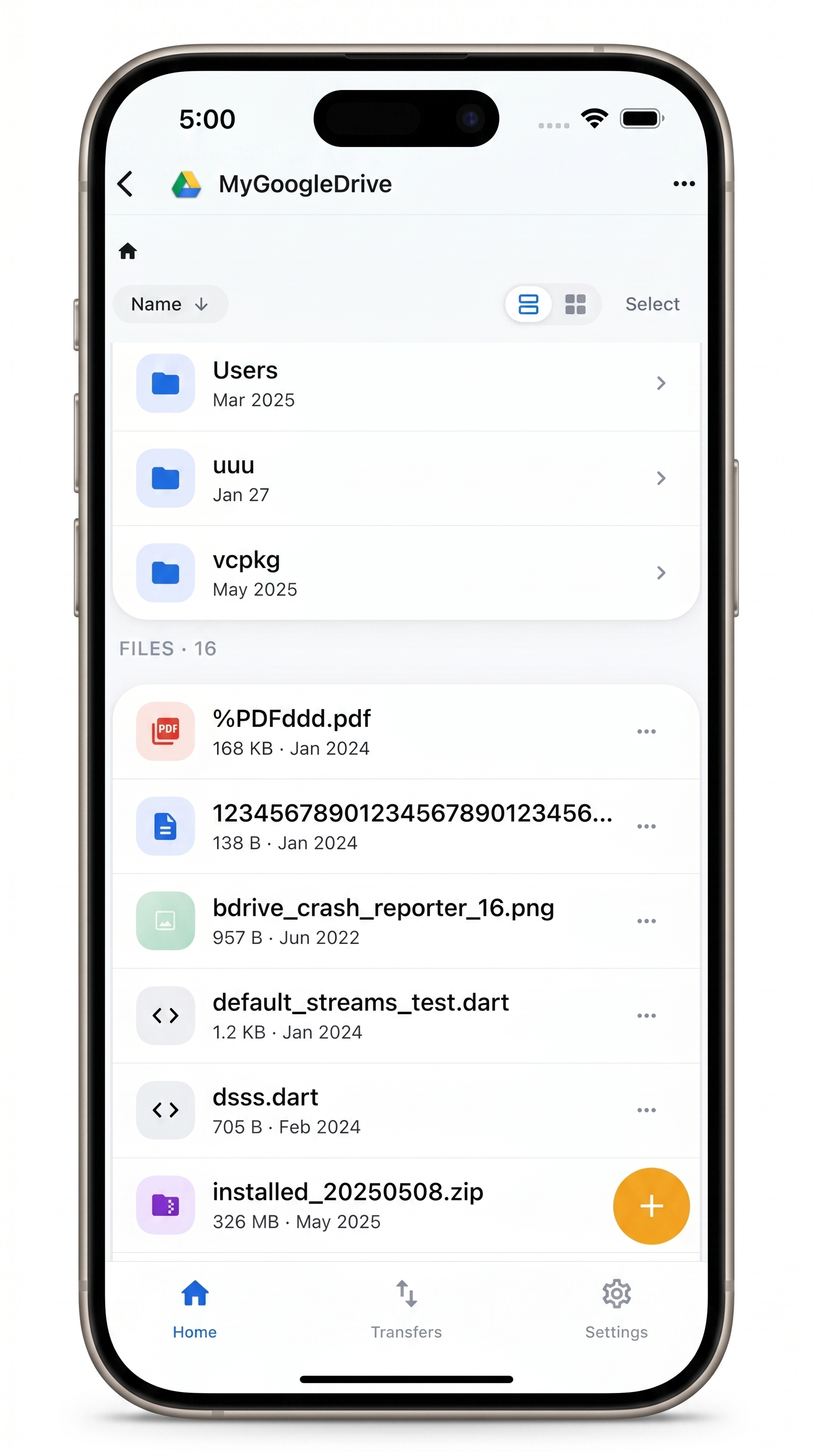
Google Photos and every other cloud — one app
Browse, preview, and download from Google Photos, Google Drive, S3, and more from a single mobile file manager.
- Google Photos alongside Dropbox, OneDrive, SharePoint, S3, and 20+ other clouds
- Preview images and videos in-app without saving to your Camera Roll
- Credentials stored in device secure storage — never leave your device unencrypted
Free Bdrive account required.
What NetDrive Mobile Is (and How It Differs from Desktop)
NetDrive Mobile is a multi-cloud file manager for iOS and Android. It gives you a single browser for Google Photos, Google Drive, Dropbox, OneDrive, SharePoint, Amazon S3, WebDAV, SFTP, and more — all without switching between dedicated apps. Tap any connected cloud to browse its folder hierarchy, upload files from your phone, download files to local storage, or preview documents and media in-app.
This is distinct from the desktop version of NetDrive, which mounts clouds as drives in Windows Explorer or macOS Finder. On mobile there is no OS-level drive mount. NetDrive Mobile gives you direct browsing and file management access to each cloud you connect — the same pattern as a file manager, not a drive.
A free Bdrive account is required. Sign up at netdrive.net, or use Sign in with Apple or Google on the app’s login screen. Credentials are stored in iOS Keychain on iPhone or Android Keystore on Android — your authentication tokens never leave the device unencrypted.
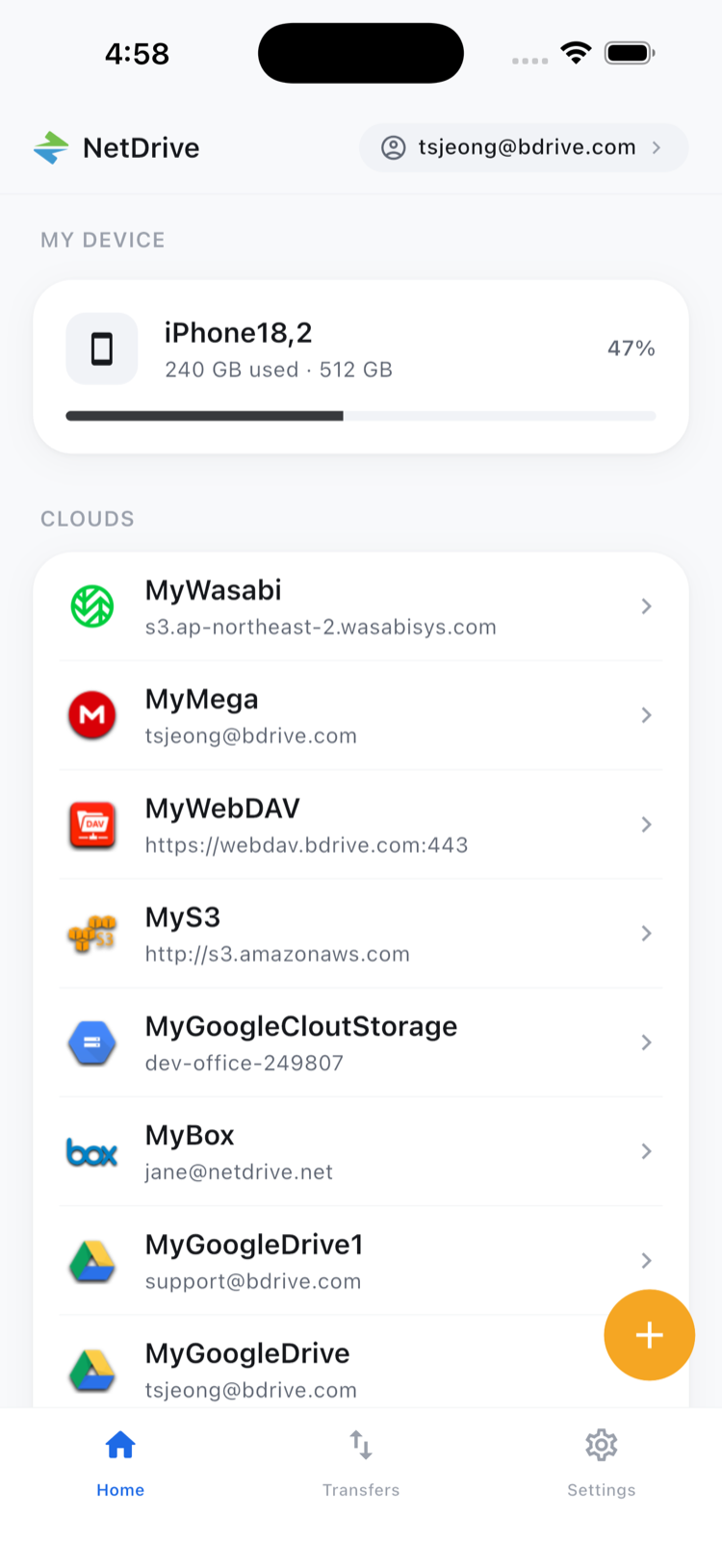
Adding Google Photos to NetDrive Mobile
To connect your Google Photos library:
- Tap the + button on the home screen to open the Add a drive sheet.
- Scroll to and tap Google Photos.
- The app opens a browser for Google’s OAuth consent screen. Sign in with your Google account and tap Allow.
- Google Photos appears on the home screen under Clouds. If you connect multiple Google accounts, give each a custom label to tell them apart.
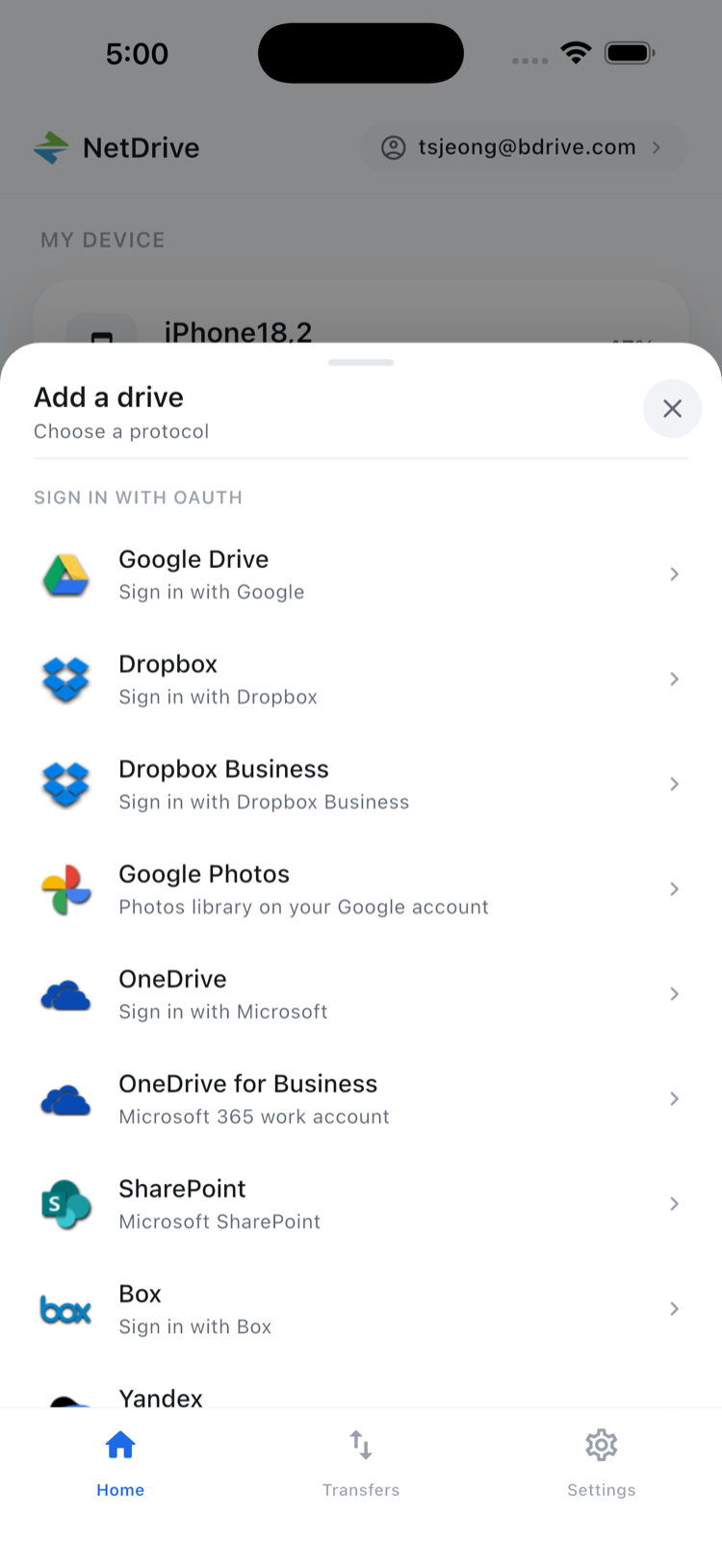
The OAuth flow means your Google password stays with Google — NetDrive Mobile stores only the resulting access token, and you can revoke it at any time from your Google account’s third-party app settings.
Browsing and Previewing Your Photo Library
Once connected, tap Google Photos on the home screen to open your library. NetDrive Mobile shows folders organized the way Google Photos exposes them through its API: your uploaded photos and any albums you’ve created. Tap to drill into any album, and use the back button or breadcrumb trail to navigate up.
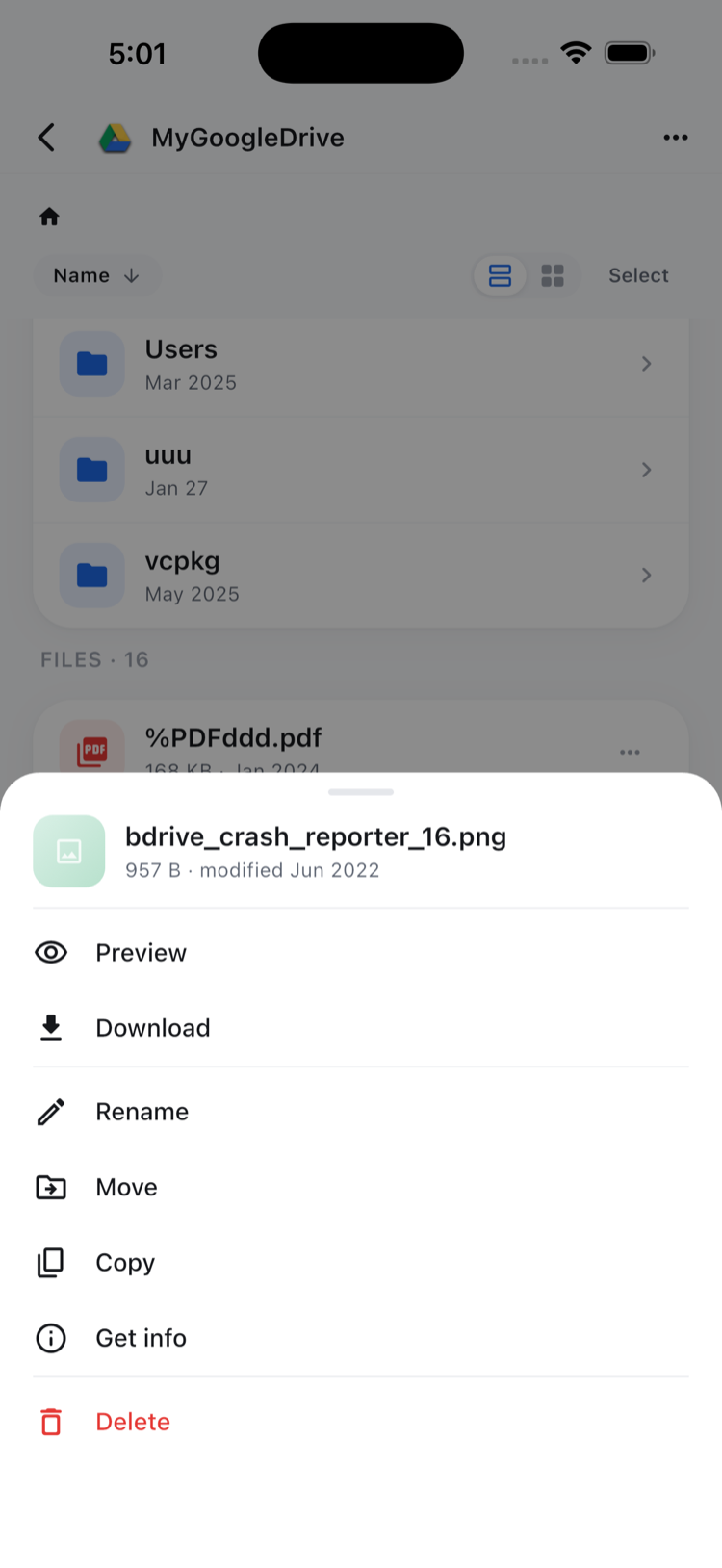
From any file, tap ⋯ to open the action sheet:
- Preview — opens images and videos inside the app without saving to local storage
- Download — saves the original file to device local storage
- Rename, Move, Copy, Delete — standard file management within the same drive
- Get info — shows file size and modification timestamp
In-app preview is particularly useful for photos. Open a high-resolution image, confirm it’s the right shot, and then decide whether to download it — without first filling up your device with files you’re only evaluating.
Selecting Multiple Photos at Once
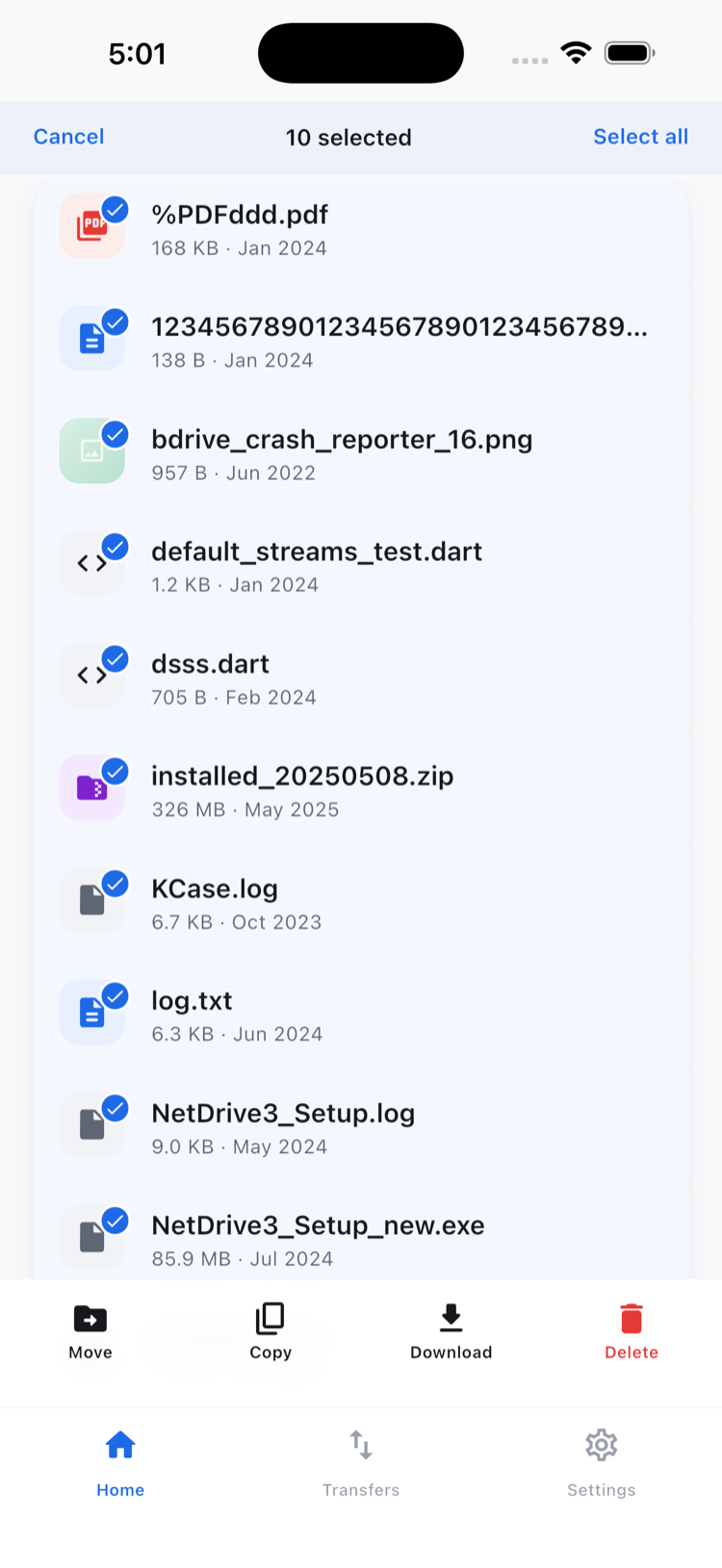
For batch work — downloading a set of shots for editing, organizing a selection, or deleting duplicates — tap Select in the toolbar to enter multi-select mode. Check each file you want, then use the action bar at the bottom to move, copy, download, or delete the entire selection in one step.
The Transfers tab shows real-time progress for every active upload and download, with per-transfer cancel buttons. On a cellular connection where you might want to defer a large download until you’re back on Wi-Fi, you can cancel and re-queue individual transfers without losing the rest of the queue.
iOS and Android Support
NetDrive Mobile runs on iOS 15 or later (App Store, id 1588863649) and Android (Google Play, com.bdrive.ndmobile). The app supports 11 languages including English, Korean, Japanese, German, French, and Spanish, and offers both light and dark themes.
Wrap-up
NetDrive Mobile connects your Google Photos library alongside every other cloud you use — Google Drive, Dropbox, OneDrive, SharePoint, S3, WebDAV servers, SFTP, and more — in a single mobile file manager. For photographers who back up to Google Photos and also work with raw files on Dropbox or an SFTP server, one consistent browse-and-download interface removes the context-switching between separate apps.
For a full overview of NetDrive Mobile and its supported providers, see NetDrive Mobile — Every Cloud in One App. If you also use Google Drive for documents and spreadsheets, Browse Google Drive on iPhone and Android covers that account separately.
— Casey, NetDrive