Tencent Cloud
This guide covers Tencent Cloud Object Storage (COS). You connect with an endpoint and an AccessKey pair. For the parts of the Add drive form that every storage shares, see Add a drive.
Before you start
Create an AccessKey (an AccessKey ID and its AccessKey Secret) in the Tencent Cloud console, and find the endpoint of the region your buckets are in, for example cos.ap-guangzhou.myqcloud.com.
Connect to Tencent Cloud
- Click Drives in the left menu, and then click Add drive.
- In Storage type, choose Tencent Cloud. It is in the Cloud storage group.
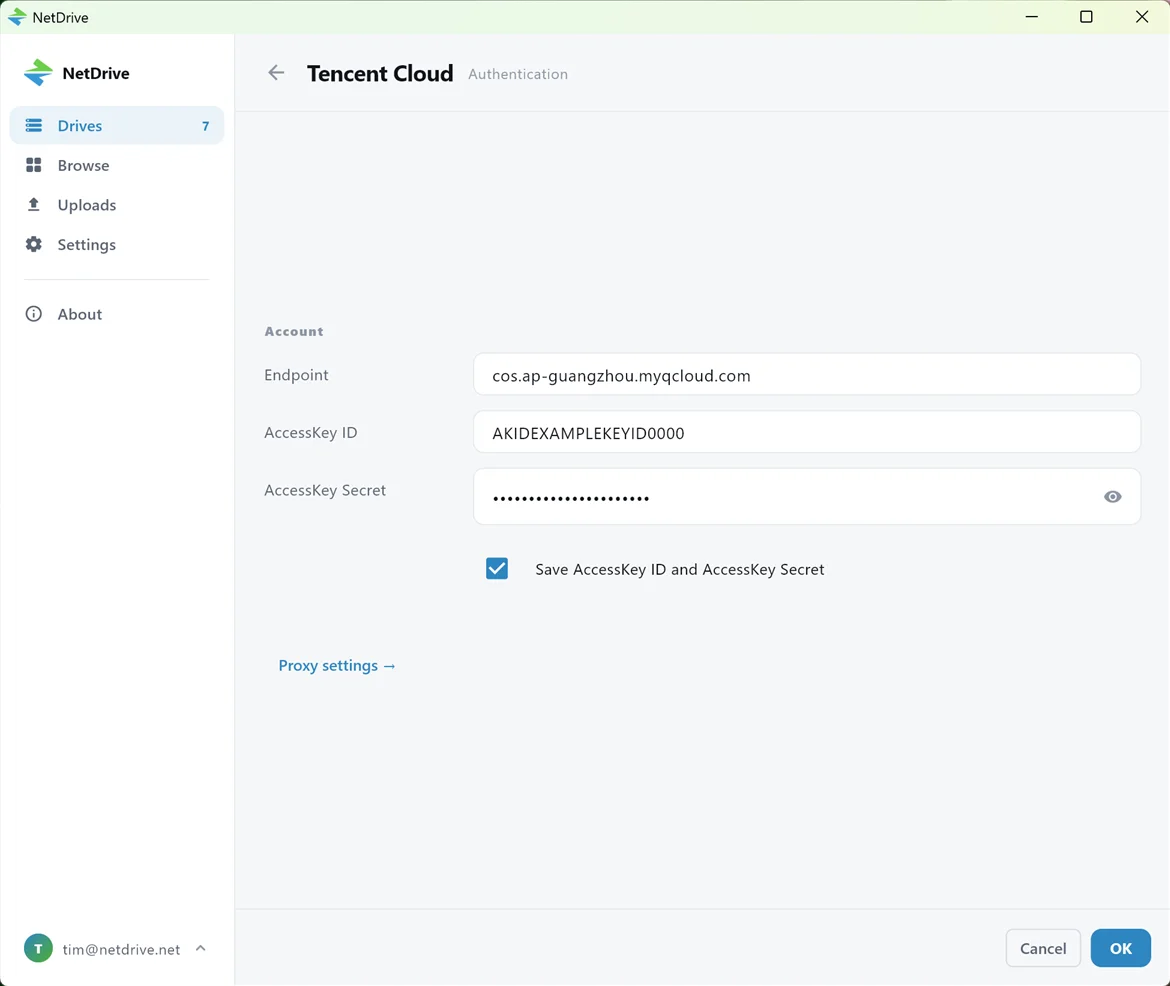
- Click Connect. The Tencent Cloud form opens with Authentication next to its title.
Fill in the fields described below, and click OK.
When NetDrive connects, Connected appears under Storage type.
- If you want, click Options to change the options below, or click Browse next to Remote path to show only one bucket or folder.
- Click Add.
If the connection fails, the reason appears under Storage type. Check the fields and click Connect again. See Connect to your storage.
The Tencent Cloud form
Account
- Endpoint: the endpoint of your region, for example
cos.ap-guangzhou.myqcloud.com. You can also enter the address of one bucket, for examplehttps://examplebucket-1250000000.cos.ap-guangzhou.myqcloud.com; the COS console shows it in the bucket's overview. - AccessKey ID: the ID of your AccessKey.
- AccessKey Secret: the secret of that AccessKey.
- Save AccessKey ID and AccessKey Secret (selected by default): keeps them with the drive. See Save authentication information.
Folders in the drive
With a region endpoint, the top of the drive shows your buckets, and folders and files are inside the buckets. With the address of one bucket, the top of the drive shows the folders and files of that bucket.
Options
Click Options in the form. You can open it before you connect.
- Enable rename/move folder (selected by default): folders on this storage are not real folders, so renaming or moving a folder copies every file in it and can take a long time. If you clear this option, NetDrive refuses to rename or move folders on this drive. Files can still be renamed and moved.
- Use path-style instead of virtual-hosted style: NetDrive puts the bucket name in the path of the address (
server/bucket) instead of in the host name (bucket.server). Select it only if your endpoint needs it. - Total space: the total size, in TB, that the drive reports to your computer.
- Bandwidth: the speed limit for this drive in KB/s.
0(the default) means no limit. - Connection Timeout: how many seconds NetDrive waits when it connects to the server. The default and smallest value is
10.
Click OK to keep your changes. The drive's proxy is set with Proxy settings at the bottom of the screen; see Proxy for this drive.