Sign in and sign out
When you open NetDrive, the sign-in screen appears. Sign in with your account to see your drives.
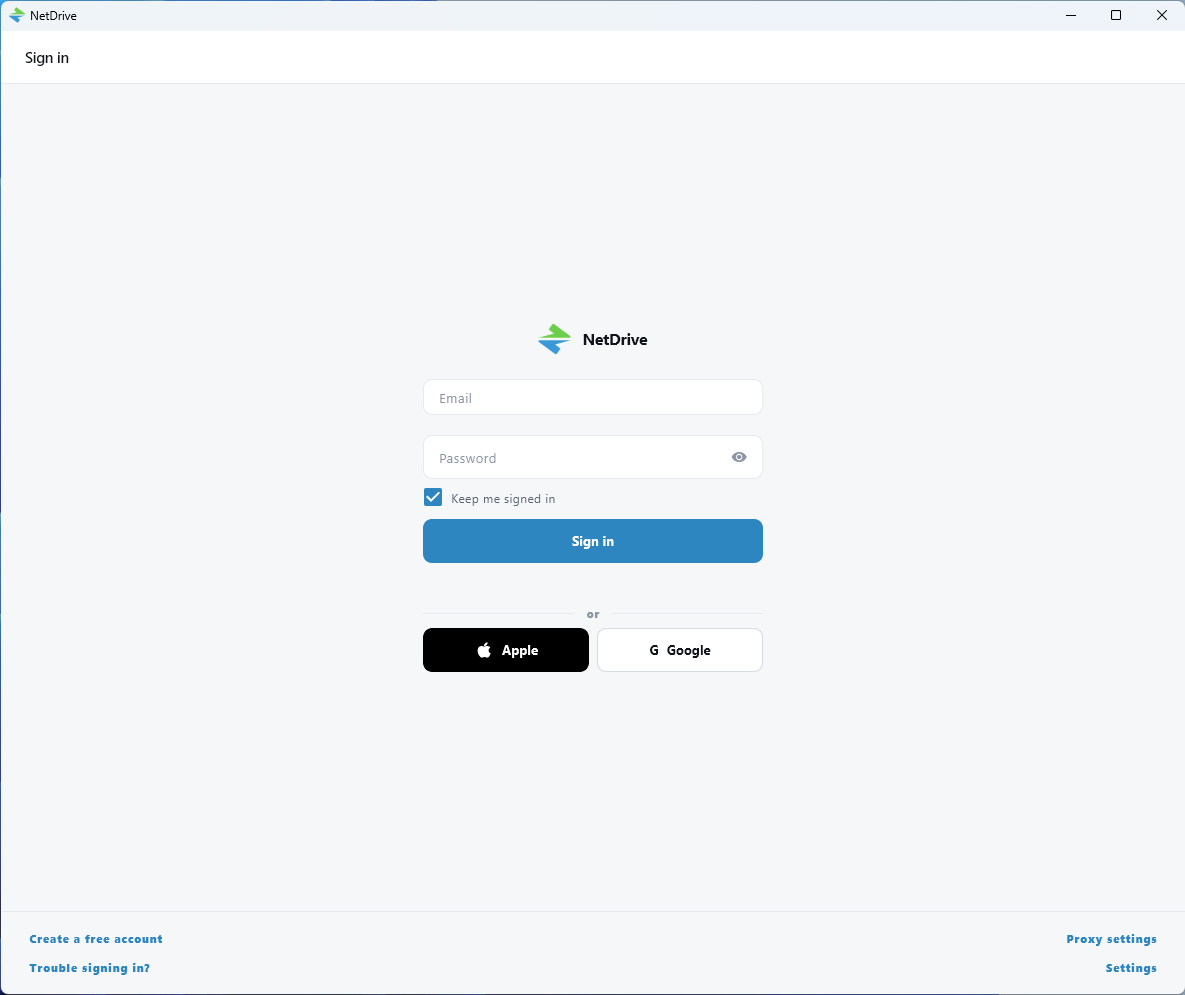
Sign in with email and password
- Enter your Email and Password.
- Leave Keep me signed in selected if you want NetDrive to sign you in automatically the next time it starts. If you clear it, the sign-in screen appears every time NetDrive starts.
- Click Sign in.
If you last signed in with an email and password, the sign-in screen fills in that email address. It does not fill in the password.
If you do not have an account, click Create a free account at the bottom of the screen. The sign-up page opens in your browser. If you cannot sign in, click Trouble signing in? to open the help page in your browser.
Sign in with Google or Apple
- Click Google or Apple under the sign-in button.
- Your browser opens. Finish signing in there.
- NetDrive continues automatically. While it waits, it shows a message such as "Finish signing in with Google in your browser".
If you closed the browser page, click Open browser again. Click Cancel to stop and return to the sign-in screen. Keep me signed in applies to Google and Apple sign-in too.
If you created your account with Google or Apple and try to sign in with an email and password, NetDrive shows "This account was created with social sign-in." Use the same Google or Apple button instead.
Two-factor verification
If your account uses two-factor verification, NetDrive opens your browser after you click Sign in.
- Enter the code you received by email in the browser. You do not enter the code in NetDrive.
- NetDrive signs you in automatically. While it waits, it shows the time left, for example "Waiting for verification… 2:41". You have 3 minutes.
If you closed the browser page, click Open browser again. Click Cancel to stop. If the time runs out, NetDrive shows "The verification timed out." Click Sign in again and start over.
When your devices or license need attention
Sometimes your email and password are correct, but the account cannot be used on this computer yet. NetDrive then shows one of these messages under the sign-in button:
- "This account has reached its device limit."
- "This account is in use on too many devices."
- "Your team has reached its device limit."
- "This account has no NetDrive license or trial."
- "This account can't sign in on this device right now."
Click Open on the web next to the message. A web page where you can manage your devices or license opens in your browser. Make the change there, and then click Sign in again. For plans and licenses, see License and Team License.
When another account is signed in on this computer
If another account is already signed in on this computer, NetDrive asks whether to sign it out and continue. Click Yes to sign out the other account and sign in with yours, or No to cancel.
Proxy and settings before signing in
The links at the bottom right of the sign-in screen work before you sign in:
- Proxy settings: if your network requires a proxy server, set it here first.
- Settings: opens the NetDrive settings. See Settings.
If the sign-in screen says that the NetDrive service is not running or not responding, click Try again. If that does not help, see Common problems.
Sign out
- Click your account (your email address) at the bottom left of the main window.
Click Sign out.
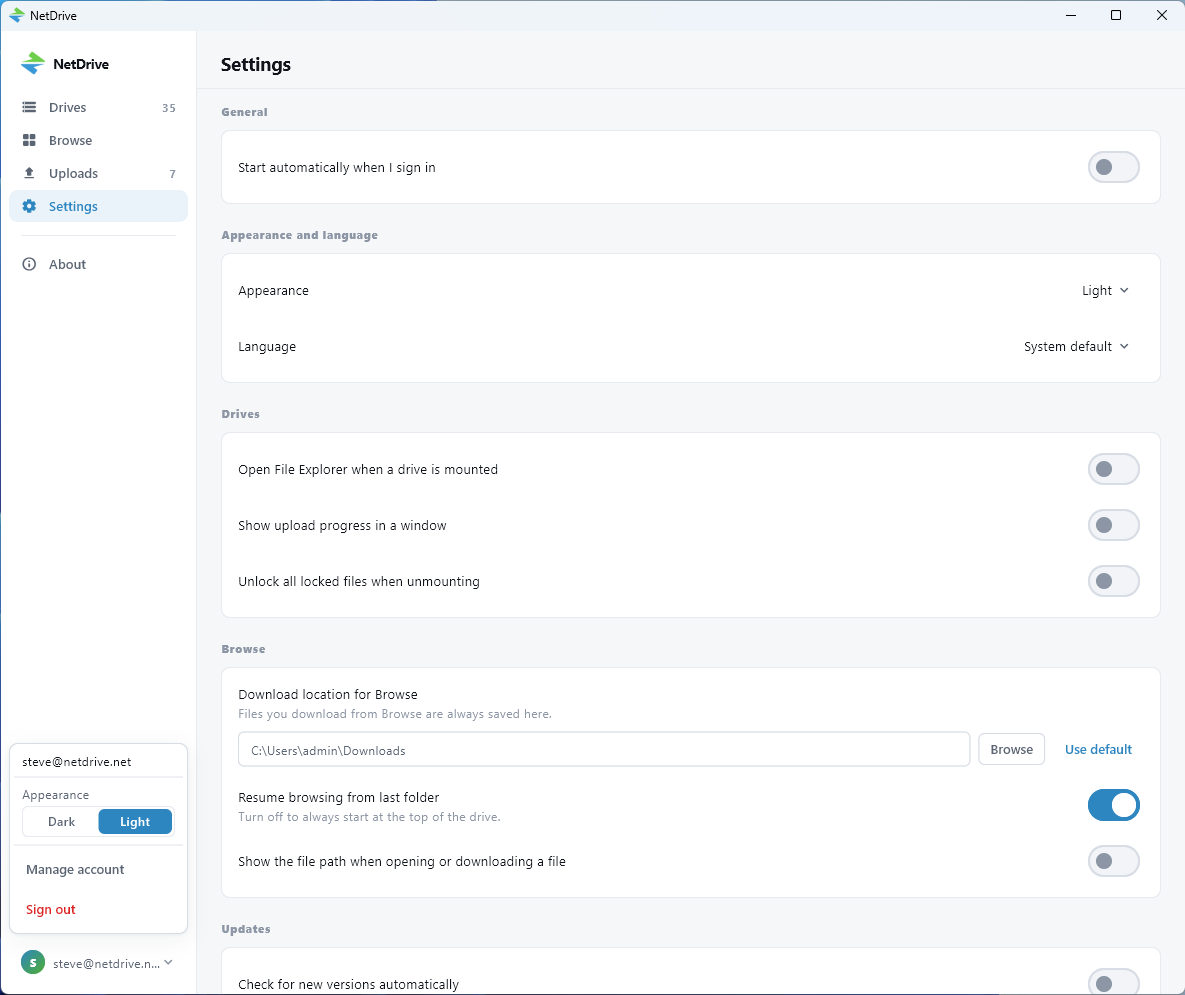
In the Sign out? dialog, click Sign out. If drives are mounted, the dialog tells you how many will be unmounted.
NetDrive returns to the sign-in screen. If it shows "Could not sign out. Please try again.", you are still signed in. Try again in a moment.
Manage your account
Click your account at the bottom left, and then click Manage account. Your account page on the web opens in your browser, already signed in.