Mount and manage drives
Mounting a drive makes your storage appear as a drive on your computer, so your apps can open its files like files on any other drive. This page explains the Drives screen, mounting and unmounting, and the drive menu. To add a drive first, see Add a drive.
The Drives screen
Click Drives in the left menu. Under the title you see how many drives you have and how many are mounted, for example "3 drives · 1 mounted".
Drives are grouped by state: Mounted, Mounting, Unmounting, and Not mounted. Within a group, drives are sorted by name. If you have 9 or more drives, up to five drives you mounted recently that are not mounted now are listed under Recently used, above Not mounted. They are ordered by when you last mounted them, most recent first.
- Search drives finds drives by name or storage type. While you search, Recently used is hidden.
- The refresh button (Refresh list) reads the drive list again, for example after you changed drives on another computer.
Each row shows the drive's name, its storage type and account, its state, and buttons. Some rows have marks:
- A small computer icon on the drive's icon: the drive is saved on this computer only (Stored on this device).
- A people icon: a team drive. See Team drives.
- Password next to the name: the drive does not save its password. NetDrive asks for it when you mount.
When a drive is mounted, the row can also show how much space is used, such as 9.6 / 15 GB. If the used space rounds to 0 in that unit, the row shows the free space instead, such as 2048 PB free.
Mount a drive
Click Mount on the drive's row. The state changes to Mounting and then to Mounted. Mounting cannot be cancelled once it starts.
The buttons on a row depend on the drive's state:
- Not mounted: Browse, Mount, and ⋮
- Mounting or Unmounting: Browse and ⋮
- Mounted: Browse, Open, Unmount, and ⋮
Drives saved on this device only have no Browse button.
To have a drive mounted automatically, set Auto mount in the drive's settings. See Mount options.
What NetDrive may ask when you mount
- Sign in to …: the drive does not save its credentials. Enter them and click Mount. They are used for this mount only and are not saved.
- Verification code: the storage asks for two-factor authentication. Enter the code from your authenticator app and click Confirm.
- On a Mac, if the file system extension is not set up yet, NetDrive shows how to set it up instead of mounting. See Install and uninstall.
- Switch to network drive (Mac): the drive is set to Local drive, which macOS does not support. Click Switch and mount to change the drive to a network drive and mount it. The change is saved in the drive's settings, so it also applies when you use the drive on other computers.
- Something is already there (Mac): see When the mount location is in use.
- For a team drive that you have not set up yet, NetDrive asks you to set up your credentials first. See Team drives.
Where a mounted drive appears
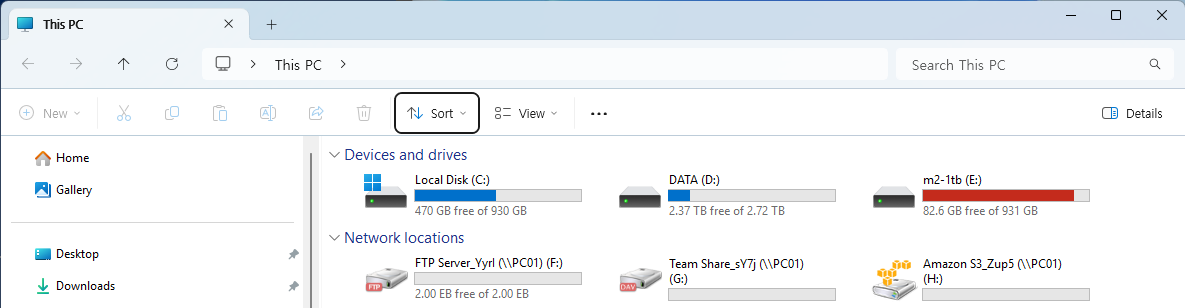
On Windows, the drive appears in File Explorer under This PC with its drive letter. The letter is the one you chose in Drive letter, or a free letter if you chose Auto.
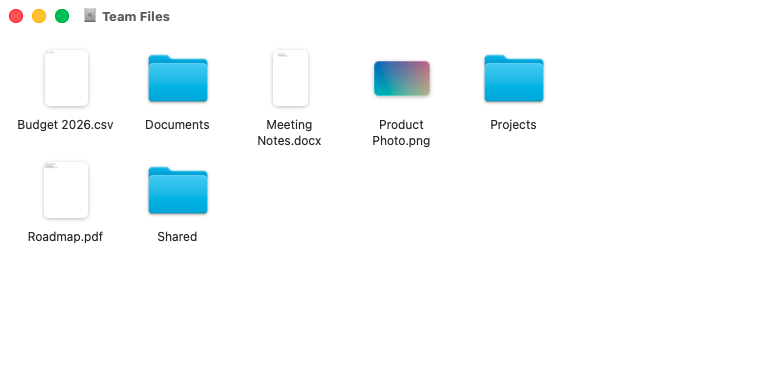
On a Mac, the drive appears in Finder under its drive name. NetDrive mounts it at /Volumes/<drive name>_<your Mac user name>. For example, a drive named Team Files is mounted at /Volumes/Team Files_alice.
To open a mounted drive, click Open on its row. If you turn on Open File Explorer when a drive is mounted in Settings (on a Mac: Open Finder when a drive is mounted), the drive opens by itself after you click Mount. Drives that are mounted automatically do not open by themselves.
If Open shows "Couldn't open the folder. The drive may no longer be mounted.", unmount the drive and mount it again.
Browse without mounting
Browse opens the drive's files inside NetDrive, whether or not the drive is mounted. See Browse without mounting.
When mounting fails
The state changes to Failed, and the reason appears in red under the drive's name. The row then shows Log and Try again.
- Correct the cause, then click Try again. If the drive's settings are wrong, change them with Edit in the drive menu.
- Log shows the drive's log file in File Explorer or Finder. Attach it when you contact support.
- "The service is still processing this drive, so the request was not accepted." means the background service is busy with this drive. Wait a moment and try again. If it keeps happening, use Restart the background service in Settings > Troubleshooting.
Other messages are explained in Common problems.
When the mount location is in use
This happens only on a Mac. If the drive's mount location is not empty, NetDrive shows Something is already there with the path.
- Click Clean up and mount. NetDrive unmounts anything still mounted there, removes the folder if it is empty, and mounts the drive. It never deletes files.
- If the location still holds files, NetDrive shows "That path holds other files, so it could not be cleaned up. Please check it yourself and try again." Check the folder in Finder. Because the location is made from the drive's name, you can also rename the drive with Edit to mount it at a new location.
Unmount a drive
- Click Unmount on the drive's row.
NetDrive asks Unmount …?: "Files open from this drive will be closed. You can use them again after mounting again." Click Unmount.
If you select Don’t ask again, NetDrive unmounts without this question from then on.
If some files could not be uploaded, the question also says how many, and that unmounting deletes their contents left on this computer. Save them first with Save locally… on the Uploads screen. See Uploads. NetDrive shows this warning even if you selected Don’t ask again. This happens on Windows and on Macs that use the kernel extension (Intel, or Apple Silicon with macOS 14 or 15). On Apple Silicon Macs with macOS 26 or later, such files are uploaded again after the drive is mounted again, so NetDrive does not warn.
While files are being uploaded or are open
- On Windows and on Macs with the kernel extension, if the drive is still uploading files, NetDrive shows Upload in progress. Click Wait to keep the drive mounted, and click Unmount again after the upload finishes. To stop the upload and unmount now, click Force unmount. Files whose upload was stopped are kept in a recovery folder; see Uploads.
- On Apple Silicon Macs with macOS 26 or later, if files on the drive are open in an app, NetDrive shows Files are open. Click Cancel to keep the drive mounted, close the apps that use the files, and unmount again. Force unmount unmounts anyway, but unsaved changes may be lost.
When unmounting takes long
If unmounting takes more than about 40 seconds, the row shows "Unmounting is taking a while. The background service may not be responding." with a Restart button. Restart asks whether to restart the background service. Restarting unmounts all mounted drives, and unsaved files may be lost.
If unmounting fails, the reason appears in red under the drive's name, starting with "Could not unmount."
Signing out of NetDrive also unmounts all mounted drives. See Sign in and sign out.
The drive menu
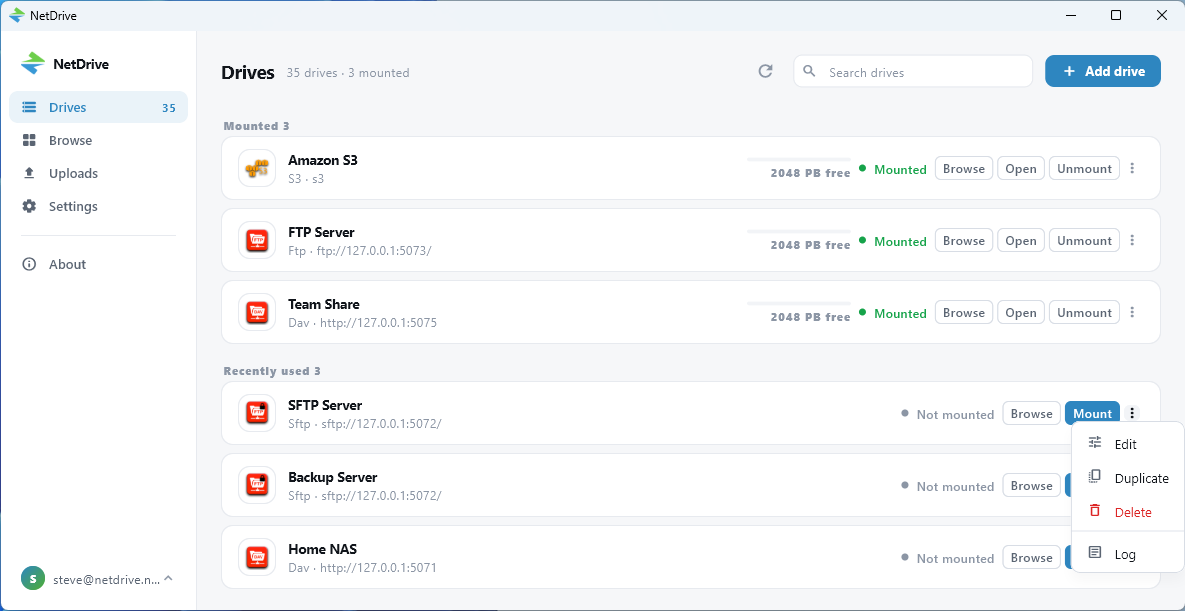
Click ⋮ at the end of a drive's row. The menu shows only the items you can use in the drive's current state.
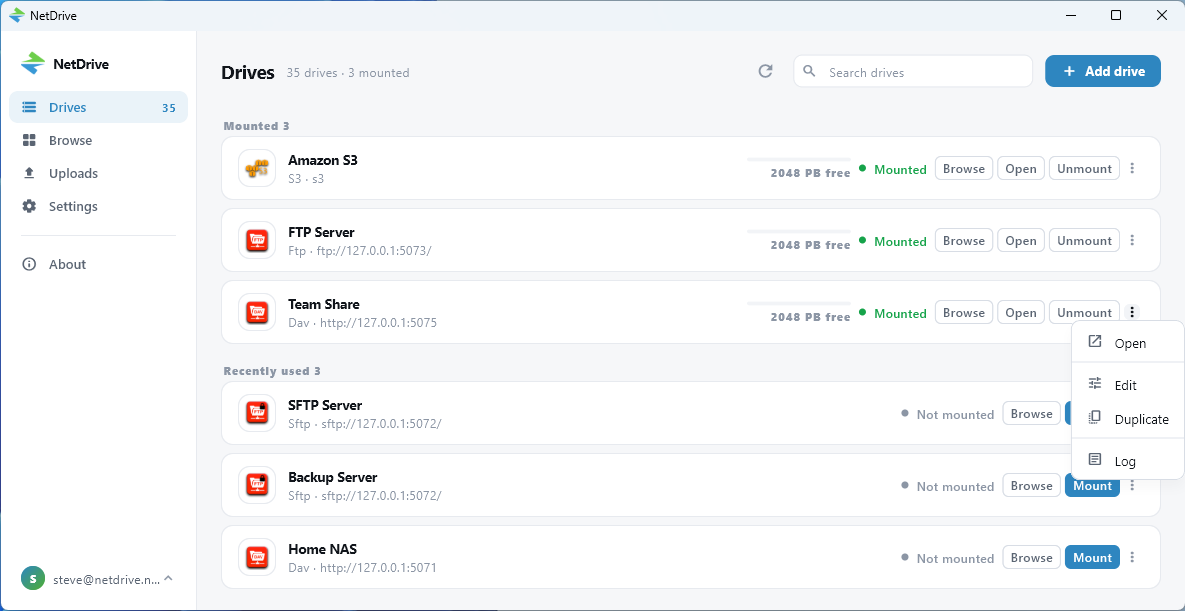
- Open: opens the mounted drive in File Explorer or Finder. Shown only while the drive is mounted.
- Edit: changes the drive's settings. See Edit a drive.
- Duplicate: makes a copy of the drive with the same settings. NetDrive shows the new name first, such as
Google Drive(1). Click Duplicate. - Delete: removes the drive from NetDrive. Shown only while the drive is not mounted. Click Delete to confirm. The files in the storage are not deleted.
- Log: shows the drive's log file in File Explorer or Finder. If the drive has never been mounted, NetDrive opens the log folder.
If you are a team maintainer, team drives also have Publish, Publish again, and Unpublish. See Team drives.
While NetDrive is duplicating or deleting a drive, its ⋮ button is unavailable.
Edit a drive
- Click ⋮ on the drive's row and click Edit.
- The same form as Add drive opens, with the title Configure a personal drive (Configure a team drive for a team drive). Change the settings. The fields are explained in Add a drive.
- Click OK.
NetDrive reads the drive's latest settings when you click Edit. If it can't, it shows Could not open the drive settings. Try again.
- You can't change Storage type. To use another storage, add a new drive.
- If the drive is not mounted and saves its credentials, NetDrive connects to the storage as the form opens, so you can see right away whether the connection works. If it fails, the reason appears under Storage type. You can still change the other settings.
Editing a mounted drive
While the drive is mounted, the form shows "You cannot change storage settings while the drive is mounted." and "You can still change the name, color, and the settings below."
- Connect, Disconnect, Options, and Browse for Remote path are locked.
- You can change the name, color, location, and the options below them. The form shows "Your changes take effect the next time you mount."
- To change the storage settings, click Unmount in the message. The form stays open, and the locked items become available.